Use the File upload question to let users upload files to a SharePoint library from their device or a library, with limits on file types and sizes.
A file upload question is used when you want a user to upload a file to a SharePoint library. Files can be uploaded from the user’s device or from SharePoint libraries that the user has access to. You can also limit the file types that are allowed to be uploaded, if required:Question title: Each question must have a title. It’s a required field and appears on the form as a label when the user fills in the questionQuestion code: Each question needs a unique code. One is generated by default when you start creating a new question, but you can overwrite this and give it a different code, if you prefer. The question code doesn’t appear on the form itself, but you can use it to search and filter by when adding questionsQuestion type: file uploadRequired: You need to specify whether the question is required or not. If you set a question as required, the user must provide an answer to it on the form to submit the form. However, the user can save the form as a draft without answering required questions. If you try to submit a form without answering all required questions, an error message appears showing a list of questions that haven’t been answeredQuestion description: It’s optional whether you enter a description. The description is used as a tooltip on the form and adds an exclamation point beside the question on the form. If the user clicks on the exclamation point, the description entered (tooltip) appearsPublish question as list field: Check this box to save the question to the SharePoint forms list. This allows you to report on the question from thereDisallow extensions: check this option if you want to specify disallowed file extensions rather than allowed file extensionsAllowed/Disallowed file extensions: list the file extensions you want to specify when users upload files, to either allow or disallow them. Separate the extensions with a comma ( .pdf, .docx ). You can leave this field blank if you don’t want to restrict the type of files users can uploadLimit File size: use this to specify the maximum size of a file that can be uploadedUpload to a specific library: There are two options to define where files are uploaded to
Select a library that is present on the current site: open the drop-down to select from a list of libraries available on the site. By default, the Form Documents library is selected.
Select a question from the flow that has the URL of the library entered: this could be a single line of text question, multiple lines of text (plain text) question, choice question, lookup question, or calculated question (text)
Overwrite existing file: by default, when you upload a new file in this question, previous files of the same name are kept as well. However, if you check this option, only one file is kept, i.e. the most recent oneGenerate in document as image: select if you want images to be generated and uploaded into a FlowForma generated document, created using the generate document rule. This places the image into the location you have selected in the document templateGenerate in document as image (wrapping tight): select this option to generate the image with tight text wrapping in the generated documentMax image width / Max image height: specify the maximum size, in pixels, of the image placed in the generated documentResize image: check this option to resize the uploaded image, then specify the Resize image max width and Resize image max height in pixelsShow image preview: checking this option displays a thumbnail preview if an image file is uploadedMax preview width: specify the maximum width, in pixels, of the image previewAnnotate image: check this option to let users draw annotations on the uploaded image, and specify a Default annotation colorHide buttons: checking this option hides the upload, delete, and replace buttons on the form. This is used in cases where you only want to display the URL; the file may be placed using a get list data rule or set question value rule, for exampleHide file link: checking this option hides the URL of the fileShow SharePoint file picker: there are two options for where you can upload files from: from the device you are currently using, or from a SharePoint document library. By default, the only option displayed is Select from device. If you want the user to be able to select a file from a SharePoint document library, check this and the Select from SharePoint library option is added.
SharePoint file picker app id: enter the Application ID of the graph API application created above.
SharePoint file picker callback URL: enter the URL address for your site
Show question title on form: Check this option if you want to display the question’s title to the left of the question’s input field. If you uncheck this option, the input field moves to the left and appears under the other questions/question titlesRender, but hide question on form: If you check this option, the question behaves as if displayed by default. Default value, publishing, and calculation apply despite the question not being displayed on the formOnce you’ve entered all relevant information, click save. If you don’t want to save the question or the changes you’ve made, simply click close.
SharePoint file picker is not supported on mobile
Please note the following special characters are not supported ~ % # ; in the document title and will be changed to _
When you click the + upload button, the following screen is displayed if you have NOT checked Show SharePoint file picker in the question definitionWhen you click the Select from device button, a file browser is displayedAfter you have selected a file, the following screen is displayed. Click the OK button to confirm that this is the correct file, or click cancel to select a different file.The file upload question is now displayed on the form as follows, with the option to delete or replace the file prior to you submitting the step.When the step has been submitted, the file upload question is displayed as follows, and the options to delete or replace the file are no longer available
If you have checked Show SharePoint file picker in the question definition, when you click the + upload button the following screen is displayed.In addition to the Select from device button, you now have a Select from SharePoint library button.When you click on the Select from SharePoint library button, the following screen is displayed. In the left panel are all the site collections defined in FlowForma settings, from which you can select a file.If you click on a site collection, it expands to show all the sites contained in that site collection. In the middle panel are the SharePoint document libraries contained in the site you have selected.Click on the library you require and the files contained in that library are displayed. Click the document you require and then click the OK buttonThe following screen is now displayed for you to confirm that the correct file has been selected.Click OK and the file is added to the question.You have the option to delete or replace the file before the step is submitted.
In Office 365, you can upload a file of up to 250MB using a file upload question.
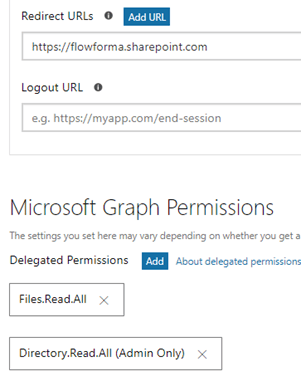
Navigate to the Microsoft application registration portalLog in with your Microsoft accountClick “Add an App”Enter an application name and click “Create”Application Id will be createdClick on “Generate New Password”Click Add PlatformSelect Web platformEnter the address of your site collection into the “Redirect URLs” box, for example https://flowforma.sharepoint.com. This is the same address you’ll need to add into the file upload question settings (SharePoint file picker callback URL)Set up Microsoft Graph PermissionsAdd “Directory.Read.All” and “Files.Read.All” delegated permissions and click Save