

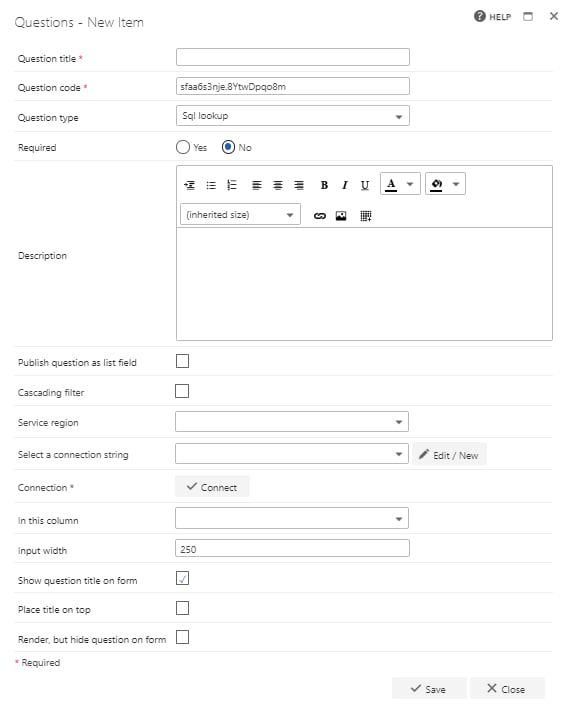
- Question title: each question must have a title. It’s a required field and appears on the form as a label when the user fills in the question
- Question code: each question needs a unique code. One is generated by default when you start creating a new question, but you can overwrite this and give it a different code if you prefer. The question code doesn’t appear on the form itself, but you can use it to search and filter by when adding questions
- Question type: SQL lookup
- Required: specify whether the question is required. If you set a question as required, the user must provide an answer to it on the form to submit the form. However, the user can save as draft without answering all required questions. If you try to submit a form without answering all required questions, an error message appears showing a list of the questions that haven’t been answered
- Question description: it’s optional whether you enter a description. The description is used as a tooltip on the form and adds an exclamation point beside the question. If the user clicks the exclamation point, the description (tooltip) appears
- Publish question as list field: check this box to save the question to the SharePoint forms list. This allows you to report on the question from there
- Cascading filter: check this option if the SQL lookup depends on the answer to another question. When the answer that feeds the lookup changes, the selected value is cleared
- Service region: select the Azure region (Europe, North America, Australia, or India) that hosts the connection, if applicable
- Connection method: choose whether to use a saved connection from Global connections or enter the connection details below
- Select a connection string: if you choose to use a global connection, select it from this dropdown, or click Edit / New to manage global connections
- Server: enter the location of the server where the SQL database is stored
- Database: enter the name of the SQL database to be accessed from the server above (note - this must be an SQL database)
- SQL user name: enter the username of a user who is authorized to update tables in the SQL database selected
- Password: provide the password corresponding to the SQL username selected
- Connection: click Connect to establish the connection to the SQL database. Once the connection is made, an input field is displayed for stored procedures
- Stored procedures: select the SQL stored procedure to be linked to the SQL lookup. This question behaves as a normal lookup question, but the dropdown displays values returned by the SQL procedure instead of values returned from a SharePoint list
- In this column: the dropdown displays input variables defined in the SQL stored procedure; select the required value
- Input width: enter the width of the question’s input field on the form
- Place title on top: check this option to display the question’s title above the input field. If you uncheck this option, the title appears to the left of the input field, as normal
- Render, but hide question on form: if you check this option, the question behaves as shown by default (default value, publishing, and calculation still apply). However, the question isn’t displayed on the form