

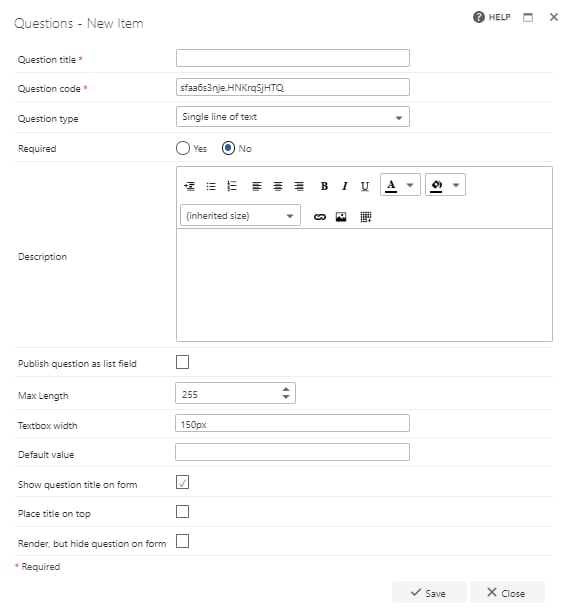
- Question title: each question must have a title. It’s a required field and will appear on the form as a label when the user fills in the question.
- Question code: each question needs a unique code. One is generated by default when you start creating a new question, but you can overwrite this and give it a different code if you prefer. The question code won’t appear on the form itself, but you can use it to search for and filter questions when adding them.
- Question type: single line of text.
- Required: you need to specify whether the question is required or not. If you set a question as required, the user must provide an answer to it on the form to be able to submit the form. However, the user can save as a draft without answering all required questions. If you try to submit a form without answering all required questions, an error message will appear showing a list of questions that haven’t been answered.
- Question description: entering a description is optional. The description is used as a tooltip on the form and adds an exclamation point beside the question on the form. If the user clicks on the exclamation point, the description (tooltip) will appear.
- Publish question as list field: check this box to save the question to the SharePoint forms list. This allows you to report on the question from there.
- Max length: this is the number of characters the user is allowed to enter on the form. The maximum number of characters you can set is 255. You can enter a lower number, but if you enter a number higher than 255, the system will change this to 255.
- Textbox width: set the width of the text box here. The value must be entered in pixels (px).
- Default value: if you want text to appear in the answer box by default, enter it here. You won’t be able to enter more characters than the max length set above.
- Place title on top: check this option to display the question’s title above the input field. If you uncheck this option, the title appears to the left of the input field, as normal.
- Render, but hide question on form: if you check this option, the question will behave as shown by default (default value, publishing and calculation will apply). However, the question will not be displayed on the form.