

- Publicly accessible forms - forms that can be accessed by any member of the general public who has a link to the form.
- Secure accessible forms - forms that can be accessed by a defined user who is not a member of your organization, but has been granted access to specific form(s).
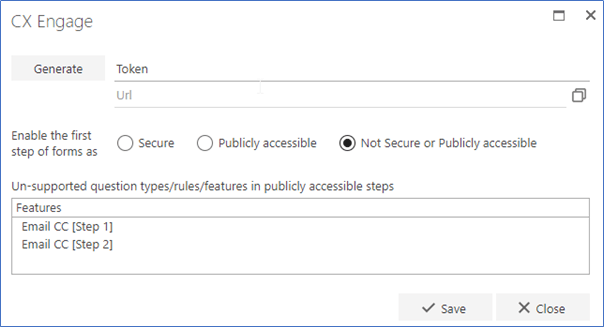
- Not Secure or Publicly accessible forms - forms that are not available to external users, and will only be accessed by members of your organization via SharePoint.
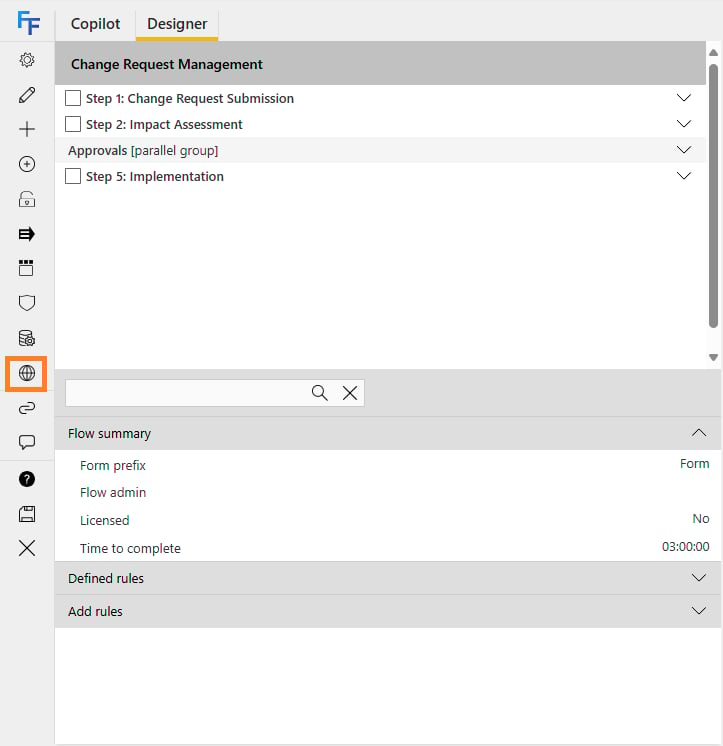
Enable accessible forms
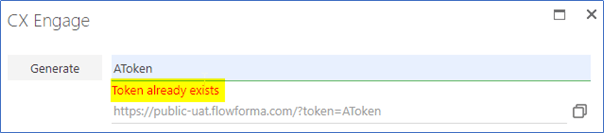
To generate the URL that anonymous or secure users will use to access the form, you can choose to create your own token value or use a system-generated token. To create your own token, enter text in the Token field and a URL is generated using the token.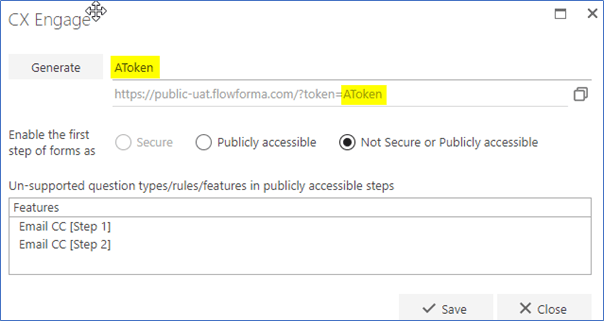
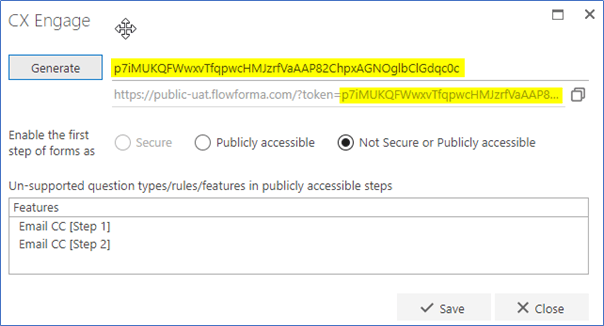
- Not Secure or Publicly accessible: the first step of the process must be completed by a member of your organization; this step cannot be completed by anonymous or secure users.
- Publicly accessible: the first step of the process is accessible to any user who has been provided the link to the form.
- Secure: the first step of the process is secure and is only accessible to users that have been provided the link to the form and have been added as a secure user in the Governance feature.
If you click the  icon, the URL is copied to your clipboard so you can easily paste it elsewhere.
icon, the URL is copied to your clipboard so you can easily paste it elsewhere.Configuration of CX flows
Changes have been made to the CX feature to allow any step in a process to be accessed by anonymous users or secure users. Depending on the sequence of the steps in the process the first step must be defined as Secure, Publicly accessible or Not Secure or Publicly accessible. Any other step in the process can then be defined as Secure, Publicly accessible or Not Secure or Publicly accessible by assigning them to different users.Assigning steps for use with publicly accessible forms
A new user has been created in FlowForma to allow anonymous users to access FlowForma forms. This user’s display name is Anonymous user [External user].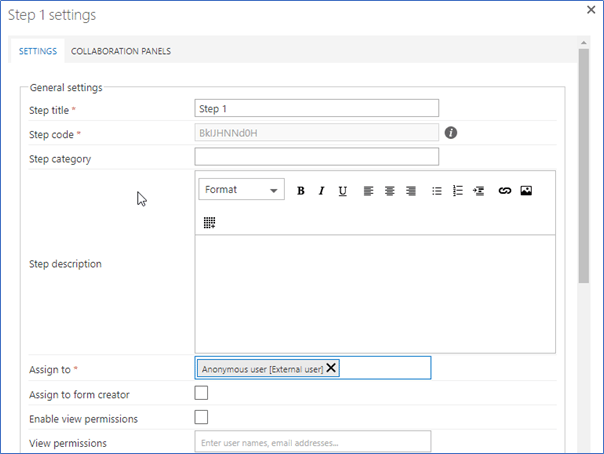
- Create the step normally and assign it to an O365 user.
- Edit the step. When you start typing Anonymous user into the Assign to field, the user will be displayed.
Assigning steps for use with secure forms
Secure users are added through the Governance feature. When a user enters the link to the form, authentication is carried out using a Google or Microsoft account. More details are included on the Secure forms page. In this example, a user with the display name Secure User has been created referencing the person’s Microsoft account.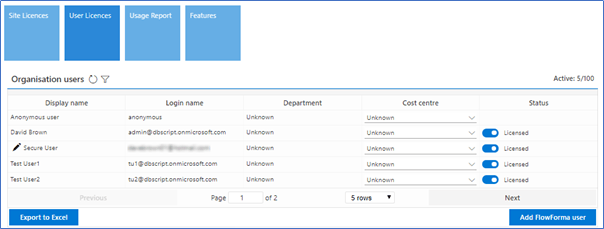
- Create the step normally and assign it to an O365 user.
- Edit the step. When you start typing either the display name or email address of the secure user into the Assign to field, the user will be added as the assignee.
Un-supported question types/rules/features
Not all FlowForma questions and business rules are currently supported for steps that are publicly accessible or secure. Where an un-supported component has been used, the step will appear in this box. In the example below, the step enabled as the Publicly accessible step contains:- An un-supported Person or group question. Question title ‘Person or group’.
- An un-supported Step Assign business rule.
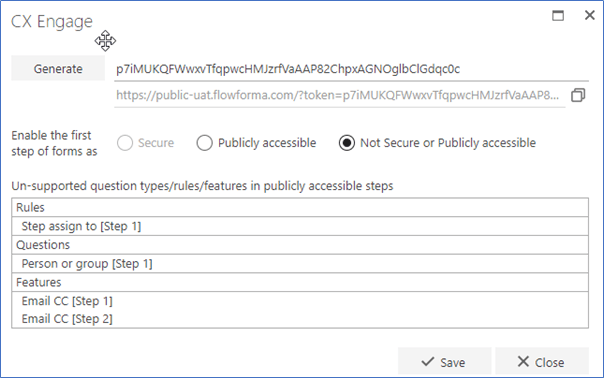
It has not been possible to distinguish between publicly accessible steps and secure steps in this panel. So these un-supported items are not supported only on secure or publicly accessible steps; they will still be supported on steps that have not been configured as secure or publicly accessible.
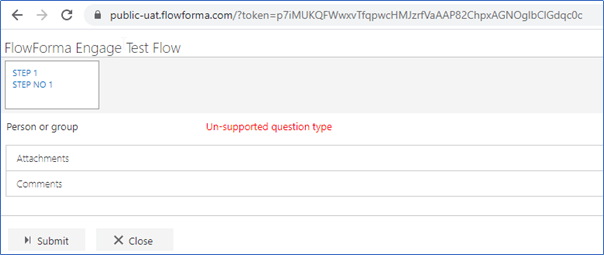
Un-supported items
Steps
Parallel groups are not supported in Publicly accessible or Secure accessible forms.Questions
The following question types are not supported when used on the first step of a Publicly accessible or Secure accessible form.Standard question types
- File links
- Person or Group (has limited functionality - will be disabled for user input and can only be populated via Get List Data rule, or by using a default value)
- Verify digital signature
- SQL Lookup
Add-on questions
- Auto Number
- Button
- Date of birth
- Location
- People picker
Business rules
The following business rules are not supported when used on the first step, or as step-started rules on the second step, of a Publicly accessible or Secure accessible form.Workflow control rules
- Hide show step
- Passback
Data Integration rules
- Execute Sql stored procedure
- Call Azure logic app (feature rule)
- Get user profile property
- CSV Mapping (Add-on rule)
Communications rules
- Multiple document generation
- Attach document to step
- Convert word to PDF
- Add / Remove watermark
- Copy file
SharePoint Action rules
- Create site
- Create list or library
- Document actions
Permissions
- Reset document permissions
- Step view permissions
Repeating table
- Map repeating table FlowForma
- Identify unique RT column (Add-on rule)
Calculations
- Calculate non-working days (Add-on rule)
- Calculate date difference (Add-on rule)