

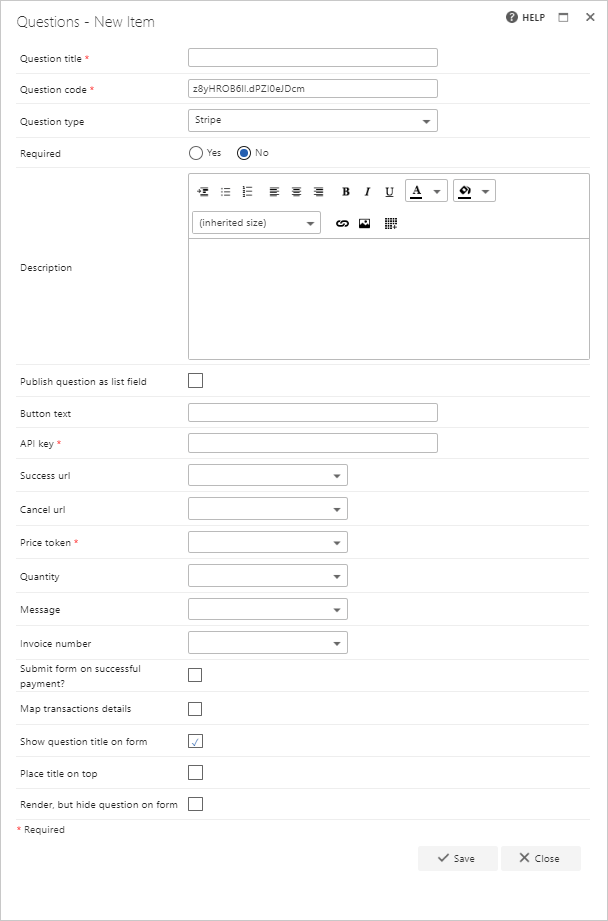
- Question title: each question must have a title. It’s a required field and appears on the form as a label when the user fills in the question
- Question code: each question needs a unique code. One is generated by default when you start creating a new question, but you can overwrite this and give it a different code if you prefer. The question code doesn’t appear on the form itself, but you can use it to search and filter when adding questions
- Question type: Stripe
- Required: specify whether the question is required. If you set a question as required, the user must answer it to submit the form. However, the user can save the form as a draft without answering required questions. If they try to submit a form without answering all required questions, an error message appears showing a list of unanswered questions
- Question description: entering a description is optional. The description is used as a tooltip on the form and adds an exclamation point beside the question. If the user clicks the exclamation point, the description you entered appears as a tooltip
- Publish question as list field: check this box to save the question to the SharePoint forms list. This allows you to report on the question from there
- Button text: enter the value to display on the button users click to launch the payment screen
- API key: enter the API key used to collect payments to your Stripe account
- Success url: enter the URL the user is redirected to upon successful payment. This can be free text or selected from a question in the dropdown
- Cancel url: enter the URL the user is redirected to if they cancel the payment. This can be free text or selected from a question in the dropdown
- Price token: enter the price token for the item from your Stripe account. This can be free text or selected from a question in the dropdown
- Quantity: enter the value to use as the quantity for the items to charge for. This can be free text or selected from a question in the dropdown
- Message: include a message to be seen on the payment screen
- Invoice number: include an invoice number to be sent with the payment request for referencing
- Submit form on successful payment: when checked, this submits the form automatically when payment is successful
- Map transactions details: when enabled, the user can map payment transaction details into the specified question type
- Show question title on form: check this option if you want to display the question’s title to the left of the question’s input field. If you uncheck this option, the input field moves to the left and appears under the other questions/question titles
- Place title on top: check this option to display the question’s title above the input field. If you uncheck this option, the title appears to the left of the input field, as normal
- Render, but hide question on form: if you check this option, the question behaves as if displayed by default. Default value, publishing, and calculation apply despite the question not being displayed on the form