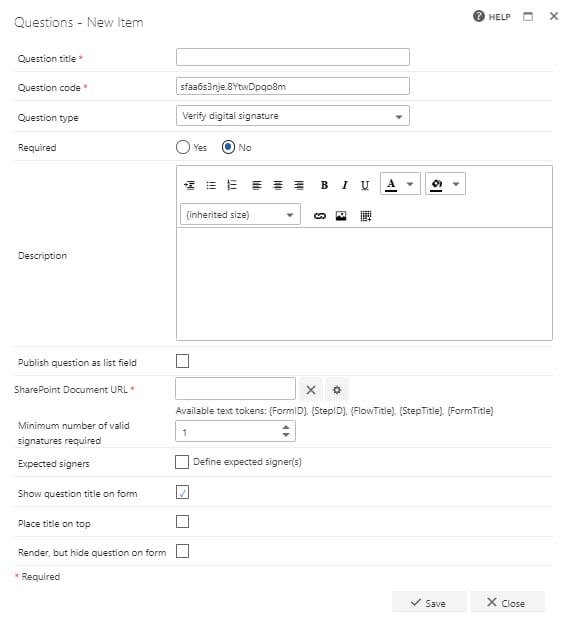
To create a digital signature, you must have a signing certificate to prove your identity. When you send a digitally-signed macro or document, you also send your certificate and public key. Certificates are issued by a certification authority, and like a driver’s license, can be revoked. A certificate is usually valid for one year, after which the signer must renew or get a new signing certificate to establish identity.A Certificate Authority (CA or Certification Authority) is an entity that issues digital certificates. The digital certificate certifies the ownership of a public key by the named subject of the certificate. This allows others (relying parties) to rely upon signatures or assertions made by the private key that corresponds to the public key that is certified.
Digital signature assurances
A digital signature must comply with the following:- Authenticity: the signer is confirmed as the signer.
- Integrity: the content has not been changed or tampered with since it was digitally signed.
- Non-repudiation: prove to all parties the origin of the signed content. Repudiation refers to the act of a signer denying any association with the signed content.
- Notarisation: signatures in Word, Excel, or PowerPoint files are time-stamped by a secure time-stamp server, and under certain circumstances have the validity of a notarisation.
- The digital signature is valid.
- The certificate associated with the digital signature is current (not expired).
- The signing person or organisation, known as the publisher, is trusted.
- The certificate associated with the digital signature is issued to the signing publisher by a reputable certificate authority.
Signed documents, which have a valid time stamp, are considered to have valid signatures, regardless of the age, or revocation status, of the signing certificate.
Microsoft Office digital signature
There are two ways to use digital signatures to sign Office documents. You can either add visible signature lines to a document to capture one or more digital signatures, or you can add an invisible digital signature to a document. If you use CoSign digital signatures, tutorials that explain how to create and use signatures are available at arx.com/digital-signature. A signature line resembles a typical signature placeholder that might appear in a printed document. However, it works differently. When a signature line is inserted into an Office file, the author can specify information about the intended signer and instructions for the signer. When an electronic copy of the file is sent to the intended signer, this person sees the signature line and a notification to sign the document. The signer can:- Type a signature.
- Select a signature digital image.
- Write a signature by using the inking feature of the Tablet PC.
A digitally-signed document becomes read-only to prevent modifications.
Add or remove a Microsoft Office digital signature
Digital signatures (also known as digital ID), can be used in Microsoft Office programs: Word, Excel, and PowerPoint. FlowForma currently supports the use of digital signatures in Word 2010 and above.Create a signature line in Word or Excel
- In the document or worksheet, place your pointer where you want to create a signature line.
- On the insert tab, in the text group, click the signature line list, and then click Microsoft Office signature line.
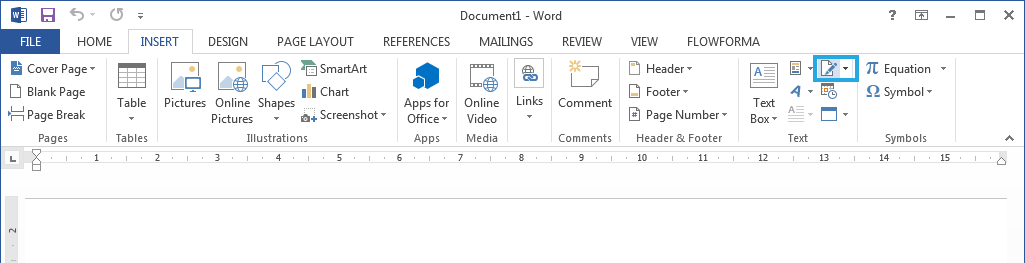
- In the signature setup dialog box, type information that will appear beneath the signature line:
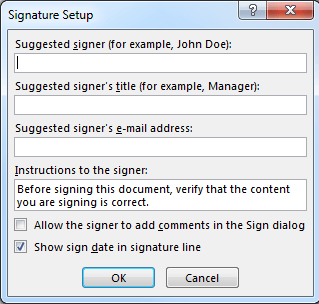
- Suggested signer: the signer’s full name.
- Suggested signer’s title: the signer’s title, if any.
- Suggested signer’s email address: the signer’s email address, if needed.
- Instructions to the signer: add instructions for the signer.
- Select one or both of the following checkboxes:
- Allow the signer to add comments in the sign dialog box: lets the signer type a purpose for signing.
- Show sign date in signature line: the signature date appears with the signature.
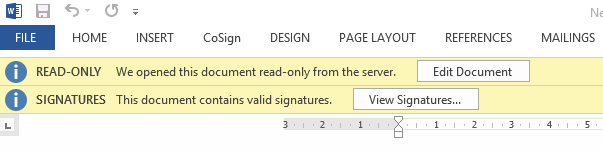
To add additional signature lines, repeat these steps. If the document remains unsigned, the Signatures Message Bar appears. Click View Signatures to complete the signature process.
Sign the signature line in Word or Excel
When you sign a signature line, you add a visible representation of your signature and a digital signature.-
In the file, right-click the signature line.
If the file opens in protected view, click edit anyway, assuming the file is from a reliable source.
-
From the menu, select sign.
- To add a printed version of your signature, type your name in the box next to the X.
- To select an image of your written signature, click select image. In the select signature image dialog box, find your signature image file, select it, and click select.
For customers using Chinese- (Traditional or Simplified), Korean, or Japanese language versions, the stamp signature line option appears.
- You can also sign a signature line by double-clicking it and typing your name next to the X, or by clicking the arrow next to the signature in the requested signatures section of the signature pane and selecting sign from the menu.
- To add a handwritten signature (Tablet PC users only), sign your name in the box next to the X using the inking feature.
- Click sign.
- The red signatures button appears at the bottom of the document or worksheet.
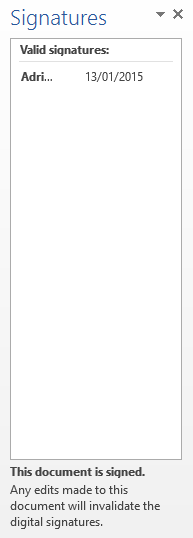
Remove digital signatures from Word or Excel
- Open the document or worksheet that contains the visible signature you want to remove.
- Right-click the signature line.
- Click remove signature.
- Click yes to confirm.
You can also remove a signature by clicking the arrow next to the signature in the signature pane; and then click remove signature.
Add invisible digital signatures in Word, Excel, or PowerPoint
To protect the authenticity of a document’s content, you can add an invisible digital signature. Signed documents have the signatures button at the bottom of the document.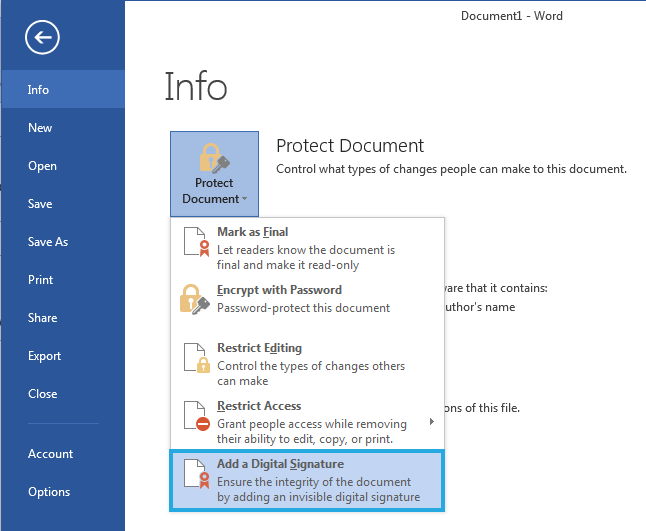
- Go to file and select info.
- Select add a digital signature from the protect document drop-down menu.
- Read the Word, Excel, or PowerPoint message, and then click OK.
- In the sign dialog box, in the purpose for signing this document box, type the purpose.
- Click sign.
Remove invisible digital signatures from Word, Excel, or PowerPoint
- Open the document, worksheet, or presentation that contains the invisible signature you want to remove.
- Go to file and select info.
- Click view signatures.
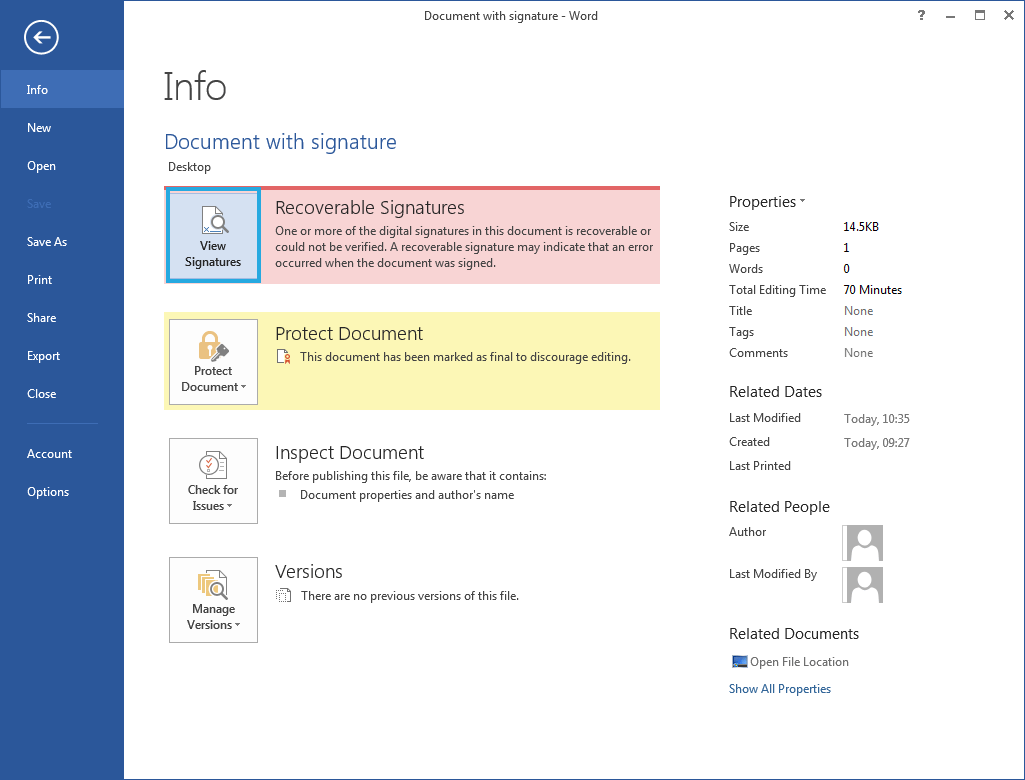
- The document, worksheet, or presentation view returns, and the signatures pane appears.
- Select remove signature from the drop-down menu beside the relevant signature.
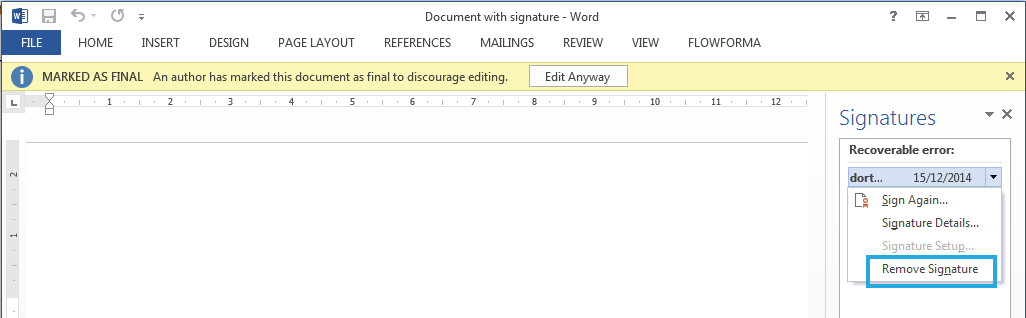
- Click yes to confirm that you want to remove the signature.
Why use digital signatures
Digital signatures provide a record of exactly what was signed and can be verified in the future. When the signer adds a visible signature to the document, a digital signature is added at the same time to authenticate identity. After a document is digitally signed, it becomes read-only to prevent modifications. Like a visible digital signature line, an invisible digital signature assures the authenticity, integrity, and origin of a document. You can add invisible digital signatures to Word documents, Excel workbooks, and PowerPoint presentations.Using the “Verify digital signature” question
Depending on your flow design, you can have one question that verifies all the signatures, or one question for each signature that has to be verified in different steps. In both cases, type the email address of the person who has to sign the document into the signer ID and signer email fields: