

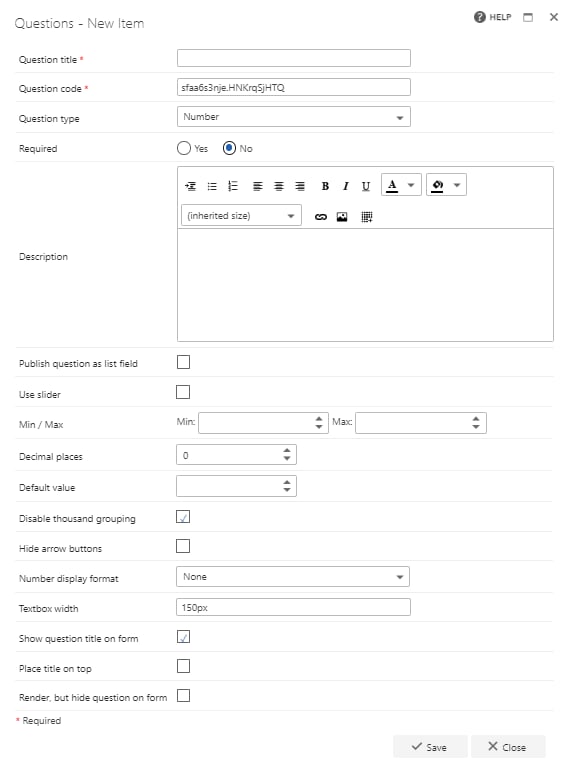
- Question title: Each question must have a title. It’s a required field and will appear on the form as a label when the user fills in the question
- Question code: Each question needs a unique code. One is generated by default when you start creating a new question, but you can overwrite this and give it a different code, if you prefer. The question code won’t appear on the form itself, but you can use it to search and filter by when adding questions
- Question type: number
- Required: You need to specify whether the question is required or not. If you set a question as required, the user must provide an answer to it on the form in order to submit the form. However, the user can save the form as a draft without answering required questions. If you try to submit a form without answering all required questions, an error message will appear showing a list of questions that haven’t been answered
- Question description: It’s optional whether you enter a description. The description is used as a tooltip on the form and will add an exclamation point beside the question on the form. If the user clicks on the exclamation point, the description entered (tool tip) will appear
- Publish question as list field: Check this box to save the question to the SharePoint forms list. This allows you to report on the question from there
- Use slider: displays the answer field as a graphical sliding number scale
- Min/max: if you want to limit the values that can be entered into the form, enter values for the minimum and/or maximum allowable values here. You can put a minus sign in front of the number to indicate a negative value. If the user enters a number outside of the minimum/maximum range, the system automatically adjusts it to a valid number. You don’t need to enter values in these fields; if they’re left blank, all values can be entered on the form
- Decimal places: use the drop-down menu to select the number of decimal places (0-5). When the user enters a number, it’s automatically rounded to the correct number of decimal places
- Default value: if you want a value to appear by default when the user opens the form, you can enter it here. The user can overwrite this number
- Disable thousand grouping: by default, numbers are grouped in thousands with a comma (,). You can check this checkbox to disable this
- Hide arrow buttons: by default, the number input box is displayed with arrows on the right of the box to increase or reduce the number. If you don’t want to display these arrows on the form, check the checkbox. This may be particularly useful on the mobile app, where the screen is much smaller
- Number display format: select how you want to display the number on the form, i.e. none (simple number), currency (with currency symbol) or percentage (with %) If you selected currency as the number display format, you’ll be able to select the relevant currency from the next drop-down menu, which includes 11 currencies (US Dollar, Australian Dollar, Canadian Dollar, New Zealand Dollar, Euro, Japanese Yen, Pound Sterling, Nigerian Naira, Chinese Yuan Renminbi, Swiss Franc, Singapore Dollar). There are no additional settings for the other number formats
- Textbox width: sets the width of the input field on the form, entered as a px value, e.g. 250px
- Show question title on form: Check this option if you want to display the question’s title to the left of the question’s input field. If you uncheck this option, the input field moves to the left and appears under the other questions/question titles
- Render, but hide question on form: If you check this option, the question behaves as if displayed by default. Default value, publishing, and calculation apply despite the question not being displayed on the form
Validation
When you save the question, the following rules are checked:- The maximum value must be greater than or equal to the minimum value
- If Use slider is enabled, both a minimum and maximum value are required
- A default value, if set, must fall within the minimum/maximum range
- Enabling Use slider automatically hides the arrow (spinner) buttons