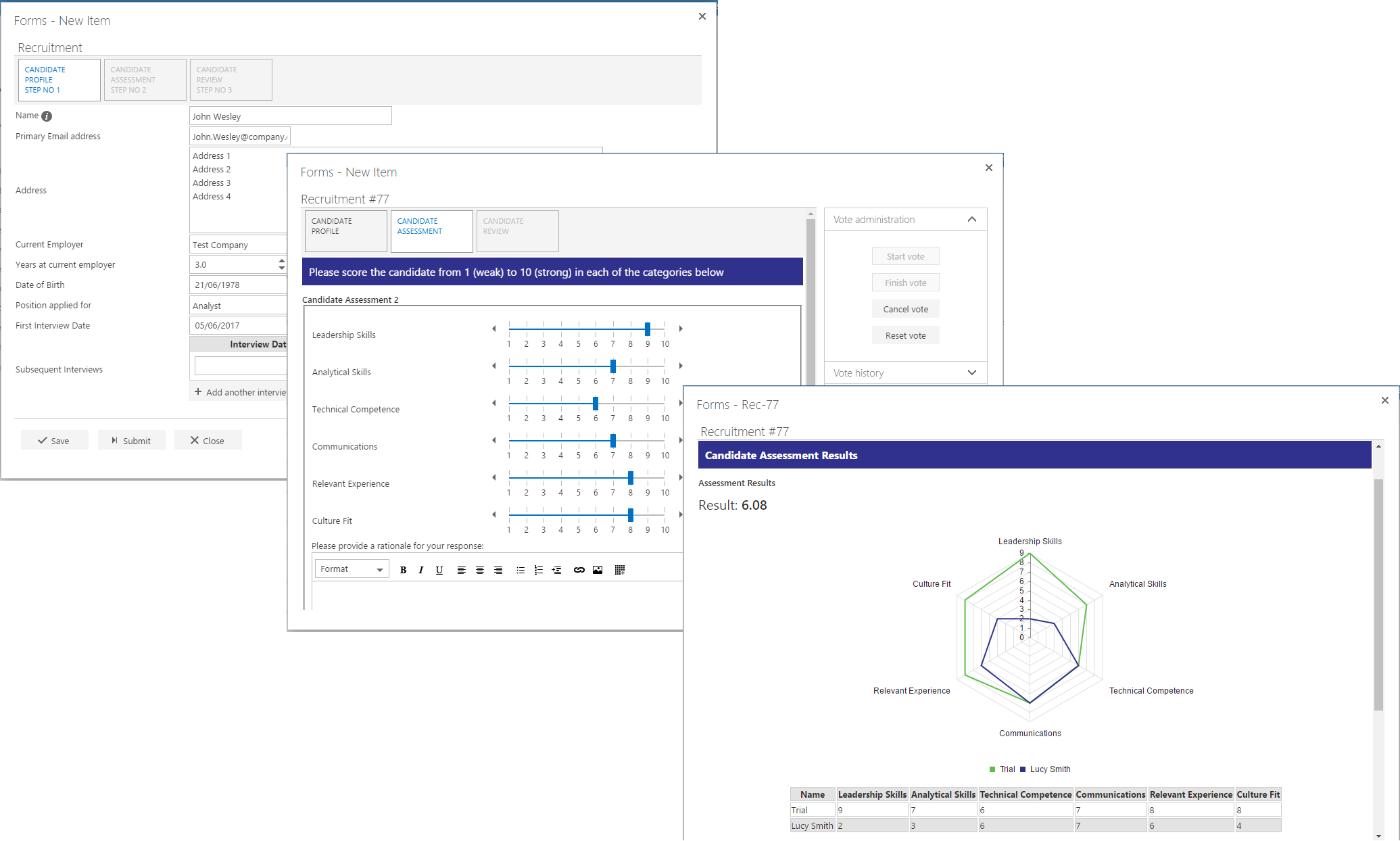

The voting functionality allows you to get feedback and input from decision groups. For example, you could use it for processes like tender response reviews or candidate assessments. Each member of the decision group can provide their score, and once the voting is complete, the results are displayed in a graph. The example below shows how to build a simple voting flow in a three-step process, using a candidate assessment.
  1. Candidate profile: provide the details of the applicant
  2. Candidate assessment: contains the voting question
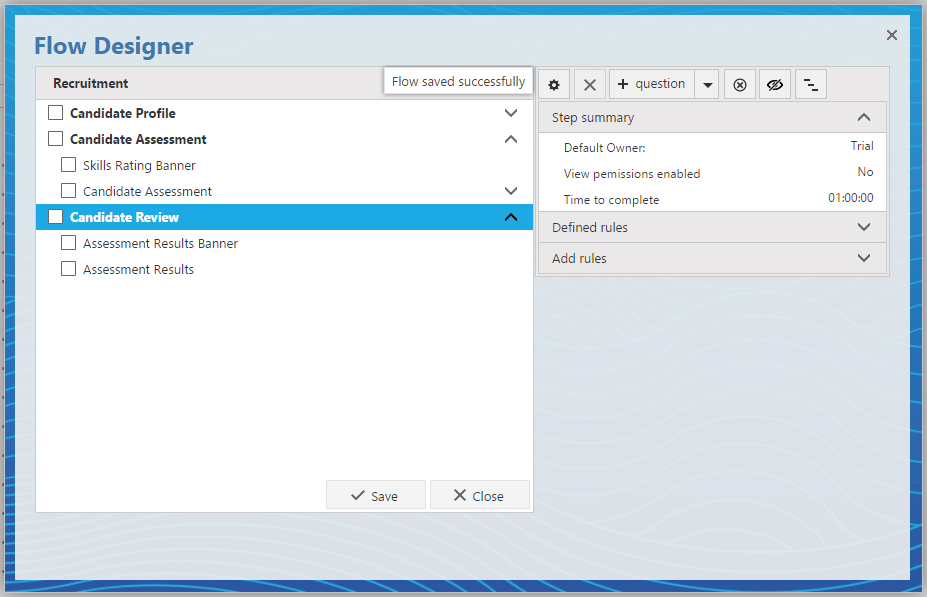
  3. Candidate review: contains the voting result question
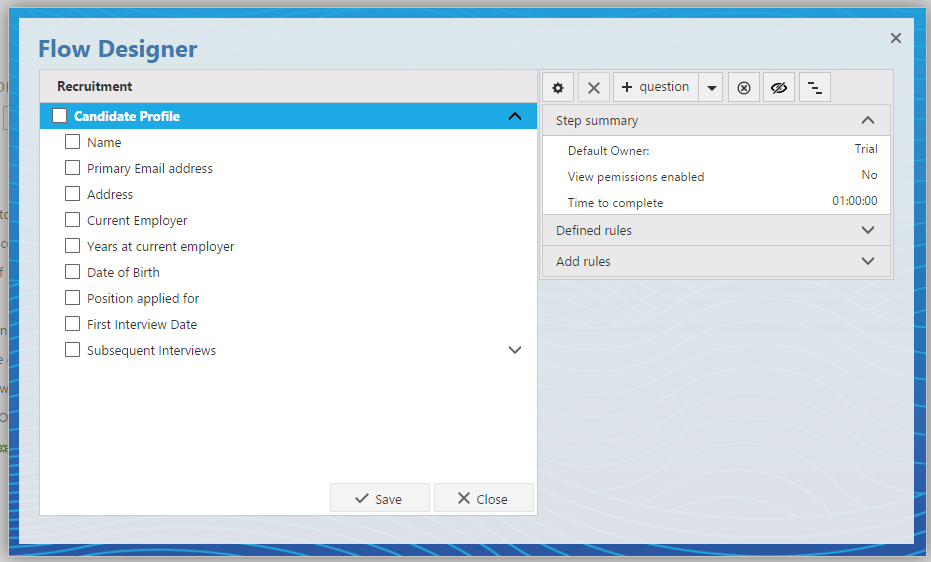
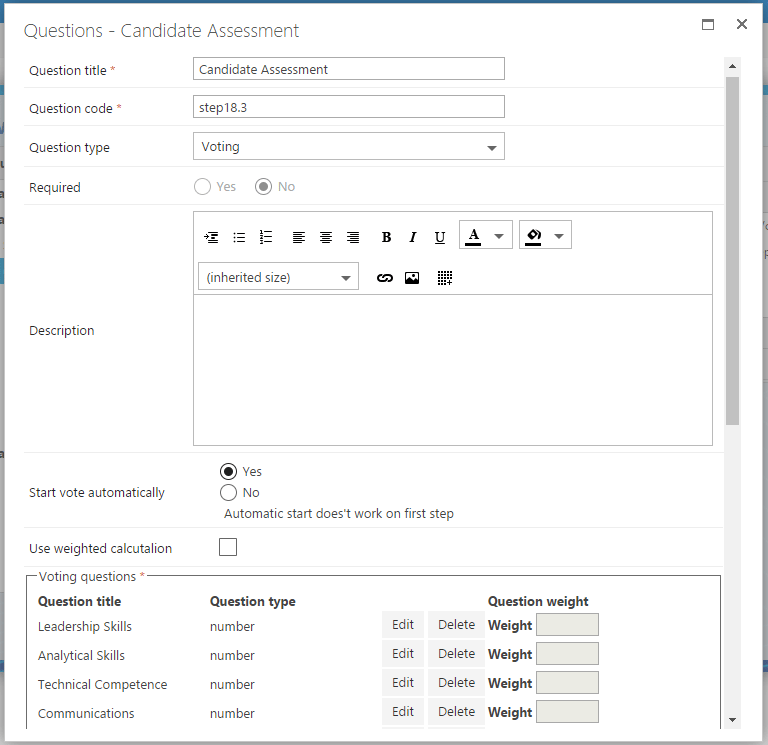
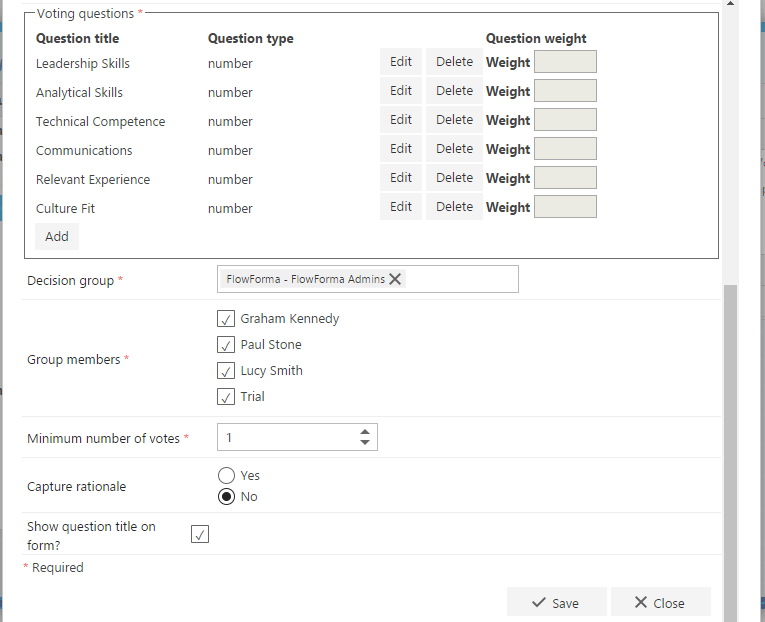
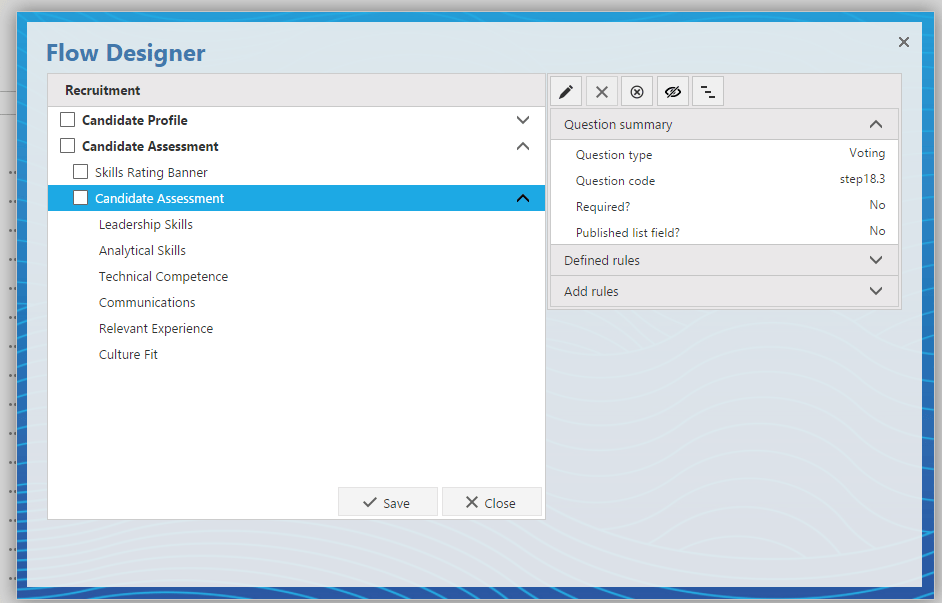
Step 1: Create a new step and add some questions related to details of the applicant (name, email address, date of birth, current employer, interview date): Candidate profile step with applicant detail questions Step 2: Create a new step and add a voting question with the required questions for voting: Voting question configuration You can add number questions or “Yes/No” questions and apply weights on each one of them: Number and Yes/No voting questions with weights The flow should look like this: Flow with candidate assessment step Step 3: Create the last step and add the voting result question. You can display the results on a graph and/or a table.
Note: the voting result question needs to be added in a separate step from the voting question.
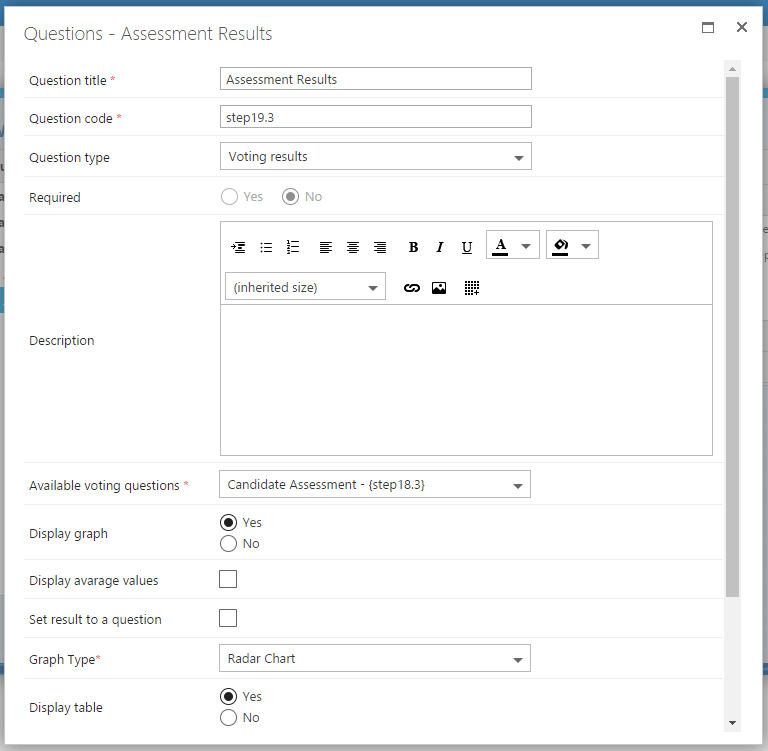
Voting result question configuration Save the flow and test it. Completed voting flow Here is what you will see when creating a new form: Voting form and results in a new form