

Note: All feature packs have been activated on this site. Some items may not appear for you if you do not have access to, or have not enabled, all the relevant feature packs.
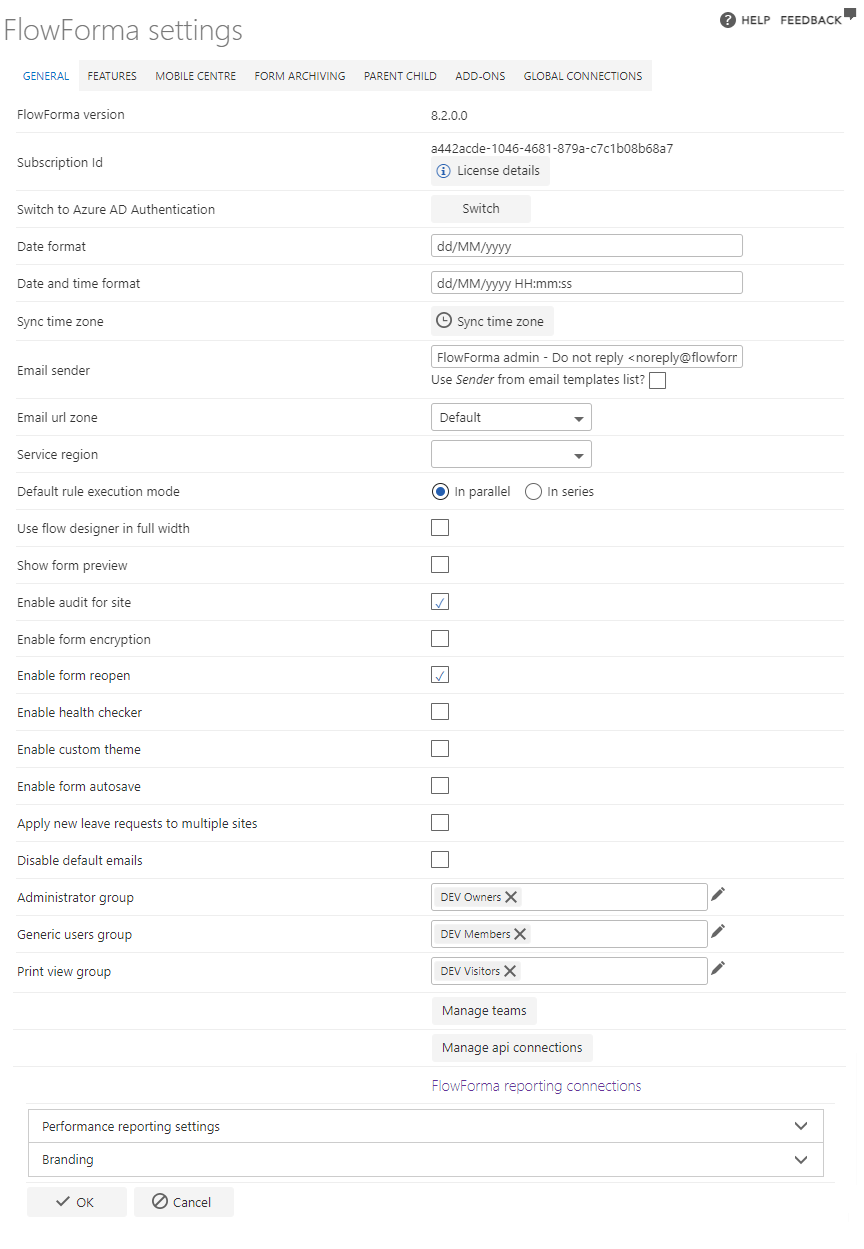
- FlowForma version: this is the version of the product that FlowForma is currently running on
- Subscription Id: this is a reference to your license ID
- License details: opens a dialog showing your full license details
- Subscription Id: a reference to your license ID
- Activation date: the date the license was activated
- Flows: the maximum number of flows your license permits (shows as unlimited if your license has no flow limit)
- Users: the maximum number of users your license permits (shows as unlimited if your license has no user limit)
- Renewal date: the license renewal date
- License key: your license key
- Switch to Azure AD Authentication: switches to the Azure AD authentication method
- Date format: select which date format you want to use in the system, for example the European format (dd/MM/yyyy) or the American format (MM/dd/yyyy)
- Date and time format: select which format you want to use in the system for both date and time
- Sync time zone: click this option if you want to synchronize the current site’s time zone to the parent site’s time zone, i.e. if the site was created in a different time zone
- Email sender: this is the default sender email address and may have to be changed to meet server requirements. The Use Sender from email templates list checkbox tells FlowForma to use the sender configured on the email templates list instead
- Email url zone: used for on-premises installations only. Specifies which URL from alternate access mapping to use when sending emails: Default, Intranet, Extranet, or Internet
- Service region: sets the default region for database connections: Europe, North America, Australia, or India
- Default rule execution mode: by default, rules execute in parallel, and you can switch them to series on the flow, step, or question toolbars. If you prefer, set the default to series to reduce how often you need to change it
- Use flow designer in full width: check this option if you want to display the flow designer in full screen mode
- Show form preview: enables the form preview by default on all flows
- Enable audit for site: enables the feature that provides an audit history of all relevant events visible within the form, serving both the users involved in the process and independent compliance auditors
- Enable form encryption: adds encryption to the form definition/data of information stored in the forms list
- Enable form reopen: enables the feature that allows you to reopen all completed forms
- Enable health checker: enables the functionality of the Flow Health Checker for all flows by default
- Enable custom theme: enables the feature that allows you to add custom themes to forms. Note: if you enable custom theme but don’t provide a CSS file, the forms will break
- Enable form autosave: automatically saves every form that you open. When enabled, you can set the autosave interval in minutes (1–60). You can enable autosave in each flow individually; however, if you enable it in FlowForma settings, forms are saved for all flows on your site, regardless of each flow’s own setting
- Apply new leave requests to multiple sites: New entries made for the “I am on leave” functionality will be applied to all sites with this option selected
- Disable default emails: disables the sending of the automatic emails sent when using features such as delegate form, passback form, reject form so only emails you schedule via the send email rule are sent
- Currency: select the default currency used across the site, for example US Dollar, Euro or Pound Sterling
- Administrator group: this group has access to the flow designer and all the settings
- Generic users group: this group has permissions to create forms but does not have access to the site settings. They have access to site contents to view lists, but they don’t have permission to edit
- Print view group: print view is a group, and members of this group can click Print PDF in the forms list. If you are not in that group, you will not be able to use that functionality
- Manage groups: (non-O365 sites only) opens the Group management dialog for maintaining the FlowForma role groups
- Manage teams: (Work Items feature only) opens the Members dialog for managing team membership and per-user capacity used by Work Items
- Manage licensed users: opens the Licensed users management dialog, where you assign or remove the users that consume your license seats
- Manage API connections: opens the API connections dialog for managing the stored connections used by integration rules
- FlowForma reporting connections: (requires the Advanced Reporting feature) opens the reporting connection details used to connect reporting tools such as Power BI
- Performance reporting settings: expands to show options for the Process Performance non-working days configuration
- Select a list with non-working days: use the Lists button to select a SharePoint List that contains the information relevant to non-working days
- Select non-working days column: use the dropdown to select the specific column in the list selected above that contains the non-working day dates
- Weekends as working days: use the checkbox if weekends count as working days in your organization
- Branding: provides options for adding your own company branding to FlowForma
- Enhanced Engage UI: uses the new, updated Engage form UI
- Max Engage width: Sets the max width an engage form will be, only applied when using the enhanced engage UI
- Primary color: sets the default color used in forms for options such as the step bar, form buttons and answer field animations
- Transparent form background: check this option to give forms a transparent background
- Site logo: upload your own company logo to replace the FlowForma logo on the landing page (
.pngformat) - Site banner: upload your own company banner to replace the FlowForma banner on the landing page (
.jpg/.jpeg, recommended size 1570×220 px)