

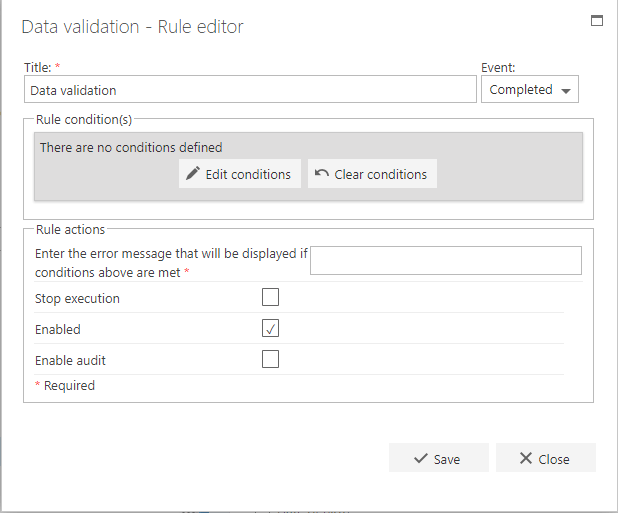
Title
The first part of the business rule lets you define a title for your rule and select the event on which it operates. The default title is the standard FlowForma rule name; change it by deleting the text and entering your own. In the event field you determine when the rule is executed. You can only add a data validation rule to a question, and only “completed” is available, since the rule runs on step completion.Rule actions
- Enter the error message that will be displayed if the conditions above are met: enter the message you want displayed when the rule conditions are met.
- Stop execution: if stop execution is enabled and this rule is executed, no other rules are executed.
- Enabled: rules aren’t saved to a list like questions and steps are, so if you want to stop a rule executing without deleting it, toggle this option to enable or disable the rule.
- Enable audit: if checked, a record is added to the audit trail when this rule is executed. This option is available when the Compliance feature pack is activated.
Examples
Data validation works by using conditions to specify answers that are not allowable (invalid) when entered in the question being validated.- Equals: if the value entered in the question selected in the left column equals the value in the right column, display a validation message.
- Not equals: if the value entered in the question selected in the left column does not equal the value in the right column, display a validation message.
- Is blank: if the user leaves the question selected in the left column blank, display a validation message. (The right column is disabled for is blank.)
- Not blank: if the user does not leave the question selected in the left column blank, display a validation message. (The right column is disabled for not blank.)
- Contains: if the value entered in the question selected in the left column contains the value specified in the right column, display a validation message.
- Not contains: if the value entered in the question selected in the left column does not contain the value specified in the right column, display a validation message.
- Greater than: if the value entered in the question selected in the left column is greater than the value specified in the right column, display a validation message. (Numeric values only.)
- Less than: if the value entered in the question selected in the left column is less than the value specified in the right column, display a validation message. (Numeric values only.)
- Matches pattern: if the value entered in the question selected in the left column matches the pattern specified in the right column, display a validation message.
- Does not match pattern: if the value entered in the question selected in the left column does not match the pattern specified in the right column, display a validation message.
RegEx
Pattern matching is especially useful when combined with a regular expression (RegEx). A RegEx lets you add very complex requirements for the values entered in a question. For example, a regular expression that validates a correctly formatted email address looks like:- 03-AG.13: 2 digits, a hyphen, 2 letters, a dot, then 2 digits:
^[0-9]{2}\-[a-zA-Z]{2}\.[0-9]{2}$ - 123-456-789: 3 digits, a hyphen, 3 digits, a hyphen, 3 digits:
^([0-9]{3}-[0-9]{3}-[0-9]{3})$