substring() or slice() to manipulate the value and generate new values.
Title
The first part of the business rule lets you define a title for your rule and select the event on which it operates. The default title is the standard FlowForma rule name; change it by deleting the text and entering your own. In the event field you determine when the rule is executed. For a flow this can occur when the form is loaded, started, or completed. For a step this can occur when the step is started, saved, or completed. For questions it can occur when the question is updated.Rule condition(s)
The second part of the business rule lets you set conditions. These are not required, but if entered they control when the rule is executed in relation to other items in the form.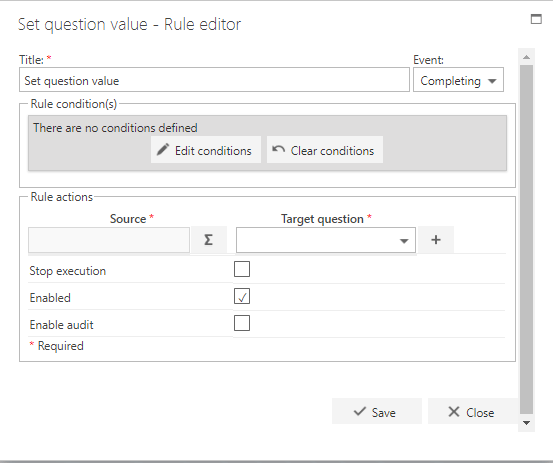
Rule actions
- Source: displays the source of the value being used to set the target question. This is empty until you select a question or function, or enter JavaScript code using the Σ option described below.
- Σ: click the Sigma icon to open the expression builder, which lets you use JavaScript expressions to customise the value set in the target field.
- Target question: a drop-down of all the questions in the flow. Select the question whose value will be set by the rule.
- Stop execution: if stop execution is enabled and this rule is executed, no other rules are executed.
- Enabled: rules aren’t saved to a list like questions and steps are, so if you want to stop a rule executing without deleting it, toggle this option to enable or disable the rule.
- Enable audit: if checked, a record is added to the audit trail when this rule is executed. This option is available when the Compliance feature pack is activated.
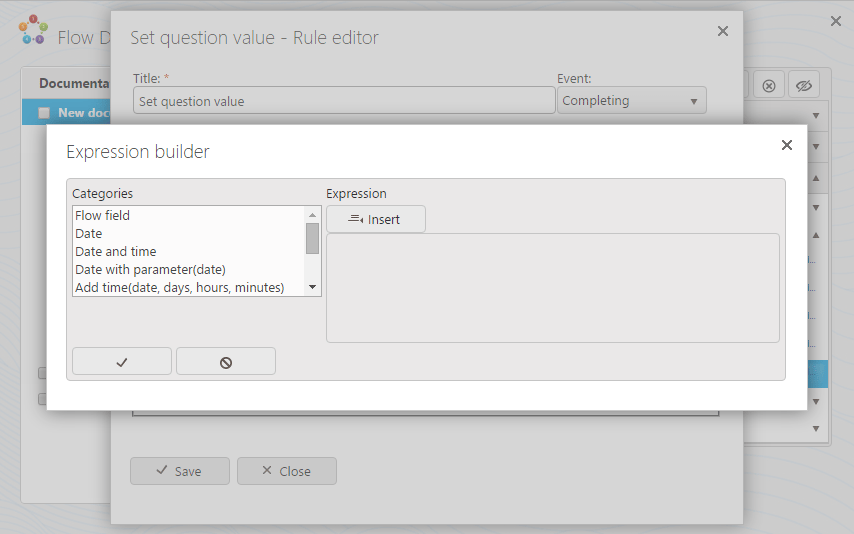
Expression builder
To get started, watch this how-to video about the expression builder.
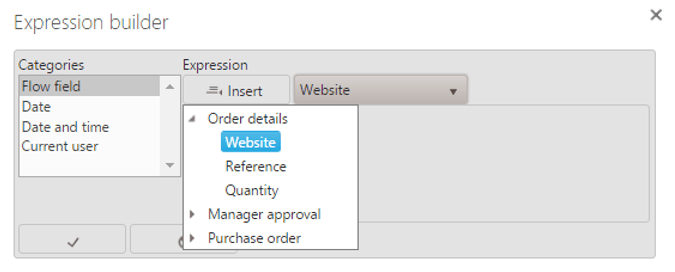
To insert an item into the expression builder, click the relevant category, then click Insert. Once you click a category, examples are displayed below. For the flow field, select the question you want to insert, then click Insert.
- Flow field: set the question with the value from another question in the flow.
- Date: set the question with the current date (e.g. 21 September 2015).
- Date and time: set the question with the current date and time (e.g. 21 September 2015 17:29:05).
- Date and time V2: set the question with the current date and time, formatted according to your FlowForma settings.
- Date with parameter: converts a partial date string or flow field value to a full date.
- Date with parameter V2: converts a partial date string or flow field value to a full date, formatted according to your FlowForma settings.
- Add time: add or subtract days, hours, or minutes from a date.
- Add time V2: add or subtract days, hours, or minutes from a date, formatted according to your FlowForma settings.
- Current user: set the question with the current user’s name.
- User ID: set the value of the question with the user’s account ID.
- Form ID: set the question with the ID of the form.
- Public form link: a link to a publicly accessible form if you are using Engage.
- Query parameter: parses the requested parameter value from the form query string.
- Fixed length text: adds padding with a character or truncates text to a desired length.
- Question: text to apply padding to. Questions from the “Flow field” category can be added.
- Text length: length of the resulting text. Text is padded with a character or truncated to this length. If not defined, the default is 0 and the result is an empty string.
- Direction: padding direction, either “left” or “right”. If not defined or misspelled, the default is “right”.
- Pad character: a single character used to pad the string. If not defined, padding is not applied; if multiple characters are defined, only the first is used.
fn_FixedLengthText("123456", 3, "right", "@")corresponds to “456”.fn_FixedLengthText("123456", 8, "right", "@")corresponds to “123456@@”.fn_FixedLengthText(Question['step1.1'], 5, "left", "&")corresponds to ”&&&&” + the question value if the question value’s length is 1.
- +: add an item into the expression to concatenate values, e.g.
Question["step1.1"]+Question["step1.2"]concatenates the values of two questions. - "": double quotes add text values into the expression. This is also useful to set a blank value into the question if you want to “reset” the step after a passback.
Example
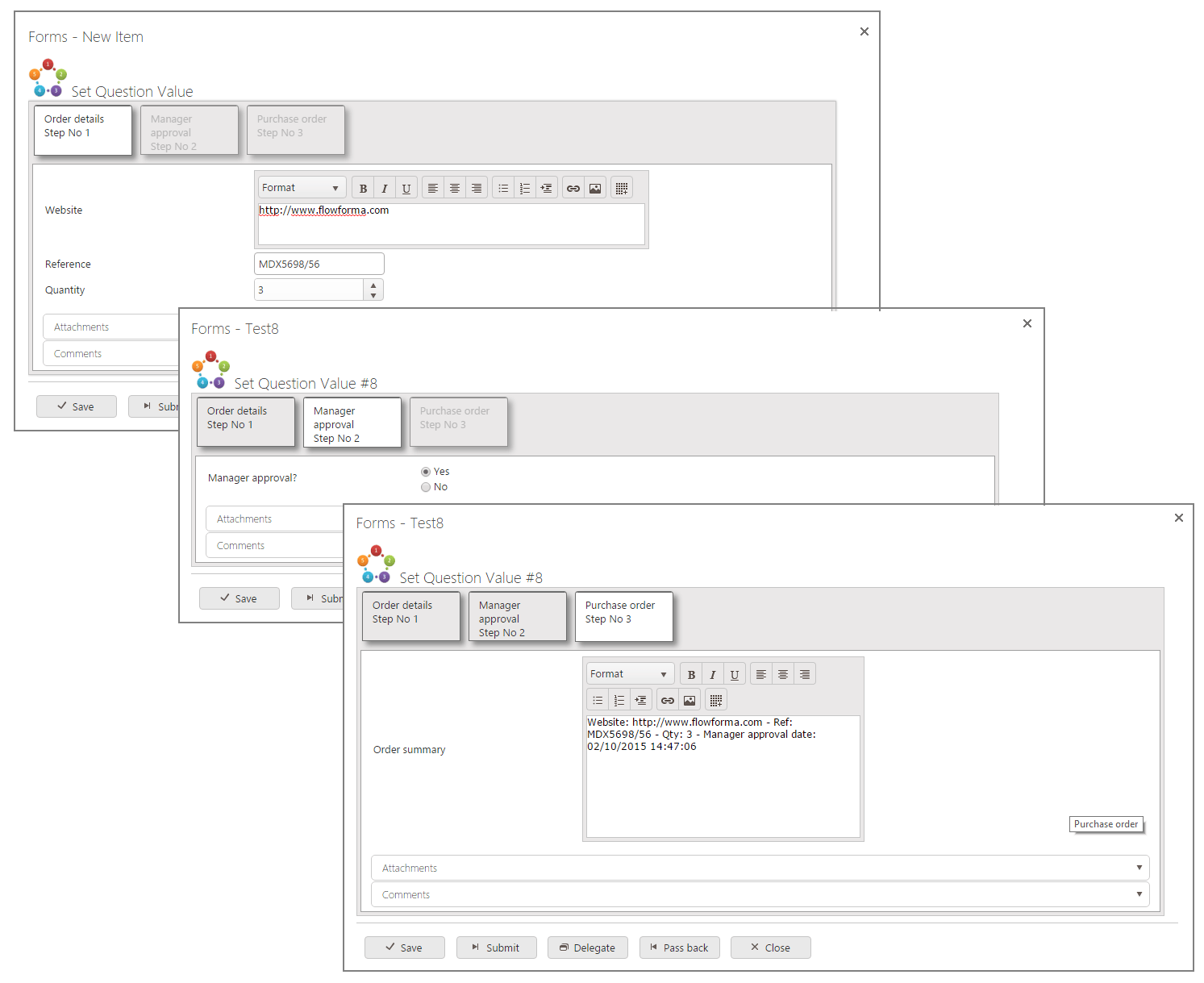
The following example shows how you can use the Set question value rule. Assume you have a number of questions in various steps and you need to combine them into one question:- The employee fills in the details of the order.
- The manager approves or rejects the order.
- Purchasing proceeds to payment with all the information from the previous step.
- Create 3 steps: order details, manager approval, and purchase order.
- In step 1 (order details) create 3 questions: website (multiple lines of text allowing rich text), reference (single line of text), and quantity (number).
- In step 2 (manager approval) create 1 question: manager approval (yes/no).
- In step 3 (purchase order) create 1 question: order summary.
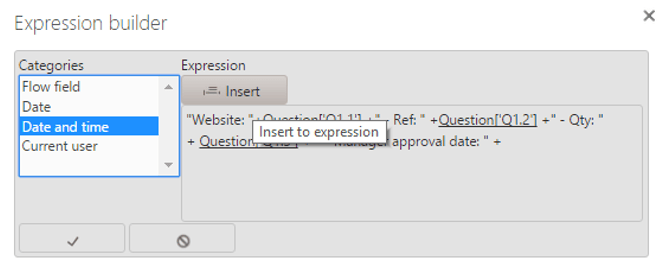
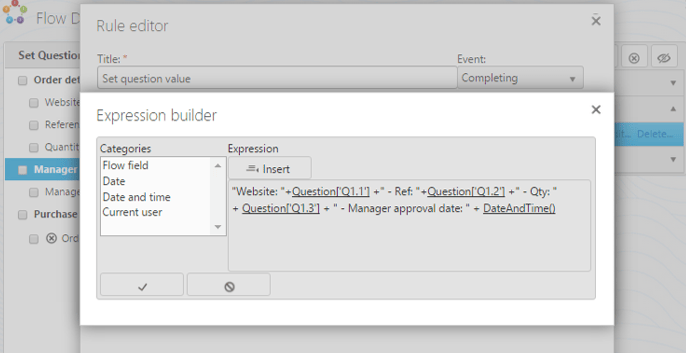
- In the expression builder, insert
"Website: "+first; then to add the question value, click Flow field, select the website question from step 1, and click Insert.
- Add another item by inserting
+" – Ref: "+;then add the second question from step 1. - Complete the expression with the remaining items. To add the approval date, select date and time in the categories and click Insert.
Form output
The three steps in the form are shown below. In the first step, the user fills in the website, reference, and quantity. In the second step, the manager approves or rejects. Finally, in the third step all information is compiled into the order summary, the result of the expression you built earlier in the Set question value rule.