

Title
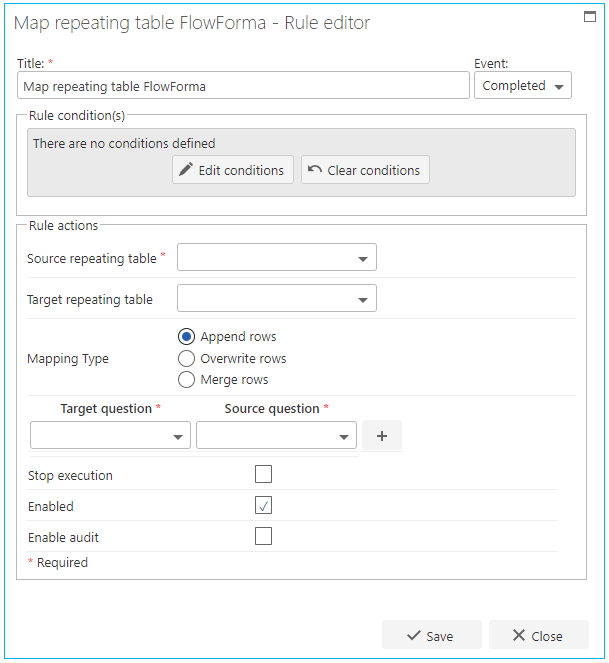
The first part of the business rule lets you define a title for your rule and select the event on which it operates. The default title is the standard FlowForma rule name; change it by deleting the text and entering your own. In the event field you determine when the rule is executed. For a flow this can occur when the form is loaded, started, or completed. For a step this can occur when the step is started, saved, or completed. For questions it can occur when the question is updated.Rule condition(s)
The second part of the business rule lets you set conditions. These are not required, but if entered they control when the rule is executed in relation to other items in the form.Rule actions
- Source repeating table: this is the repeating table you get the data from. You can map from repeating tables in the same step or in different steps. When you click the field, a drop-down list of all steps that contain repeating tables appears. Select the relevant one.
- Target repeating table: this is the repeating table where you want the data copied to. When you click the field, you’ll see a drop-down list of all the steps that contain repeating tables. Select the relevant one.
- Use filtering: enable this checkbox to only map rows from the source repeating table that meet a condition. Select the Question to filter on, a Condition (Equals, Not equal, or Contains), and the Value to compare against.
- Mapping type:
- Append rows copies the data from the source repeating table and adds it as new rows after the last row of the target repeating table.
- Overwrite rows copies the data from the source repeating table and replaces all the data in the target repeating table.
- Merge rows lets you combine values from different repeating tables into different columns. For example, if the source repeating table has 3 rows and the target repeating table has 5 rows, the target’s first 3 rows are overwritten with data from the source, and the last 2 rows remain unchanged. You can also use merge to populate one repeating table with values from two other repeating tables. For example, table 1 has 2 columns and table 2 has 2 columns; a third repeating table with 4 columns can hold values mapped in from both tables.
Data mapping
For each question you want to copy data from, set the source and target question. By default there’s only one row in data mapping, but you can add more by selecting add. When mapping data between repeating tables, make sure the target and source question types are identical.- Set target question: this is the question you want the information copied to. Click the arrow to see a drop-down list of all the questions in the selected target repeating table.
- Set source question: this is the question where the data to be copied is located. Click the arrow to see a drop-down list of all the questions in the selected source repeating table.
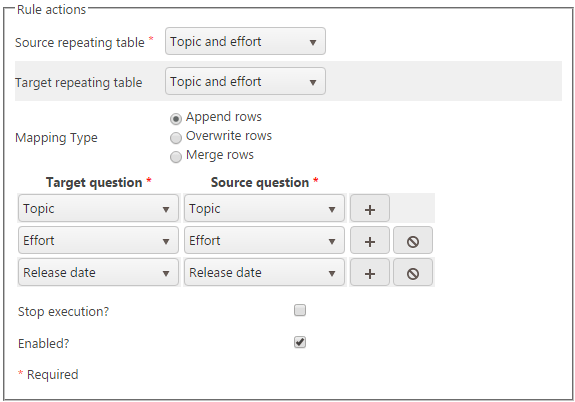
- Stop execution: if stop execution is enabled and this rule is executed, no other rules are executed.
- Enabled: rules aren’t saved to a list like questions and steps are, so if you want to stop a rule executing without deleting it, toggle this option to enable or disable the rule.
- Enable audit: if checked, a record is added to the audit trail when this rule is executed. This option is available when the Compliance feature pack is activated.