

On-premise installation
Office 365 FlowForma
Title
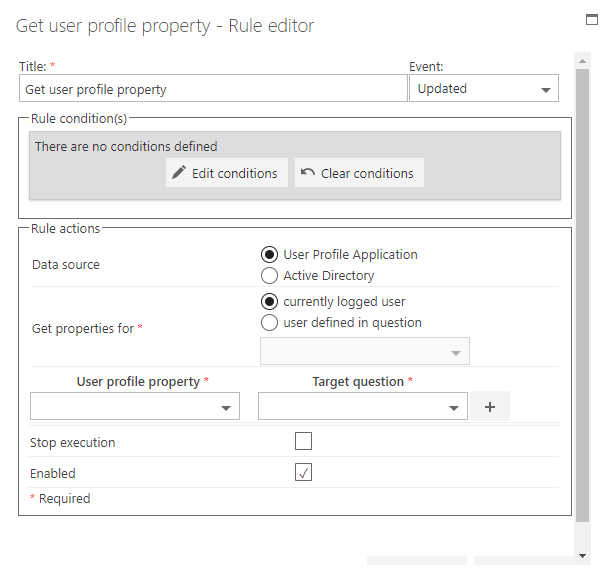
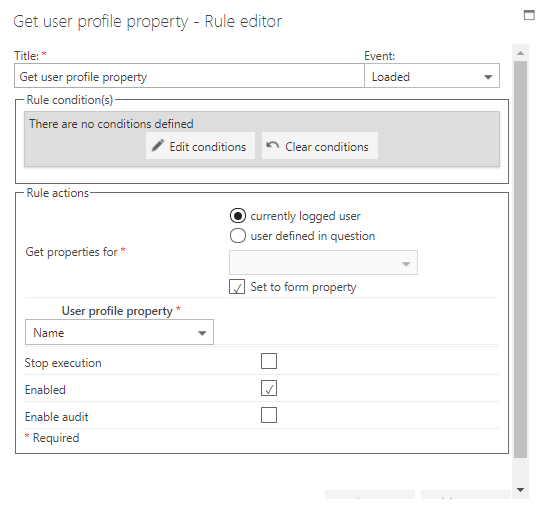
The first part of the business rule lets you define a title for your rule and select the event on which it operates. The default title is the standard FlowForma rule name; change it by deleting the text and entering your own. In the event field you determine when the rule is executed. For a flow this can occur when the form is loaded, started, or completed. For a step this can occur when the step is started, saved, or completed. For questions it can occur when the question is updated.Rule condition(s)
The second part of the business rule lets you set conditions. These are not required, but if entered they control when the rule is executed in relation to other items in the form.Rule actions
- Data source: only appears in the editor on an on-premise installation. On-premise lets you select information from both the User Profile Application and Active Directory. Office 365 FlowForma automatically selects properties from the User Profile Application in SharePoint.
- Get properties for: select the user to search for properties. You can select the currently logged-in user or a user defined in a question. If you select “user defined in question”, you can choose the question from a list of person or group questions.
- Show advanced properties: enable this to load the full list of user profile properties, including extended properties not shown by default.
- User profile property: select the property from Active Directory or the User Profile Application to map to the FlowForma question. If you select the User Profile Application, or you’re working in Office 365 and the field you want to map isn’t selectable, your SharePoint administrator must make the field replicable in SharePoint by doing the following:
- Go to SharePoint Admin Center / Central Administration.
- Go to User Profile.
- Select Manage Properties.
- Select the property you want to be selectable in the rule and edit it.
- Go to Policy Settings and select Replicable.
- Save. The change can take up to 24 hours to be visible in the form.
- Target question: select the question in the form where you want the information mapped.
- Stop execution: if stop execution is enabled and this rule is executed, no other rules are executed.
- Enabled: rules aren’t saved to a list like questions and steps are, so if you want to stop a rule executing without deleting it, toggle this option to enable or disable the rule.
- Enable audit: if checked, a record is added to the audit trail when this rule is executed. This option is available when the Compliance feature pack is activated.