

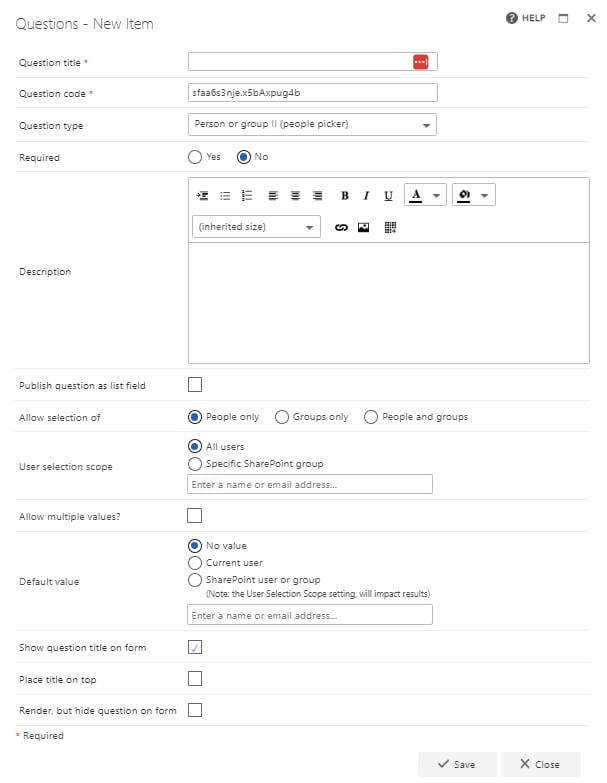
- Question title: each question must have a title. It’s a required field and appears on the form as a label when the user fills in the question
- Question code: each question needs a unique code. One is generated by default when you start creating a new question, but you can overwrite it and give it a different code if you prefer. The question code doesn’t appear on the form itself, but you can use it to search and filter when adding questions
- Question type: people picker
- Required: you need to specify whether the question is required. If you set a question as required, the user must answer it to submit the form. However, the user can save the form as a draft without answering required questions. If you try to submit a form without answering all required questions, an error message appears showing a list of the unanswered questions
- Question description: entering a description is optional. The description is used as a tooltip on the form and adds an exclamation point beside the question. If the user clicks the exclamation point, the description (tooltip) appears
- Publish question as list field: check this box to save the question to the SharePoint forms list. This allows you to report on the question from there
- Allow selection of: you can limit the selection to people only or groups only, or allow the selection of both people and groups
- User selection mode: choose who can be selected: All users, Engage users only (restricts the picker to FlowForma Engage users), or SharePoint group. If you choose SharePoint group, specify the group(s) to select from using the drop-down menu
- Allow multiple values: if selected, multiple users and groups can be entered in the people picker question
- Default value: if you want to display a default value, it can be the current user, or a SharePoint user or group. If you choose the latter, enter the relevant username, email address, or group name. When “Allow multiple values” is selected, you can specify multiple users and groups here
- Show question title on a form: check this option to display the question’s title to the left of the question’s input field. If you uncheck this option, the input field moves to the left and appears under the other questions/question titles
- Render, but hide question on a form: if you check this option, the question behaves as if displayed by default. The default value, publishing, and calculation still apply, despite the question not being displayed on the form
Using people picker with multiple values selected in rules. Rules using a people picker question will only execute for the first person entered in the question.For example, with the “step assign to” rule, if you use a people picker question with multiple values from the flow, the step will be assigned to the first person entered in that question.