View saved FlowForma Analytics charts in dashboard cells, hover over segments, bars, and map bubbles for extra detail, and check any applied filters.
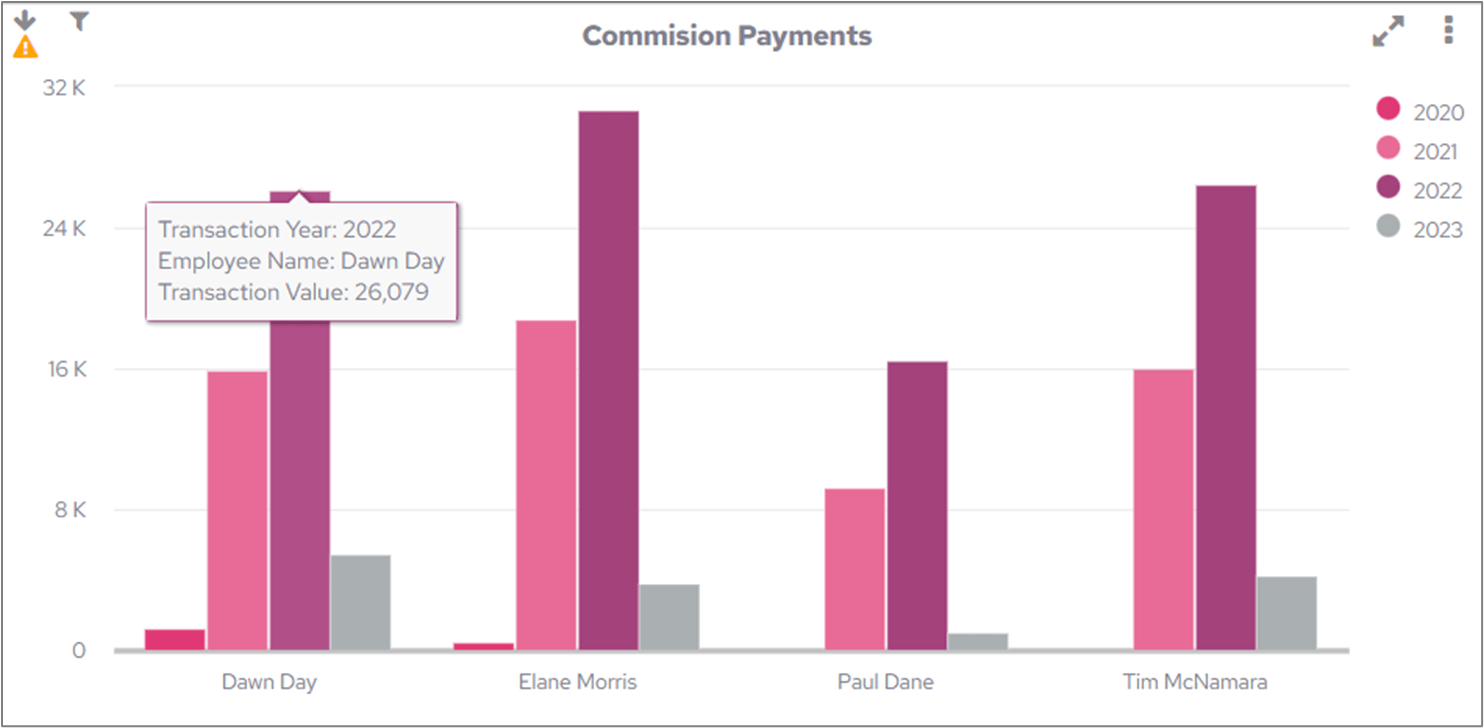
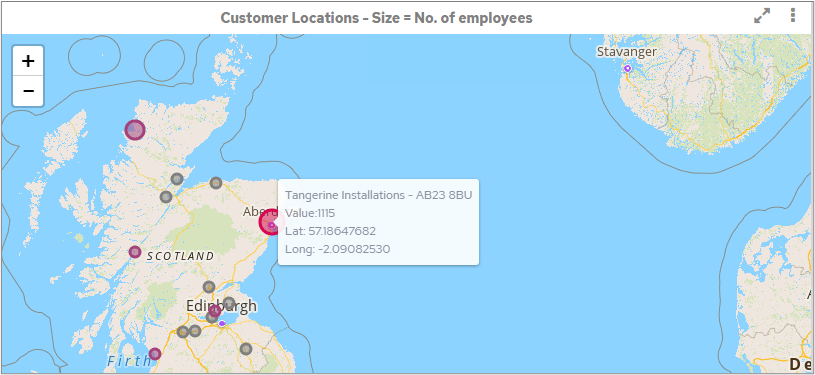
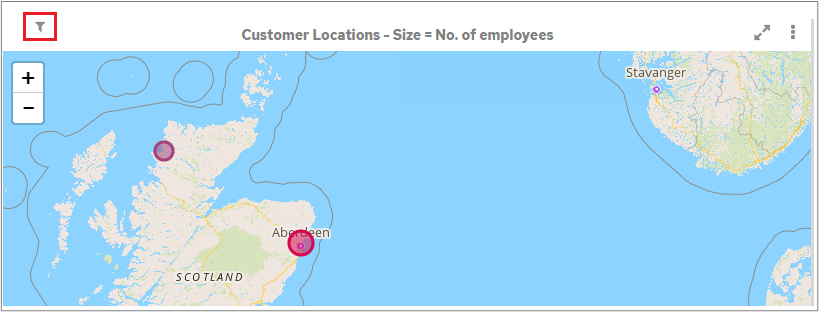
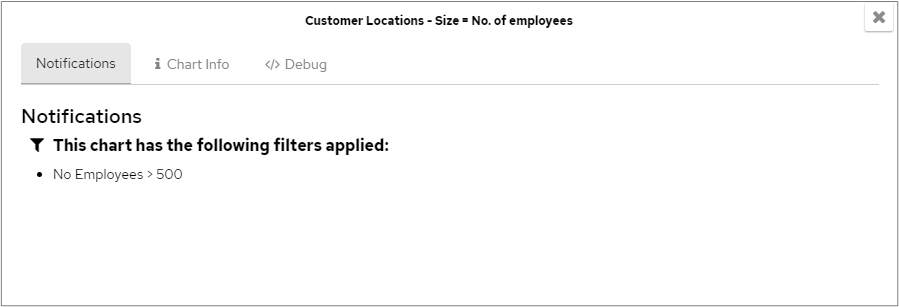
Once created and saved, a chart is visible on the dashboard. Each chart is displayed in its own cell, and a dashboard can contain a single cell or multiple cells. You can resize a cell if needed.When you hover over the elements in a chart, e.g., segments of a pie chart, bars in a bar chart, or bubbles on a map, you see additional information. The information shown varies depending on the data used to create the chart and the type of chart you are viewing.For example, in map charts, the size of a bubble gives a quick indication of the number it represents: the larger the bubble, the higher the number. You can also see additional information by hovering over a bubble.ExampleThis example shows the customer’s name, postcode, number of employees, and longitude and latitude when you hover over one of the bubbles.If a filter has been applied to a chart, a filter icon will be displayed in the top-left corner.To view what filters have been applied, click the filter icon.