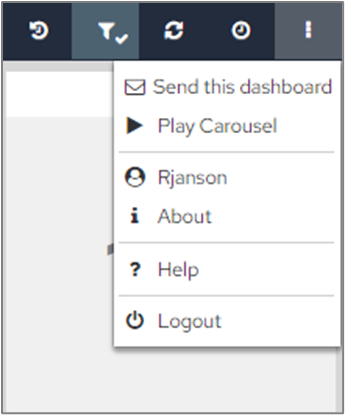
Dashboards use visual representations such as data tables and charts to help tell a story about your data. This is a great way to present data in an easy-to-understand way and helps users quickly spot patterns and trends across their business. A dashboard can contain multiple categories, which are basically just pages of related information. For example, your company might have a category that contains all your sales figures and another that contains human resources information. By organising your data this way, you can restrict which categories users have access to and prevent them from seeing data you don’t want them to see. The buttons in the top right of the screen allow further control of the dashboard. Manage layout icon Manage layout – this icon is only visible when a change has been made to the active category, and it’s linked to user permissions. If you can’t see this icon, even after making a change to a category, it means your system administrator hasn’t given you this permission. Reset to default view icon Reset to the default view of the category - resets all category filters to their default values. Category Objects icon Category Objects - this icon may not be visible on all categories. It’s only shown if your system administrator has enabled this. It lets you filter all charts in the same category using the same values. Refresh Category icon Refresh Category – refreshes all elements on the page. More Options icon More Options - opens dashboard tools, shown below. The options that you can see in this list are linked to your user account. Dashboard tools menu

Send the dashboard

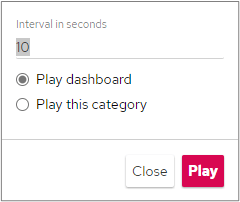
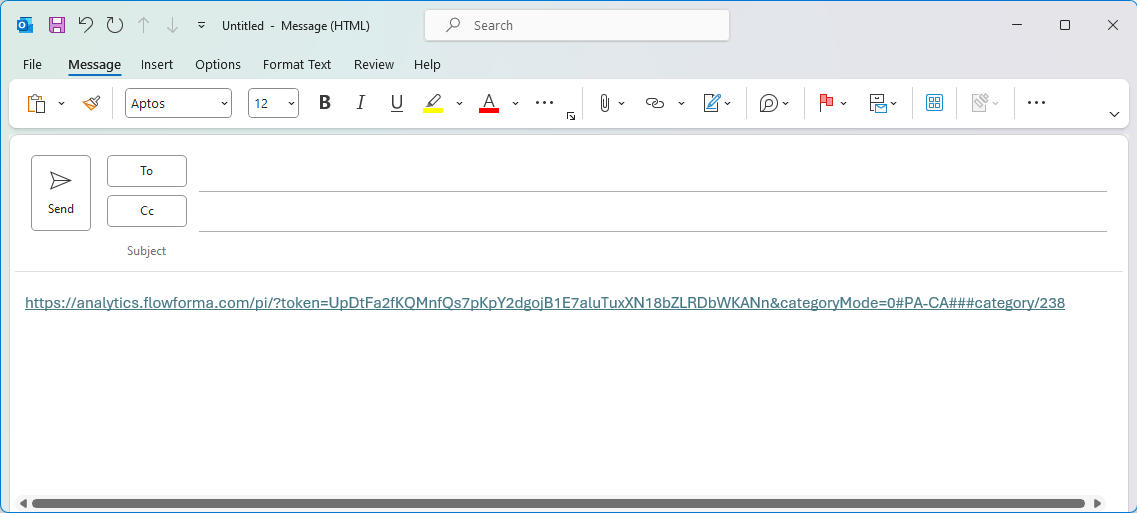
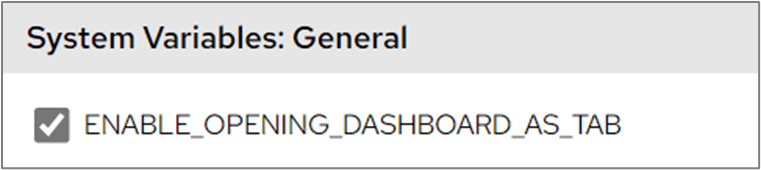
The ‘Send this dashboard’ option sends a URL that lets someone (provided they have access) directly access the filtered category you’re viewing. Send this dashboard option This copies the full URL from your web browser and opens it in your email software (assuming you’re logged in to an email application). If the recipient has access to the dashboard in general, and this category specifically, they’ll be able to see the charts exactly as you’ve filtered them. Dashboard URL shared via email This option can be disabled and hidden from all users by unticking the ENABLE_OPENING_DASHBOARD_AS_TAB variable, found in Dashboard Configuration > Settings > Global Variables. ENABLE_OPENING_DASHBOARD_AS_TAB variable Play Carousel option This cycles the interface through the different categories, and you can set the interval between cycles. It’s useful when the dashboard is viewed on a TV or large monitor to provide a communal view. Carousel interval settings You can decide on the interval (how often the dashboard refreshes) and to either: Play dashboard (cycle through all categories available to this user) or Play this category (refresh only the visible category). If you use Carousel, you’ll see an extra icon at the top-right of the dashboard. This acts like a timer: the circle slowly rotates and completes based on the time setting you’re using. For example, if you set the Carousel at 10 seconds, the icon will complete the circle in 10 seconds. Carousel timer icon You can stop the Carousel at any time by clicking ‘More Options’ at the top-right of the dashboard and selecting ‘Stop Carousel’.

Setting the minimum interval

Introduced in our August ‘23 release, the lowest value permitted in the carousel’s interval field is dictated by the value of the Global Variable CAROUSEL_MINIMUM_INTERVAL. This setting, which is 1 by default, can be changed globally in the Global Variables tab of the Configuration Panel and overridden on a per-user basis by creating a User Variable of the same name. While a value lower than this is in the interval field, the ‘Play’ button is disabled.

Username

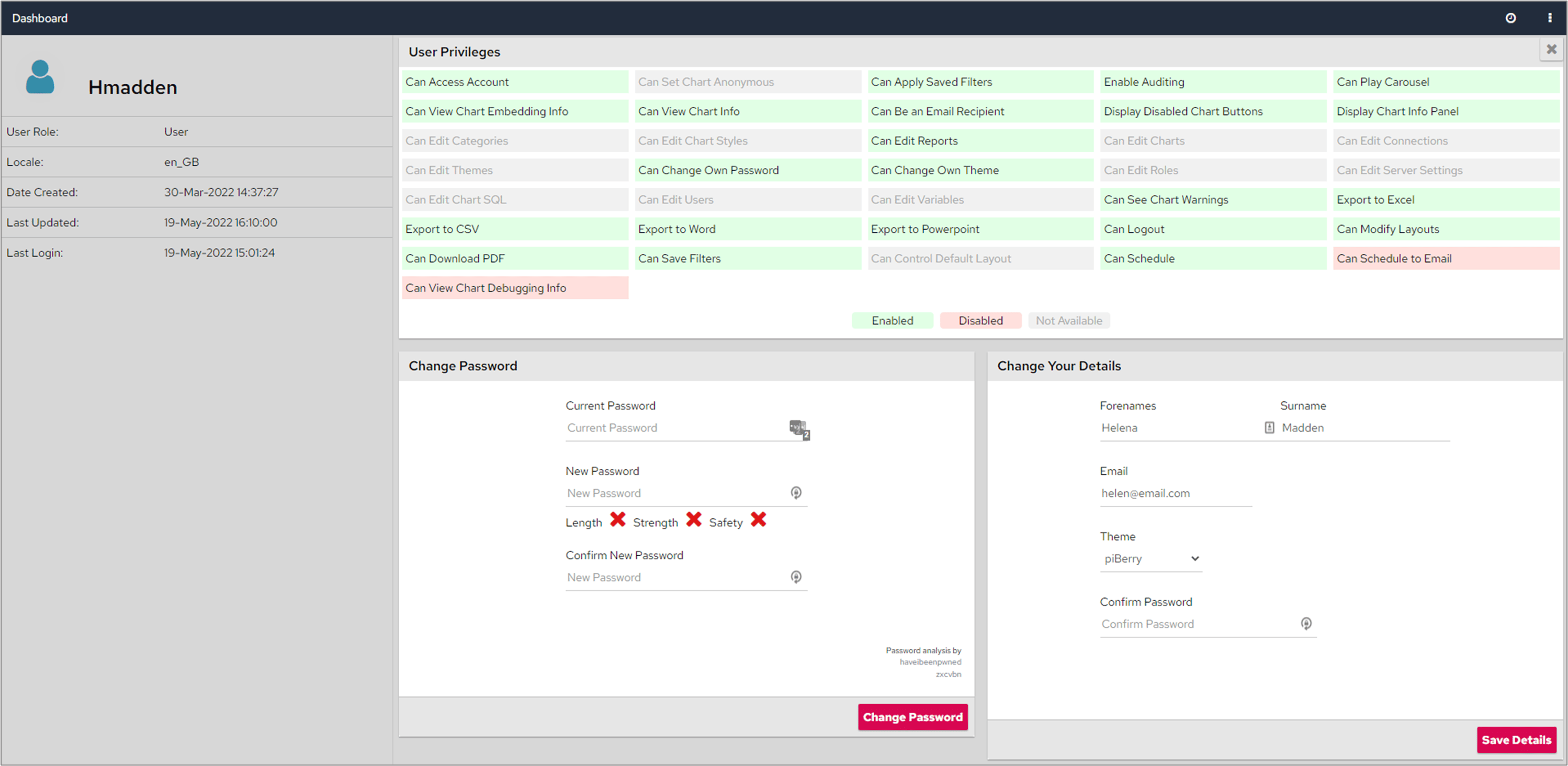
Username display Here, you can see who you’re logged into the dashboard as. Clicking on this name shows information about your privileges. User privileges screen The left-hand side of the screen shows the role assigned to you and the last time you logged into the system. The User Privileges section shows what you have access to. You may also be able to change your password from this screen, along with some of your user account details such as the theme and email address (if you have the correct privileges).

About

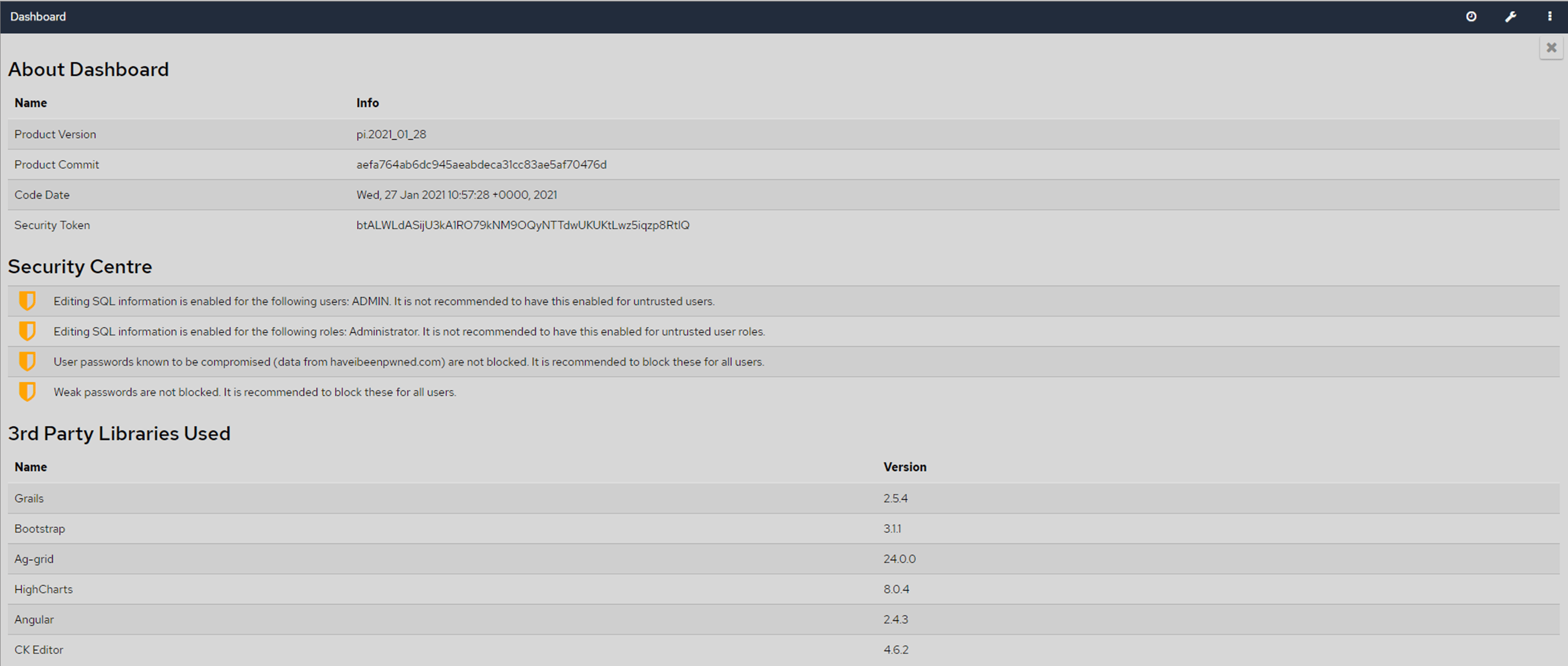
About menu option Clicking on this item will open a screen which tells you what version of the dashboard is currently installed. About screen showing version

Help

Help menu option Help (if enabled) provides a link, by default, to documentation for all new, clean installs of the dashboard.

Logout

Logout menu option Logout will log you out of the interface.