

Title
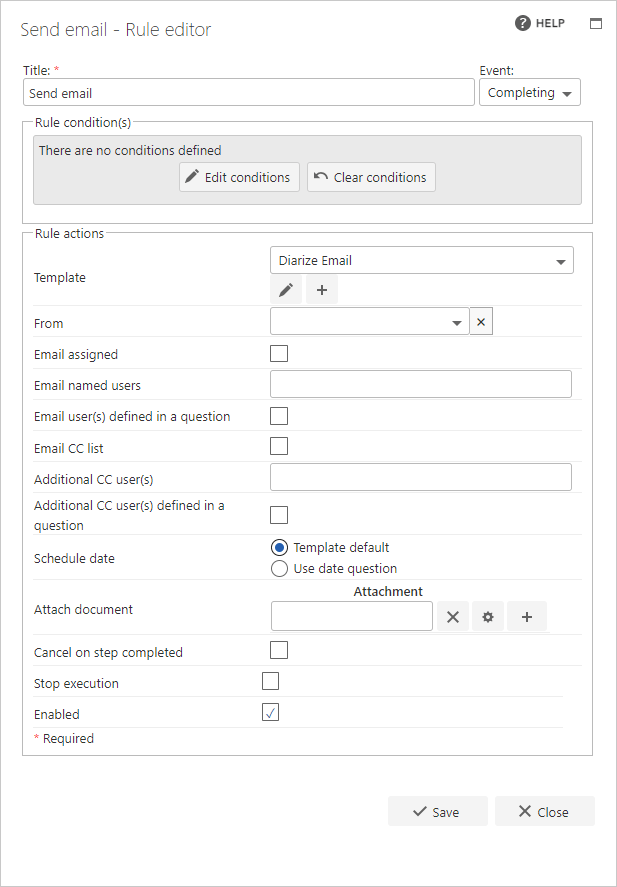
The first part of the business rule lets you define a title for your rule and select the event on which it operates. The default title is the standard FlowForma rule name; change it by deleting the text and entering your own. In the event field you determine when the rule is executed. For a flow this can occur when the form is loaded, started, or completed. For a step this can occur when the step is started, saved, or completed. For questions it can occur when the question is updated.Rule condition(s)
The second part of the business rule lets you set conditions. These are not required, but if entered they control when the rule is executed in relation to other items in the form.Rule actions
- Template: FlowForma includes a number of default email templates, which you can select from the drop-down menu. If you’ve created additional email templates, these also appear on the list and can be selected. If the current templates don’t meet your requirements, click the pen icon to edit an existing template, or click + to create a new one. Keep in mind that if you edit an existing template, the changes apply to that template wherever it’s used.
- From: if you don’t want to use the default sender address from FlowForma Settings, you can select a question from your flow that contains an email address, to be used in the “from” field on the received email.
- SMTP: a drop-down to select which configured SMTP/email connection is used to send the email.
- Email assigned: check this option if you want the email sent to the person or group assigned to a specific step. A drop-down list appears when you check this option; it includes all the steps in the flow.
- Email named users: if you want to include other users or groups, enter the user or group names here.
- Email user(s) defined in a question: you can add a user or group from a question in the flow. Select the step and then the question from the drop-down list. The question can be either a person or group question, or a text field that has collected a valid email address in the form.
- Email CC list: when you set the step’s definition, you can opt to enable a CC list. If this option is enabled, a panel appears where you can enter user or group names for that step in the form.
- Additional CC user(s): if you want to add further users to the CC list, enter the user or group names here.
- Additional CC user(s) defined in a question: if CC users are added to a question or step, you can select that question from the drop-down list and include them in this email. The question can be either a person or group question, or a text field that has collected a valid email address in the form.
- Schedule date: when you create the email template, you have to set a default schedule. This determines when the email is sent. You can override this by selecting use date question and specifying which question in the step to use.
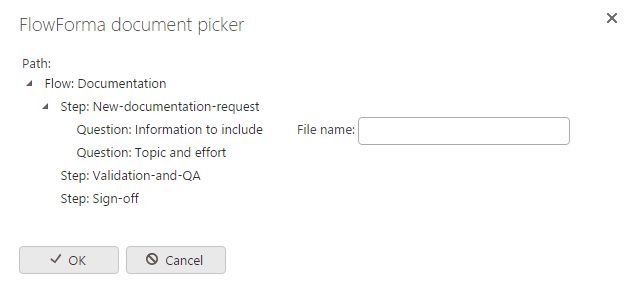
- Attach document: to attach a document to the generated email, either specify the path by typing it in the box, or click the editor icon to open the document picker. In the document picker, you can navigate through the flow to pick the relevant file upload question or document generate rule. To add multiple documents, click the + button.
- Cancel on step completed: if the email is used as a reminder, it may no longer be required once the current step has already been completed. If you check this option, the email won’t be sent if the step has been completed or canceled. When the rule is attached at flow level rather than to a step, this option is labelled Cancel on flow completed and applies to completion of the whole flow.
- Stop execution: if stop execution is enabled and this rule is executed, no other rules are executed.
- Enabled: rules aren’t saved to a list like questions and steps are, so if you want to stop a rule executing without deleting it, toggle this option to enable or disable the rule.
- Enable audit: if checked, a record is added to the audit trail when this rule is executed. This option is available when the Compliance feature pack is activated.
Notes:
- If you’re sending an email to a group, that group’s “Who can view the membership of this group” setting needs to be set to “Everyone”.
- If you’re sending an email to a person defined in a question, don’t use default values. You can use a set question value rule to populate the user instead.
- Sending an email on question update is supported, but if the form hasn’t been submitted, the scheduler item will only be created and won’t be sent until the form has been submitted.