Title
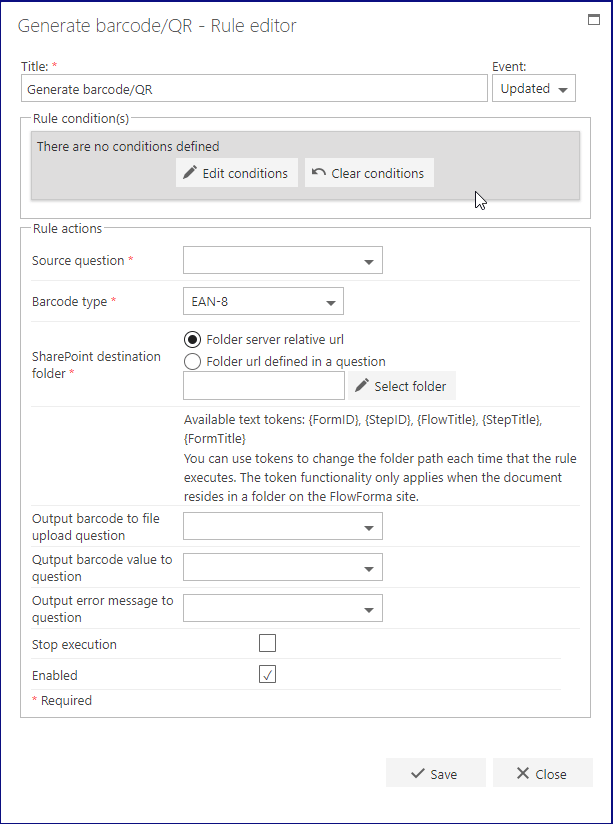
The first part of the business rule lets you define a title for your rule and select the event on which it operates. The default title is the standard FlowForma rule name; change it by deleting the text and entering your own. In the event field you determine when the rule is executed. For a flow this can occur when the form is loaded, started, or completed. For a step this can occur when the step is started, saved, or completed. For questions it can occur when the question is updated.Rule condition(s)
The second part of the business rule lets you set conditions. These are not required, but if entered they control when the rule is executed in relation to other items in the form.Rule actions
- Source question: this is the question in the process that will be used to generate the barcode/QR.
- Source questions can be of the following types:
- Single line of text
- Multiple lines of text
- Lookup
- Choice
- Calculated
- Number
- Source questions can be of the following types:
- Barcode type: a drop-down list containing the types of barcode that you want to create.
- The barcode types available are:
- UPC-a
- UPC-e
- EAN-8
- EAN-13
- QR
- The barcode types available are:
- SharePoint destination folder: choose where the barcode image file is saved. Select Folder server relative url to pick a folder directly (click Select folder), or Folder url defined in a question to point at a question that holds the folder URL.
- When using a folder path, you can include these text tokens to change the path each time the rule runs:
{FormID},{StepID},{FlowTitle},{StepTitle},{FormTitle},{FlowFormaUrl},{FlowFormaParentUrl},{FlowFormaSiteCollectionRoot}. Tokens only apply when the folder is on the FlowForma site.
- When using a folder path, you can include these text tokens to change the path each time the rule runs:
- Output barcode to file upload question: to view the barcode/QR on screen, select a file upload question contained in the process. This drop-down list displays the file upload questions contained in the process.
- Output barcode value to question: the final digit of a barcode is generally a check digit.
- The full barcode value with the correct check digit (final digit), or
- The barcode without a check digit (final digit). In this case, the correct check digit will be added and the barcode created.
- Output error message to question: if an incorrect barcode value is entered, a barcode will not be generated. Add this question to your process to inform you that the barcode entered is not valid.
- Stop execution: if stop execution is enabled and this rule is executed, no other rules are executed.
- Enabled: rules aren’t saved to a list like questions and steps are, so if you want to stop a rule executing without deleting it, toggle this option to enable or disable the rule.
- Enable audit: if checked, a record is added to the audit trail when this rule is executed. This option is available when the Compliance feature pack is activated.
Displaying the barcode
To display a barcode on the screen or include it in a document, you need to select a file upload question from your process.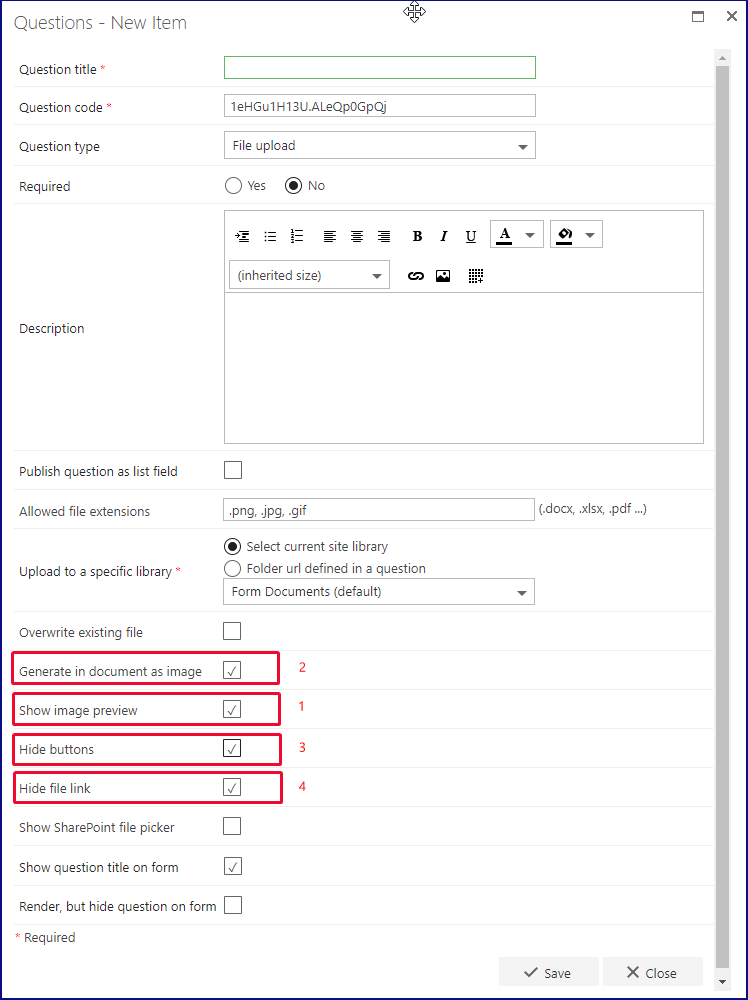
Display image on screen
To display the barcode/QR on screen, check the Show image preview checkbox (1). If you only want to display the barcode, you can:- Hide the Delete and Replace buttons that are normally displayed when a file upload question is used, by checking the Hide buttons checkbox (3).
- Hide the link to where the image is saved by checking the Hide file link checkbox (4).
Include barcode/QR in a FlowForma document generator document
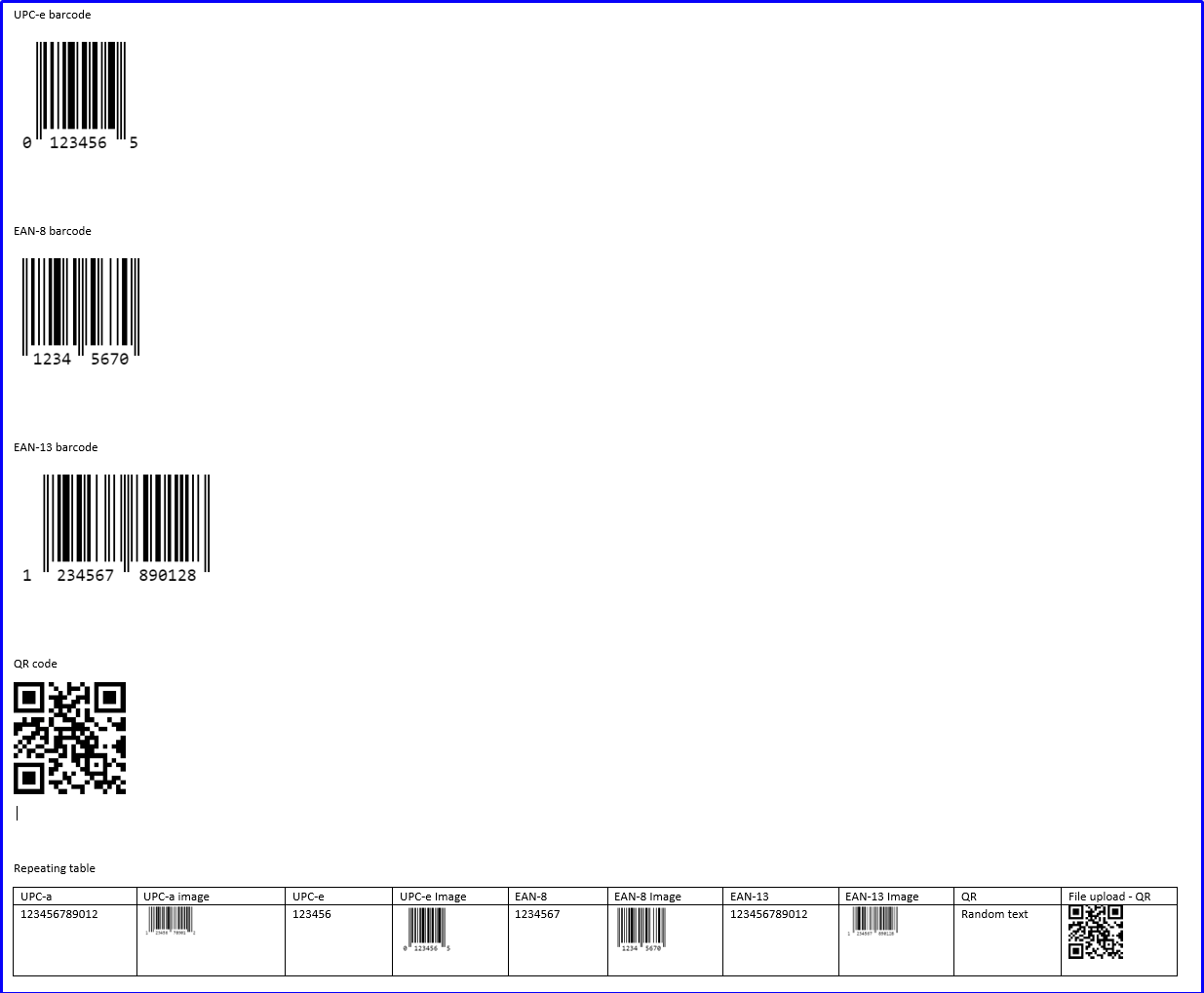
To display the barcode/QR in a document generation document, check the Generate in document as image checkbox (2).Form operation
Barcode type UPC-a
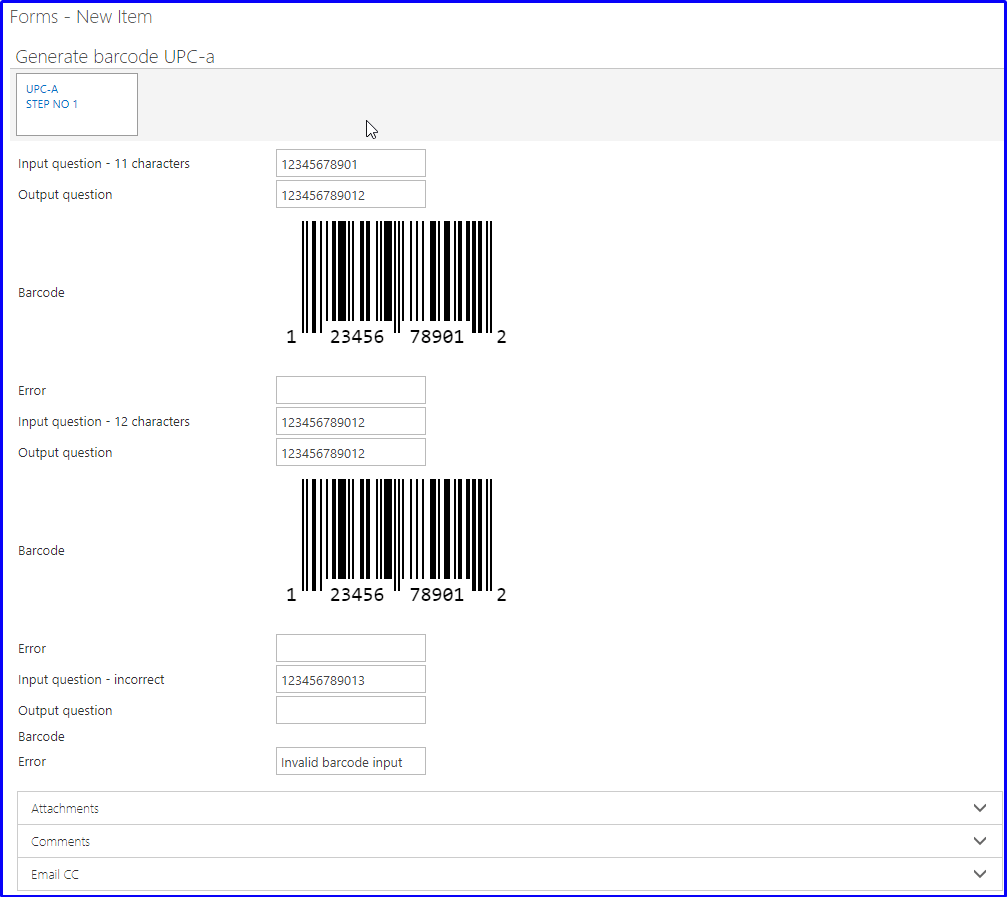
- Eleven characters. A barcode will be created by adding the correct check digit, and the full twelve-digit barcode value will be output to a question if selected in the rule.
- Twelve characters. This must be a valid UPC-a code. This twelve-digit barcode will be output to a question if selected in the rule.
Barcode type UPC-e
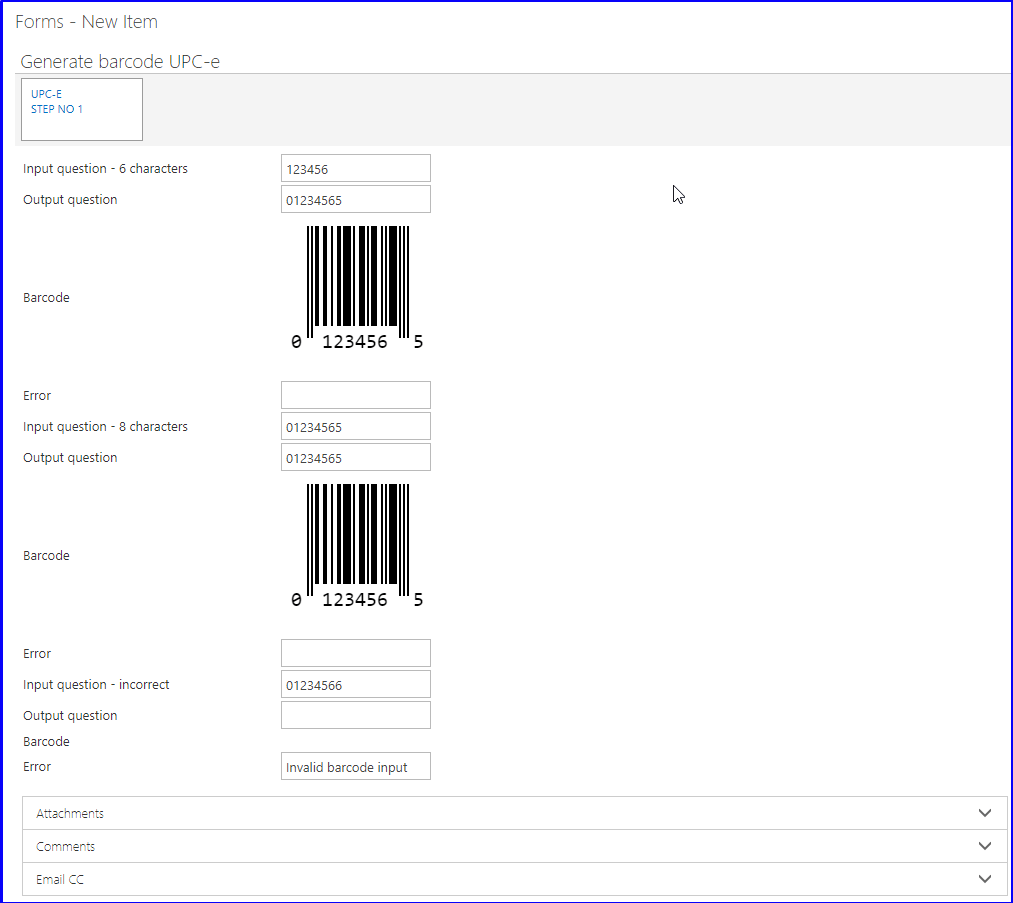
- the first character is a type identifier and is either 1 or 2
- the final character is a check digit
- Six characters. A barcode will be created by adding the type identifier to the beginning of the code and the correct check digit at the end, and the full eight-digit barcode value will be output to a question if selected in the rule.
- Eight characters. This must be a valid UPC-e code. This eight-digit barcode will be output to a question if selected in the rule.
Barcode type EAN-8
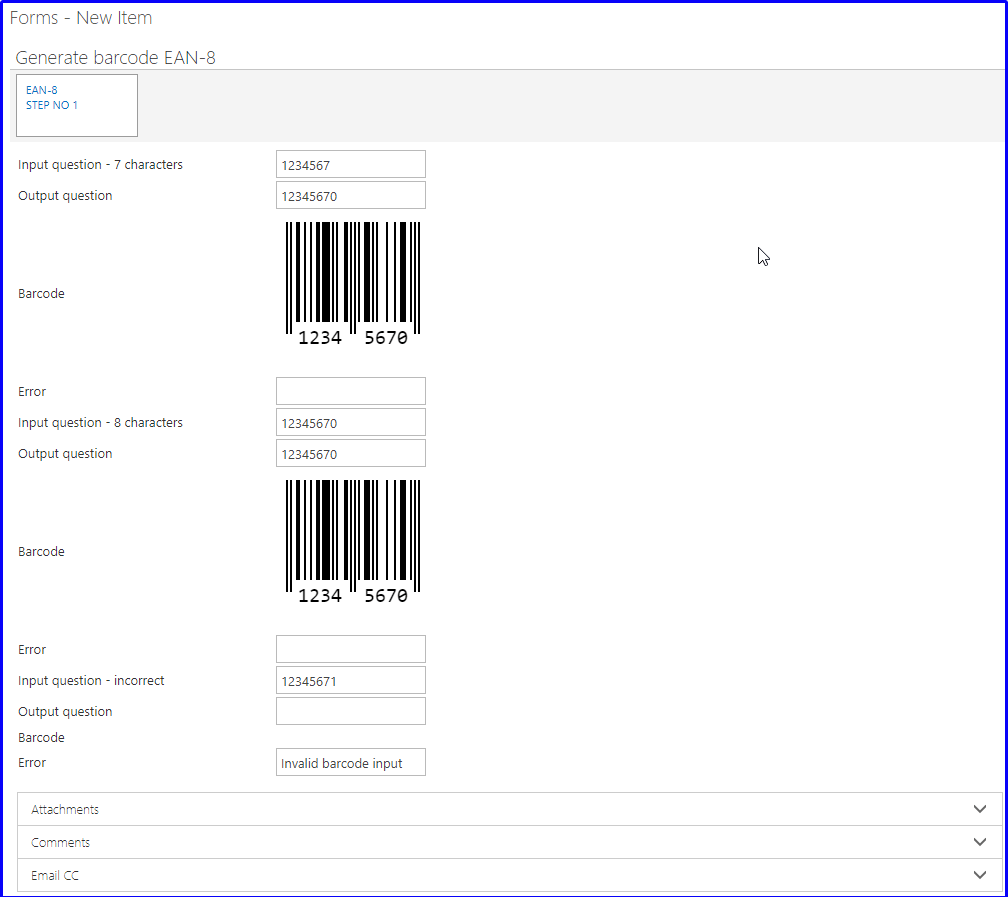
- Seven characters. A barcode will be created by adding the correct check digit, and the full eight-digit barcode value will be output to a question if selected in the rule.
- Eight characters. This must be a valid EAN-8 code. This eight-digit barcode will be output to a question if selected in the rule.
Barcode type EAN-13
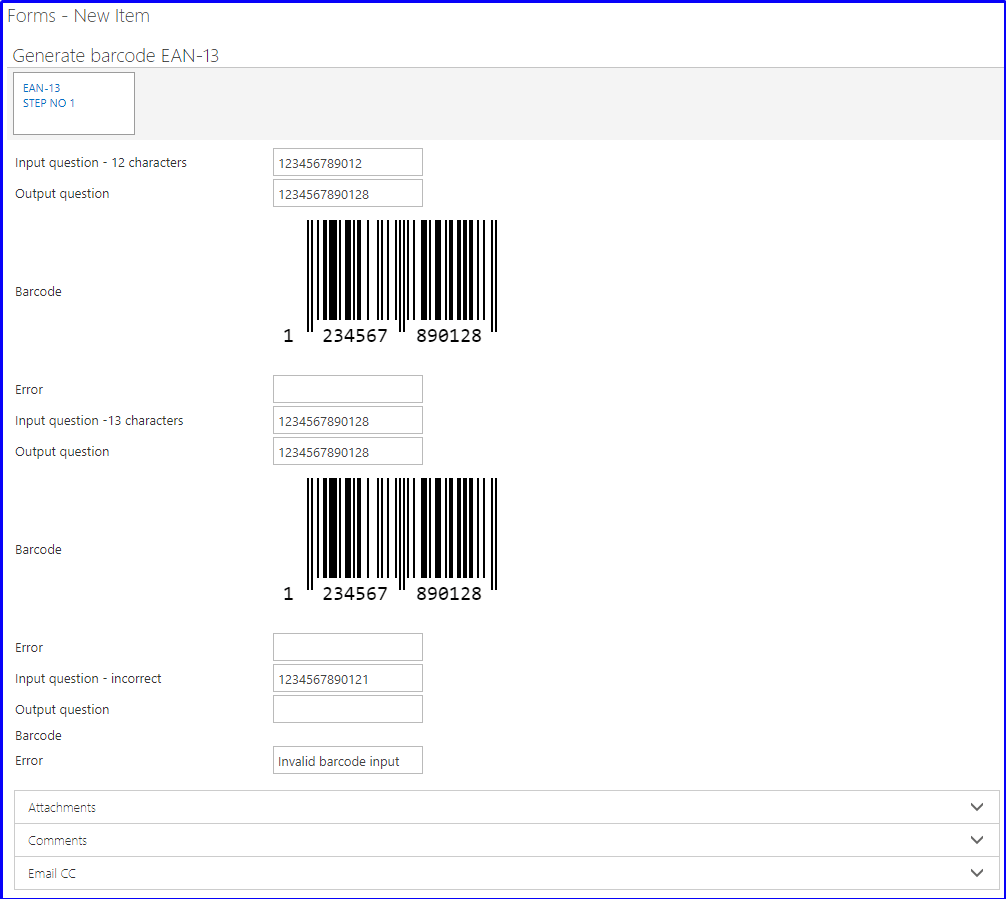
- Twelve characters. A barcode will be created by adding the correct check digit, and the full thirteen-digit barcode value will be output to a question if selected in the rule.
- Thirteen characters. This must be a valid EAN-13 code. This thirteen-digit barcode will be output to a question if selected in the rule.
QR code
A QR code can be generated from any text input. The input and output values will always be the same, and you should not encounter any errors.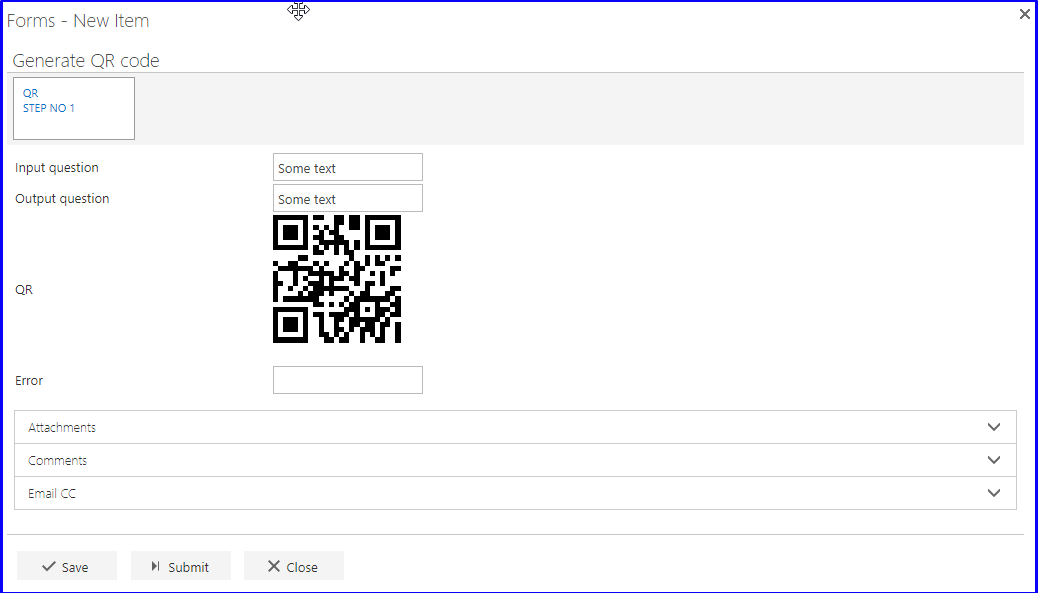
Barcodes and repeating tables
You can use repeating table sub questions to generate barcodes in a repeating table, by attaching the rule to a repeating table sub question.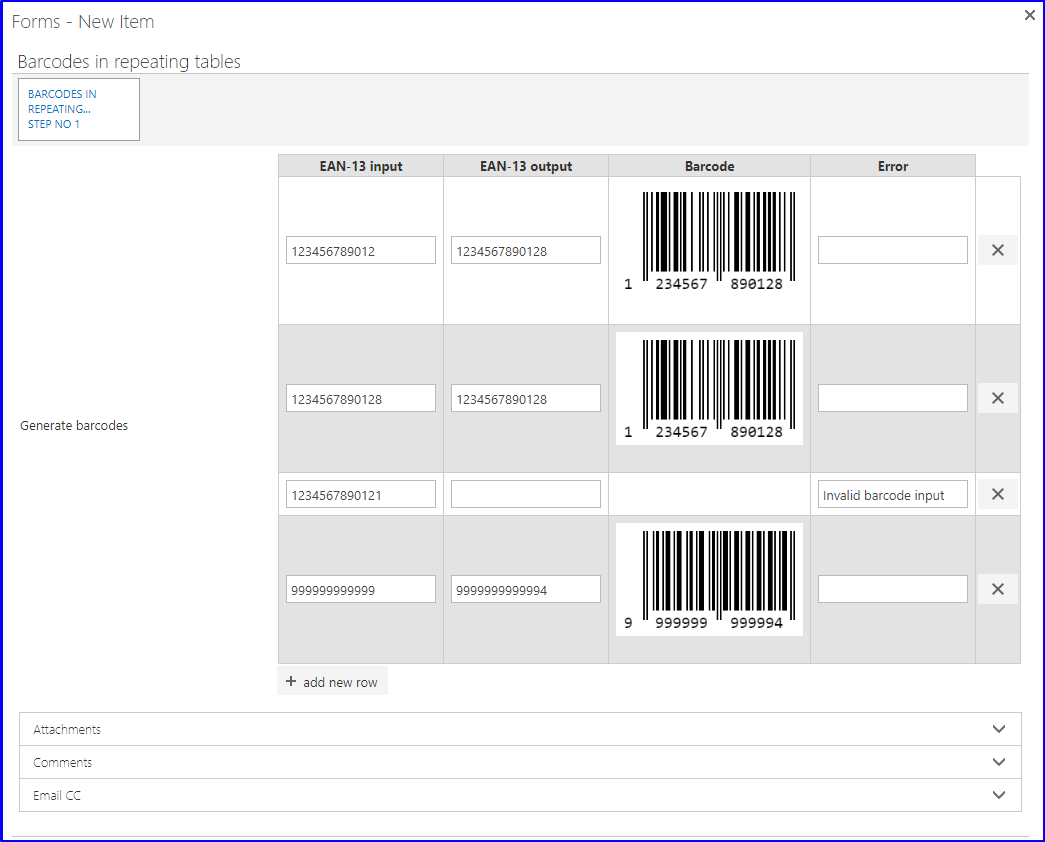
Barcodes in documents
By using the file upload question, you can include the barcode in a document using the FlowForma document generation tool.