

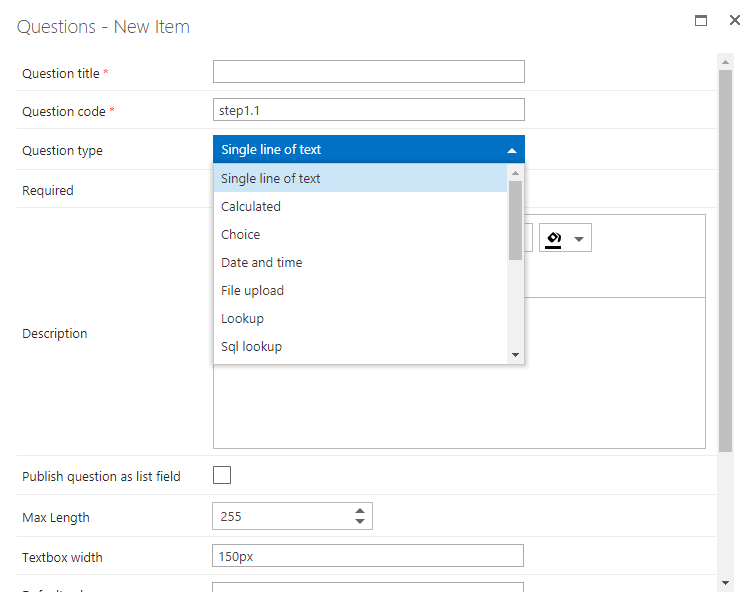
- Question title: displayed before the input box when the form runs, and used to identify the question when you select it from the list.
- Question code: how the question is identified in FlowForma. It must be unique, so consider a naming convention for question codes.
- Question type: select the type of question to create. Additional fields become available based on the type.
- Required: select yes to make this a required field, or no to make it optional.
- Description: an optional description for clarification. If entered, an exclamation point appears next to the question title when the form runs; clicking it shows the description.
- Publish question as list field: use this question as a column in the forms list, so you see its answer on a form’s row. The column can also be used for filtering views and reporting.
- Show question title on form: checked by default. Uncheck to hide the question title and show only the answer field: useful for repeating tables.
- Render, but hide question on form: if a question is hidden in the flow designer, its default value and calculations are not applied. This option renders the question while hiding it on the form: useful for hidden calculated questions, published questions, or questions with a default value.
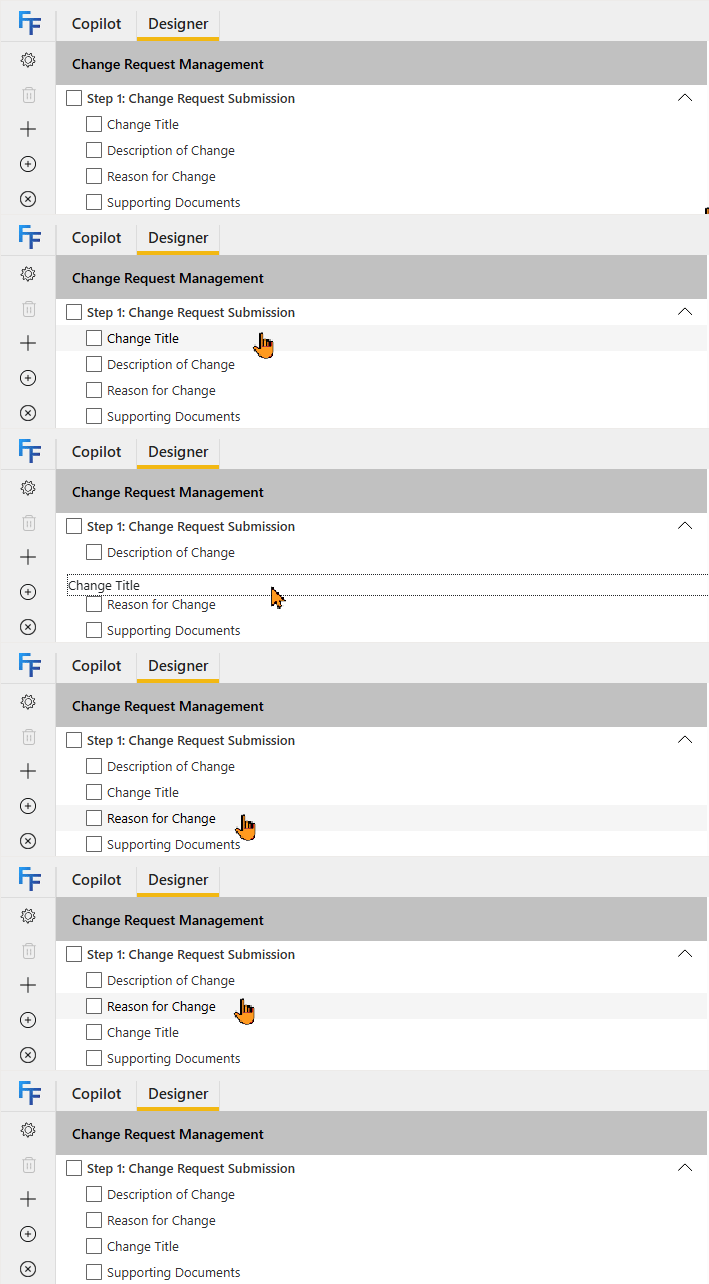
Show/hide and enable/disable
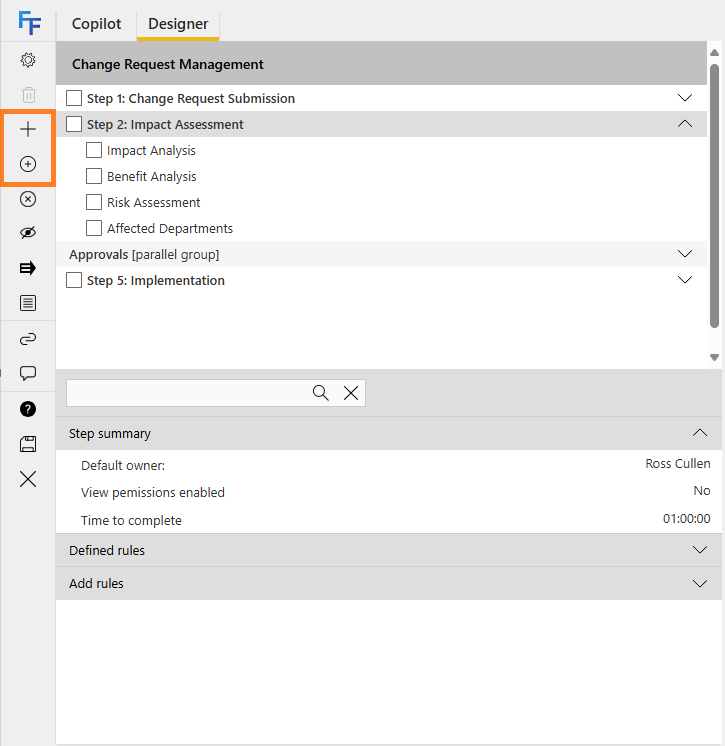
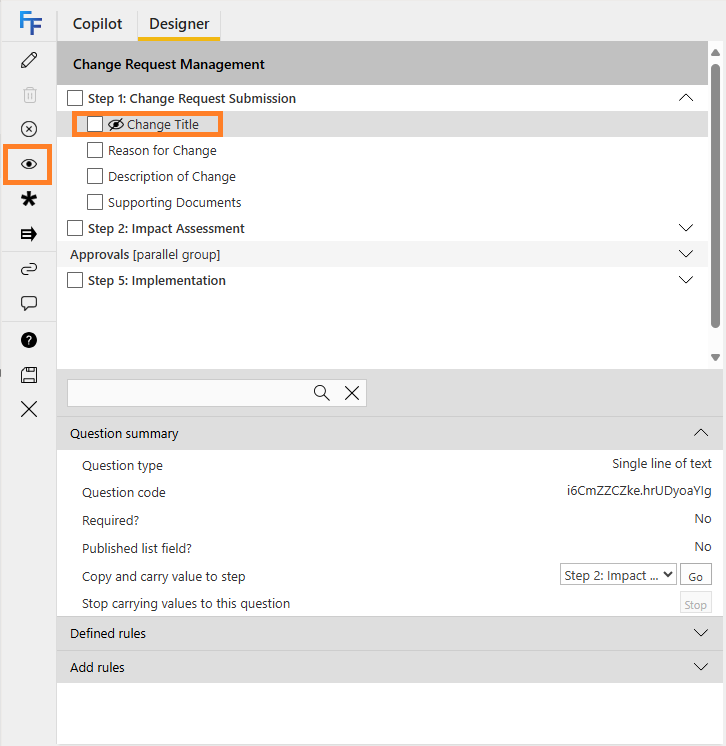
In the flow designer you can see all the questions included in the flow. By default all questions are visible and enabled.- If you hide a question, it is not visible when a form is rendered.
- If you disable a question, its answer cannot be edited.
- If a question is visible but disabled, it appears on the form but greyed out.
- Ensure calculated fields are visible, or calculations based on them will not be evaluated.
- You can disable questions related to rules, but test the business logic to ensure the rules still operate as intended.
 means show (not shown beside a question, since showing is the default). A
  means hide: if you see it beside a question, that question is hidden.
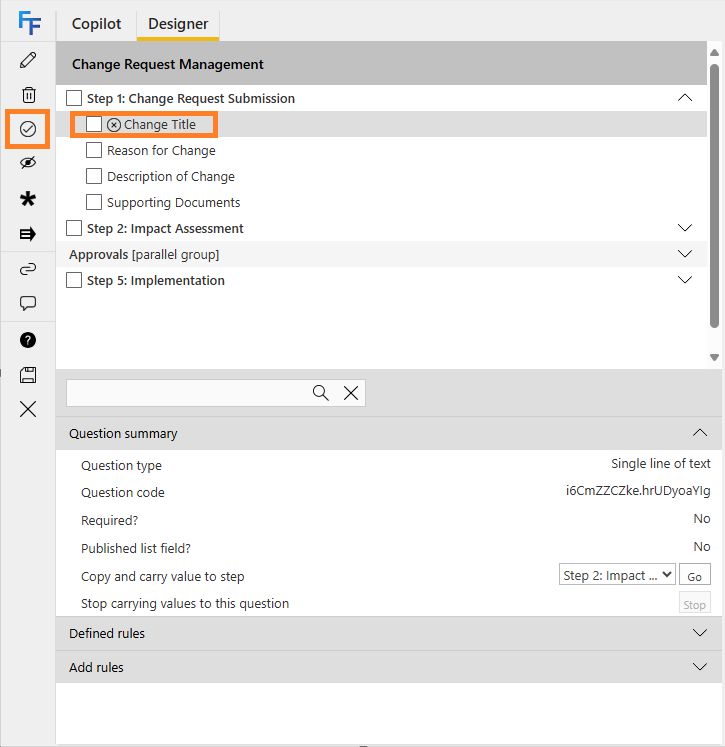
 means enable (not shown beside a question, since enabled is the default). A
  means disable: if you see it beside a question, that question is disabled.