

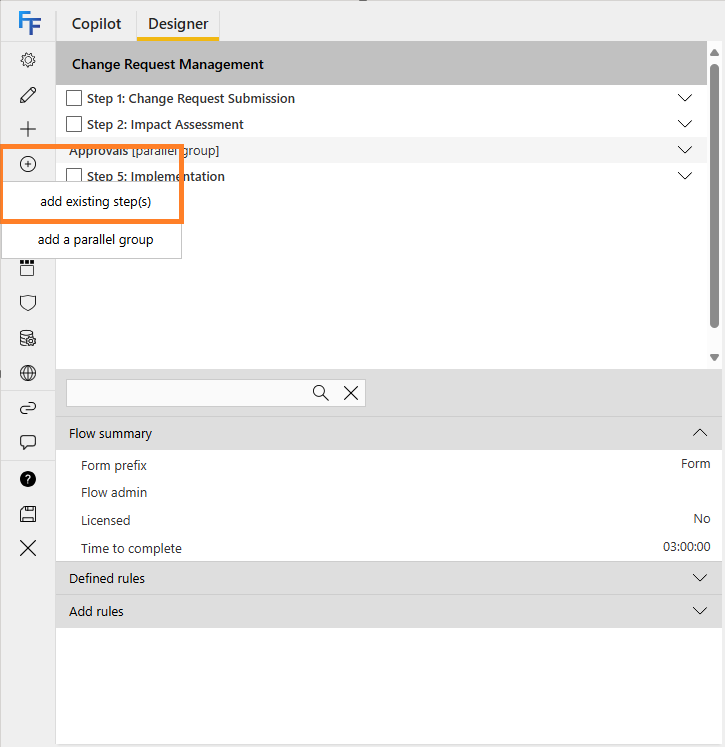
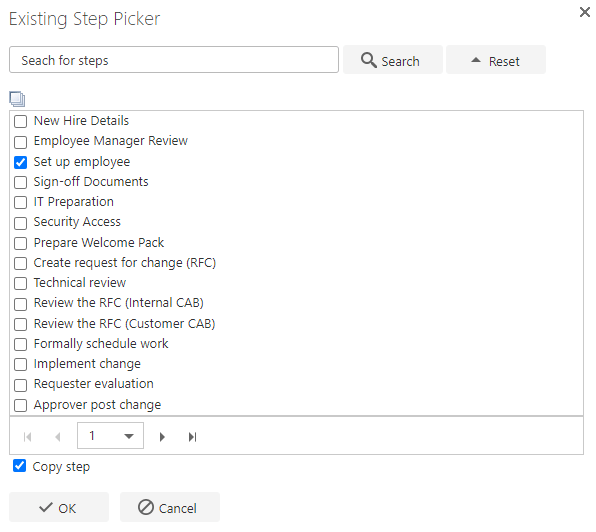
Copy step or reuse a step
When adding an existing step, you can choose to copy the step or reuse it, using the Copy step checkbox. If left unchecked, the step is reused. Reusing a step brings in the step and all associated questions, but does not update the step code or any question codes. This means that if two separate flows reuse the same questions, any changes made to a question are reflected in both flows. This can be useful in certain situations, but it can also cause problems: if a question is referenced in a rule in one flow, but the question type is changed in the other, the rule may break. Copying a step brings in the step and all associated questions, but also generates a new step code and new question codes for all questions, effectively creating new questions.Adding an existing step does not include rules.
Certain questions such as the Lookup or SQL Lookup question have the option for filtering, and input mappings, if these questions are using questions that do not exist in the flow you’re adding the existing step to, the mapping will be broken as that question will not exist in the flow and will need to be remapped after the step is added.