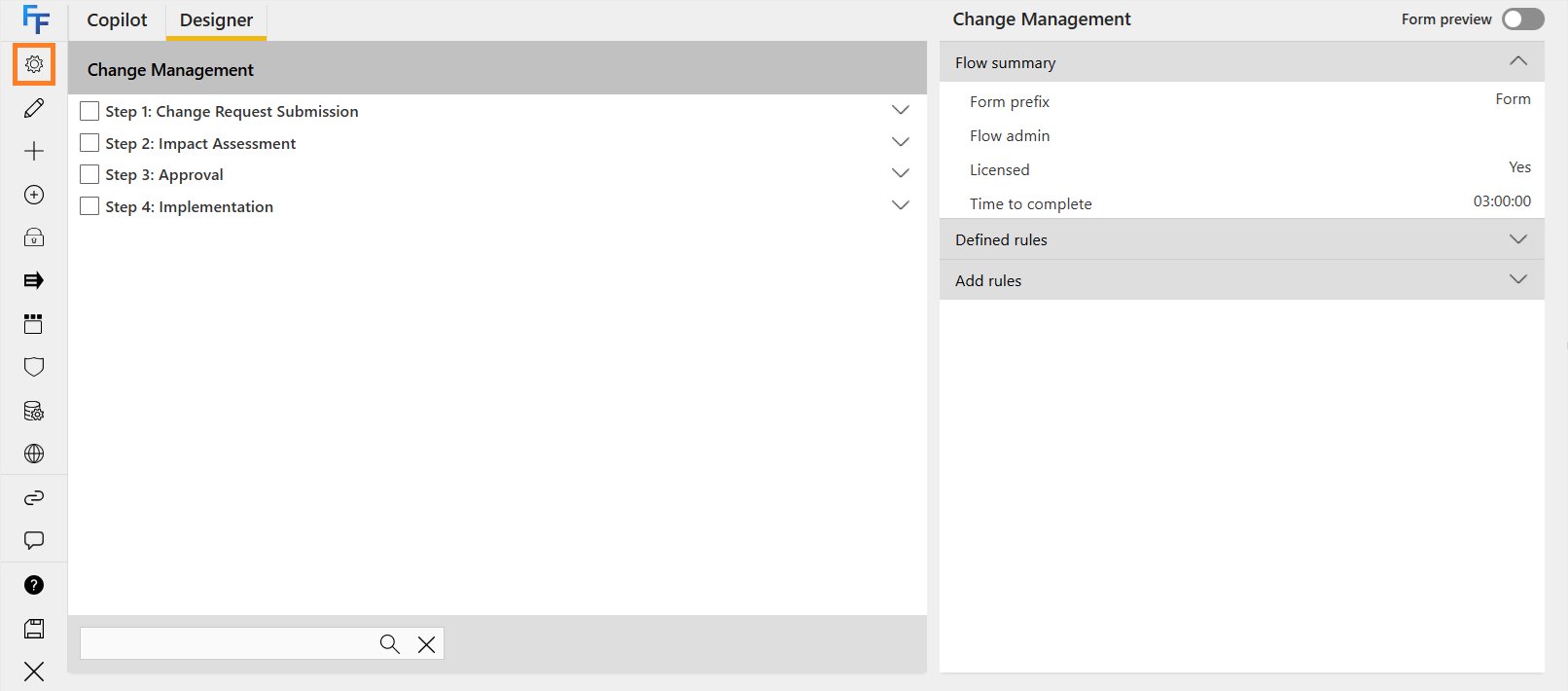
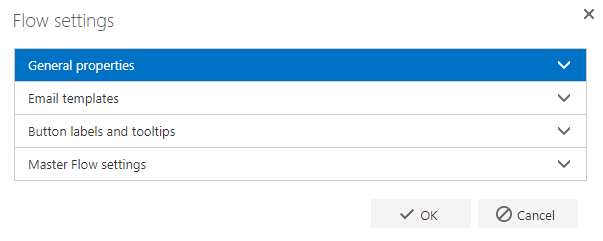
Flow settings allow you to configure options that affect the individual flow. To open the flow settings, open your flow in the Flow Designer, then click the settings cog in the toolbar. Flow settings cog in the toolbar The flow settings are specific to the flow and consists of General properties, Email templates, Button labels and tooltips, and Master Flow settings. Flow settings tabs

General properties

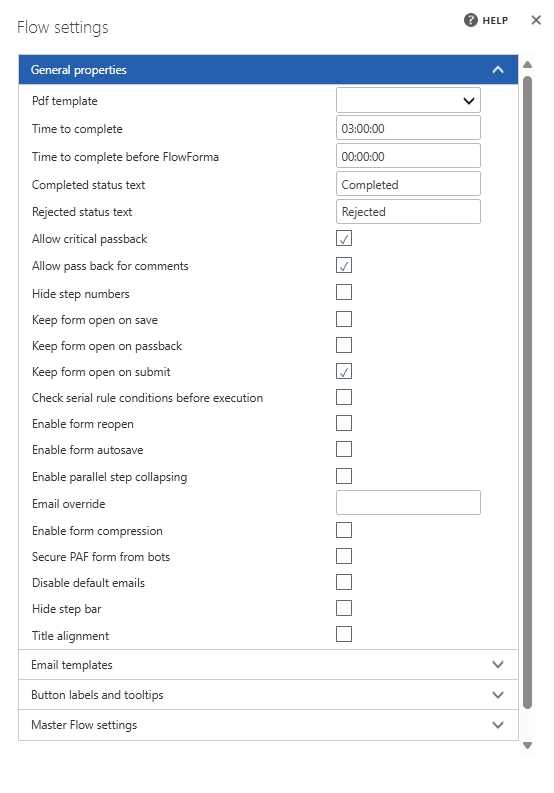
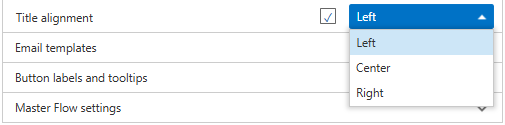
General properties settings PDF template: in FlowForma there is a user role “print viewer”. This user only has permission to print defined PDF documents. These PDF documents are generated from the template you select in this drop-down list. You’ll be able to see all documents associated with the flow currently saved in the document library. Time to complete: you can use the built-in Process Performance feature in FlowForma to monitor the progress of flows and steps. For each process and step you set the estimated time to complete. The default completion time for a process and step is always 3 days, but you can change this. In the process performance dialogue, forms/steps will be displayed as “completed on time” or “delayed” relative to the time to complete you have entered. The format for entering the duration is days, hours, and minutes. Time to complete before FlowForma: additionally, you can enter the “time to complete” value of the expected completion time from the previous system used before moving to FlowForma. This allows you to compare any improvements in completion time since moving to FlowForma. Completed status text: by default, completed forms appear with the status “Completed” in any lists. You can change this, if required. In the example below, the status text is “well done”. Rejected status text: by default, rejected forms appear with the status “Rejected” in any lists. You can change this, if required. In the example below, the status text is “Not approved”. Allow critical passback: if a critical passback is performed, the form will return to the step you’ve passed back to. The user assigned to that step can change answers to the questions in the step. All steps after the step passed back to are re-opened and will have to be re-submitted by the users originally assigned to them. This is because the changes on the step passed back to may impact subsequent steps/business rules. Allow pass back for comments: if a passback for comments is performed, the form will return to the step you’ve passed back to. The user assigned to the step will only be able to add a comment in the comments field at the foot of the form (you need to ensure comments are enabled on the step), but will not be able to change the answers to questions. When they submit that step, it will go back to the step it was originally passed back from. Hide step numbers: by default, steps are displayed with a step name followed by the step number. You can decide to hide step numbers; this simply removes the step number, but the box remains the same size. Keep form open on save: by default, this is unchecked when you create a new flow. As a result, a form will close when you click the save button. If your users tend to save progress regularly, you may wish to check this box to keep the form open when the save button is clicked. Keep form open on passback: by default, this is unchecked when you create a new flow. As a result, a form will close on passback if the user is not assigned to the step it was passed back to. If you’d prefer the form to stay open, you may wish to check this box to keep the form open on passback. Keep form open on submit: by default, this is checked when you create a new flow. As a result, a form will remain open when you submit. This may be convenient if the same user is responsible for multiple steps; if this is not the case, you may wish to uncheck this box to close it after submission. Use the full screen width: tick the box if you want your forms displayed in full screen mode. Check serial rule conditions before execution: by default, when rules are executed in series, they run individually in the order they’re entered in the flow, so conditions for individual rules are evaluated as that rule executes. When this option is checked, the conditions for all rules at a particular level (question change, step completed, flow completed, etc.) are evaluated first, and then the rules at that level run without conditions being evaluated again. Enable form reopen: you can enable or disable whether forms created for this flow can be reopened once completed. Note that form reopen is also a global FlowForma setting where you can define if reopening forms is allowed in the site, the flow specific option will then allow you to define which flows can or cannot be reopened. Enable form autosave: you can configure flows to automatically save progress after a set number of minutes. Enable parallel step collapsing: this allows you to collapse a parallel group, to hide the parallel steps, once the parallel group has been submitted. Host web form: allows you to use the FlowForma Form UI when adding SharePoint List items. Enable audit: if you have purchased the Compliance pack, you can enable auditing on the flow by checking this option. Email override: you may want to send all the emails generated by send email business rules to a single email address when you are testing a flow. Type the email address you want to receive the emails in the box and all emails will be sent to this email address and not to users / email addresses defined in the rules. When you have completed your testing remove the email address entered here and the emails will be sent to the users defined in the business rules. Enable advanced form versioning: advanced form versioning allows you to create new forms pre-populated with the answers from the previous version. This is useful in cases where forms are submitted with only minor changes, as it saves time by pre-filling the form so only the necessary adjustments need to be made - view full documentation for this feature here: Advanced Form Versioning. Enable form compression: you can enable form compression if you have a very large flow and are reaching the flow capacity limit to reduce the size. Secure PAF form from bots: when submitting a Publicly Accessible Form using Engage, users will be required to check an “I am not a robot” checkbox. This, combined with other hidden checks on the form, helps prevent forms being created by bots. Disable default emails: by default, when forms are delegated, passed back, rejected, or diarized, a system-generated email is sent out. You can disable these emails if required. Hide step bar: you can disable the step bar from being displayed on the form by checking this option. Title alignment: you can align the titles of the questions on a form by enabling this option. You’ll then have the option to select “left”, “center”, or “right” alignment. Title alignment options Question input width: sets the width of question input fields on the form.

Email templates

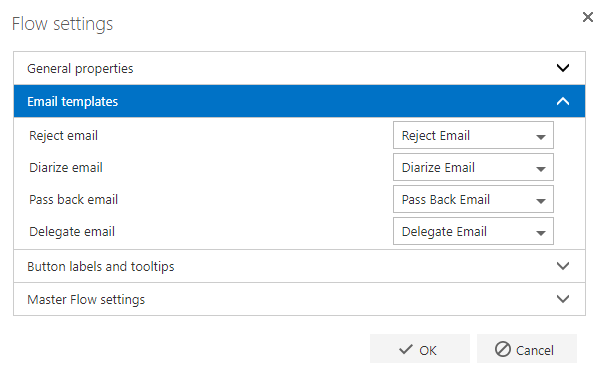
There are a number of actions in the system that require the use of an email template. For each category, you can select the email template you want to use. The drop-down list contains all the templates available in the site’s Email templates library. When a new FlowForma site is created, standard email templates for rejecting a form (Reject email), passing back a form (Pass back email), delegating a form (Delegate email), and creating a reminder (Diarize email) are included. You can create new email templates, if required. As these settings are on a per-flow basis, you don’t need to use the same email templates for each flow. So if you delegate a form, the user/group you selected to delegate the form to will receive an email based on the “Delegate email” template. Email templates settings
Button labels and tooltips

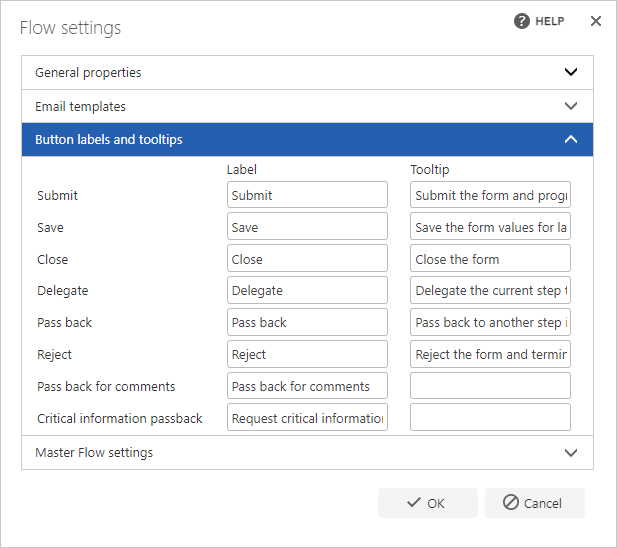
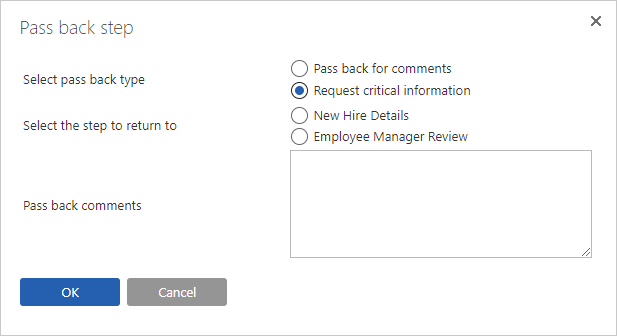
Button labels and tooltips settings It’s possible to have up to six buttons on a form. By default, these buttons have labels, as you can see below. They are named: Save, Submit, Delegate, Pass back, Reject, and Close. In the button labels and tooltips you have three columns. The first is read-only and is the button’s name. The second is the text to be displayed on the button, which you can change. The third is the tooltip, which appears when you hover over the button; you can also change this. Default button labels In the example below, the text on each button has been changed. Buttons with changed text labels Finally, you have the option of not including any text on the buttons. In this case, only the icons appear, as in the example below. Buttons with icons only There are also two “labels” for the passback options, namely passback for comments and critical information passback. These two options also have a text box where you can enter new text. This is the text that will appear if you use the passback option on a step. In the example below, the text is passback for comments and Request critical information. Passback option labels

Master Flow settings

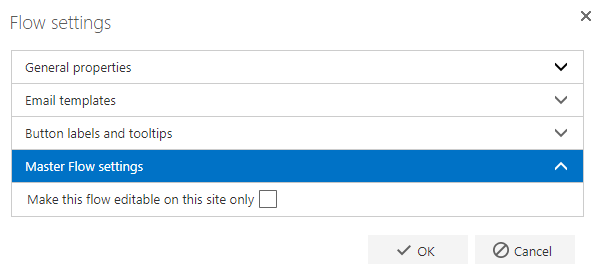
Master Flow settings Make this flow editable on this site only: if this option is selected, changes can only be made to the flow on this site. After importing to another site, the Flow Designer will not open. Remember to click OK to save any changes you’ve made. If you click Cancel or the X in the top right corner, changes will not be saved.