

- Diarize: sent when you set up a reminder for the form using the diarize action from the form toolbar
- Notification: used for any type of notification
- Reject: sent when a form is rejected
- Pass Back: sent when a form is passed back
- Delegate: sent when a form is delegated to another person
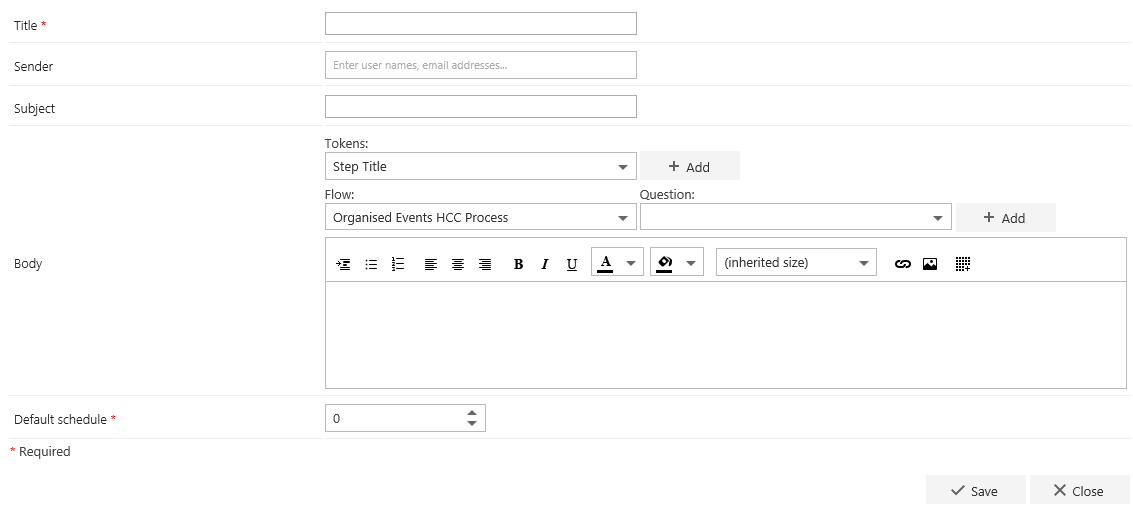
- Title: allows you to easily identify the email template in the drop-down list when you create a send email rule.
- Sender: must be a user from Active Directory and will appear as the sender of the email. If you leave this field empty, the email will automatically be sent from the default email address defined in FlowForma settings.
- Subject: this becomes the subject of the sent email when this email template is used.
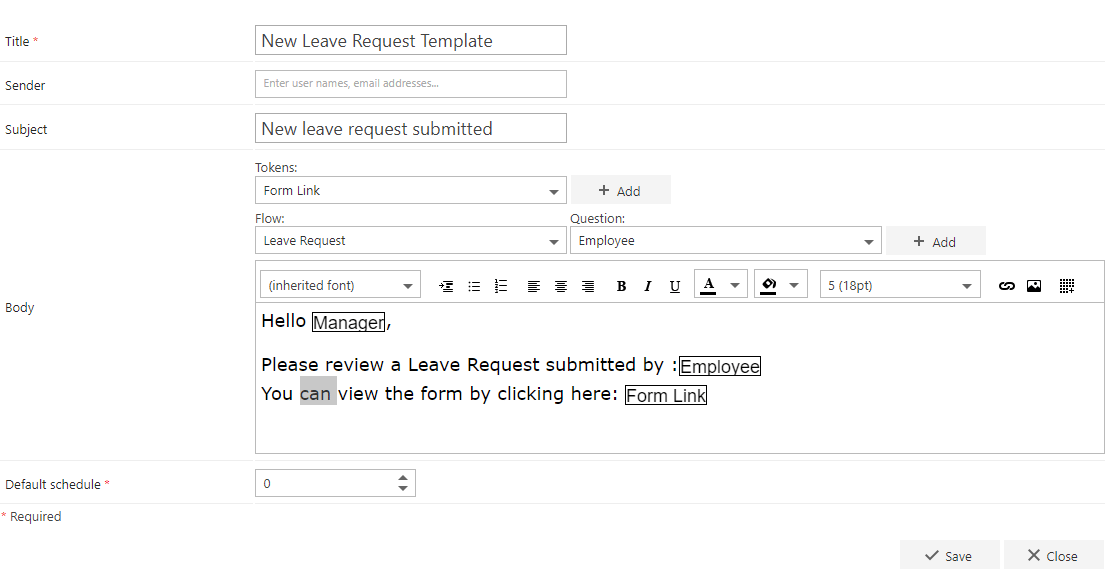
- Body: this is what will be displayed in the email. You can use identifiers (tokens) to create a dynamic body for the email. These tokens pick information from the form and bring it into the email body. Select the desired token and click + Add. Below is the list of the tokens you can use:
- Step Title inserts the title of the step this email is associated to.
- Step Assigned To inserts the name of the user assigned to the step this email is associated to.
- Step Started inserts the start date and time of the step this email is associated to.
- Step Started Formatted inserts the start date and time of the step this email is associated to using the format entered in FlowForma Settings.
- Step Completed inserts the completion date and time of the step this email is associated to.
- Step Completed Formatted inserts the completion date and time of the step this email is associated to using the format entered in FlowForma Settings.
- Pass Back Message can be used only when passing back to a previous step and it contains the message entered in the “comments” box of the “pass back” action.
- Pass Back Type can only be used with a “Pass Back” action and it contains the type of the pass back: “missing information” or “critical information”.
- Pass Back By can only be used with a “Pass Back” action and inserts the name of the person who has passed back the form.
- Form Status inserts the name of the last active step in the form.
- Form Started inserts the date and the time when the form started.
- Form Started Formatted inserts the date and the time when the form started using the format entered in FlowForma Settings.
- Form Link inserts the URL of the current form.
- Public Form Link inserts the URL of the current form if it is coming from a public form using the Engage feature.
- Form Completed Date inserts the date and the time of the form completion.
- Form Completed Date Formatted inserts the date and the time of the form completion using the format entered in FlowForma Settings.
- Form Author inserts the name of the user who created the form.
- Flow Title inserts the name of the flow used to create the current form.
- Reject Message can only be used with a “rejected” action and inserts the message entered in the comments box of the action.
- Rejected By can only be used with a “rejected” action and inserts the name of the user who rejected the form.
- Delegate Message can only be used with a “delegate” action and inserts the message from the comments box of the action.
- Delegated By can only be used with a “delegate” action and inserts the name of the user who delegated the form.
- Form ID inserts the number of the current form, excluding any prefix or suffix that has been added.
- Question: You can use the answers given to questions in the form the email is being sent from. If you are creating a new email template from the email templates list, select the relevant flow and then the required question from the drop-down, and click + Add. If you are creating a new email template directly from the Send email rule, only questions from that flow can be used. Note that sub-questions from repeating tables are not supported; these can be entered manually.
- Default schedule: this is the number of days the email will remain in the email queue before being sent. If you set this to 0, the email will be sent immediately. You can use this option to notify someone of the creation of a new task or approval of a form. To send a reminder for a task, set the default schedule to the number of days that should elapse before the reminder is sent (from the creation of the task if the rule is created as a “step started” rule, or from the date of completion if the rule is created as a “step completed” rule). The email will be sent at the time the request was made. For example, if the request was made at 9:30, for an email with a default schedule of 3 days, the email will be sent at 9:30 in 3 days’ time.
Flows include the link to an email template, not the actual email template. The version of the email template to be sent will be the version held in the email templates library when the email is actually sent. If this has been edited between the time the send instruction was made and the default schedule time, the edited version will be sent.