

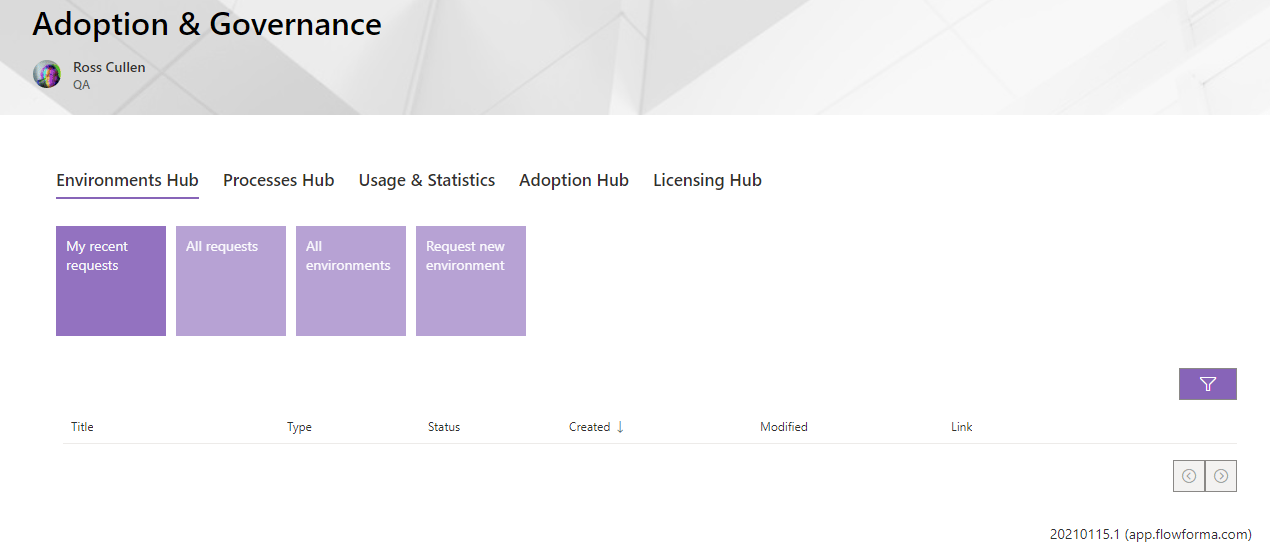
- My recent requests: displays a list of recently requested environments made by the current user.
- All requests: displays a list of requests made by all users. This tile is only available to administrators.
- All environments: displays a list of all environments found on the tenant. This tile is only available to administrators.
- Request new environment: displays a dialogue for users to enter details for a new environment to be created.
My recent requests
The My recent requests tile is available to all users, but only shows requests related to the current user. When a user requests a new environment, they can find it again on the My recent requests tab, where a list of their recent requests is displayed and they can check the status of each.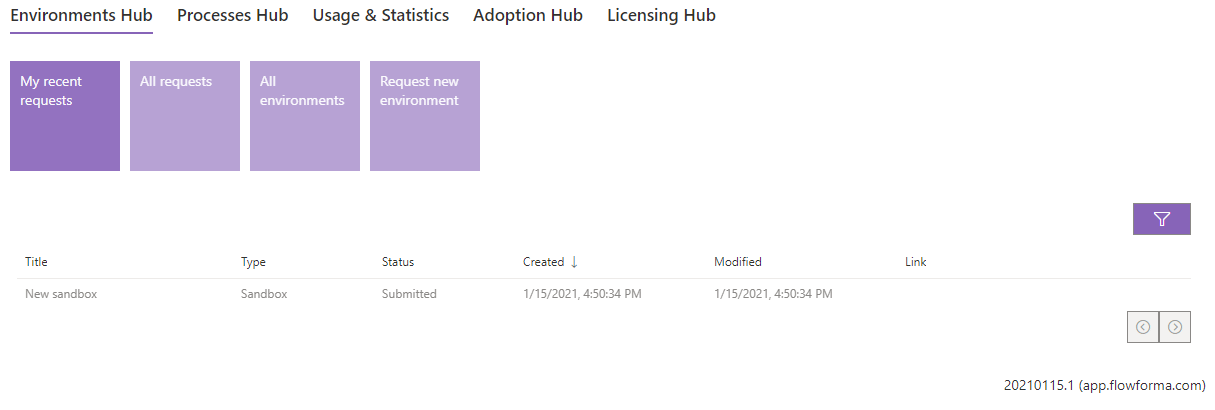
All requests
The All requests tile is only available to administrators, and displays a list of all requests made by users so administrators can process them.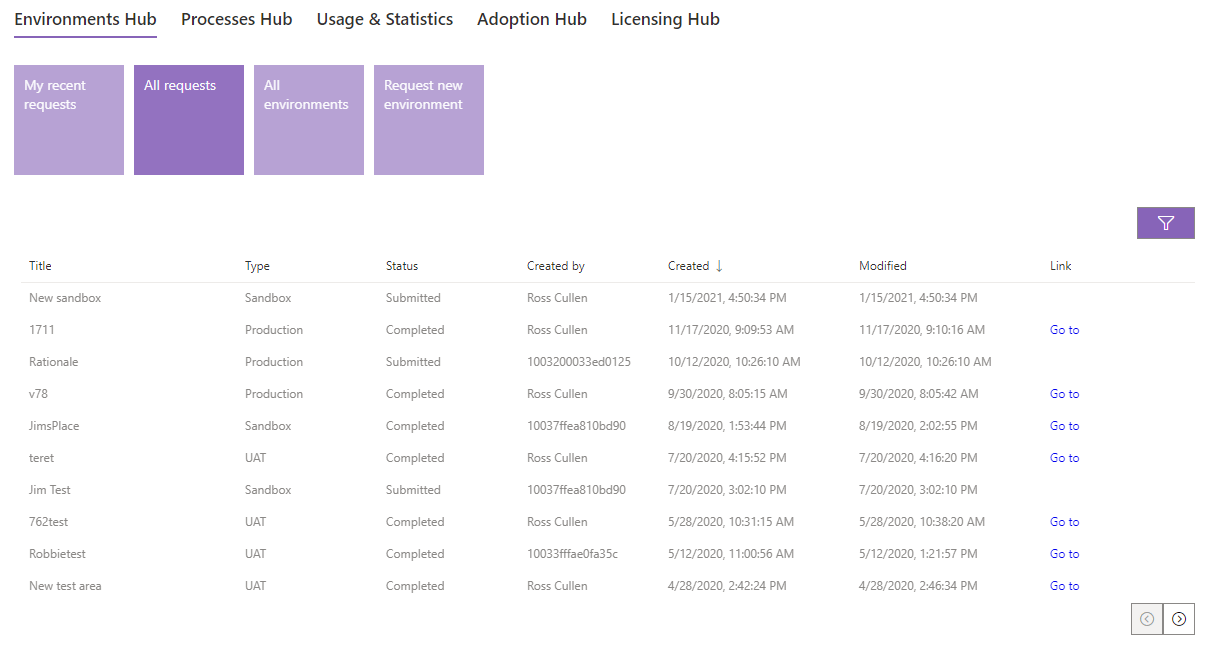
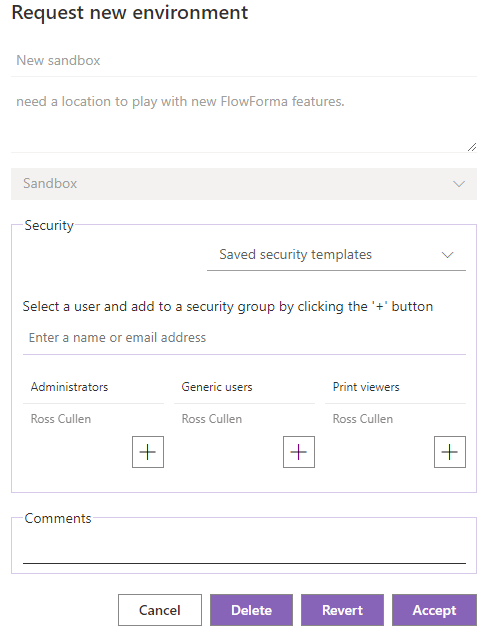
- Cancel: closes the request dialogue.
- Delete: deletes the request.
- Revert: returns the request to the requester for amendments.
- Accept: accepts the request.
- Comments: administrators can leave comments about this request.
All environments
The All environments tile is only available to administrators, and displays a list of all environments found within the tenant. This is a useful way to see all FlowForma apps that are installed, with a “Go to” link to navigate to each site.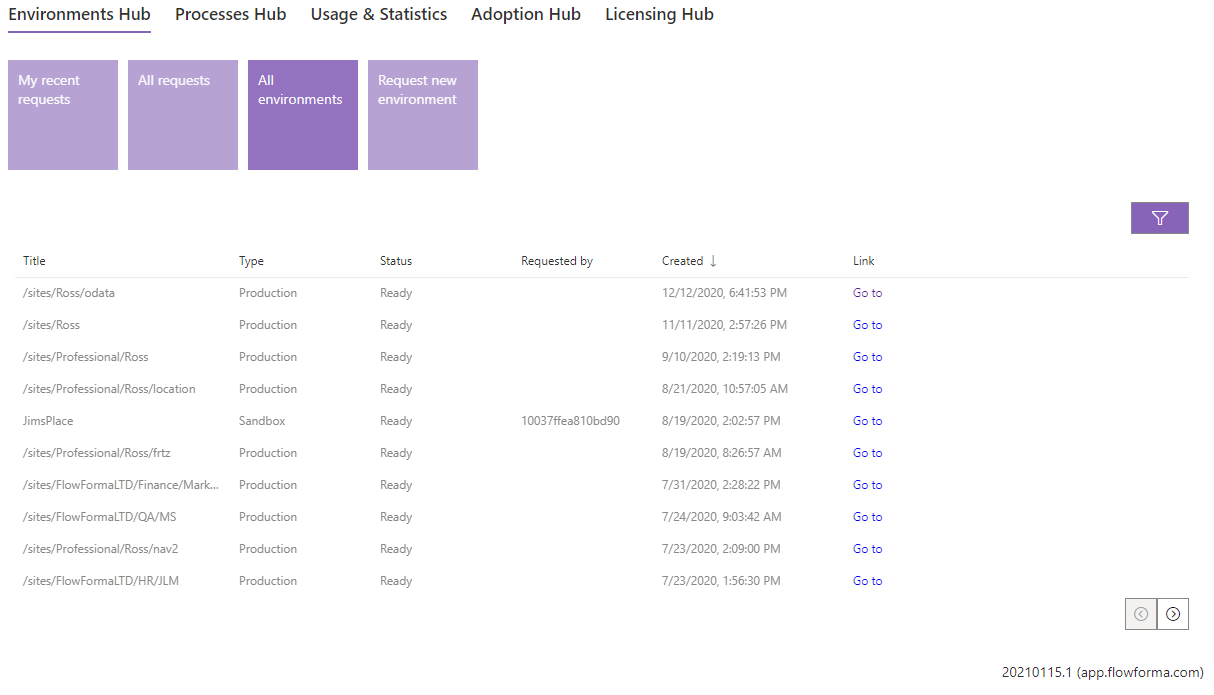
Request new environment
The Request new environment tile is available for all users to make requests for a new environment to be created. When a user clicks the tile, a new dialogue appears for them to fill out details about the new environment they are requesting.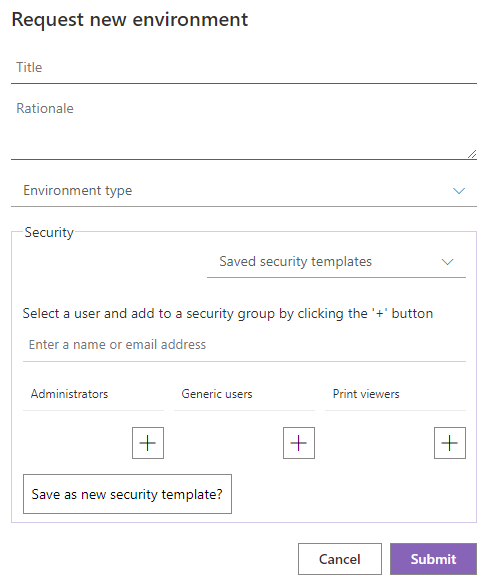
- Title: the title of the request, displayed on the request screens.
- Rationale: details of your reason for requesting the environment.
- Environment type: there are three environment types available: Sandbox, UAT and Production, selectable from this drop-down. Note: all environments use the same FlowForma app. The environment type is an internal reference. To manage the development of FlowForma processes, it is expected that processes would be developed in a Sandbox environment, promoted to a UAT environment for user acceptance testing, and, once testing is complete, promoted to a Production environment for use in your business.
-
Security: enter who will be added as members of the Administrators group, generic users group, and print viewers group. To do so, enter the name or email address of the user you wish to add and click the + icon to add them to that group; repeat for all necessary users.
Note:
- The same user can be added to more than one group if required.
- There must be at least one member of the Administrators and Generic users groups.
- To remove a user from a group, double click the user name.
- Security template: if you need to ensure all environments have certain users, you can create security templates. This saves the current users/groups entered for re-use on another request, so you don’t need to retype them. When you save a security template, give it a name; you can then find it in the dropdown on later requests. Note: if you use a security template, you can still add or remove users: double click the username to remove it, and add additional users as before.
Accepting a request
To accept a request for a new environment, double click the row item to open the request. A dialogue will appear allowing you to review the request and configure the installation details.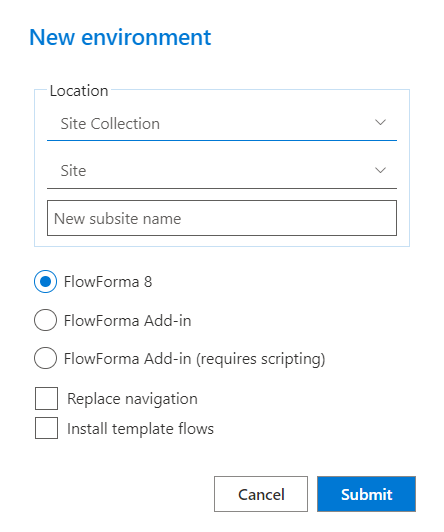
Location
- Site Collection: select the site collection you want to install this app to.
- Site: select the site you want to install the app to.
- New subsite name: if the site does not currently exist, you can create it by entering the name of the site, and it will be created by the Governance app before installing the app.
Package to install
FlowForma 8: this option will create a new environment and provision the latest version of FlowForma.Note: This will need to be installed for the first time via the SharePoint store. After this, you can install additional FlowForma 8 apps using Governance.More info: Installing FlowForma 8 from the SharePoint Store.
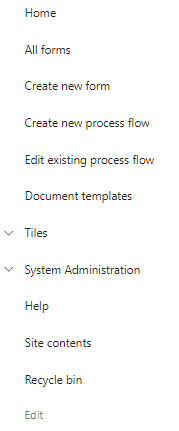
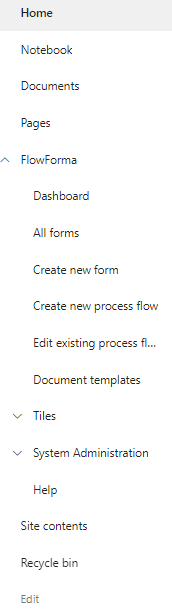
- Replace navigation: decide whether to replace the default navigation links with FlowForma navigation, or leave the default links and place FlowForma links inside an added FlowForma dropdown link (see examples below).
- Install template flows: decide whether to install the default flows (such as onboarding, change requests, incident management, and purchase requisition), or to install the app without flows, giving you an empty flows, steps, and questions list.
| Replaced navigation | Navigation not replaced |
|---|---|
 |  |