

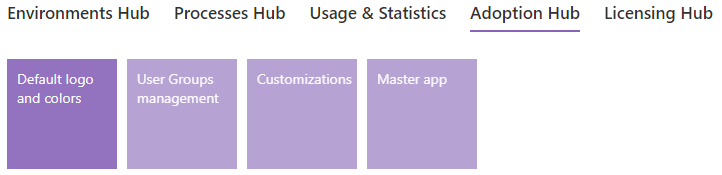
Default logo and colors
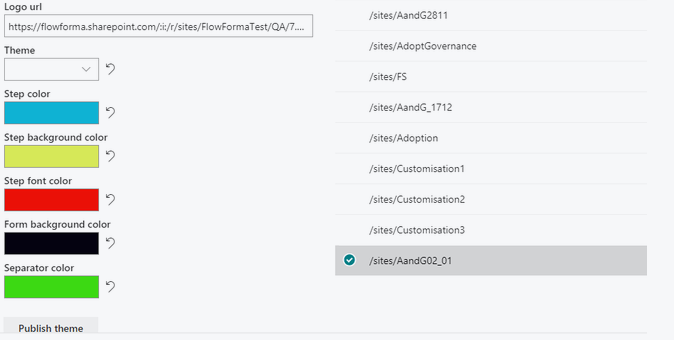
This allows you to add an image to all the sites in a site collection and change the theme (the colors of various items on the page) of the forms created using FlowForma. Click the Default logo and colors tile and the following screen is displayed.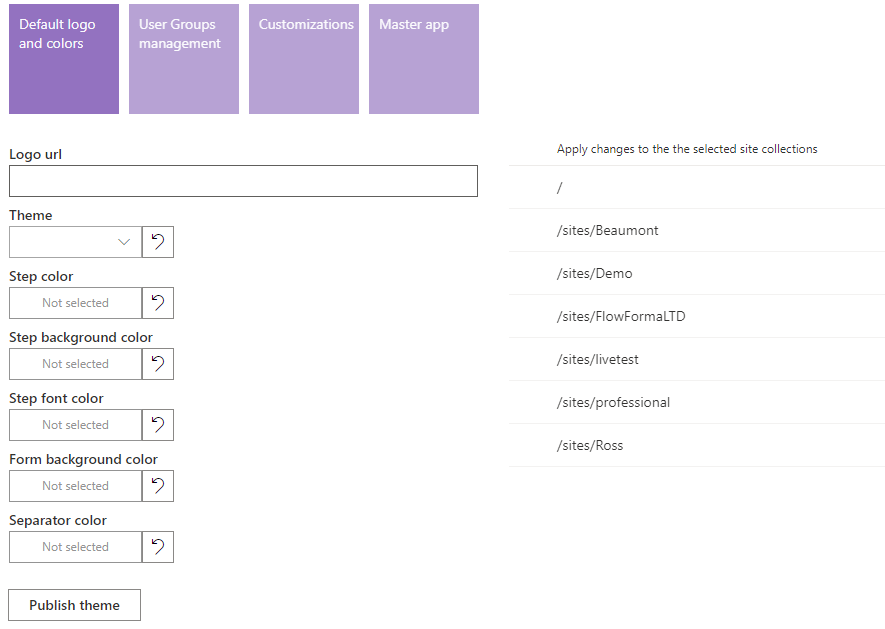
Editable items
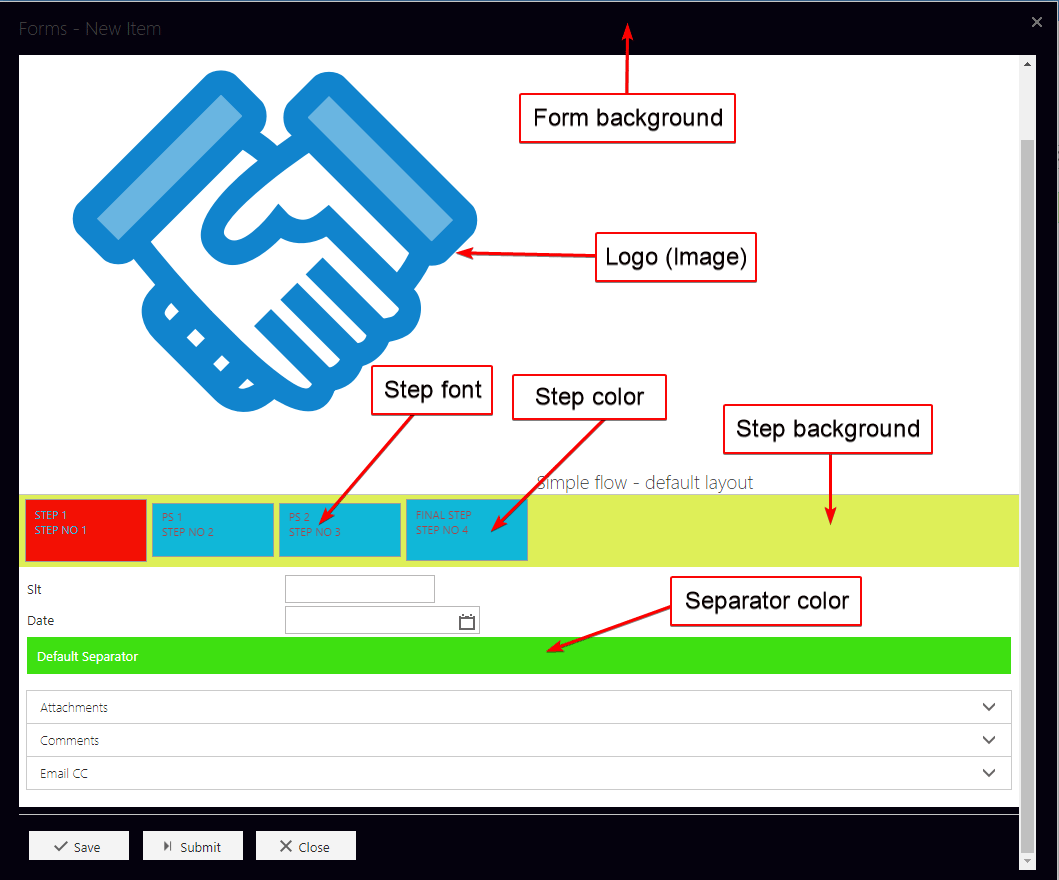
You can change the following items to control how your FlowForma form is displayed.- Logo URL: enter the URL of the image you want to display at the top of your FlowForma form.
- Theme: select the theme you want to use on your FlowForma sites from this drop-down of available themes.
- Step color: the color used to display steps on your form.
- Step background color: the color used for the step background on your form.
- Step font color: the color used for the text displayed on the step tiles on your form.
- Form background color: the color used for the form background on your form.
- Separator color: the default color used for separator questions added to your form.
Site collections
The changes you make will be applied to the site collection(s) you select from the list of site collections on the right of the screen. To select a site collection, check the checkbox next to the site collection you require. You must select at least one site collection, but you can select multiple if you wish.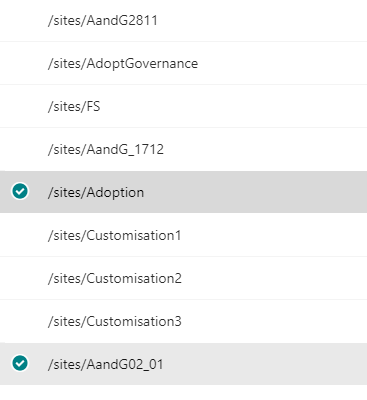
 button, any items selected will be applied to all FlowForma sites contained in those site collections.
Selecting colors
When the page is opened, the Step color, Step background color, Step font color, Form background color and Separator color are displayed with ‘Not selected’ shown. When ‘Publish theme’ is clicked to apply changes, the original colors are retained wherever ‘Not selected’ is displayed. For any of the color items, click in the select field and a color picker is displayed.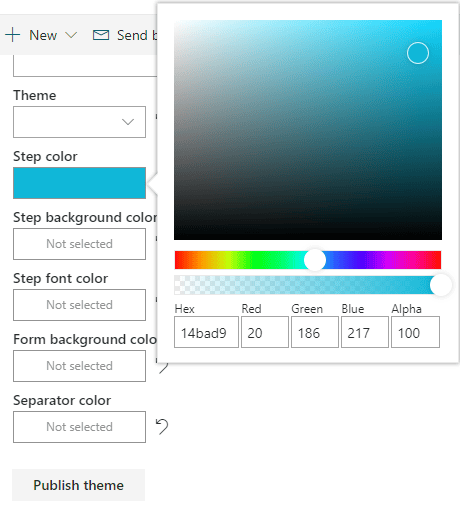
 button, the following pop-up is displayed.
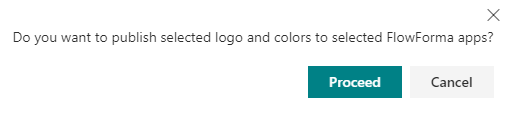
 button to apply the changes to the sites in the selected site collection.
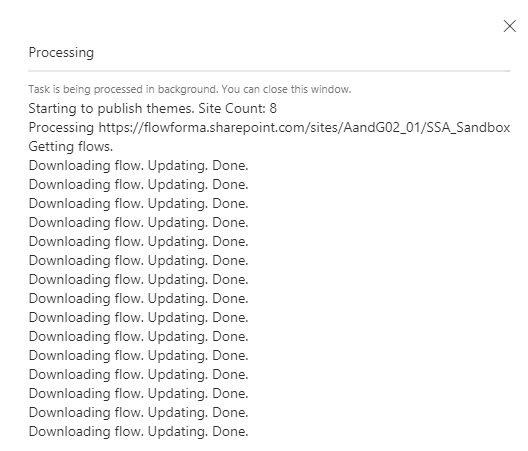
After you have clicked the button, the following processing screen is displayed.
button to apply the changes to the sites in the selected site collection.
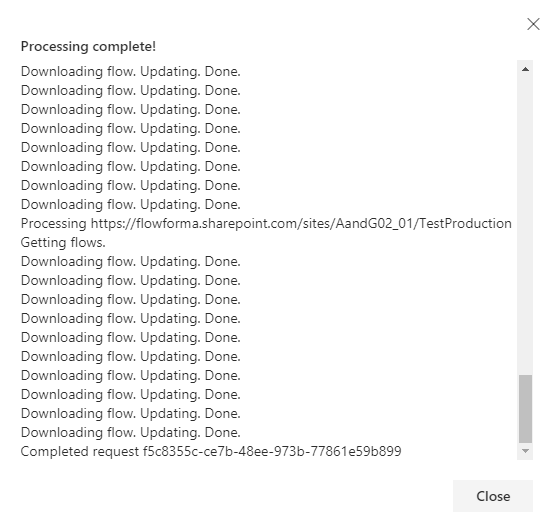
After you have clicked the button, the following processing screen is displayed.
 button to cancel the changes: no processing will take place and no changes will be made to any sites.
User groups management
User groups management allows you to add, remove or replace a user from groups in all sites contained in the selected site collection(s). Click the User groups management tile on the Adoption Hub screen and the following screen is displayed.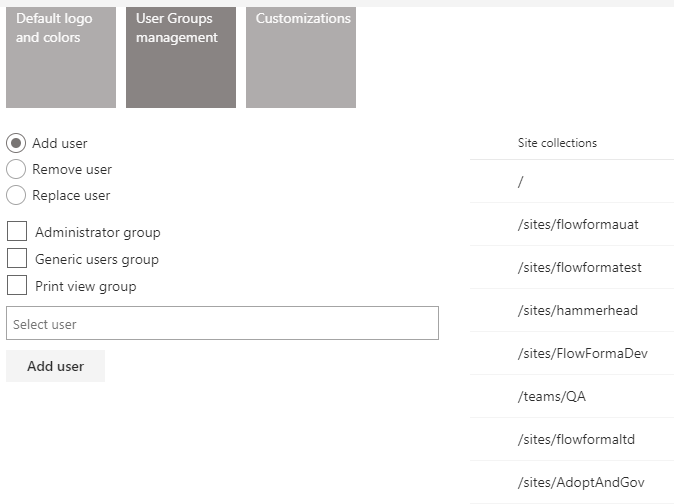
- Add user: a selection field to choose the user to be added is displayed at the bottom of the screen.
- Remove user: a selection field to choose the user to be removed is displayed at the bottom of the screen.
- Replace user: two selection fields are displayed: the first to select the user to be replaced, the second to select the new user to be added.
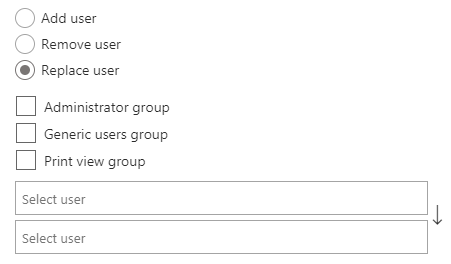
- Administrator group
- Generic users group
- Print view group
Site collections
The changes you make will be applied to the site collection(s) you select from the list of site collections on the right of the screen. To select a site collection, check the checkbox next to the site collection you require. You must select at least one site collection, but you can select multiple if you wish.Customizations
Customizations allow you to deploy add-on questions and rules to all FlowForma apps in your tenancy, so the same custom questions and business rules can be reused across environments. Click the Customizations tile and the available add-ons are listed, grouped into Questions and Rules. Select the add-ons you want to deploy, you can select multiple from either group, and then click the Install selected button. A confirmation is displayed asking whether you want to install the selected customizations to all FlowForma apps; once confirmed, the selected questions and rules are installed across your apps.Master app
The Master app is the site collection and site that FlowForma uses as the source for shared customizations and settings. Click the Master app tile and two drop-downs are displayed:- Site collection: select the site collection that contains the app you want to use as the master.
- Site: select the site within that site collection.