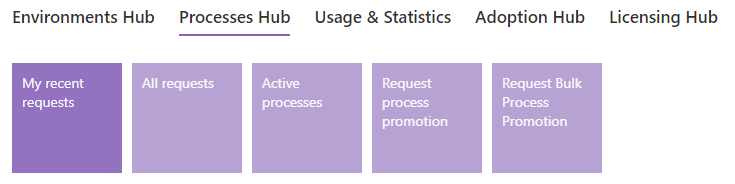
- My recent requests: displays a list of recently requested process promotions made by the current user.
- All requests: displays a list of process promotion requests made by all users. This tile is only available to administrators.
- Active processes: displays a list of all FlowForma environments found on the tenant.
- Request process promotion: displays a dialogue for users to enter details for a new single process promotion. This option allows users to promote a single process to a single environment.
- Request bulk process promotion: displays a dialogue for users to enter details for a bulk process promotion. This option allows users to promote multiple processes from a single environment to multiple other environments.
Process promotion
Process
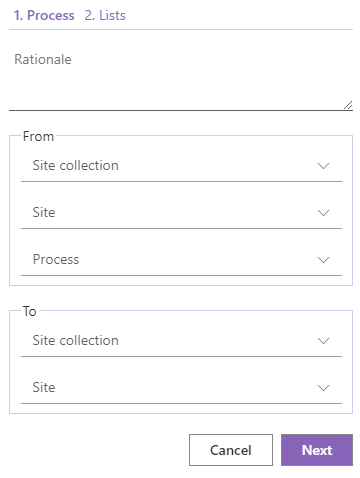
- Rationale: brief details or reason for promoting the process.
- From: this is where the processes to be promoted are located.
- Site collection: select from a drop-down list of the site collections the user has permissions for.
- Site: select from a drop-down list of the environments contained in the site collection above.
- Process: select the process to be promoted from a drop-down list of all the processes contained in the site above.
- To: this is where the process to be promoted will be promoted to.
- Site collection: select from a drop-down list of the site collections the user has permissions for.
- Site: select from a drop-down list of the environments contained in the site collection above.
List
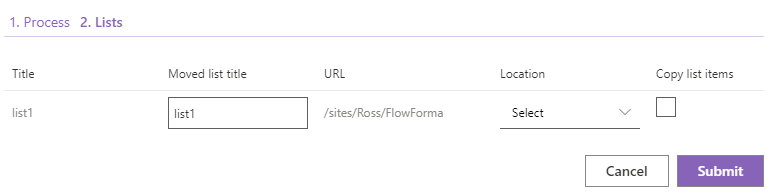
- Title: this is the title of the SharePoint list referenced in the process being promoted.
- Moved list title: this is the same as the list title above by default but can be edited.
- URL: this is the URL of the site that the process is being promoted from.
- Location: when the process is promoted, you can select what you want to do with any lists that are associated with the flow.
- Site collection root site: places the list on the root level of the tenant (
mycompany.flowforma.com/). - App web parent site: places the list on the parent site to where the FlowForma app is installed:
- root site (
mycompany.flowforma.com/flowforma) - site collection (
mycompany.flowforma.com/sites/mysite/flowforma) - subsite (
mycompany.flowforma.com/sites/mysite/mysubsite/flowforma)
- root site (
- App web: places the list within the app web (the FlowForma app itself).
- Select: you may wish to ignore any lists related to the flows; to do so, leave this option as Select.
- Site collection root site: places the list on the root level of the tenant (
If the promotion process finds the list already exists in the target location, it will reuse that list. However, if you have made changes to the list’s structure, any additional columns will be added, but any deleted columns will not be deleted and column configuration changes will not be applied (renaming, for example).
Bulk process promotion
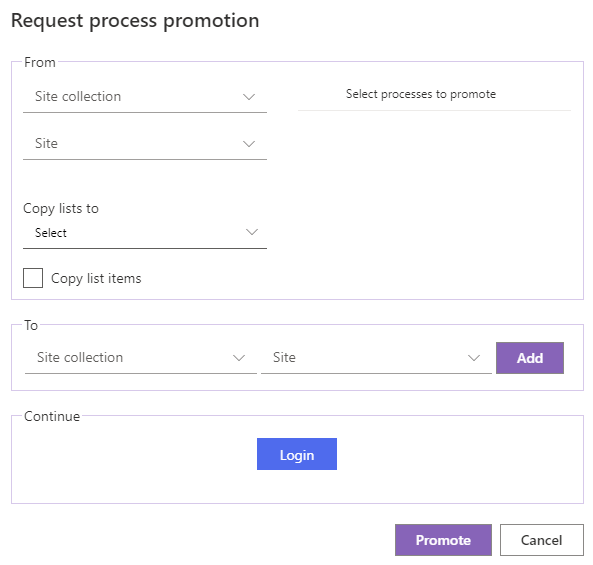
- From: this is where the processes to be promoted are located.
- Site collection: select from a drop-down list of the site collections the user has permissions for.
- Site: select from a drop-down list of the environments contained in the site collection above.
- Select processes to promote: once a site collection and site is selected, a list of processes on that site is displayed, where you can select one or many to promote.
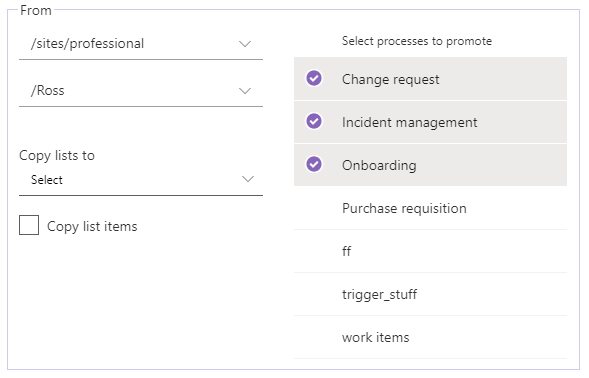
- Site collection root site: places the list on the root level of the tenant (
mycompany.flowforma.com/). - App web parent site: places the list on the parent site to where the FlowForma app is installed:
- root site (
mycompany.flowforma.com/flowforma) - site collection (
mycompany.flowforma.com/sites/mysite/flowforma) - subsite (
mycompany.flowforma.com/sites/mysite/mysubsite/flowforma)
- root site (
- App web: places the list within the app web (the FlowForma app itself).
- Select: you may wish to ignore any lists related to the flows; to do so, leave this option as Select.
If the promotion process finds a list already exists in the target location, it will reuse that list. However, if you have made changes to the list’s structure, any additional columns will be added, but any deleted columns will not be deleted and column configuration changes will not be applied (renaming, for example).
Copying list data will append entries to any existing entries in the list. This may result in duplicate data.
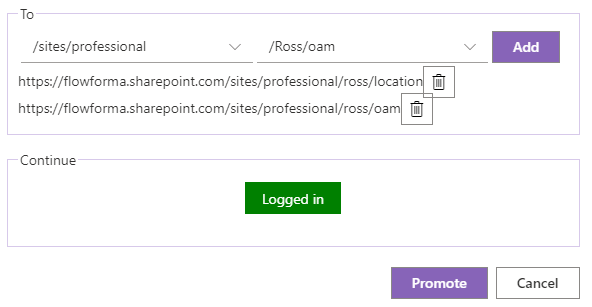
- To: select the sites you want to promote to. Once you select a site, use the Add button to add it to the list, then select another until you have all the sites you want to promote to.
- Before promoting, you’ll need to sign in with an administrator account. Once this is done, click Promote and the promotion is automatically approved, so you don’t need to approve each one individually.