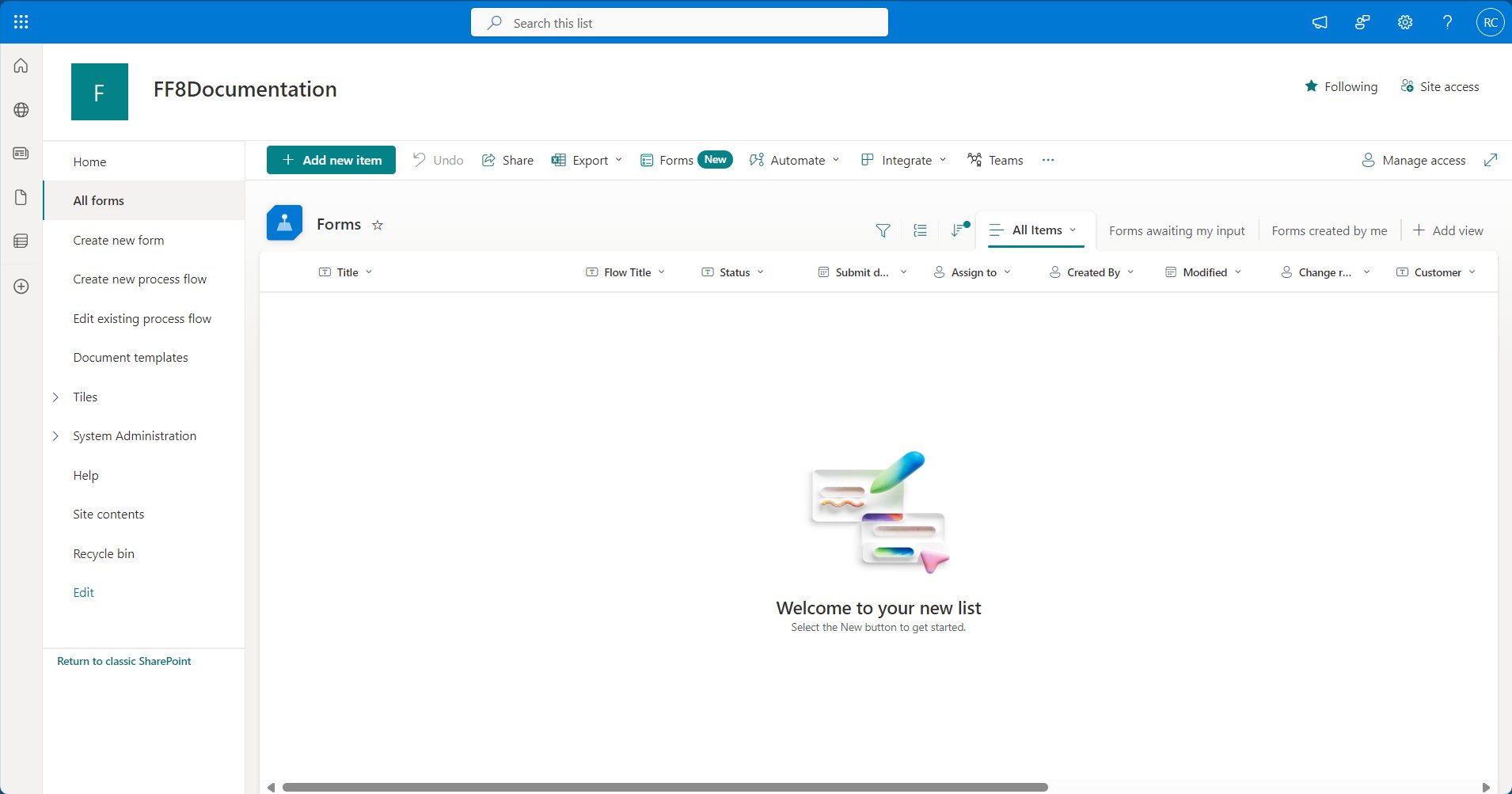
Note: View functionality is primarily default, out-of-the-box SharePoint functionality. We recommend you follow Microsoft’s own documentation for full information on views.
View types
Before creating a view, you may want to add columns to the list or library to enable more flexibility for sorting, grouping, and filtering the items in the list or library. For example, people may want to see only the documents in a library that apply to their department or the items in a list sorted by the project number. If you create views that will be accessed by phones and other mobile devices, you need to consider the capabilities of the mobile devices, or use the FlowForma Mobile App. When you create a view, you first choose whether you want to base the view on:List view
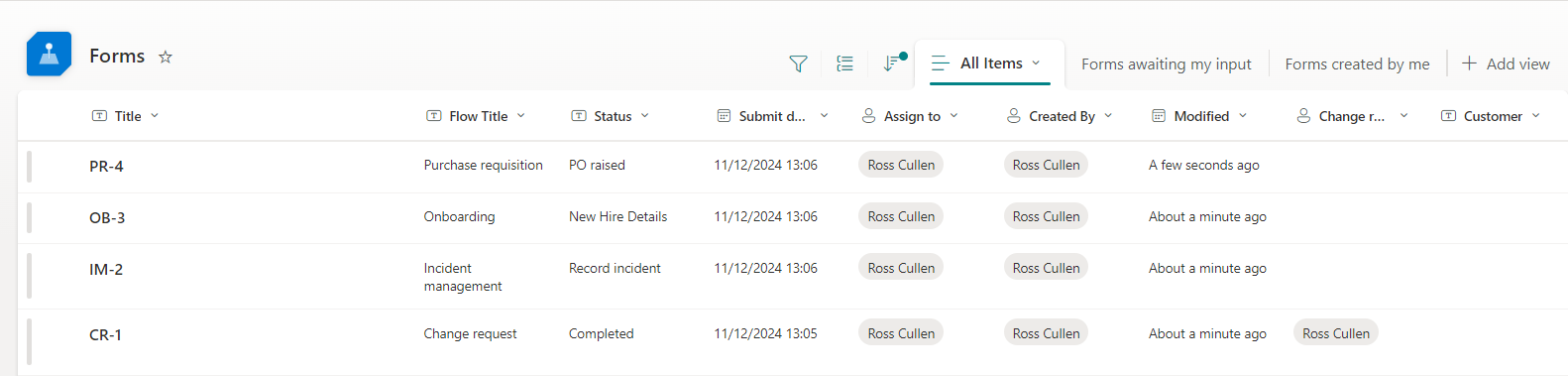
- Displays list items in a standard tabular format (rows and columns), similar to a spreadsheet.
- Ideal for sorting, filtering, and managing data efficiently.
- Best for structured data like tasks, inventory, or logs.
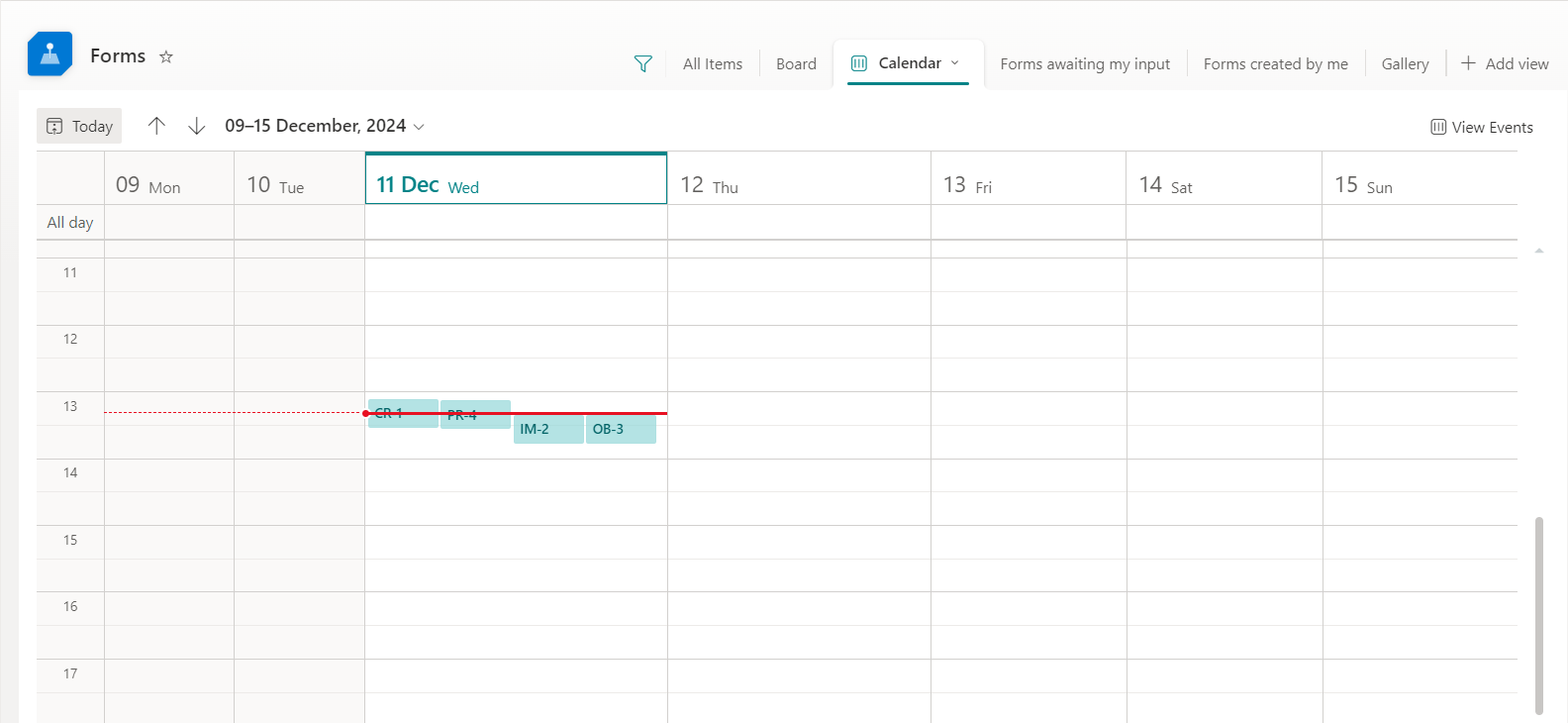
Calendar view
- Displays list items with date-related information as events in a calendar format.
- Useful for tracking events, deadlines, appointments, or schedules.
- Automatically aligns with start and end date columns in your list.
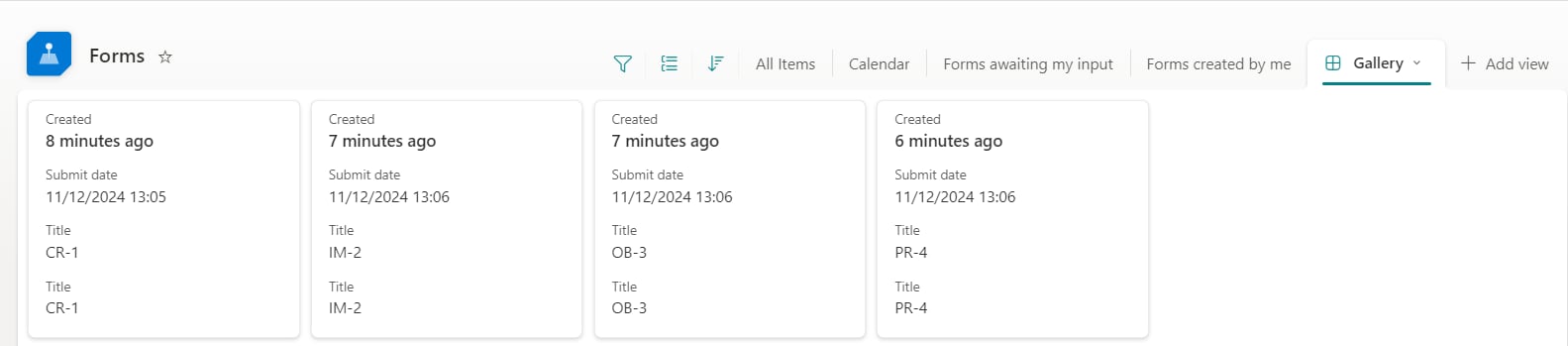
Gallery view
- Shows list items in a visually rich format with cards.
- Ideal for showcasing items like photos, product descriptions, or portfolios.
- Highlights key fields for easy viewing and interaction.
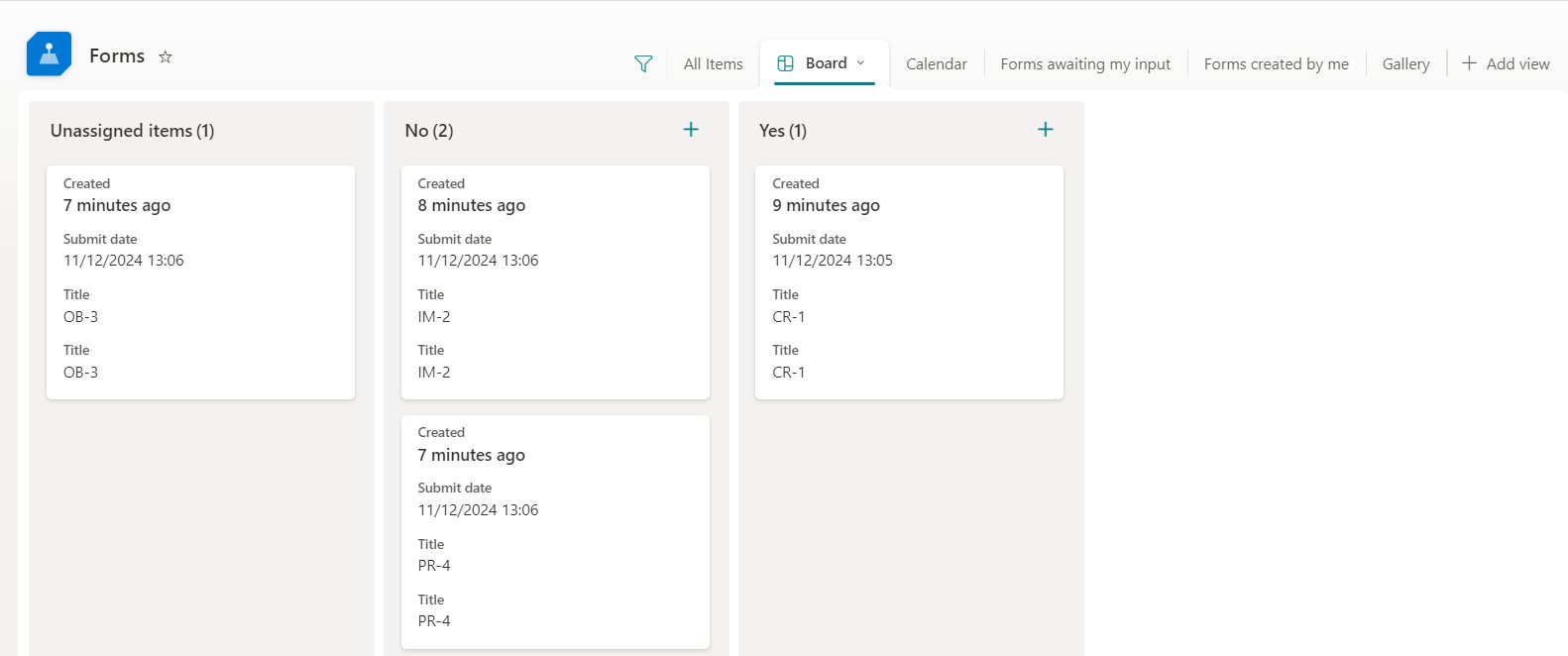
Board view
- Displays list items as cards grouped by a selected column, such as “Status.”
- Mimics a Kanban-style layout, useful for task tracking or project management.
- Allows drag-and-drop to change groupings dynamically.