

-
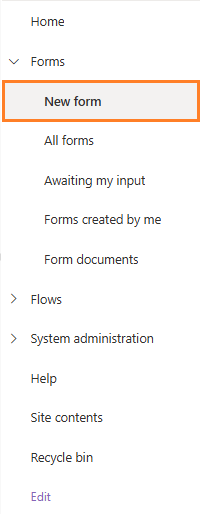
Expand the “Forms” grouping, and click New form in the quick launch menu to start the process.
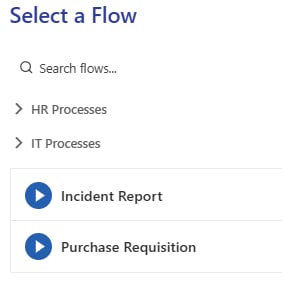
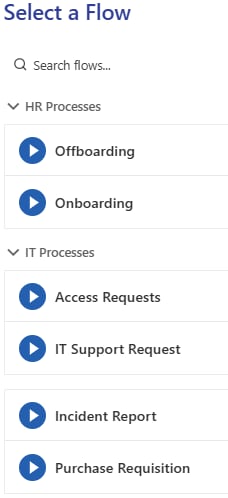
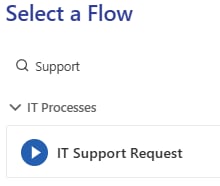
- A listing of the processes you have access to is displayed. If a process was given a group label, the group section is displayed in a collapsed state by default. Expanding the group displays the processes within it. In the example below, there are groups for HR Processes and IT Processes.
-
The form opens. The top part is the form’s header where you’ll see the name of the process. Below that you’ll see the steps. The active step is a white tile with blue text (unless customized) whereas other steps appear in blue. The form always opens on the relevant step, allowing you to complete the questions.

-
Next, the questions added to the step on a form are shown.
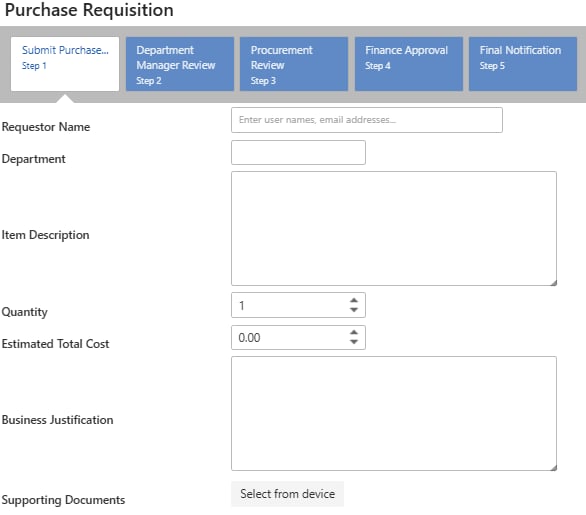
- Questions can be configured to appear and behave differently depending on their configuration. You can read more about each question type’s functionality on its own documentation page under Questions.
- Once you’ve completed all required questions, you can submit the step. If it is the last step in the flow, the form moves to a Completed state. If it is not the last step, the form moves on to the next step in the process.
- Submitting a step executes Step Completed business rules, as well as Form Completed business rules if it’s the last step.