

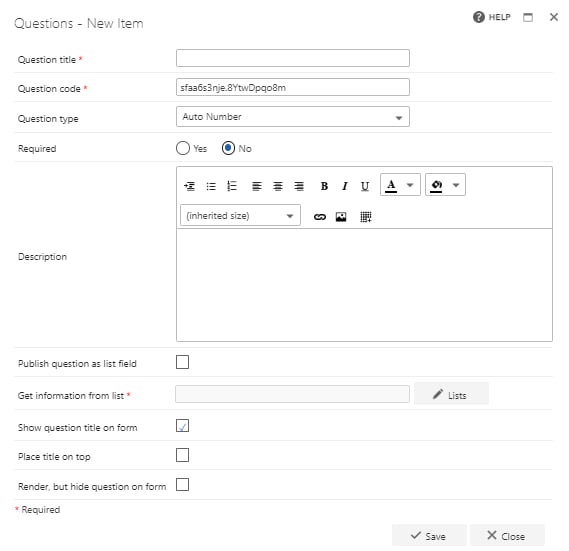
- Question title: each question must have a title. It’s a required field and will appear on the form as a label when the user fills in the question
- Question code: each question needs a unique code. One is generated by default when you start creating a new question, but you can overwrite this and give it a different code, if you prefer. The question code won’t appear on the form itself, but you can use it to search and filter by when adding questions
- Question type: Auto Number
- Required: you need to specify whether the question is required or not. If you set a question as required, the user must provide an answer to it on the form in order to be able to submit the form. However, the user can save as draft without answering all required questions. If you try to submit a form without answering all required questions, an error message will appear showing a list of questions that haven’t been answered
- Question description: it’s optional whether you enter a description or not. The description is used as a tooltip on the form and will add an exclamation point beside the question on the form. If the user clicks on the exclamation point, the description (tool tip) will appear
- Publish question as list field: check this box to save the question to the SharePoint forms list. This allows you to report on the question from there
- Get information from list: select the SharePoint list that new items are added to for this question. Create a blank SharePoint list for each auto number question
- Show question title on form: check this option if you want to display the question’s title to the left of the input field. If you uncheck this option, the input field moves left and appears directly under the other questions/question titles
- Place title on top: check this option to display the question’s title above the input field. If you uncheck this option, the title appears to the left of the input field, as normal
- Render, but hide question on form: if you check this option, the question behaves as normal (its default value, publishing, and calculation still apply), but it isn’t displayed on the form
Note: the auto number question only works if it is visible on the form