FlowForma is being updated with a new look. These pages describe the changes and how they will impact your existing flows and user base. This change applies to all versions of FlowForma.

Summary

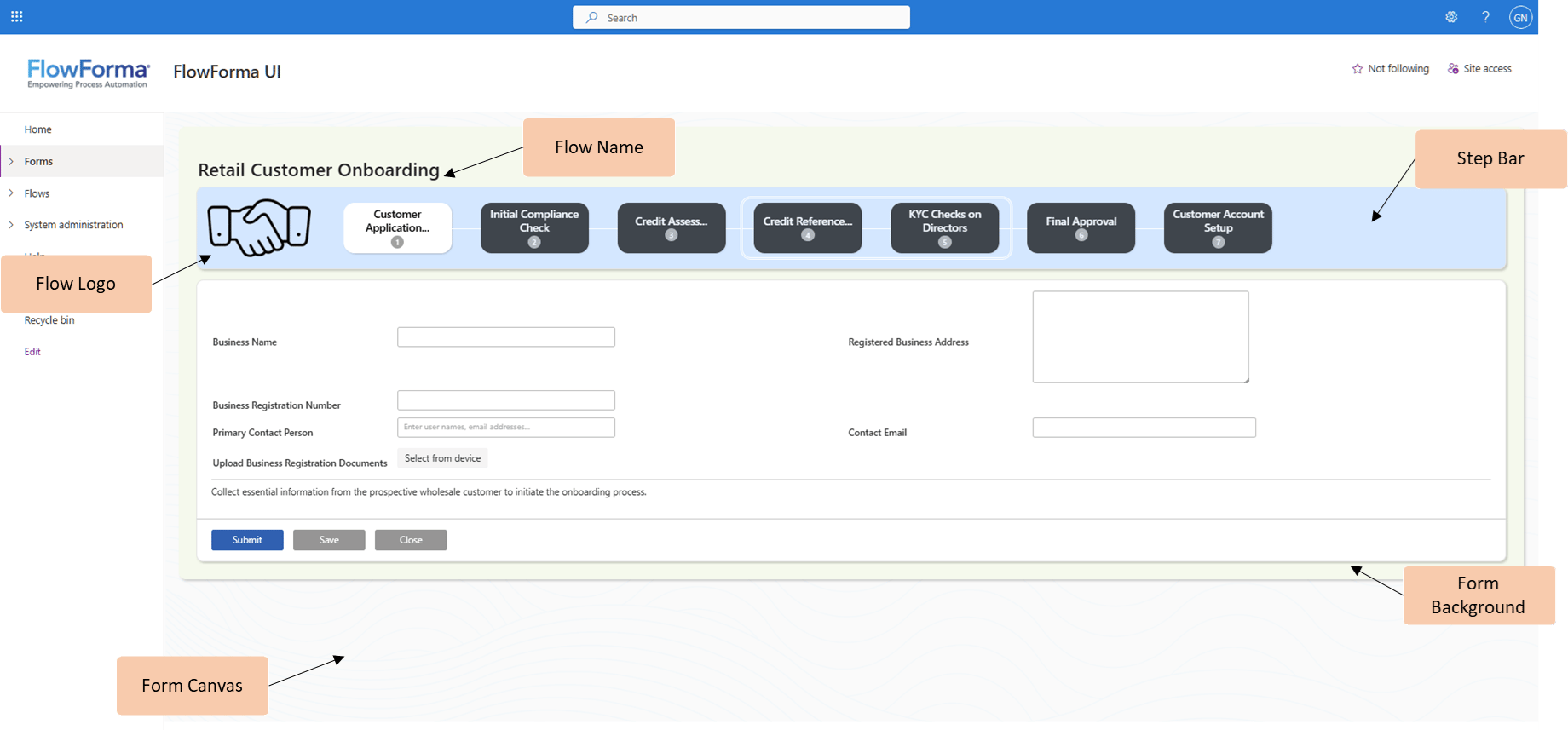
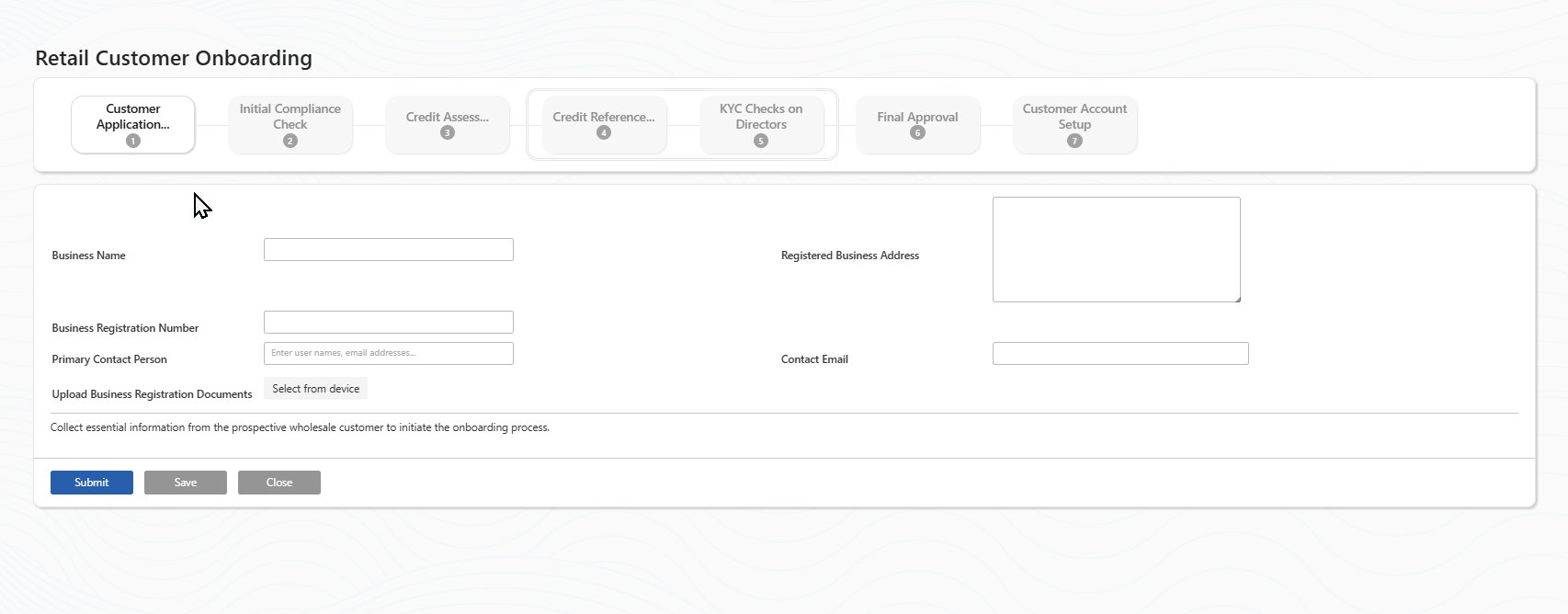
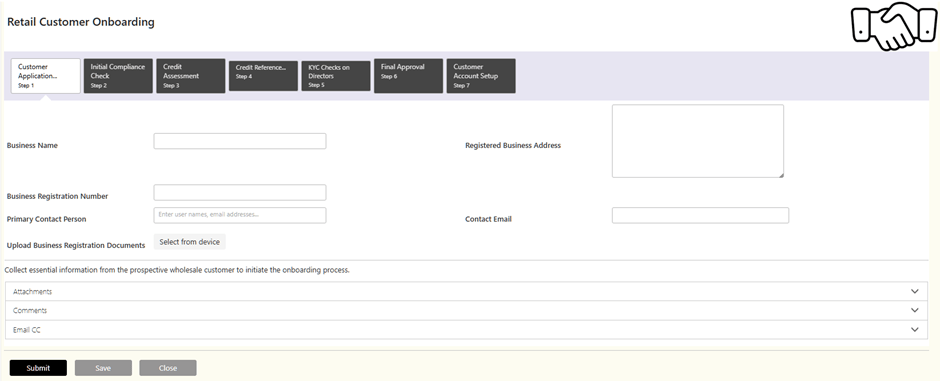
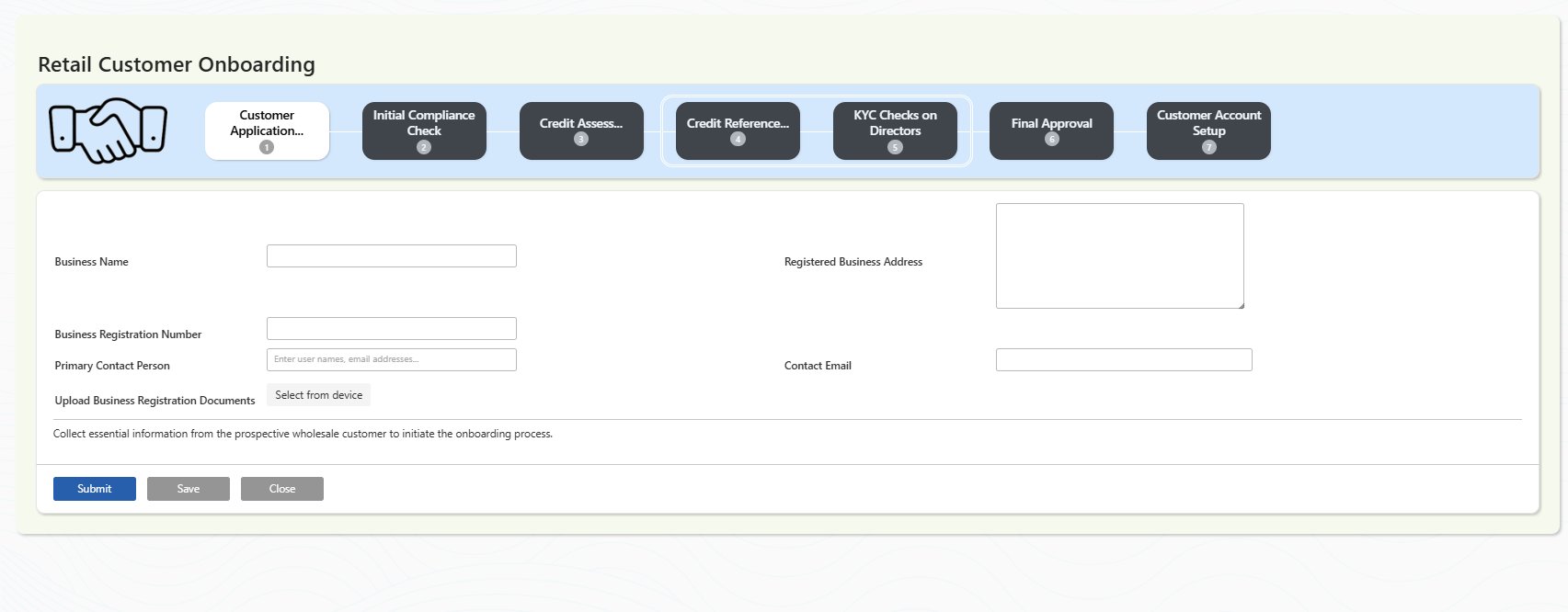
The main changes are to the step bar at the top of the form along with some additional layout changes. A typical form such as this: Current form user interface Will now look like this: Updated form interface The following sections describe the main changes. To prepare for this update you should familiarise yourself with these changes. The elements of a form
Form layout

Flow name

The Flow Name is displayed above the process navigation bar. If any additional form properties have been configured in the header area in Visual Form Designer, they will also display in this area.

Form background

The Form Background colour is configured for each individual flow in the Visual Form Designer or it can be set for all flows using the FlowForma Settings Branding option. The default colour is white.

Form canvas

This is a background image on which the form is displayed. This is not configurable.

Step bar

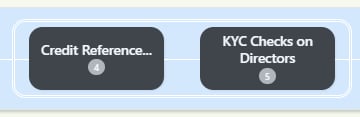
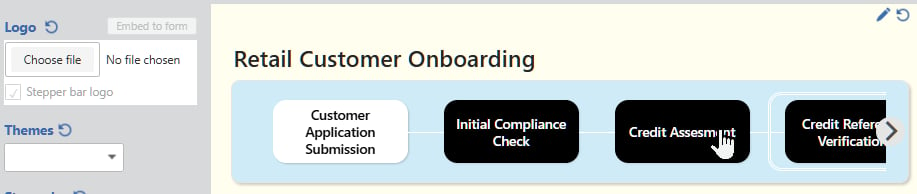
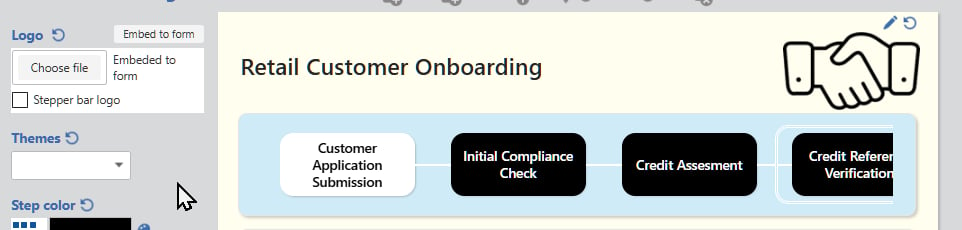
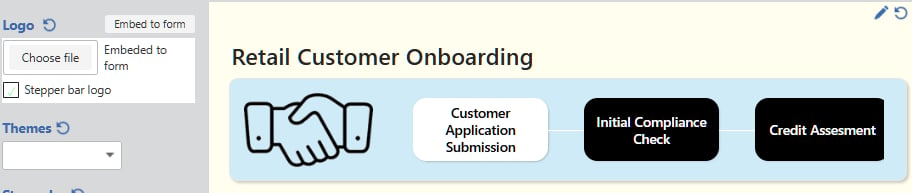
The step bar displays all steps in a process and allows you to review previously completed steps and action the current step. Where all steps in a process cannot be displayed within the step bar, you can scroll the steps using the left and right arrows, which display when you hover the mouse over the first or last step displayed. Step bar navigation Steps in a process that have been completed are marked with a green tick in the top right-hand corner of the step. Completed steps The current active step in the process and previous steps can be selected by clicking on the step in the step bar. The current selected step is displayed with a white background. Steps in a process can be executed in parallel. Parallel steps are grouped together in the process navigation bar using a double line: Parallel steps displayed in the step bar Within Visual Flow Designer, there are two options for logo placement on a flow. With the Stepper bar logo option unselected, the logo will be placed above the step bar to the right. Logo above step bar With the Stepper bar logo option selected, the logo will be displayed within the step bar. Logo within step bar If no logo file is configured then the step bar will display as: No Logo file specified


Form colours

The Visual Form Designer within Flow Designer can be used to set your preferred form colours. Visual form designer
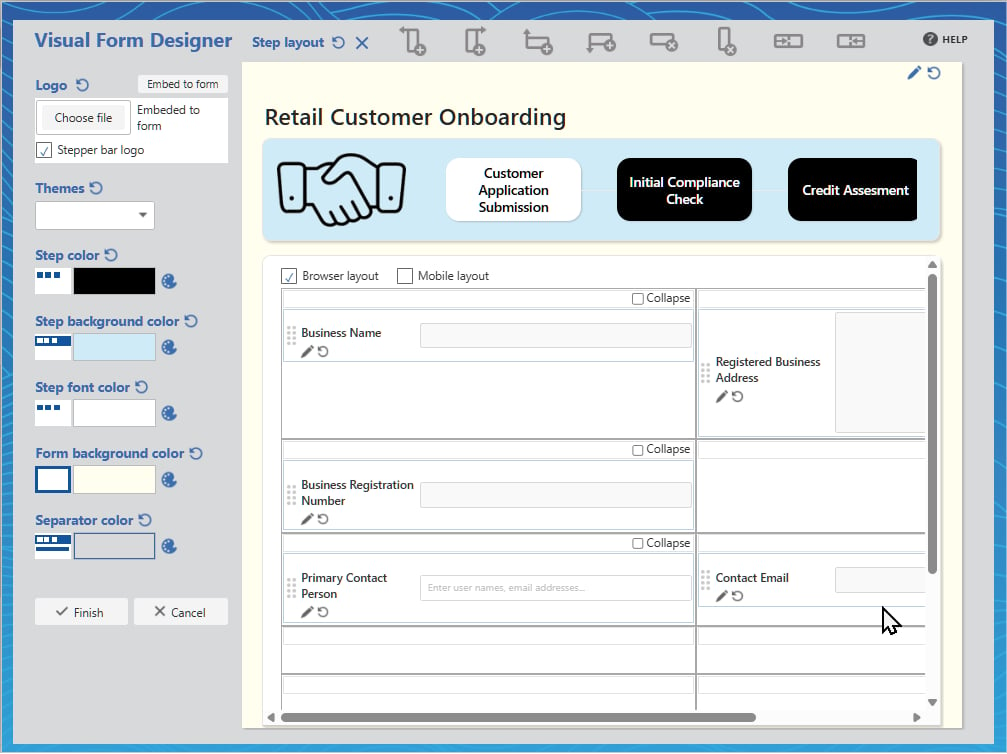
  • Step color sets the color of each step displayed in the step bar.
  • Step background color sets the background color of the step bar.
  • Step font color sets the font color for the step title.
  • Form background color sets the color of the form background.

Form colour settings If a flow has not been configured with Visual Form Designer and if no site branding is applied, the form will be displayed with the default color scheme. Default color scheme (no branding applied)

FlowForma 8 site wide branding

Site wide branding settings can be applied via FlowForma settings. These settings will apply to all flows in the FlowForma site. Brand settings The Primary Colour setting sets the form background color for all flows. This also affects the color scheme used for the form buttons. If a form background color is configured in Visual Form Designer for a flow, it overrides the primary color setting. Setting the Transparent Form Background option will make the form background transparent so that it is not visible. Specifying a form background color in Visual Form Designer for a flow will make the form background visible again.