
Introduction
Power BI is a suite of business analytics tools from Microsoft designed to analyse data and share insights. Power BI dashboards provide a 360-degree view for business users with their most important metrics in one place, updated in real time, and available on all of their devices. With Power BI, you can build reports quickly from various data sources, both in the cloud and on-premise.FlowForma Power BI content pack
You can import the Power BI content pack as follows:- You can import the FlowForma Power BI content pack from the FlowForma website.
- Click Download Content Pack to download FlowForma BPM - Power BI Content Pack, then extract the contents to a location of your choice.
- Download Power BI Desktop from https://powerbi.microsoft.com/en-us/downloads/
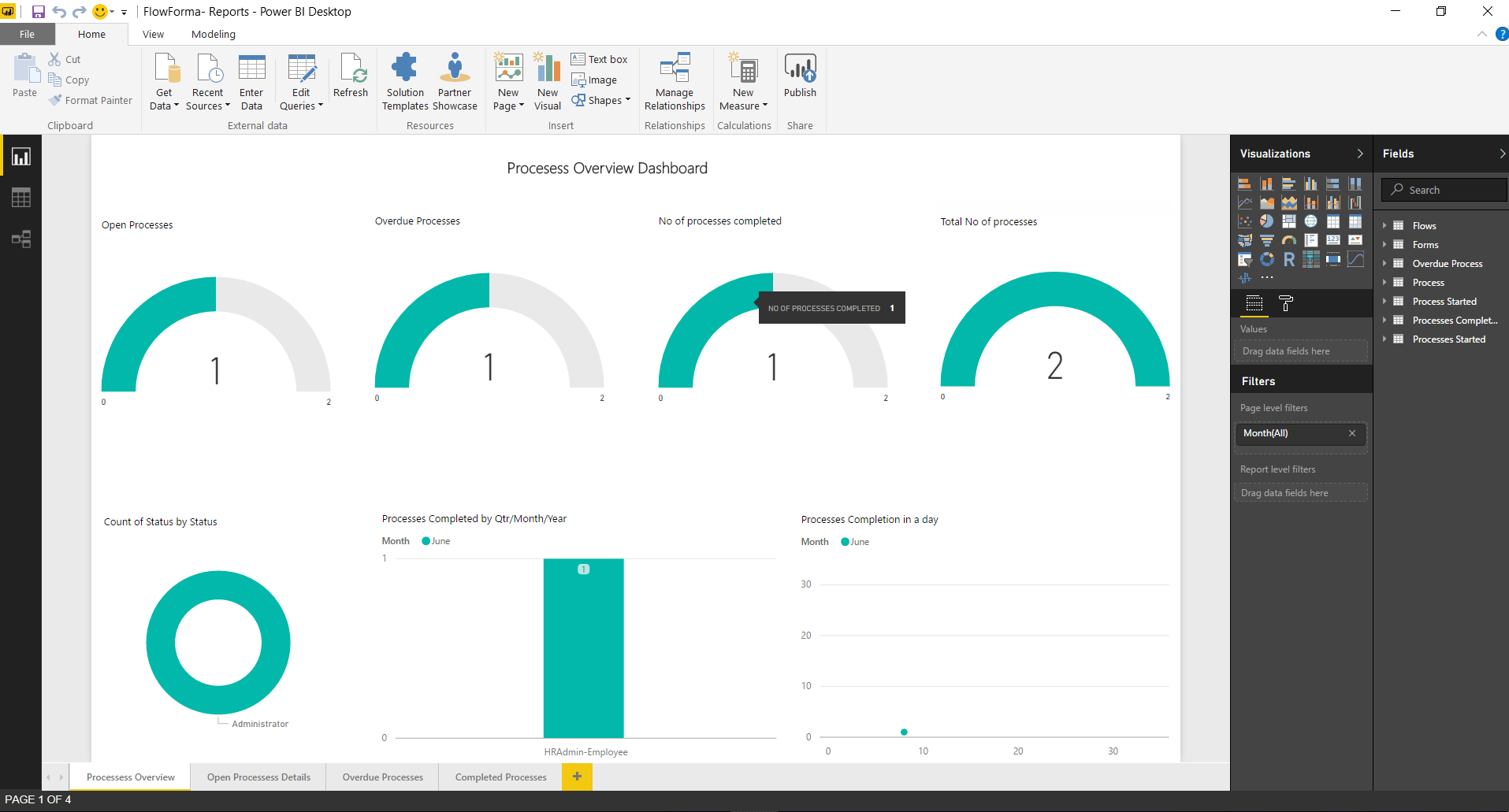
- After installing Power BI Desktop, right-click and open the .pbit file from the downloaded location. This opens the default source and default compiled reports pointing to FlowForma default data, as shown in the screenshot below.
Note: The reports prompt you to enter credentials to access the default site when refreshing the source. This is because the report points to a default trial/demo site, which is an on-premise trial site of FlowForma.You can ignore any errors and change the data source later, following the steps outlined below.
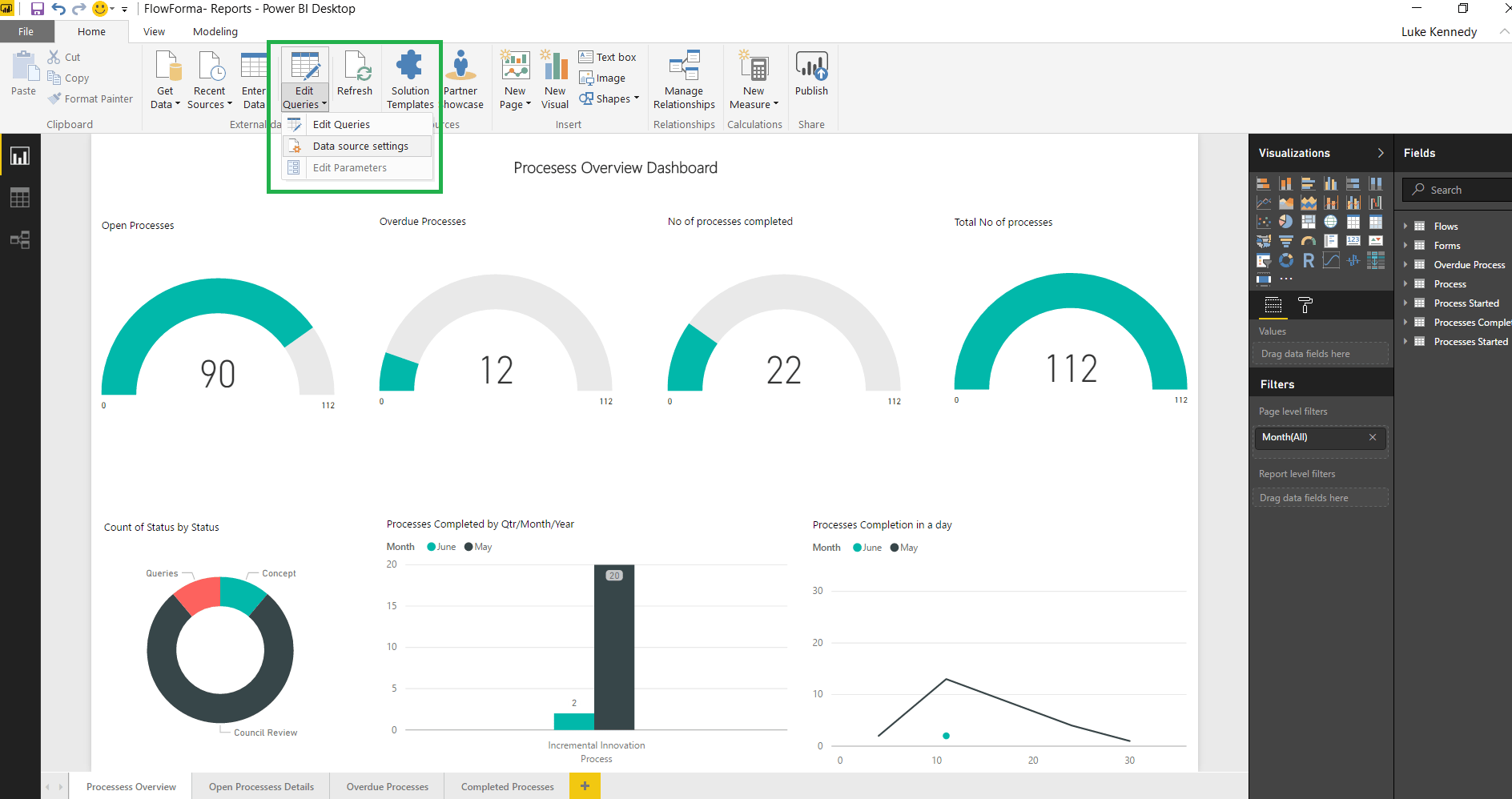
- Next, change the data source to the required OData source link, obtained from the FlowForma settings (OData feed) of the site you want to report on. Click Edit Queries > Data Source Settings.
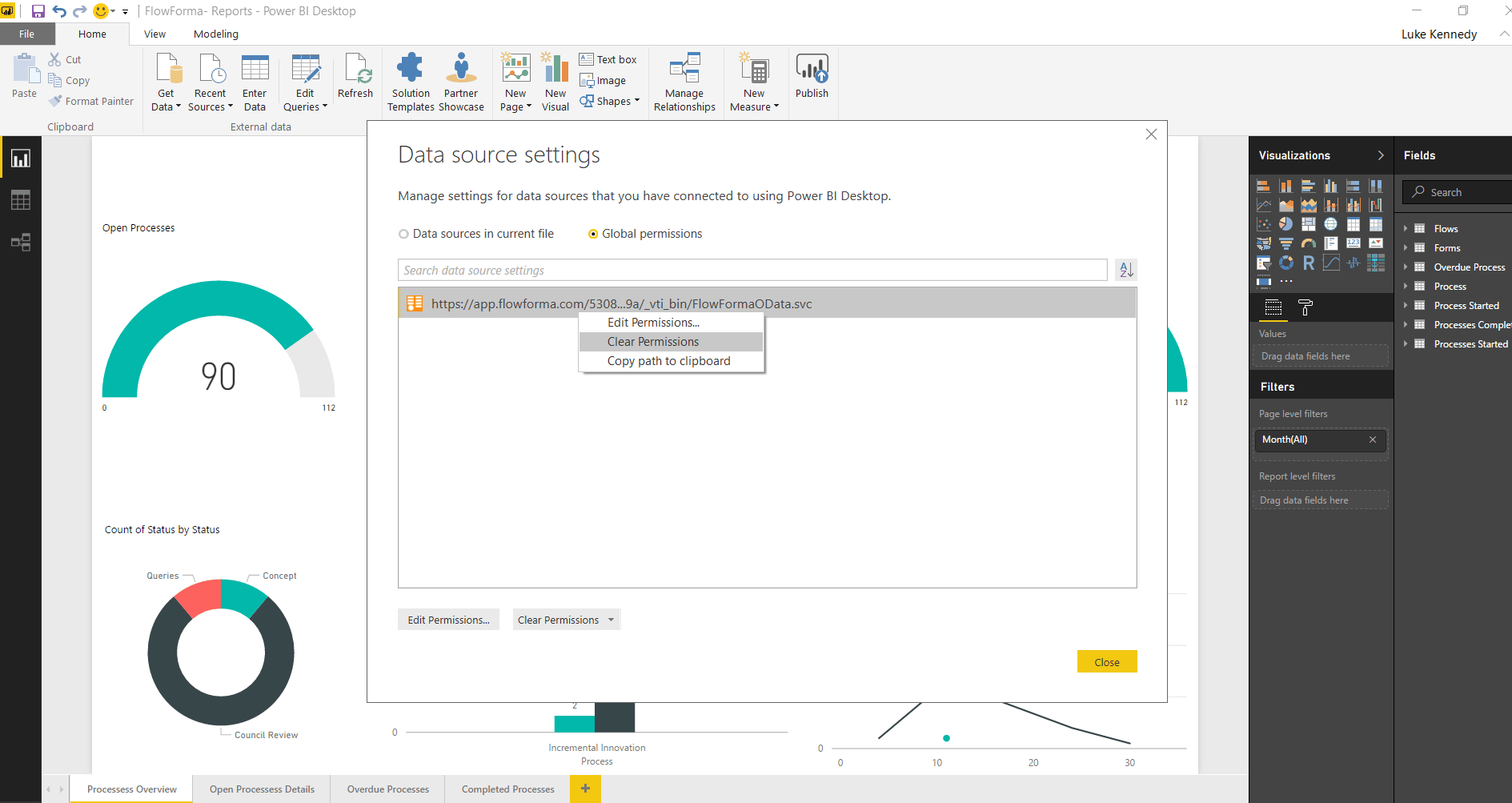
- As shown below, clear any existing connections from global permissions, then select data sources in current file to change the data source.
- Select data sources in the current file to change the data source to the required OData link obtained from the FlowForma site, as shown below.
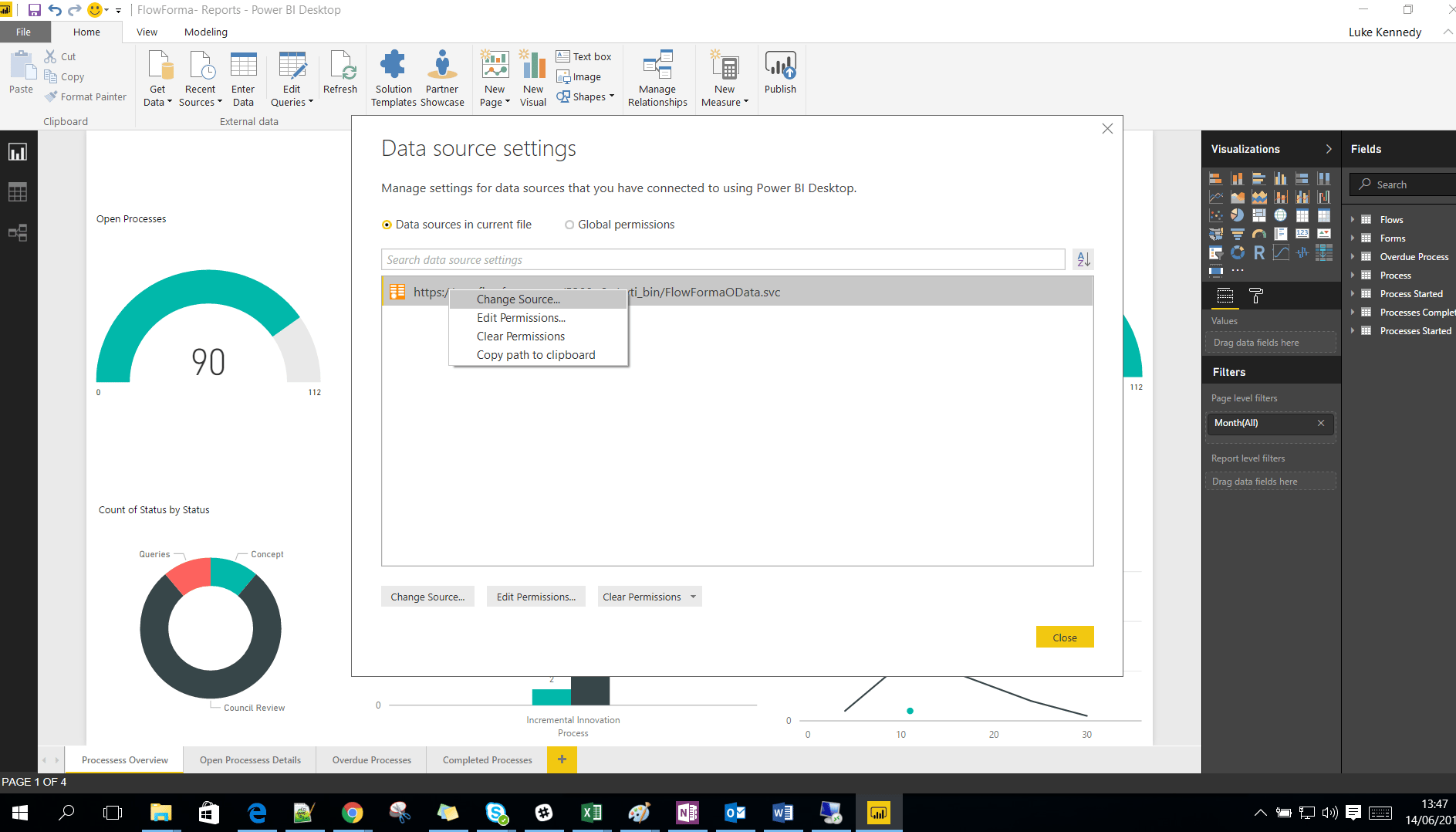
- After changing the data source, click Edit Permissions and set the permissions based on the OData source, which is anonymous by default. Apply the change if prompted, then refresh to pull the data. Wait a few minutes and refresh at least twice on all pages to ensure the data cache is cleared and new data is fetched.
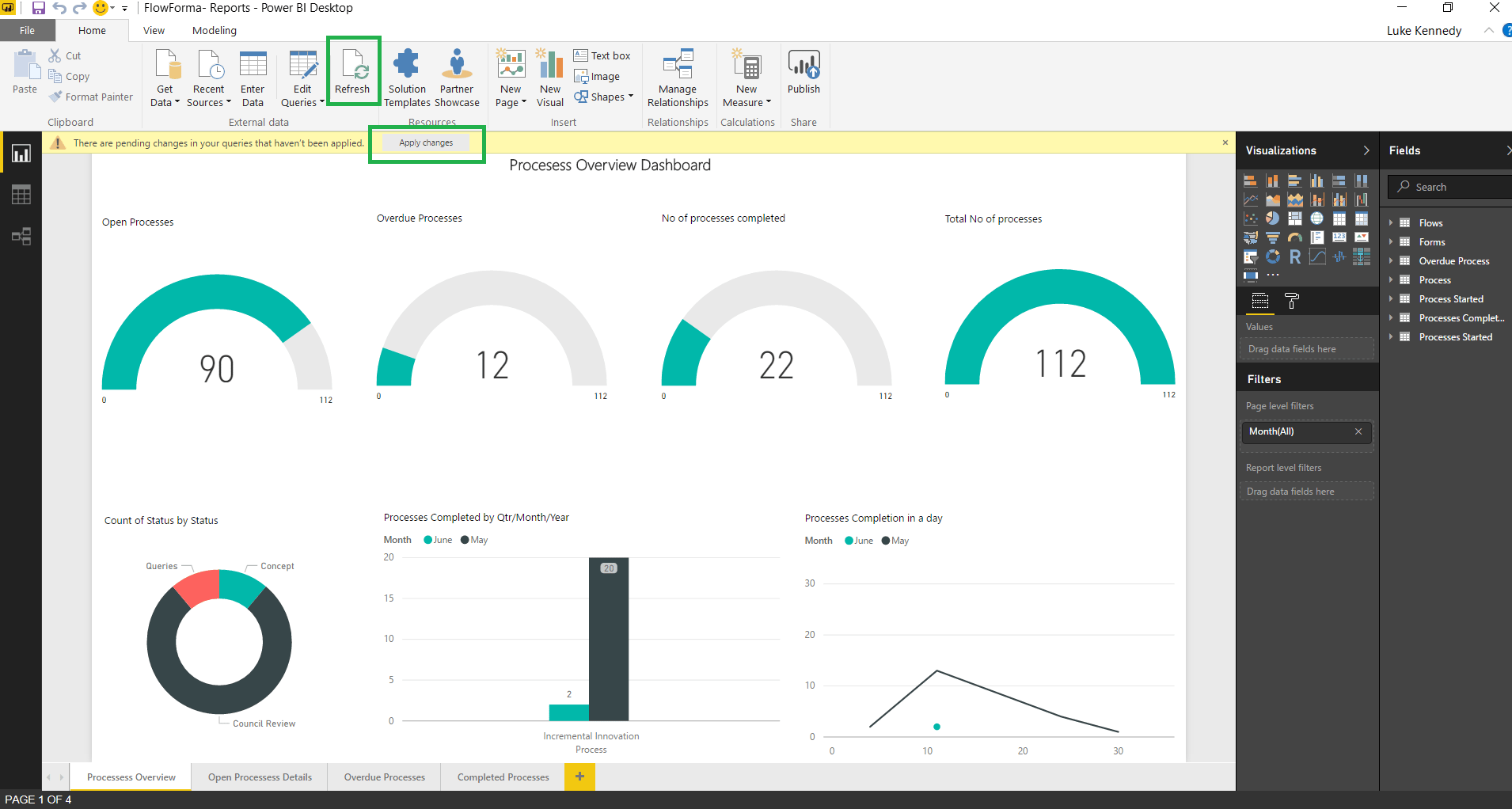
Troubleshooting
If you have issues changing the data source, or the latest data isn’t reflected, follow the steps below. For issues when changing data source:- If an error occurs while connecting to OData sources, ensure the connecting user is added to the FlowForma admin permission group, then retry.
- Open Power BI Desktop, go to File > Options and settings > Options. On the screen shown below, clear the data load cache, then go to Data Load in the same left-hand pane and clear “Allow data preview to download data in the background” and “Enable Parallel Loading of Tables”.
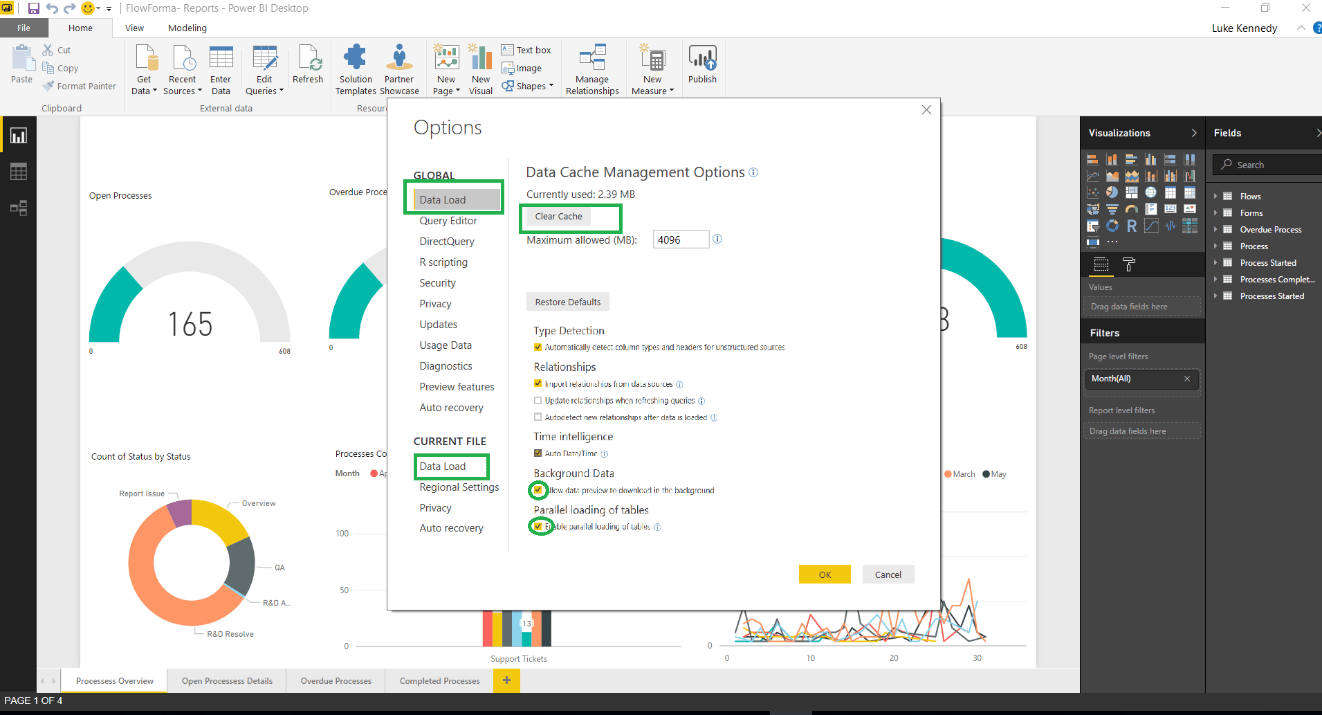
- Close and reopen Power BI, then refresh the data sources again.
Reports
Process overview
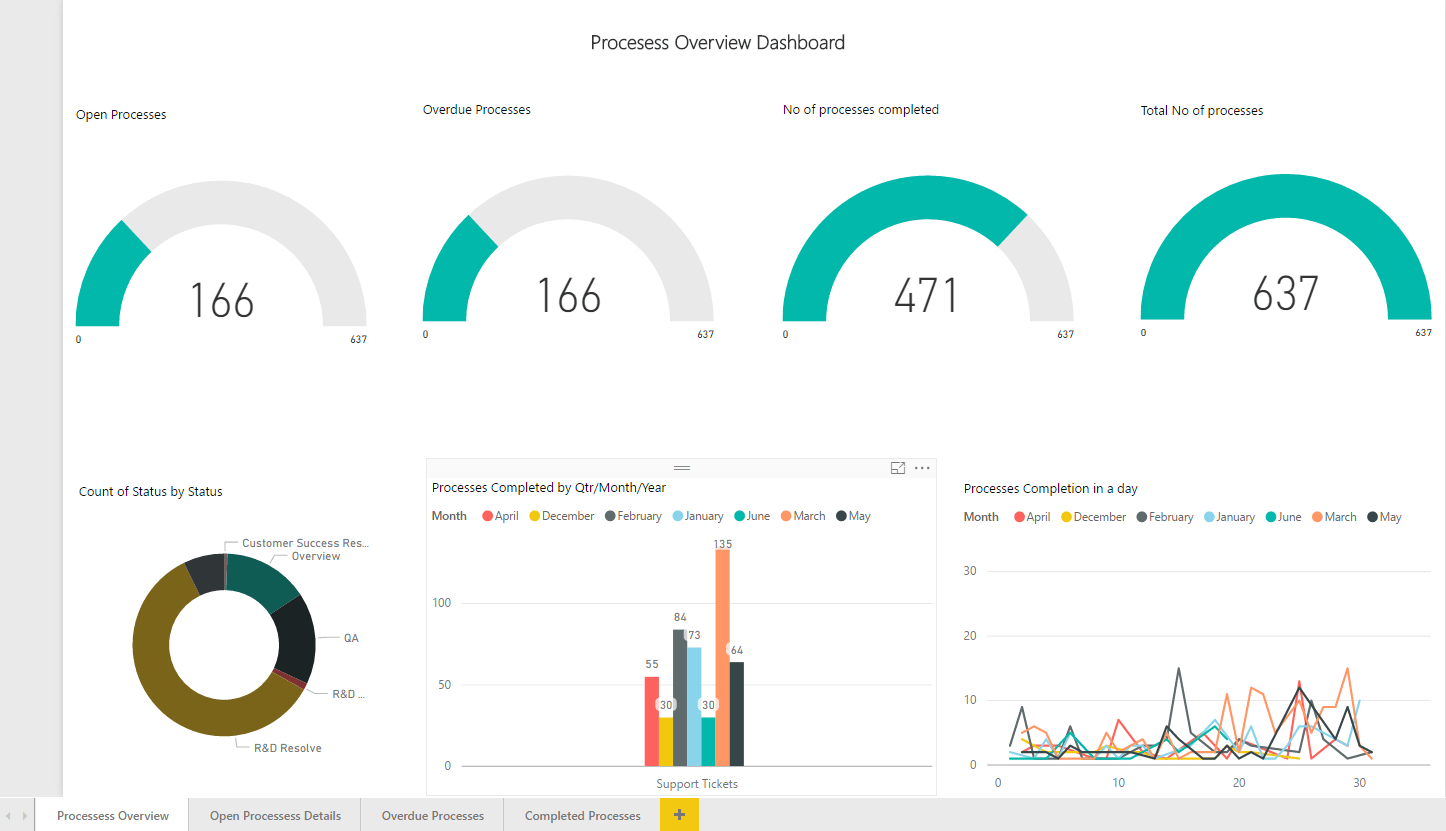
The below report gives you a snapshot of the current processes that are:- Open
- Overdue
- Number of processes completed
- Total number of processes
- Count of each status
- Processes completed in Qtr, Month, Year
- Processes completed in a day
- Of 637 processes, 166 are open and overdue.
- Of 637 processes, 471 have been completed overall.
- Day
- Qtr
- Month
- Year
- Statuses
- By Flow
- By Month
- By No of Processes Completed
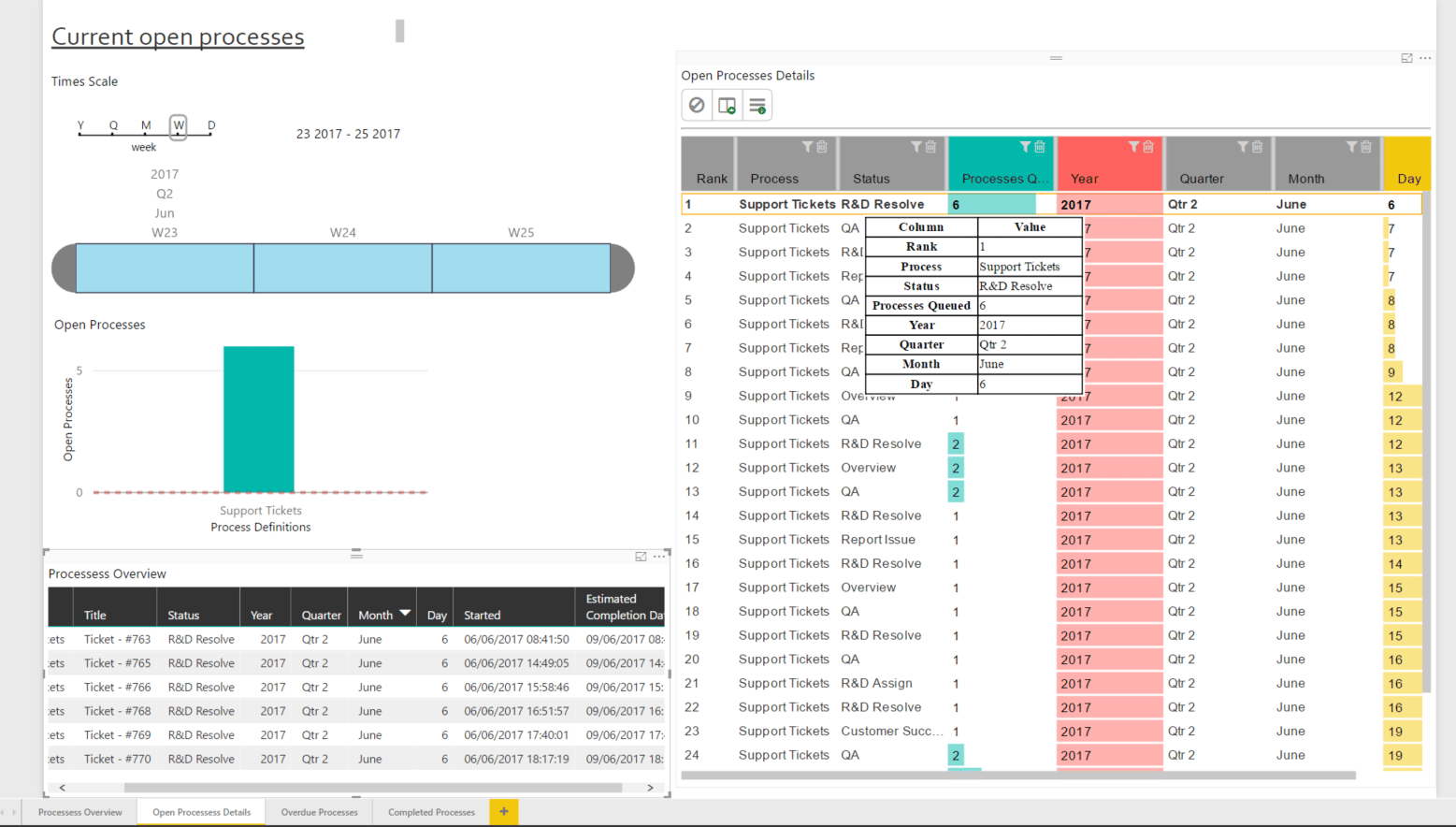
Open processes details
The second category of report the content pack can produce is a more structured breakdown of the details of each process, measured against particular timescales: Years, Qtrs, Months, Weeks, and Days. The screenshot below shows a snapshot of the open processes and reports details such as:- Processes spanning a particular timescale
- An overview of each process based on its open process details
Overdue processes
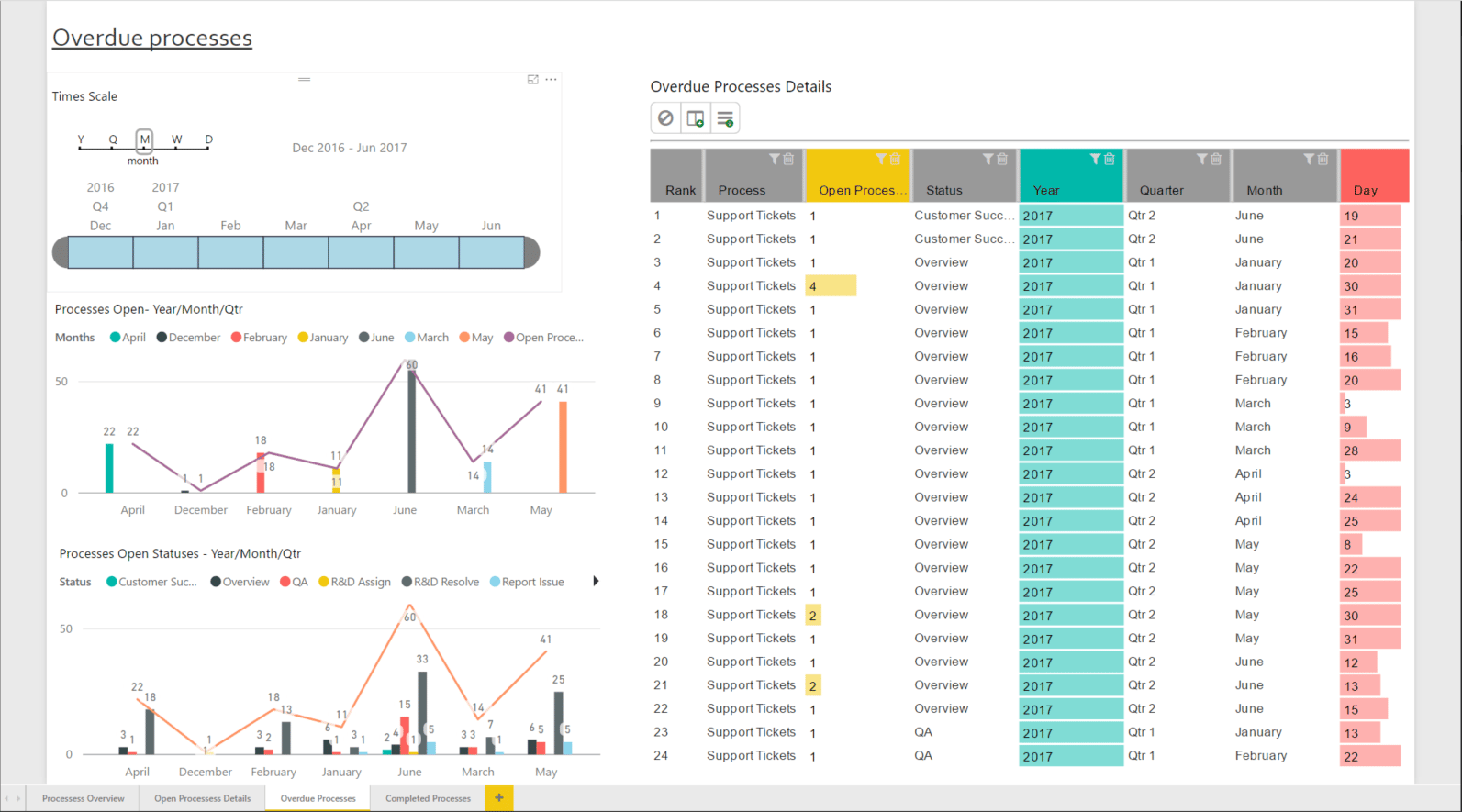
The next category of report the content pack can produce is overdue processes. This report shows open processes that are overdue for completion. The screenshot below gives you an overview of overdue processes:- Processes open by Year, Month, Qtr.
- Processes open by status by Year, Month, Qtr.
Completed processes
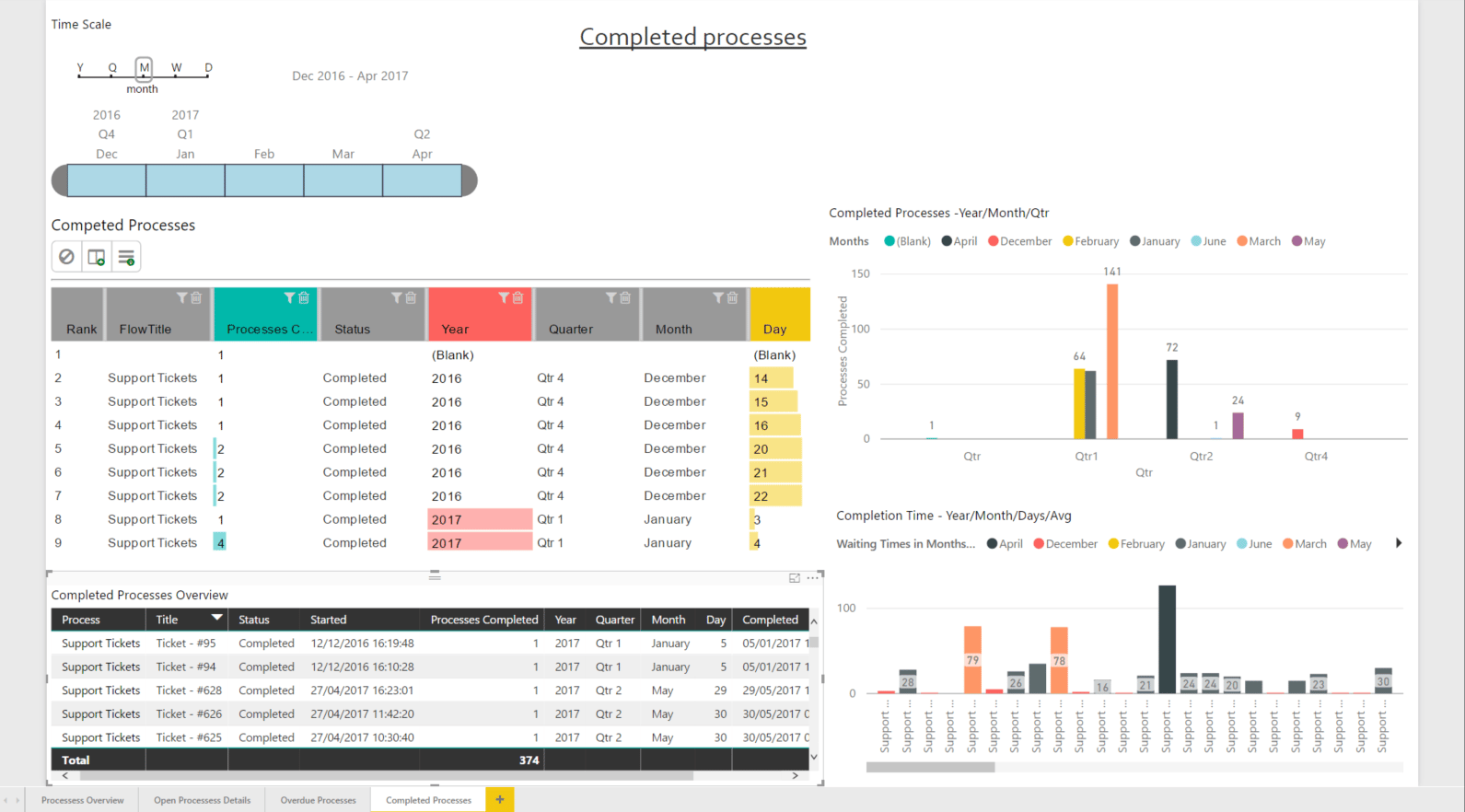
The last category of report the content pack can produce is the completed processes dashboard, which gives an overall understanding of the completed processes, their details, and overview. The screenshot below gives an overview of the completed processes:- Completed processes – detailed table
- Completed by year, month, Qtr.
- Overview of each completed process
- Completion time by Year/Month, days and average.