

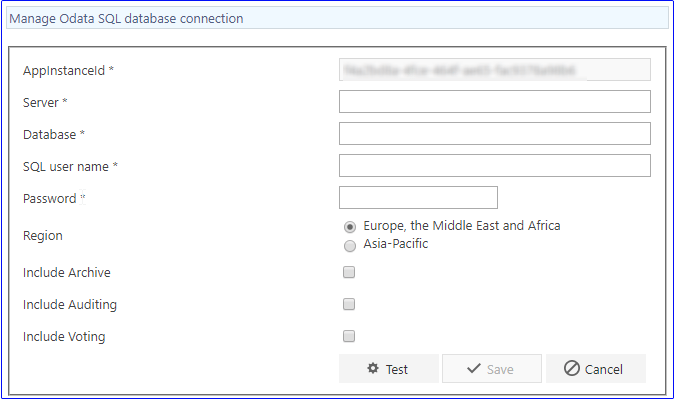
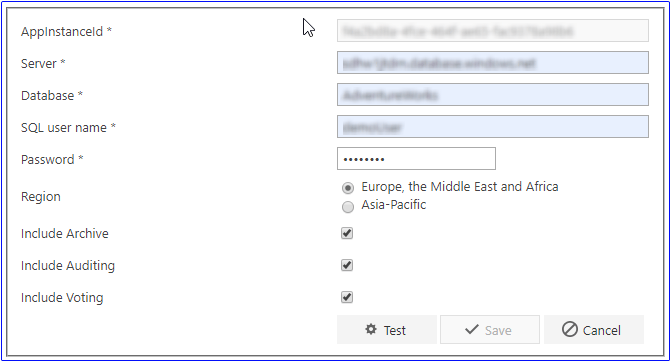
- AppInstanceId: This provides a user-friendly name for the site so it can be identified easily in the database, and it can be used as a filter in reports to return information from this site only
- Server: The URL of the server hosting your SQL database
- Database: The name of the database where you want the FlowForma tables created
- SQL user name: The name of a SQL user that has permissions to update the database and tables above
- Password: The password of the SQL user above
- Region: You can select the region that your database is hosted in
- Include Archive: You can decide to include or exclude archived forms from the extract
- Include Auditing: If you have auditing enabled on your site, you can decide to create a table to store form audit data
The AppInstanceId, Server, Database, SQL user name, and Password fields are all required. If any are left blank, the following pop-up is displayed: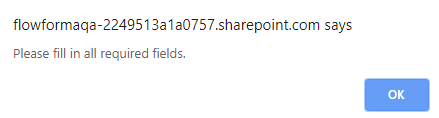
If any of the fields entered are invalid, the following pop-up is displayed: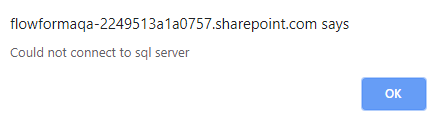

Tables created in the SQL database
When you create a connection, the following tables are added to the database you selected.dbo.Forms
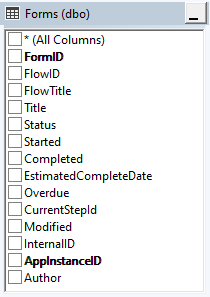
- FormID: The unique Form Id
- FlowID: The Id of the flow used to create the form
- FlowTitle: The title of the flow used to create the form
- Title: The form title, a combination of the form prefix and unique form Id
- Status: The current status of the form, the current open step in the form, or completed
- Completed: Yes/No
- EstimatedCompleteDate: The estimated time to complete a form as defined in the flow settings.
- Overdue: Yes / No
- CurrentStepId: The id of the step that the form is currently at
- Modified: The date and time the form was last modified, step saved or submitted
- InternalID
- AppInstanceID: The connection name for the app where the form was created.
Table relationships
dbo.Flows
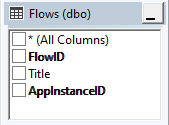
- FlowID: The unique Id for the Flow
- Title: The title of the flow
- AppInstanceID: The connection name for the app where the flow was created.
Table relationships
dbo.Steps
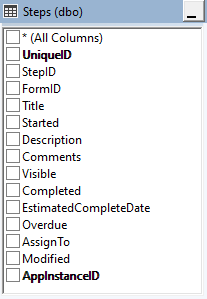
- UniqueID: the Unique ID, a combination of the form Id and the step Id
- StepID: the unique step Id from the steps list
- FormID: the unique Id of the form where the step was used
- Title: the title of the step
- Started: the date and time the first step in the flow was saved / submitted
- Description: any description that has been added in the step definition to be displayed on the form
- Comments: any comments that have been added into the comments field at the foot of the step
- Visible: is the step hidden or visible
- Completed: has the step been completed, submitted
- EstimatedCompleteDate: the estimated time to complete the step set in the step definition
- Overdue: was the step completed within the estimated time to complete
- AssignTo: Who is / was the step assigned to
- Modified: The date and time the form was last modified, step saved or submitted
- AppInstanceID: The connection name for the app where the flow was created.
Table relationships
dbo.Questions
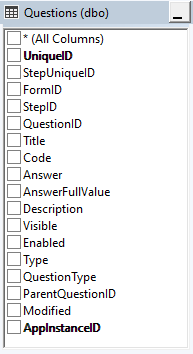
- UniqueID: The Unique ID, a combination of the form Id, step Id and the question Id
- StepUniqueID: The unique step id, a combination of the form id and step id where the question has been added
- FormID: the unique Id of the form where the step / question was used
- StepID: the unique step Id from the steps list
- QuestionID: the unique question id from the questions list
- Title: the title of the question
- Code: the unique internal question code, by default a combination of a system generated step code and question code
- Answer: the answer that has been entered into the question
- AnswerFullValue
- Description: any description that has been added in the question definition to be displayed on the form as a tooltip
- Visible: is the step hidden or visible
- Enabled: is the question enabled or disabled
- Type: the question type
- Question Type: the question type
- ParentQuestionID: Used when the question is a repeating table, as the question is the parent of the repeating table’s sub questions
- Modified: The date and time the form was last modified, step saved or submitted
- AppInstanceID: The connection name for the app where the flow was created.
Table relationships
dbo.RepeatingTableQuestions
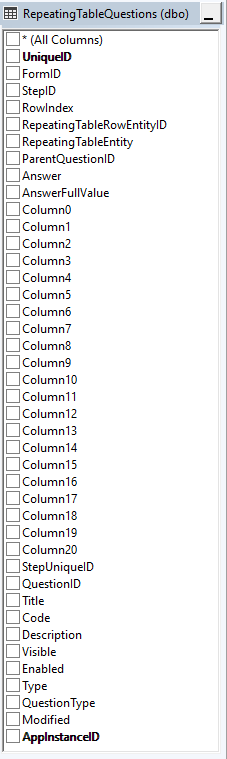
- UniqueID: the Unique ID, a combination of the form Id, step Id, question Id and repeating table row number
- FormID: the unique Id of the form where the step / question was used
- StepID: the unique step Id from the steps list
- Row Index: the reference to the row in the repeating table
- RepeatingTableRowEntityId: The Unique ID, a combination of the form Id, step Id, question Id and repeating table row number
- RepeatingTableEntity: a combination of the Form Id, step Id and parent question id
- ParentQuestionID: the id of the Repeating table question that contains all the sub questions.
- Answer: a concatenation of the answers to all the sub questions in the repeating table.
- AnswerFullValue
- Column0: The answer of the sub question in the first column of the repeating table for this row in the repeating table. This repeats up to Column20.
- StepUniqueID: A combination of the FormId and StepId that contains the repeating table question
- Title
- Code
- Description: any description that has been added in the question definition to be displayed on the form as a tooltip
- Visible: is the step hidden or visible
- Enabled: is the question enabled or disabled
- Type: the question type
- Question Type: the question type
- Modified: The date and time the form was last modified, step saved or submitted
- AppInstanceID: The connection name for the app where the flow was created.
Table relationships
dbo.Auditing
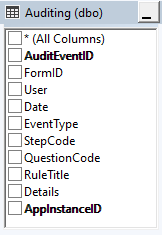
Table relationships
Form data extract
First time connection
When you first add a connection and the update procedure runs, all form data from the site will be copied to the SQL tables.The Audit table will only be updated if it is included in the connection settings