Title
The first part of the business rule lets you define a title for your rule, and then select the event on which the rule should operate. The default title of the rule is the standard FlowForma rule name. You can change this by deleting the text and entering your own. In the event field you determine when the rule is executed. For a flow this can occur when the form is loaded, started or completed. For a step this can occur when the step is started, saved or completed. For questions it can occur when the question is updated.Rule condition(s)
The second part of the business rule lets you set conditions. These are not required, but if entered, they control when the rule is executed in relation to other items contained in the form.Rule actions
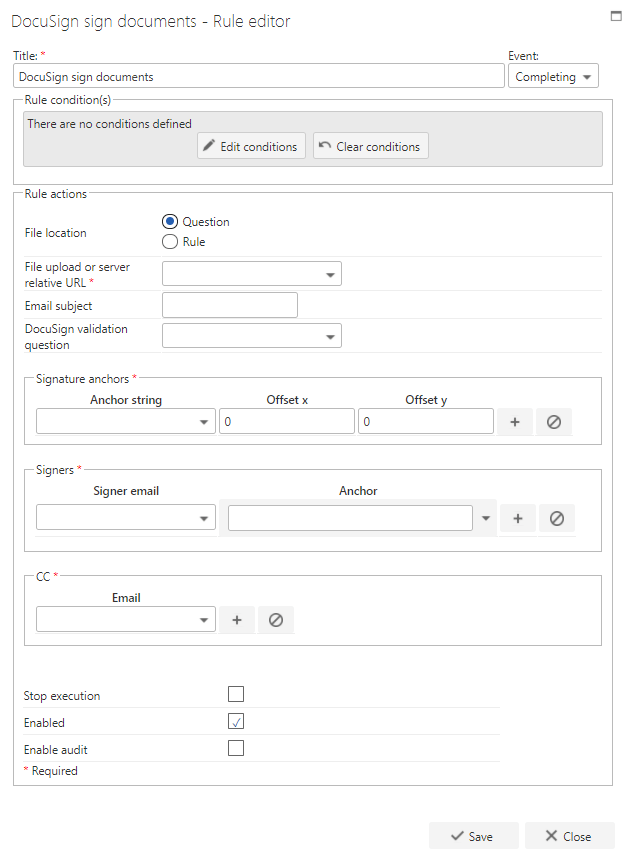
- File location: Select whether the file will be retrieved using a question (File Upload) or Rule (Generate Document).
- File upload or server relative URL: Enter the file location URL.
- SharePoint Document URL: When File location is set to Rule, enter the SharePoint document URL for the generated document.
- Email subject: Enter an email subject for the email the recipients will receive when a document is waiting for their signature.
- DocuSign validation question: Select the question that will be used to refresh the document’s signature status.
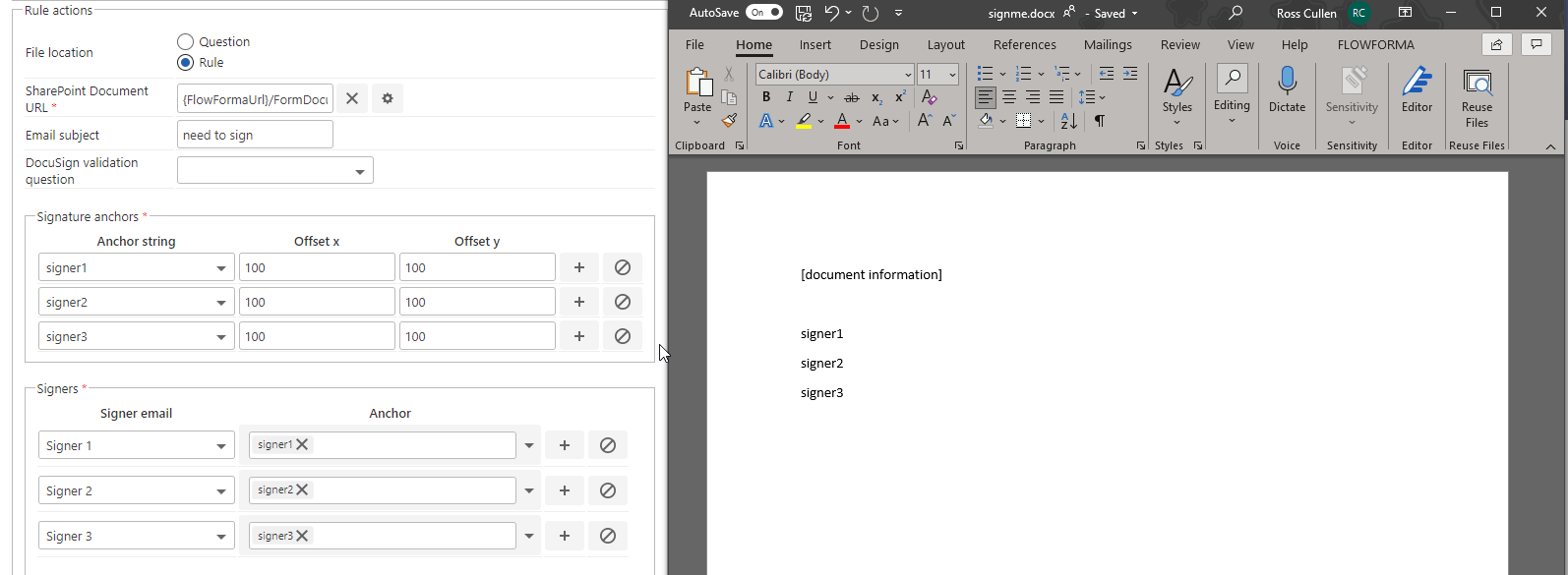
- Signature Anchors: Signers are mapped 1-to-1 with a signature anchor. Anchors are used to mark where the signature should be placed, as shown in the example below. Signature anchors can be typed into the Word template and hidden by setting the font to white text. You can use offset X/offset Y to offset the placement of the signature from the anchor, using plus or minus values.
- Signers: Select the question that will contain the email address of the signer you want to send the document to, and select the anchor they are expected to sign.
- CC: Select the question that contains the email address to CC the document signing activity to.
- Stop execution: If enabled and this rule is executed, no other rules are executed.
- Enabled: Rules are not saved to a list like questions and steps are. If you want to stop a rule executing without deleting it, toggle this option to enable or disable the rule.
- Enable audit: If checked, a record is added to the audit trail when this rule is executed. This option is available when the Compliance feature pack is activated.