

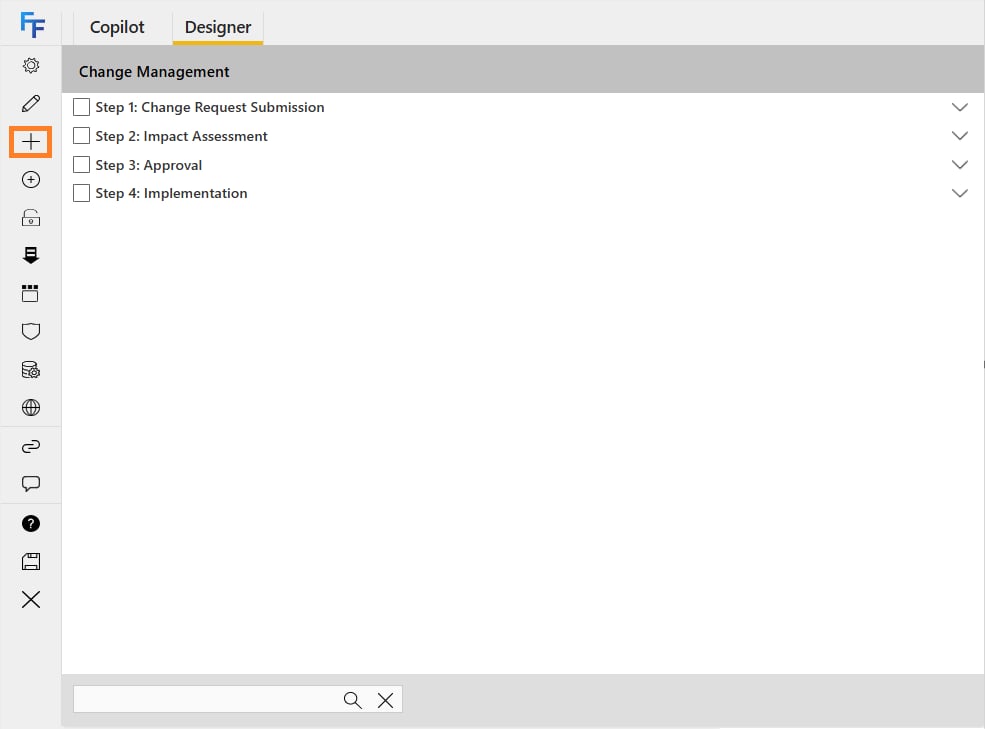
Show/hide and enable/disable steps
By default, all steps in a new flow are visible and enabled, allowing users to enter data into the questions.-
To hide a step: select the checkbox next to it (multiple steps can be selected), then click the show/hide icon. Hidden steps won’t appear when the form is used.
- You have two approval steps, and only one is needed based on logic (e.g., request cost or type).
- A follow-up step should only be shown if a specific answer was given in a previous step.
- Conditional sections of the process that only apply to certain departments or user roles.
-
Hidden steps are shown with an eye icon indicating they’re not shown by default

-
To disable a step: select the checkbox and click the enable/disable icon.
- Disabled steps will still appear but cannot be edited.
- If you’re submitting step 1 and step 2 is disabled, step 2 will be skipped and the form will move to step 3.
- This is used in cases where a form is passed back to a previous step and you want to skip over steps that don’t need to be resubmitted.
-
Disabled steps are shown with an X icon indicating they’re disabled by default
