
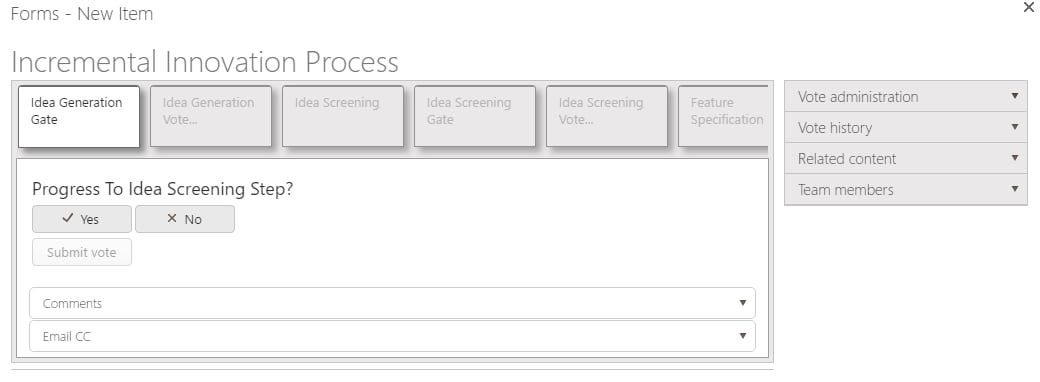
Vote administration panel
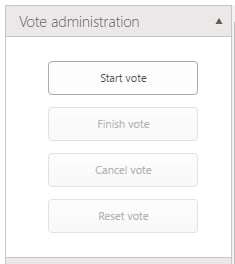
- Start vote - If the vote is set up to start automatically, this button is disabled; otherwise the vote administrator can start the vote manually. Once the vote is started, the step containing the voting question opens for users to vote. While this button is active, voters can’t yet cast their votes.
- Finish vote - This button becomes enabled once the minimum number of required votes have been cast. When the vote admin finishes the vote, it closes and users can no longer vote.
- Cancel vote - The vote admin can cancel the vote at any time.
- Reset vote - The vote admin can reset the vote at any time. This allows all users to vote again.
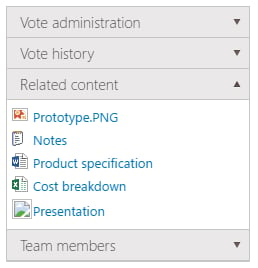
Related content
Team members
This section shows a list of the group members required to vote.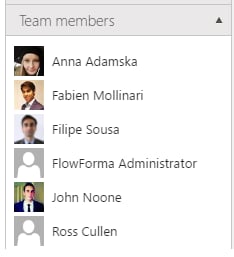
Decision group settings
If the vote administrator is not in the decision group, you need to make sure that “Who can view the membership of the group” is set to “Everyone”.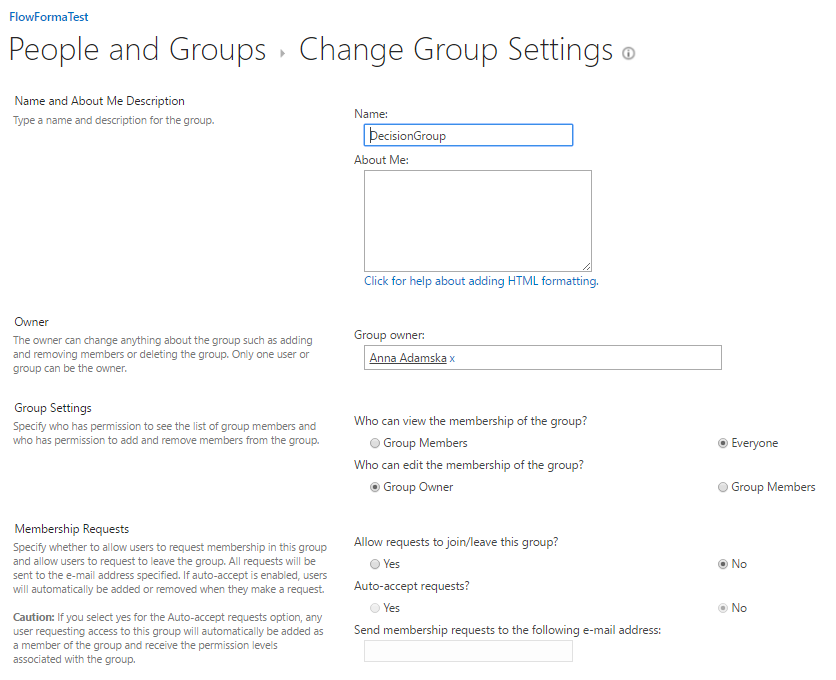
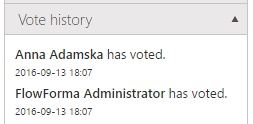
Vote history
This section shows whether each team member has voted. If the vote is set to public, the vote administrator can see each voter’s name, how they voted, and the date and time of their vote.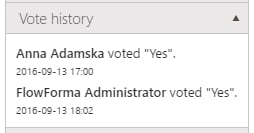
Collaboration panels settings
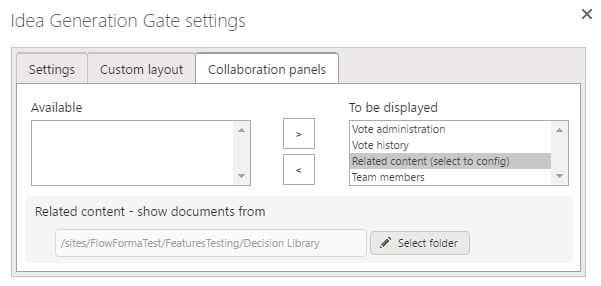
Collaboration panel settings are located in the step settings.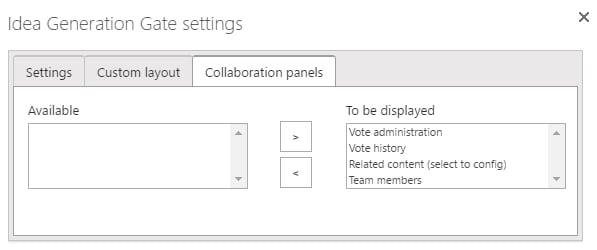
Setting up document library
To display documents in the related content panel, you first need to create a document library, upload the necessary documents, and then select this library in the collaboration panel settings. To select the desired library, click the “Related content (Select to config)” option. This displays a “Select folder” button, where you can choose the document library.Note that you can only use/access document libraries located at the same site collection app level.