

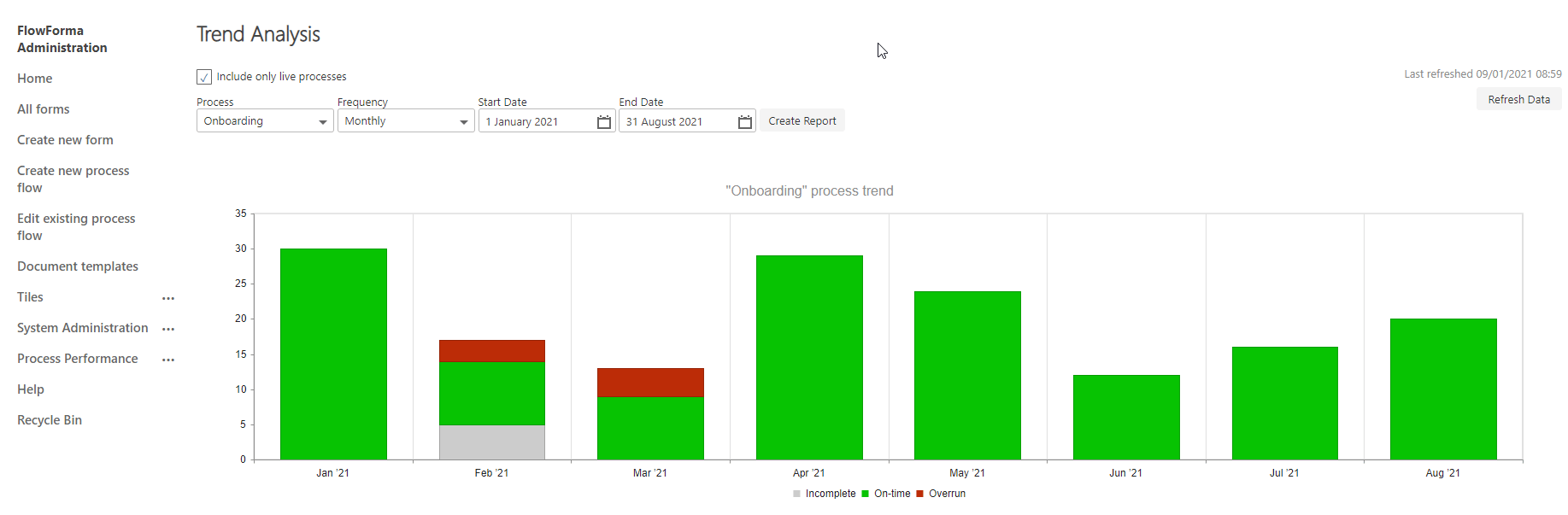
Viewing trend analysis
To open Trend Analysis, navigate to the homepage and click the Process Performance icon on the top right, then select Trend Analysis.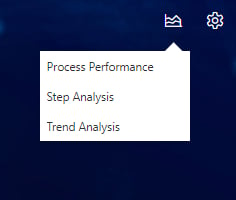

- Include only live processes: Include only live processes, i.e. flows that are licensed, and hide unlicensed flows from selection
- Use estimated duration before FlowForma: the analysis compares actual completion times against an estimated duration. Check this option to base that estimate on the step-level “Time to complete before FlowForma” values (the pre-FlowForma baseline) instead of the standard FlowForma “Time to complete” estimate, so you can see how current completion times compare to the process before it was implemented in FlowForma
- Process: Select the flow you want to run the trend analysis on
- Frequency: Select the frequency: Daily, Weekly, Monthly, or Yearly
- Start Date: Select a starting date for the analysis
- End Date: Select an end date for the analysis
- Create Report: Once all options have been selected, the Create Report button generates the bar chart with the relevant details
- Refresh Data: Data is refreshed once per day. You can manually refresh to get the latest data using this option, but it can only be done every 15 minutes.