

- The person the step is assigned to
- The Flow Administrator
- FlowForma Admins group members
- FlowForma Owners group members
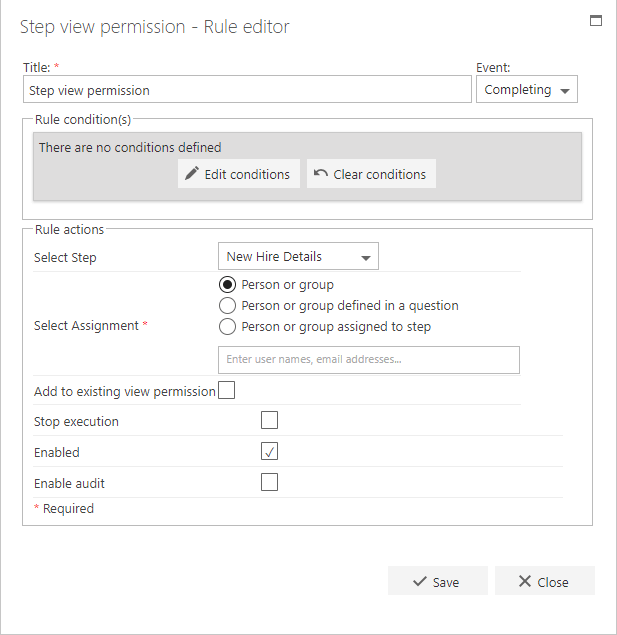
Title
The first part of the business rule lets you define a title for your rule and select the event on which it operates. The default title is the standard FlowForma rule name; change it by deleting the text and entering your own. In the event field you determine when the rule is executed. For a flow this can occur when the form is loaded, started, or completed. For a step this can occur when the step is started, saved, or completed. For questions it can occur when the question is updated.Rule condition(s)
The second part of the business rule lets you set conditions. These are not required, but if entered they control when the rule is executed in relation to other items in the form.Rule action
- Select step: select the step where you want to set permissions.
- Select assignment:
- Person or group: when you select this, you will be able to give permissions to any user or group from Active Directory. Note that these users need permissions in the site to be able to access the form.
- Person or group defined in a question: if you used a person or group question in the flow, the answer to that question can be used to set permissions. When you select this question, the drop-down list will display a list of all the steps that have person or group questions.
- Person or group assigned to step: when you select this, the drop-down list will show you all the steps of the flow. Permissions will be set for the person or group assigned to the step selected.
- Add to existing view permission: when you check this, the permissions added in the rule will be added to the existing view permissions. By default, this business rule overwrites the existing view permissions of a step.
- Stop execution: if stop execution is enabled and this rule is executed, no other rules are executed.
- Enabled: rules aren’t saved to a list like questions and steps are, so if you want to stop a rule executing without deleting it, toggle this option to enable or disable the rule.
- Enable audit: if checked, a record is added to the audit trail when this rule is executed. This option is available when the Compliance feature pack is activated.