The FlowForma Microsoft Teams app allows you to view and launch new forms from within the Teams application. This makes it easier and faster to create and view your forms without having to open the browser.

Signing in

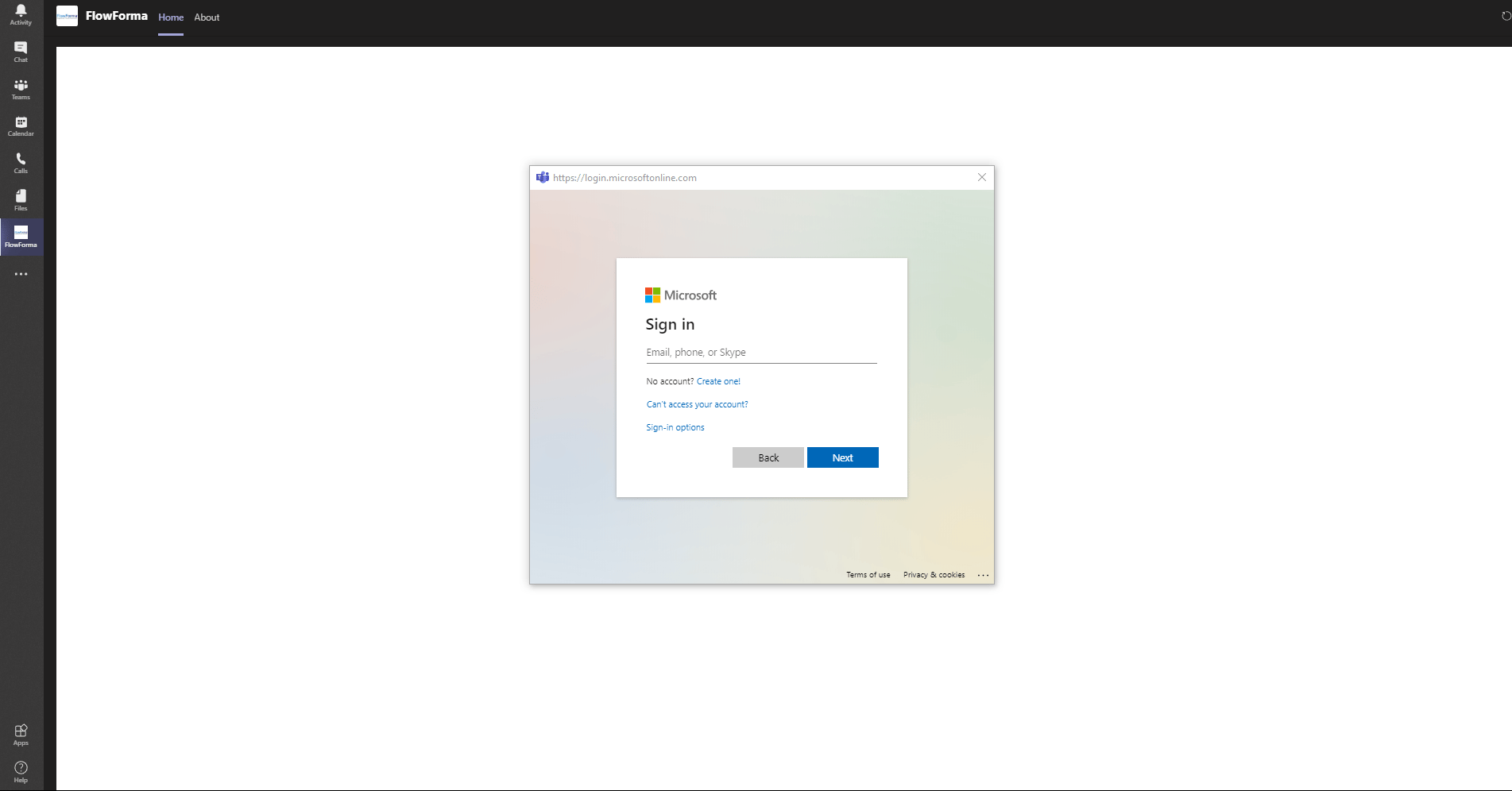
When you first open the FlowForma Microsoft Teams app, you will be asked to sign in using your Office 365 credentials. FlowForma Teams app sign in screen
Selecting the site

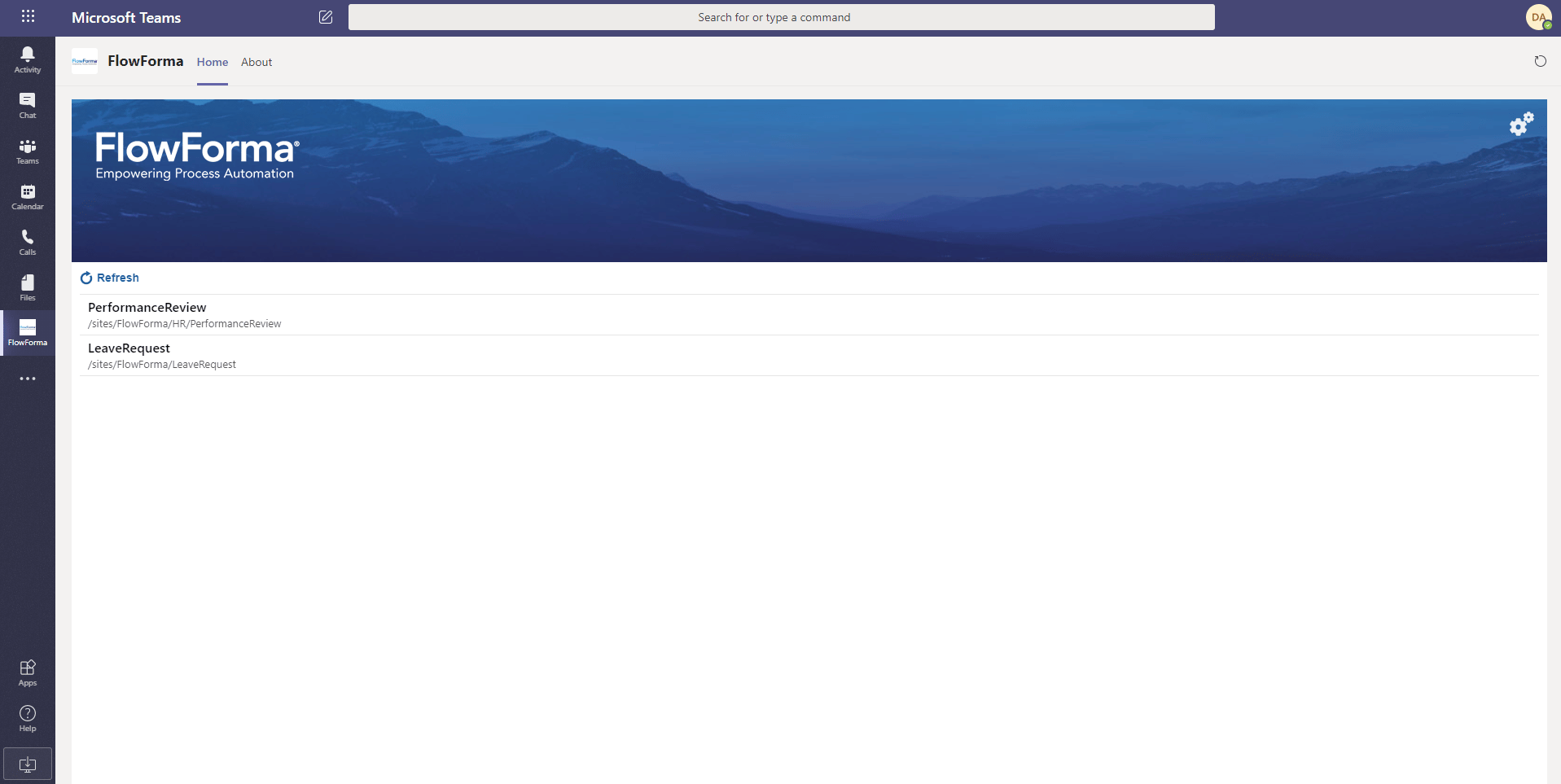
Site selection page listing available sites On the site selection page, you will see a list of all the sites you have permission to view. Clicking one of the site titles opens that site on the home page.

Home Page

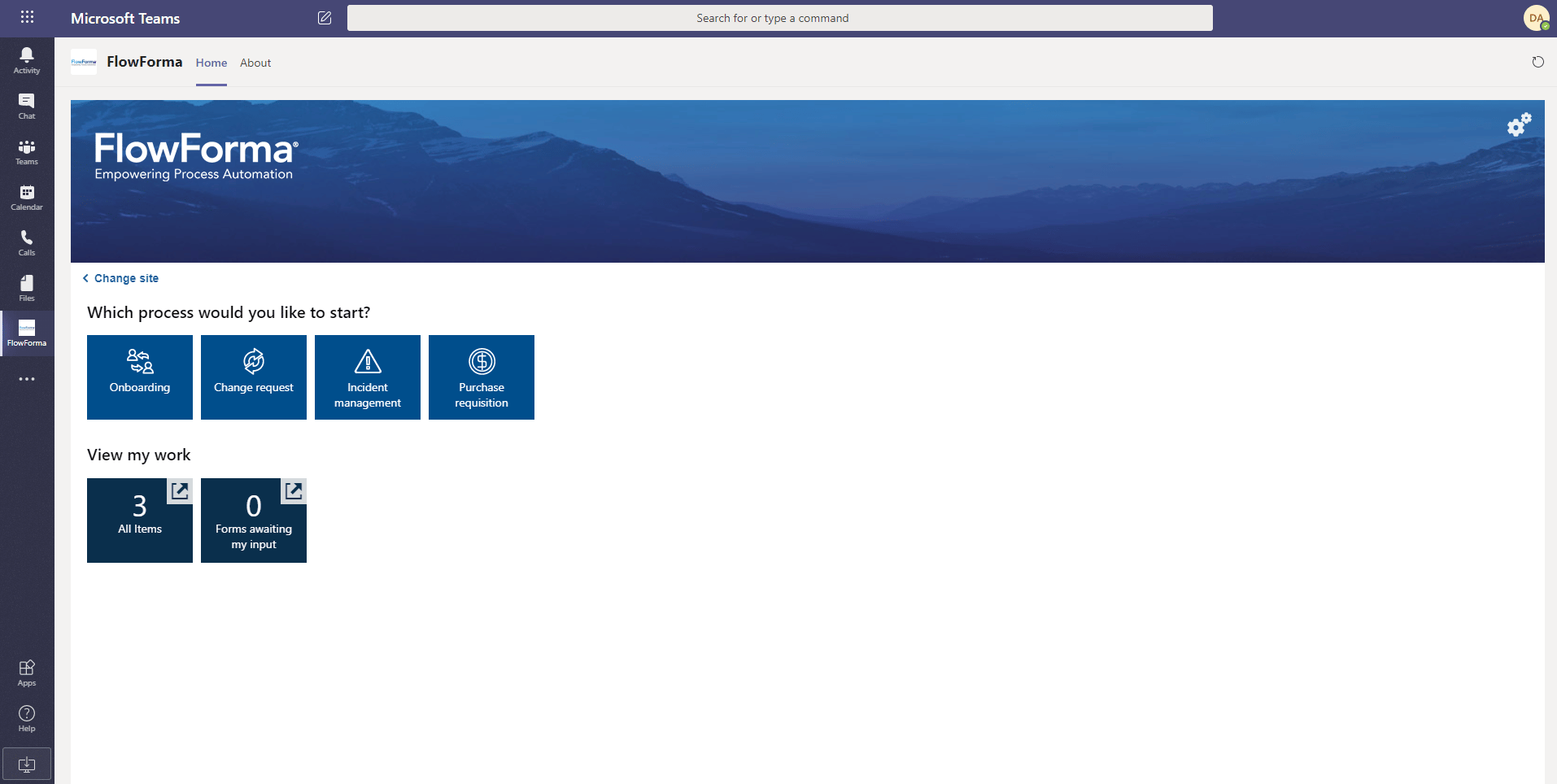
Teams app home page

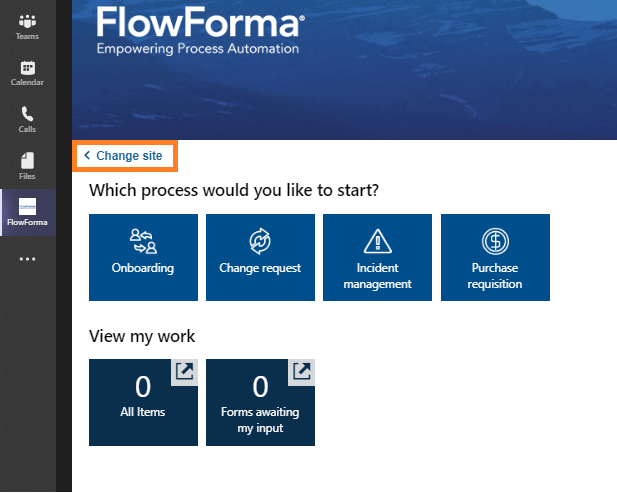
Change site

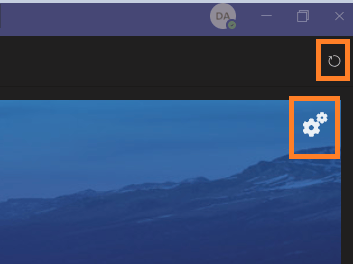
You can use the “Change site” link to navigate back to the site selection screen if you want to view another site. Change site link You can use the refresh icon to reload the app, or the settings cog to sign out of the app. Refresh icon and settings cog
Which process would you like to start?

This displays the process tiles configured on the SharePoint page. Clicking one of these tiles launches that form in your default browser. You can add new process tiles by editing this section in the browser.

View my work

Here we have two tiles displaying:
  1. All Items - The total number of forms on that site
  2. Forms awaiting my input - The total number of forms on that site on which the current step is assigned to the logged-in user.
Clicking on the tile displays the forms list on that view within the Teams App. Clicking on the arrow icon on the tile opens the forms list on that view in the browser. You can add new view tiles by editing this section in the browser.

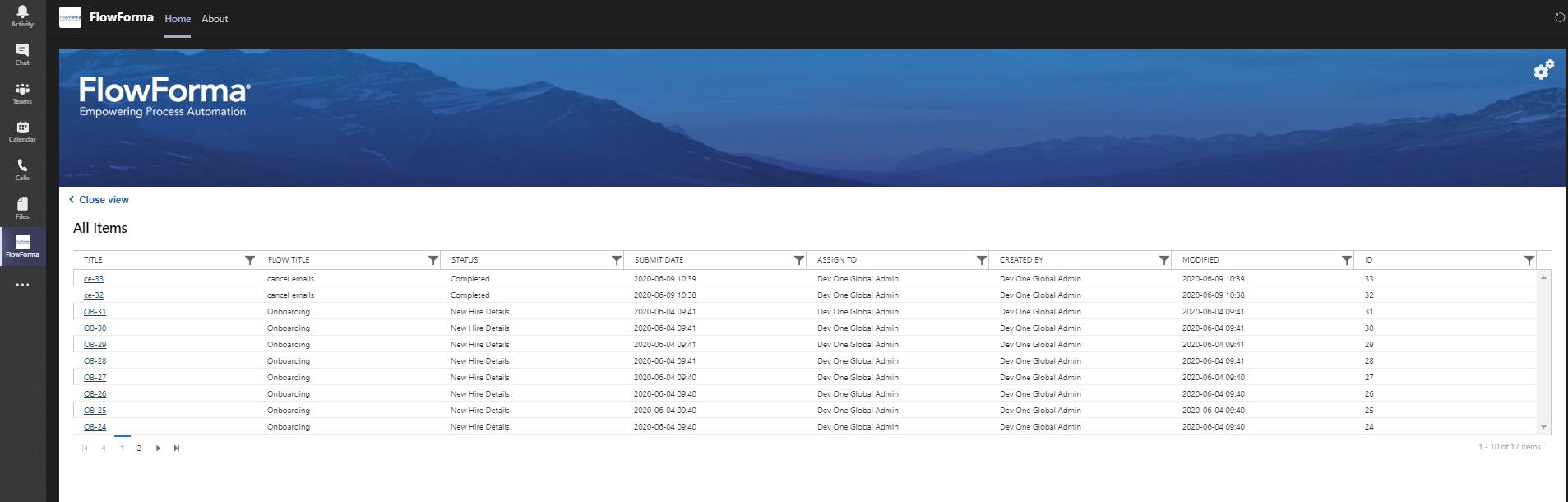
Forms List

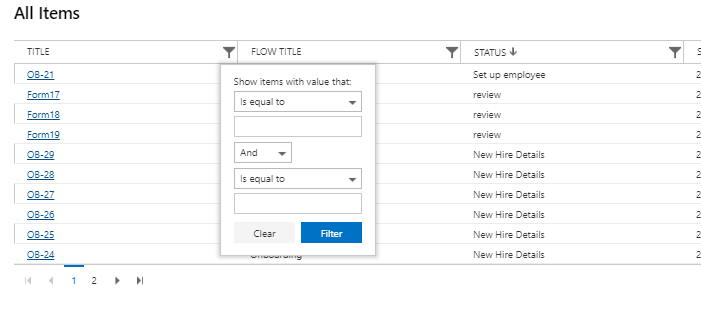
The forms list will display items/columns based on view associated with the tile that was clicked on. Forms list view You can further filter these items by clicking the funnel icon in the relevant column, entering a filter value, and using And/Or operations as required. Column filter with And/Or operations