

- CWM Groups: used to group different sites/flows for different departments/teams.
- CWM Queues: used to display forms you have “awaiting my input” and/or “created by me” and/or “Completed” from different sites/flows in one location, groups into “queues”.
- CWM Reports: used to display information for different flows/sites.
- CWM Links: used to put useful links in one place for users to easily navigate between pages.
- CWM Newsfeed: used for members of a group to communicate in real time.
Setup
While not mandatory, we recommend you create 2 SharePoint site pages to use CWM.- Home page: this page acts as a landing page for CWM, where the “CWM Groups” webpart is added and configured.
- Data page: after clicking a group tile, users are redirected to this page where the “CWM Queues”, “CWM Reports”, “CWM Links”, and “CWM Newsfeed” webparts are added, and display the data configured for the specific group they clicked.
CWM Groups
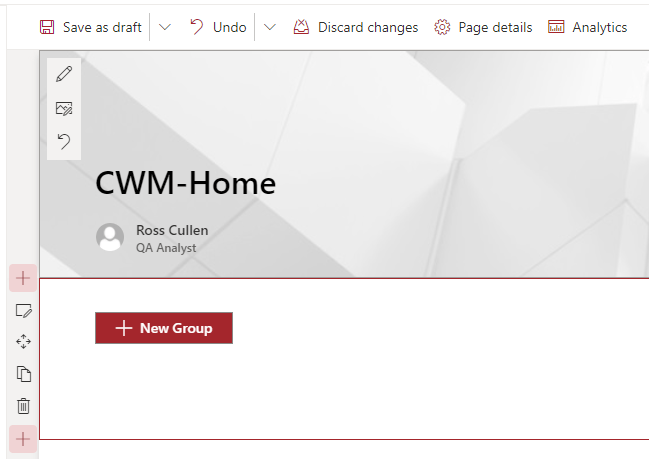
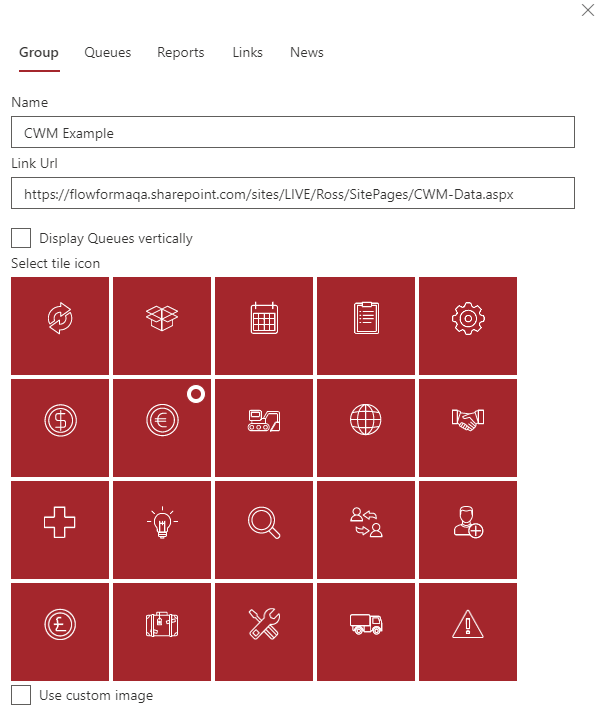
You use this webpart to define the group details to be displayed on the CWM Home page. The group also contains tabs to configure Queues, Reports, Links and the Newsfeed. To add the webpart, edit the SharePoint page you use as the home page. With the page in edit mode, click the + icon to add a webpart. Available webparts are now displayed. Search for “FlowForma CWM” to find all CWM webparts, then select the FlowForma CWM Groups webpart.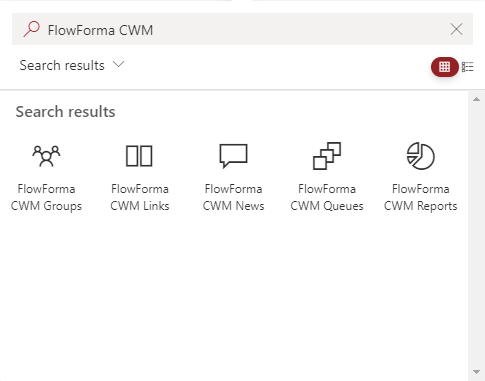
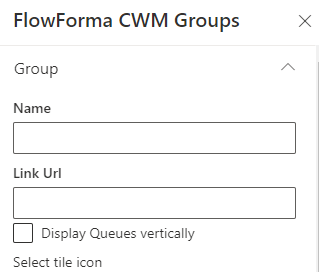
- Name: This is the name that appears on the tile for the group. The name is not required; if left empty, it displays a blank tile or the image selected below.
- Link Url: This is the link to the page where you want the queues, reports, and links you add to the group displayed. You need to add the relevant queues, report, and links webparts to this page to display them.
- Display Queues vertically: the queues webpart displays queues horizontally by default; checking this box displays queues vertically.
- Select tile icon: To display the tile for the group with an image, you can select one from the provided gallery, or check “Use custom image” to enter a URL for an image hosted elsewhere.
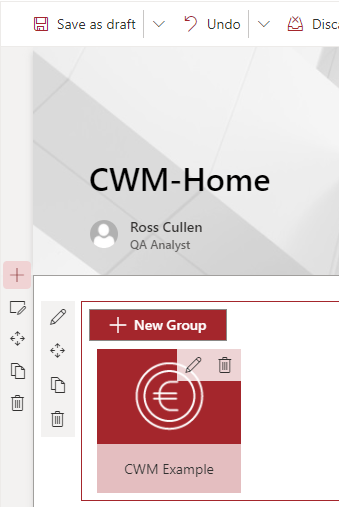
Example
Queues
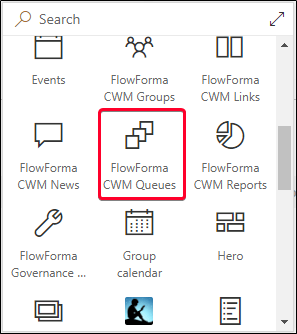
Queues are lists of forms. You define which forms are included in a queue in the group settings; you can add multiple queues to a group as required. The queue is then displayed on the data page you set as the Link Url for the group. To add the webpart, edit the webpage and click the icon. Available webparts are displayed.
Defining queues
To add a queue, with the Group webpart in edit mode, expand the Queues section in the panel on the right of the screen.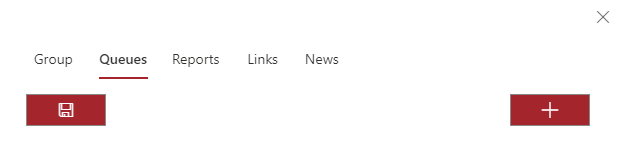
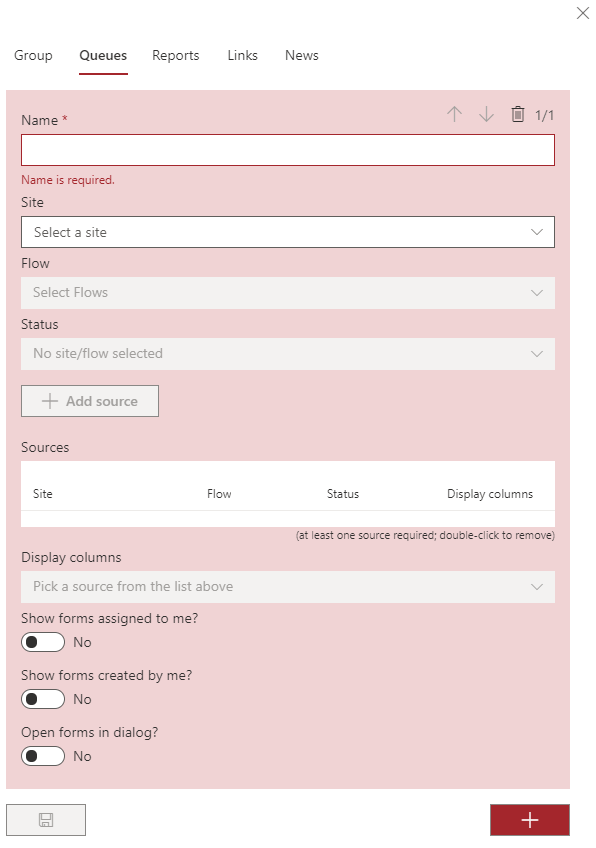
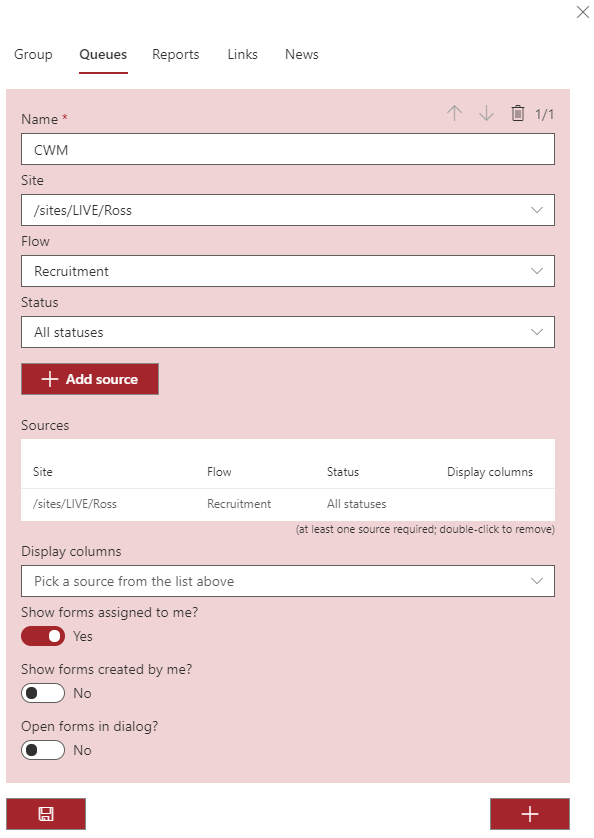
- Name: This is the name or title of the queue, displayed above the queue (maximum 50 characters).
- Site: This drop-down contains all the sites you have permissions for; select the site that contains the flow you want to include in the queue.
- Flow: This drop-down contains all the flows present on the site selected above; select the flow you require.
- Status: The status drop-down includes the names of all the steps in the flow selected above, as well as All statuses, All statuses but Completed, Completed, and Rejected. Select the status of the flow you want to include in the queue.
- Add source: Once you have selected the site, flow, and status, click the + Add source button; multiple Site/Flow/Status combinations can be included in the queue.
- Show forms assigned to me?: If left as No, all forms matching the filters are displayed; if changed to Yes, only forms assigned to the currently logged in user that match the filter(s) are displayed.
- Show forms created by me?: If left as No, all forms matching the filters are displayed; if changed to Yes, only forms created by the currently logged in user that match the filter(s) are displayed.
- Open forms in dialog?: if left as No, clicking a form title redirects the user to that form; if changed to Yes, forms open in a new dialog displayed on the page without redirecting the user from the page.
Example
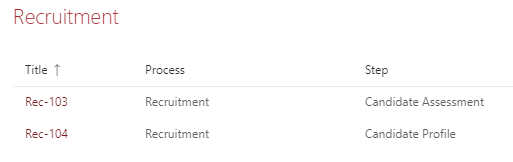
If you click on a form title the form will be opened.
Reports
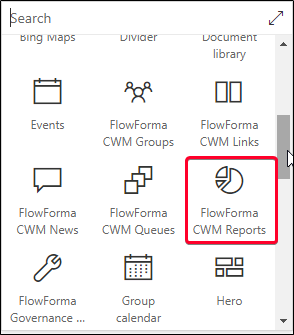
Reports are used to display form data either graphically or in tabular form. The content of the reports is defined in group settings; the report is then displayed on the page entered in the group settings Link Url. You will have to add the reports webpart to this page to generate the reports. To add the webpart, edit the webpage and click the icon. Available webparts are displayed.
Reports tab
Clicking the Reports tab in the CWM Groups configuration panel opens the following screen.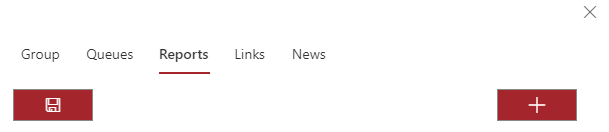
Option 1 - Charts
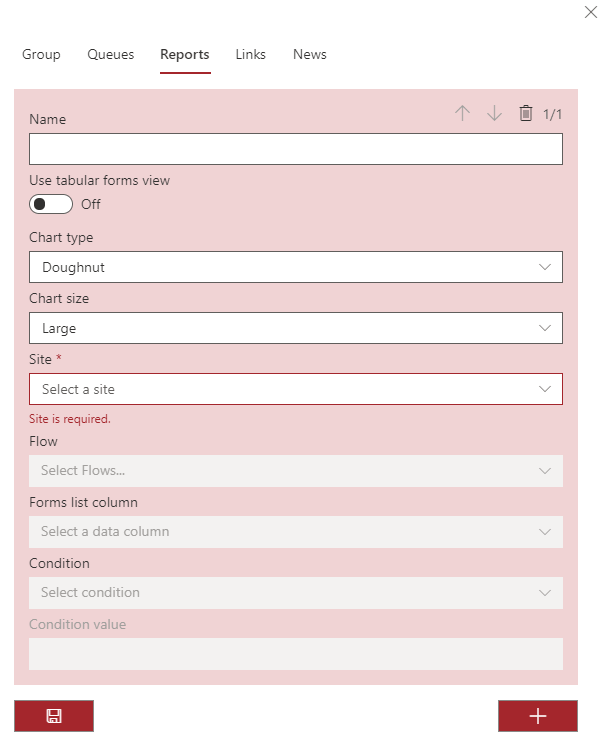
- Name: This is the name or title that is displayed above the report.
- Use tabular forms view: If you want to display the data graphically, leave this as Off. If you want to display form data in a table, change it to On.
- Chart type: The type of chart to display. You can select from the following:
- Bar
- Horizontal bar
- Doughnut
- Line
- Pie
- Polar
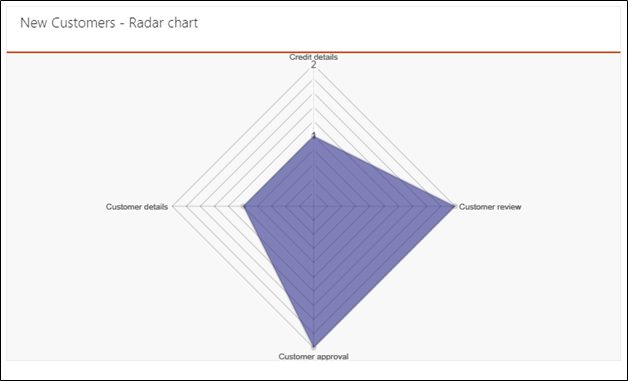
- Radar
- Chart size: you can select the size of chart you want to display: Small, Medium, or Large.
- Site: The site from which you want to select the flow to include in the report.
- Flow: A drop-down list containing all the flows contained in the site selected above. The drop-down has check boxes, so you can select multiple flows to include in a report. If no flows are selected, all flows from the site are included in the report.
- Forms list column: Drop-down including all the columns from the forms list of the site selected above:
- The standard list columns, common to all FlowForma sites.
- Any published questions that are specific to the site.
- Condition: A condition can be added to the selection from the forms list above; only forms where the condition is met are included in the report. The available conditions are:
- Equal
- Not equal
- Blank
- Not blank
- Contains
- Not contains
- Greater than
- Less than
- Condition value: The value to use in combination with the condition above. For example: Forms list column = Status, Condition = Equal, Condition value = Completed.
Example of charts
Report definition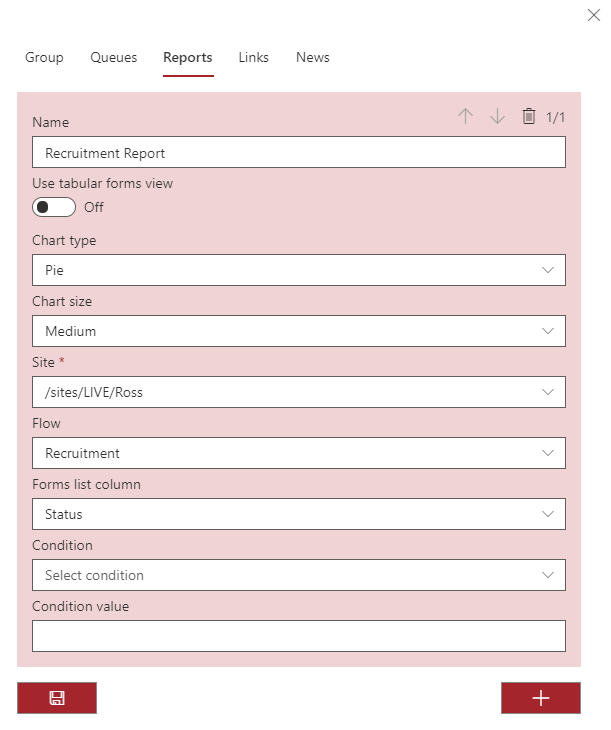
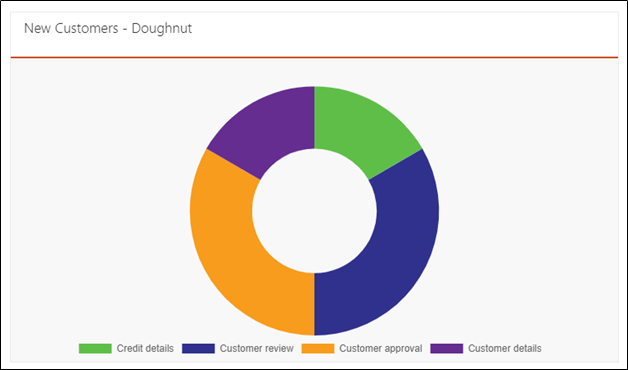
Report - Bar chart
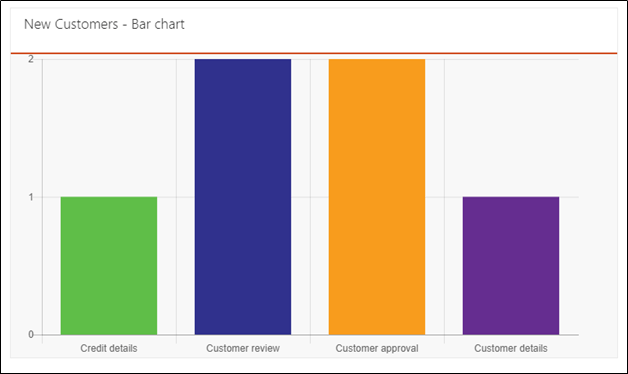
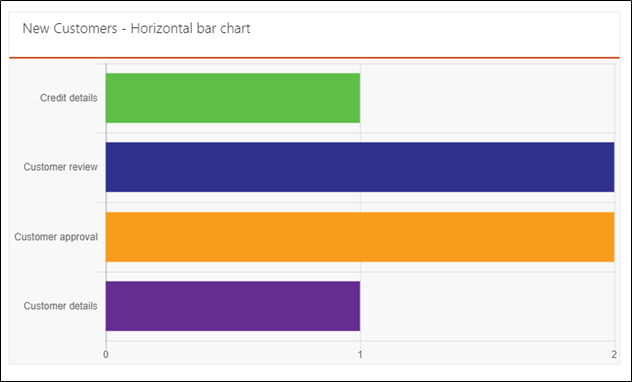
Report - Horizontal bar chart
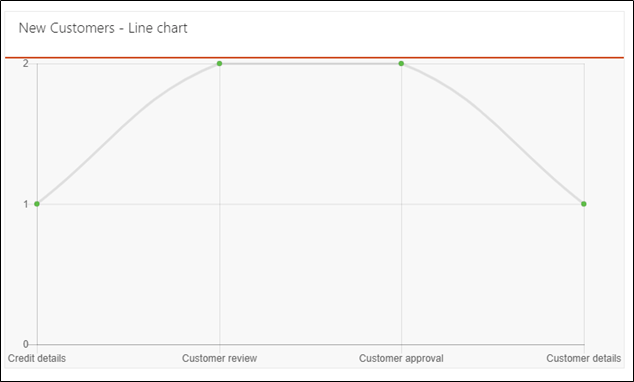
Report - Line chart
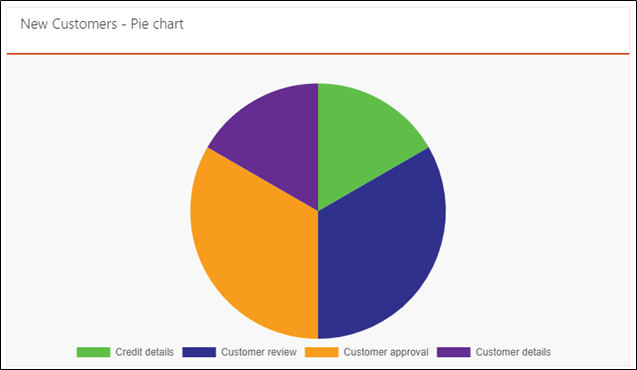
Report - Pie chart
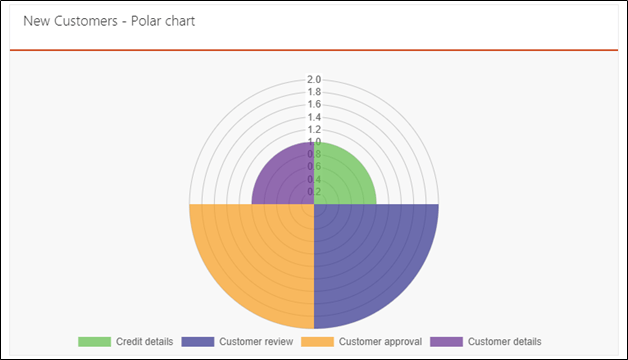
Report - Polar chart
Report - Radar chart
Option 2 - Tabular reports
The process to add a tabular report is similar to adding a standard report above. Select ‘On’ for Use tabular forms view, and the report editor is now displayed.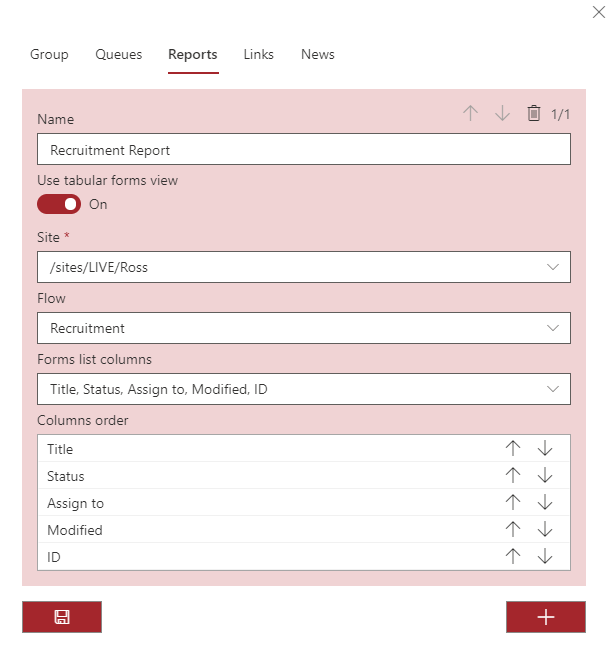
- Name: This is the name or title that is displayed above the report.
- Use tabular forms view: Select On to show data in tabular form.
- Site: The site from which you want to select the flow to include in the report.
- Flow: A drop-down list containing all the flows contained in the site selected above. The drop-down has check boxes, so you can select multiple flows to include in a report. If no flows are selected, all flows from the site are included in the report.
- Forms list column: Drop-down including all the columns from the forms list of the site selected above.
- The standard list columns, common to all FlowForma sites.
- Any published questions that are specific to the site.
Example of tabular report
The site and flow have been selected from the relevant drop-down lists. Forms list columns, both standard list columns and columns for published questions, have been selected and ordered. The tabular report is displayed as below.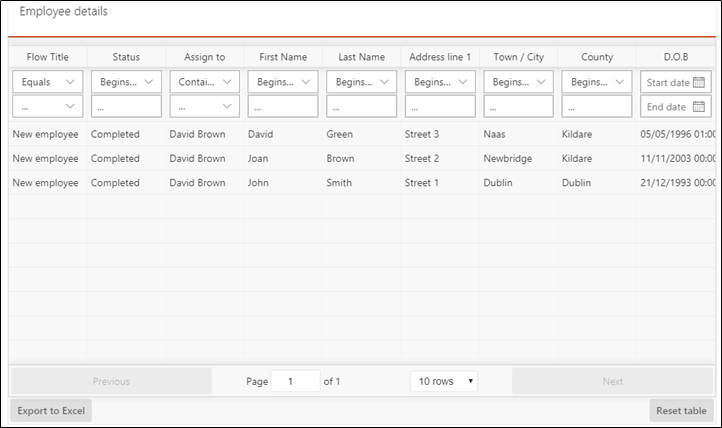
- Column title: this is the title of the forms list column.
- Column sorting: When the report is displayed, by default it is in the order of the forms list.
Form properties
Published questions
Retaining filters
If you want the report to open with filters applied, you have to do the following: Set up the report normally by completing the report definition in the group settings. Select the tile of the group that contains the tabular report; the page should appear with the tabular report displayed. Click Edit on this page. Add filters to the tabular report as required. Click the publish/republish button to save the changes. Now the report is generated with the filters applied. Example: The following tabular report has no filters.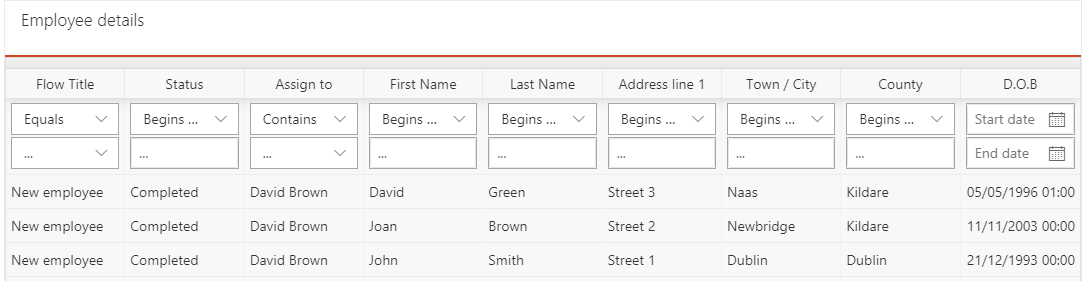
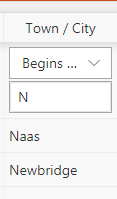
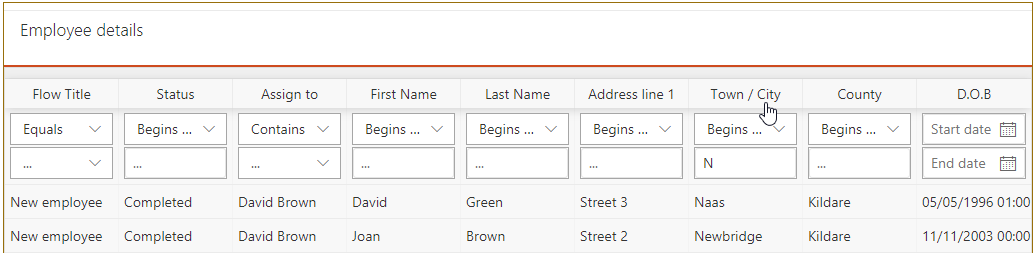
Reset table
If you have added filters or re-ordered columns and want to discard these changes and view the report as it was originally displayed, click the button.
Export to Excel
You can export the table to Excel by clicking the Export to Excel button. An Excel workbook is created containing all the columns and rows contained in the filtered report. The workbook created for the report above is displayed below.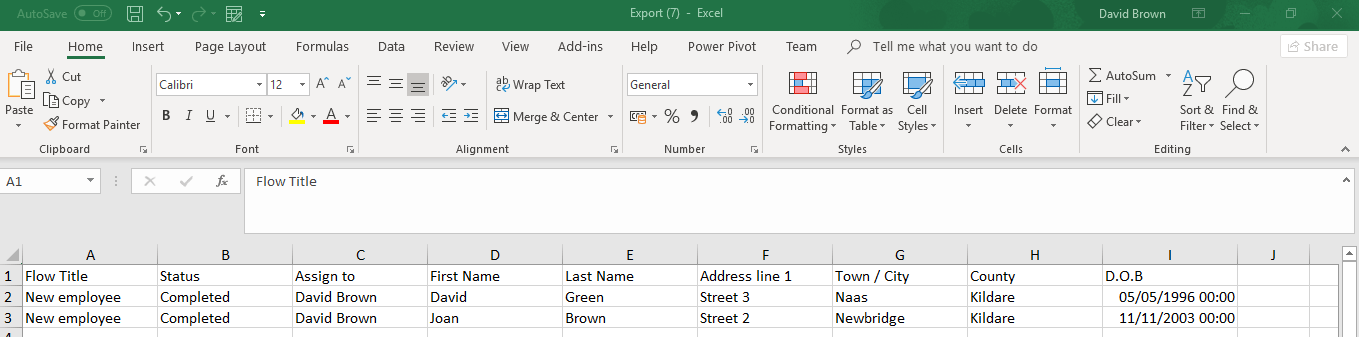
Links
Links are used to direct users to other web pages by clicking a tile. The link properties are defined in group settings; the link is then displayed on the page entered in the group settings Link Url. You will have to add the links webpart to this page to generate the links. To add the webpart, edit the webpage and click the icon. Available webparts are displayed.
Select the FlowForma CWM Links webpart and publish the page to include the webpart.
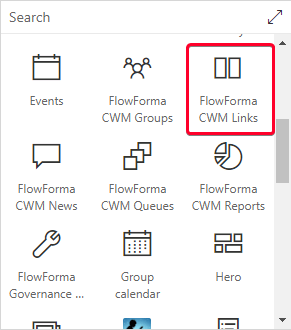
Defining links
Expand the links section in the group settings.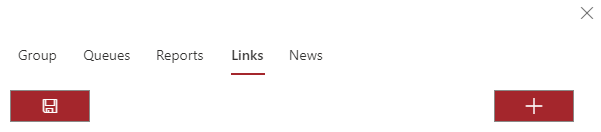
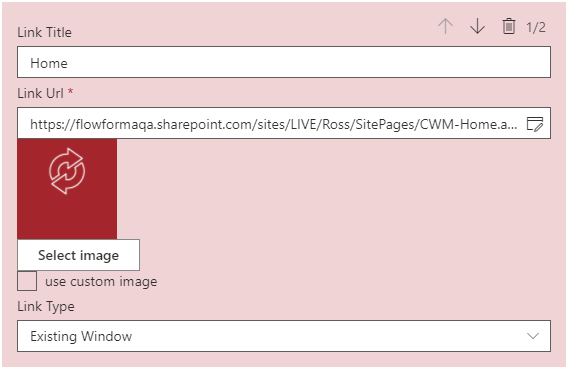
- Link title: the name that is displayed on the tile used to direct you to other web pages.
- Link Url: the address of the web page that you are directed to when clicking the tile.
- Select image: you can display an image on the tile for the link. Click “Select image” to choose an image from a provided gallery, or “Use custom image” to enter a link to an image hosted elsewhere.
- Link type: you can choose to open the page in a new browser window, or use the existing browser window.
Multiple links can be added to any group
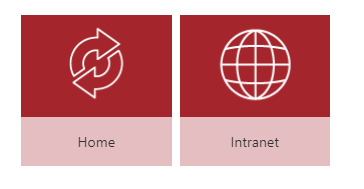
News
This section allows real-time communication between members of a defined group by including a Chat box for you to input comments into. Clicking the News tab displays the following screen.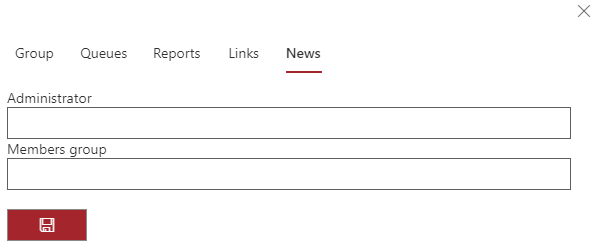
- Administrator: this is the person or group of people who will administer the newsfeed. The administrator(s) can delete any message in the newsfeed, regardless of who created it.
- Members group: this is the group of people who are allowed access to the newsfeed and able to take part in the chats.
Using the news feature
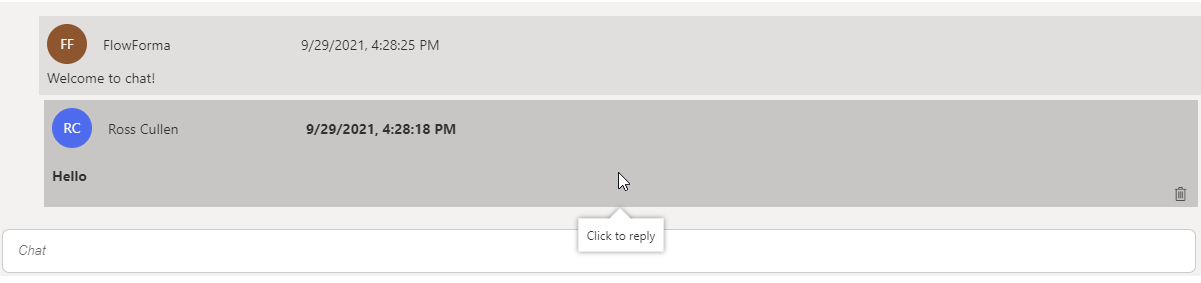
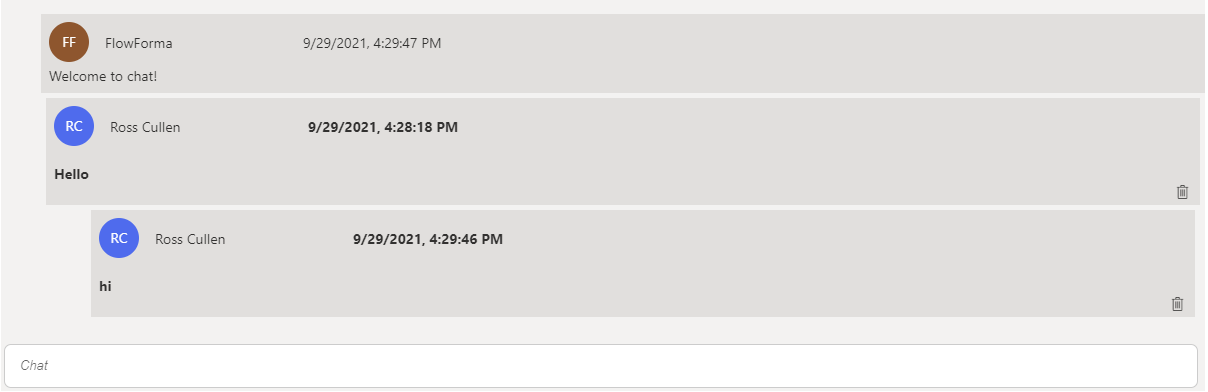
All users included in the Members group are able to add to the chat. To enter items into the chat, type something where the text ‘Chat’ is displayed and press enter; your comments are now visible to everyone in the Members group when they look at the newsfeed.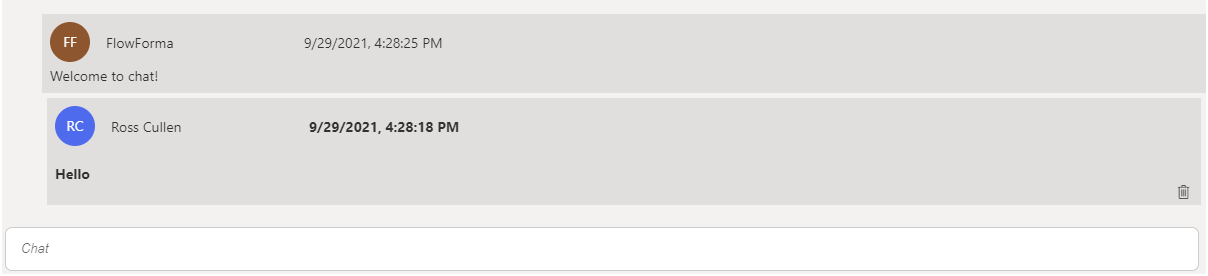
Notifying specific members
If you want to notify a specific member of the group that an item added to the chat requires their attention, type @ in the Chat field. A search box is now displayed. Type at least the first three characters of a name and available people are displayed. Select the person required; a link to that person is now added to the Chat. You can add further text to the chat if required, then press enter. When the item has been entered into the Chat, an email notification is sent to the person entered in the chat, with a link to the conversation.Linking the Chat to forms
You may want to discuss an issue concerning a particular FlowForma form. To do this, type @ into the Chat field; the same pop-up as above is displayed. If you start typing the first few characters of a form title, forms with a matching title on sites included in queues defined on the site are displayed, showing the form title and the site containing the form. Select the form required; a link to the form is now added to the chat, allowing chat members to access the form directly from the chat.Deleting items from the Chat
This option is only available to the user or users defined as Administrators in the Newsfeed definition described above. If you are an admin, in the bottom right-hand corner of the Chat box you see the trash can icon. When you click the trash can, a pop-up appears to confirm the deletion of the item. Any chat item can be deleted by admin users:- Single items not forming part of a conversation are deleted when the trash can is clicked.
- Single replies in a conversation (children) are deleted when the trash can is clicked.
- The entire conversation is deleted when the trash can on the first item in a conversation (parent) is clicked.