

Key features
- Automate document processing (e.g., extract invoice totals, validate documents)
- Define custom instructions for AI processing
- Support for multiple file types (Microsoft Word, PowerPoint, etc.)
- Configurable output destinations for processed data
- Error handling with designated error output location
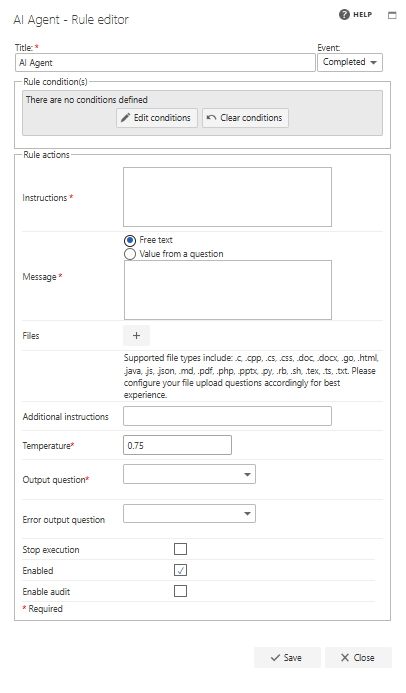
Title
The first part of the business rule lets you define a title for your rule and select the event on which it operates. The default title is the standard FlowForma rule name; change it by deleting the text and entering your own. In the event field you determine when the rule is executed. For a flow this can occur when the form is loaded, started, or completed. For a step this can occur when the step is started, saved, or completed. For questions it can occur when the question is updated.Rule condition(s)
The second part of the business rule lets you set conditions. These are not required, but if entered they control when the rule is executed in relation to other items in the form.Rule actions
- AI Provider Connection: a drop-down to select the configured AI connection the agent will use.
- Instructions: define the role and purpose of the AI agent. This provides context for how the agent should process data.
- Example: “You are an invoice processing agent who extracts data from invoices.”
- Message: specify the action the agent should take. You can enter free text, pick a question’s value, or pick values from multiple questions.
- Example: “Extract the supplier name and invoice total amount from the invoice. Return the invoice amount as a number and the supplier name in uppercase with spaces between each letter.”
- Files: attach the file(s) the AI agent will process.
- Temperature: set the creativity/strictness level of the AI agent’s response.
- Lower values make the agent more strict.
- Higher values make the agent more creative.
- Map output to multiple questions: check this option to map multiple properties of a JSON response to multiple output questions instead of a single output question. When enabled, an Output questions table lets you match each property name to an output question.
- Output question: specify where the AI agent should store the processed output.
- Error output question: define how errors should be reported if they occur during processing.
- Stop execution: if stop execution is enabled and this rule is executed, no other rules are executed.
- Enabled: rules aren’t saved to a list like questions and steps are, so if you want to stop a rule executing without deleting it, toggle this option to enable or disable the rule.
- Enable audit: if checked, a record is added to the audit trail when this rule is executed. This option is available when the Compliance feature pack is activated.
Example use cases
Use case 1: Invoice processing
- Instructions: “You are an invoice processing agent.”
- Message: “Extract the supplier name and invoice total. Return the invoice total as a number and supplier name in uppercase.”
- Files: Invoice document uploaded
Use case 2: Insurance claim evaluation
- Instructions: “You are an insurance claims evaluator.”
- Message: “Review the claim details and determine if it meets policy requirements. Return ‘Approved’ or ‘Denied’ based on eligibility criteria.”
- Files: Claim form document uploaded
Use case 3: Contract compliance check
- Instructions: “You are a legal compliance agent.”
- Message: “Check if the document includes the required termination and confidentiality clauses. Return ‘Compliant’ or ‘Non-Compliant’ based on missing sections.”
- Files: Contract document uploaded
Use case 4: Employee resume screening
- Instructions: “You are a hiring assistant.”
- Message: “Analyze the resume and check if the candidate has at least 5 years of experience in software development. Return ‘Qualified’ or ‘Not Qualified’ based on experience.”
- Files: Resume document uploaded
Use case 5: Medical report summarization
- Instructions: “You are a medical data analyst.”
- Message: “Summarize the key findings from the medical report in three sentences. Return a concise summary highlighting key diagnoses and recommendations.”
- Files: Medical report uploaded