Using map repeating table rule (no filter)
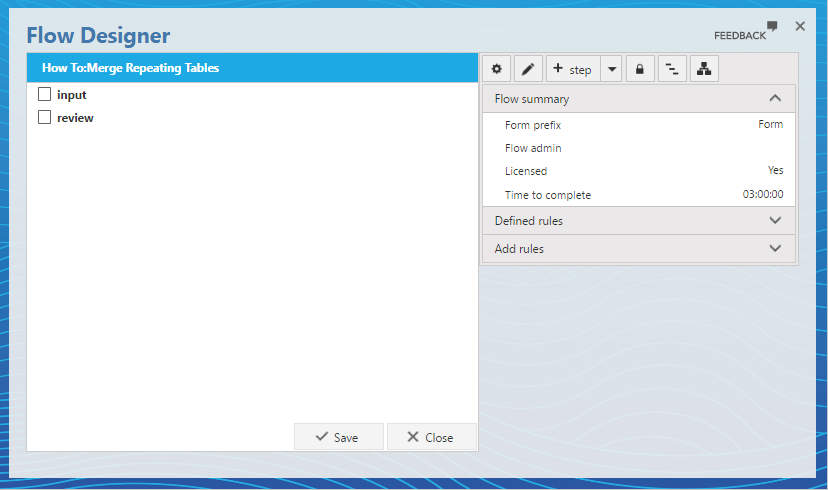
In FlowForma you can merge data coming from different repeating tables into one repeating table. If you don’t need to apply any filters, you can simply use the map repeating table rules. Here is an example on how to copy the data from two repeating tables into one.- Create a new test flow with two steps
-
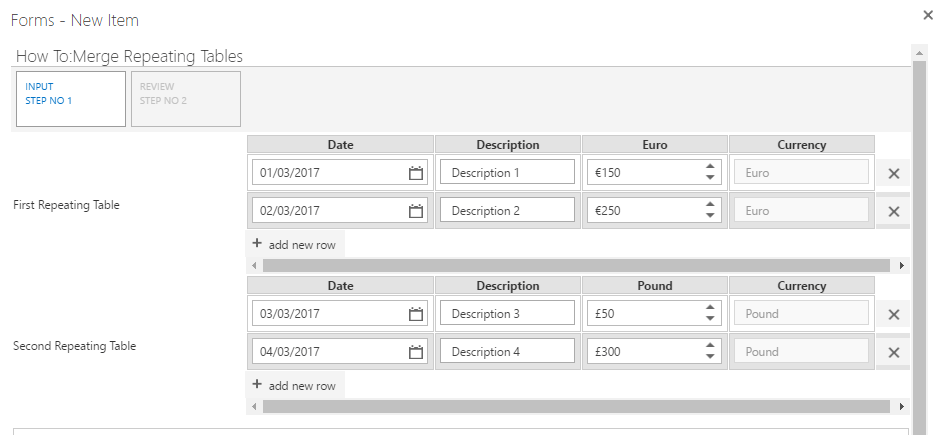
Add two repeating table questions in step 1. Repeating table 1 will contain:
- Date: date and time (date only)
- Description: single line of text
- Euro: number with currency €
- Currency: single line of text question with the default value “Euro”. After saving, disable this question
-
Repeating table 2 will contain:
- Date: date and time (date only)
- Description: single line of text
- Pound: number with currency £
- Currency: single line of text question with the default value “Pound”. After saving, disable this question
-
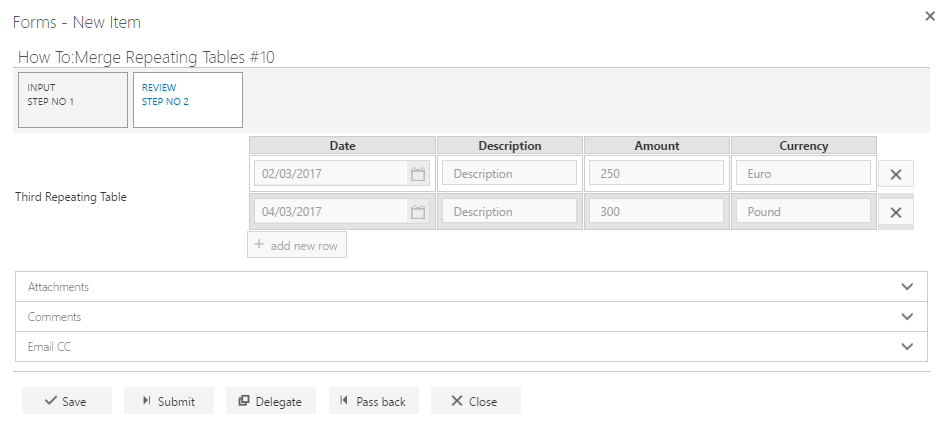
Add one repeating table questions disable in step 2. Repeating Table 3 will contain:
- Date: date and time (date only)
- Description: single line of text
- Amount: single line of text
- Currency: single line of text
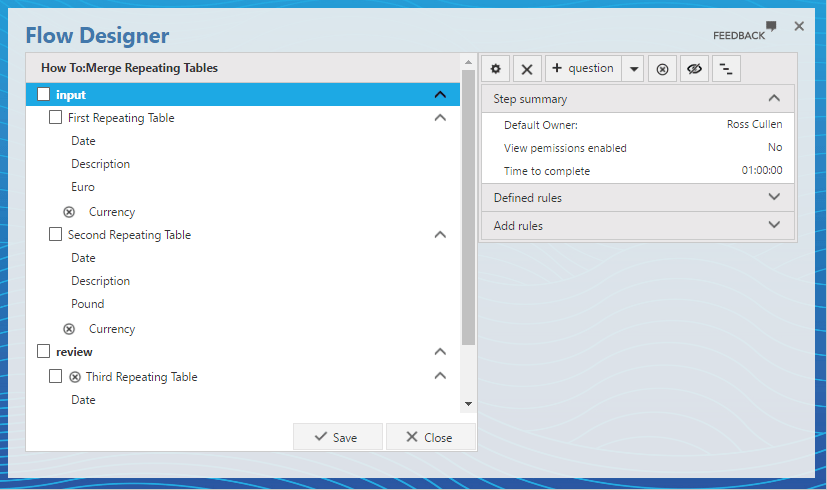
You can disable individual sub-questions or simply disabled all sub-questions by disabling the Repeat Table question.
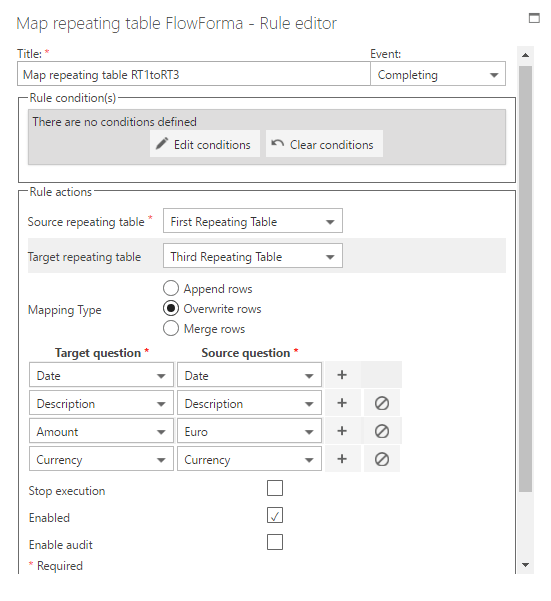
- Add a map repeating table between RT1 and RT3 (overwrite rows)
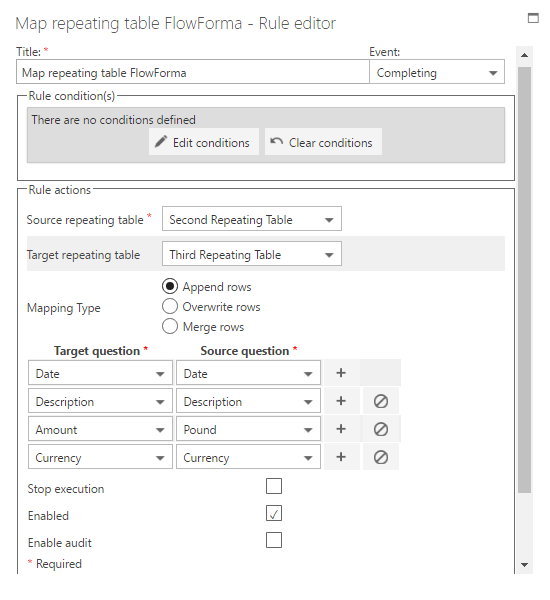
- Add a map repeating table between RT2 and RT3 (append rows)
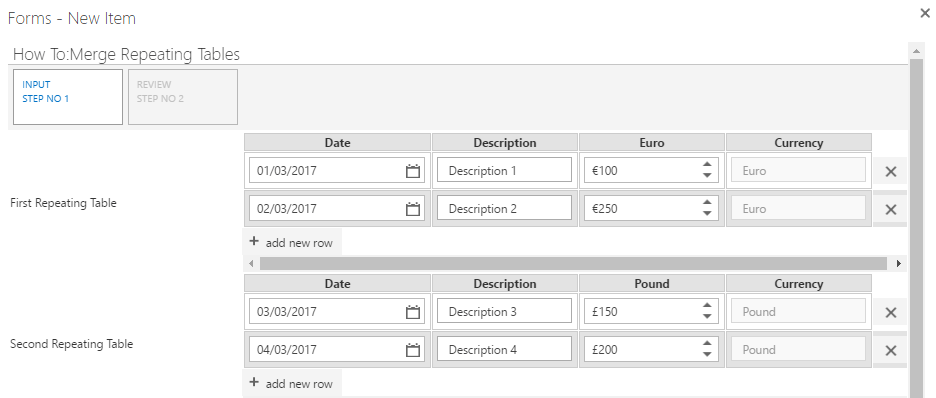
Filling out the form
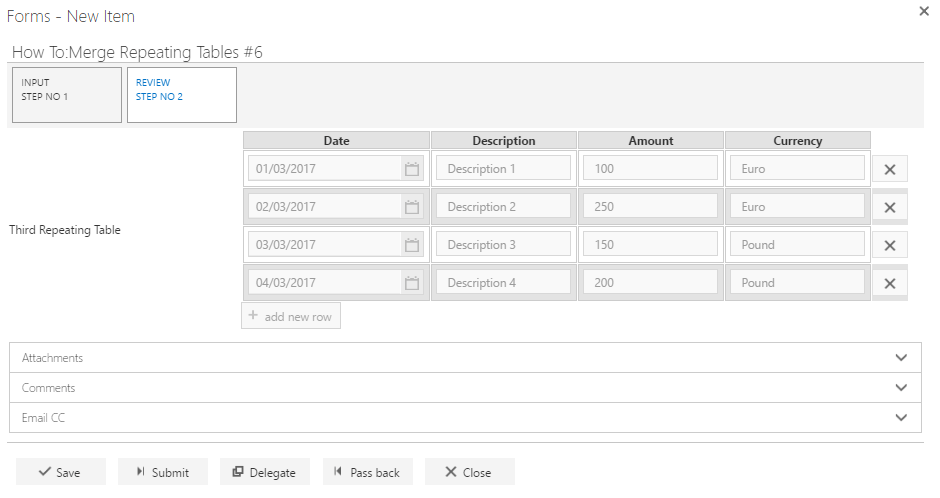
Result
Using export repeating table and get list data rules (with filters)
Let’s imagine now that you only want to display the rows that have an amount above 200 euro/pound. This means that filters need to be applied before you copy the value into RT3. For that, we will use a SharePoint list to store all data from the first two repeating tables and when step 2 starts we will get the data from the SharePoint list filtered based on conditions.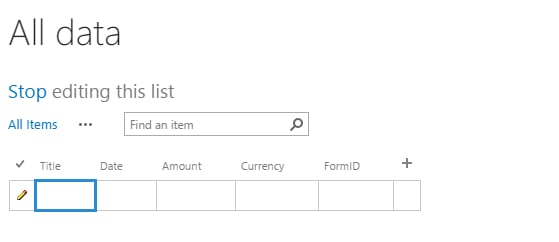
-
Create a new SharePoint list with the following columns:
- Title: default column when you create list, we will use this column to store the description column of the repeating table
- Date: date only column
- Amount: number column
- Currency: text column
- FormID: text column, this column will contain the ID of the form that exported the data. For example, Form33 or LeaveRequest-41.
- Go back to the flow designer and disable the two map repeating table rules in the previous flow. They will be replaced by the export repeating table rules
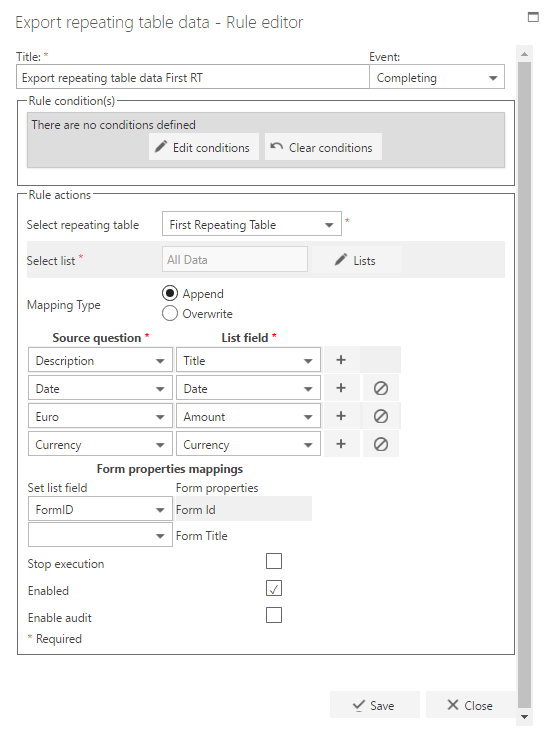
- Add the export repeating table rule for RT1, on step 1 completing
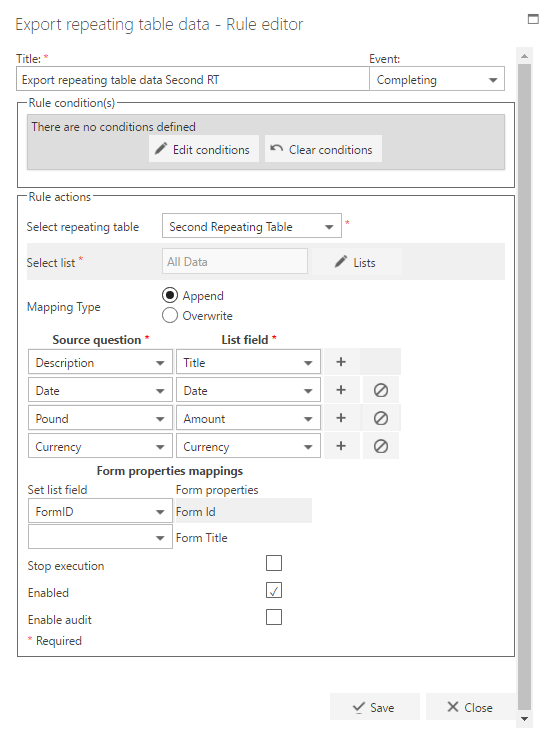
- Add the export repeating table rule for RT2, on step 1 completing
- Add a single line of text question in step 1 called FormID. This question can be hidden by default
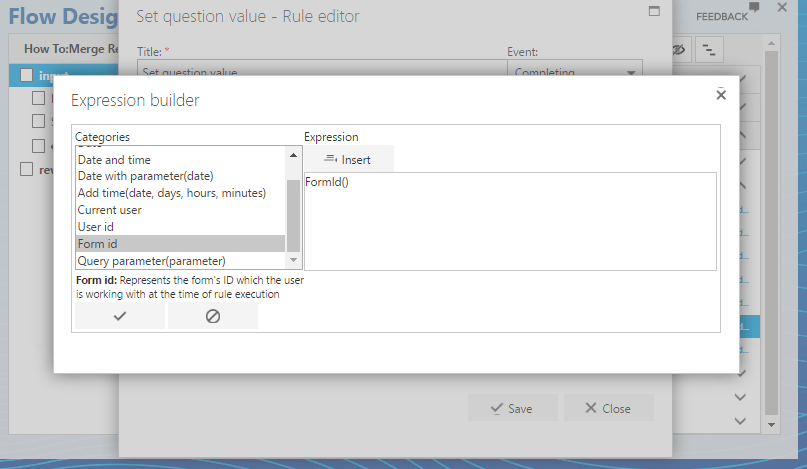
- Add a set question value rule on step 1 completing to get the form ID in the new question created
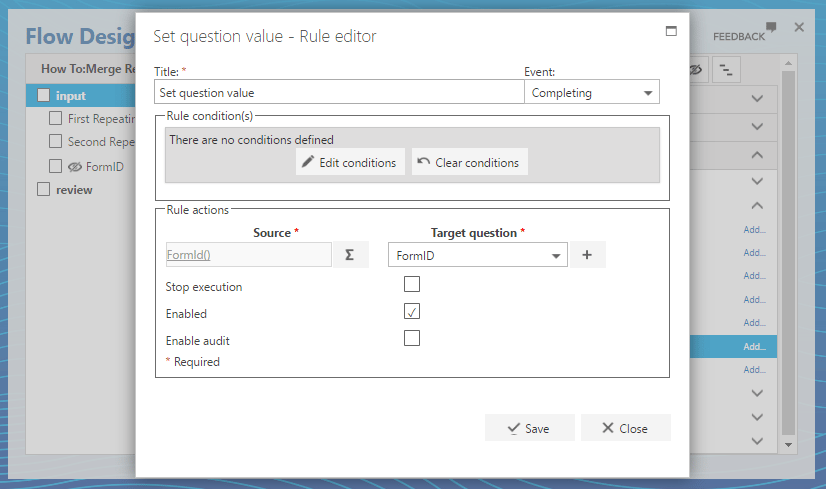
- Add a get list data rule on step 2 starting
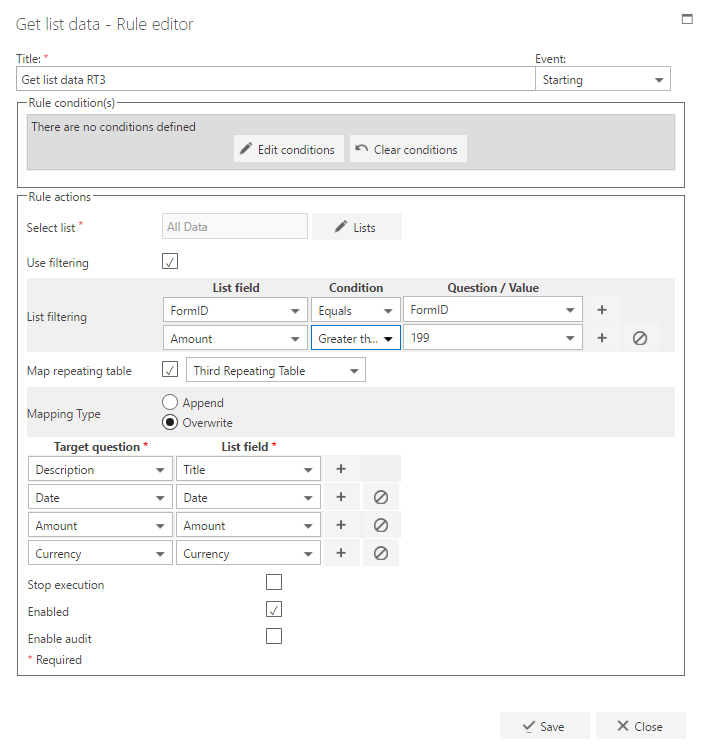
- Select the list that contains all the data: in this case All data
- Check the box use filtering
- In list filtering, select the FormID from the list field and select the question FormID created in step 1. Add a new filter by clicking +, select the amount column from the list greater than 199. When you use greater than ( > ) it will by default exclude the number entered
- Check the box map repeating table and select RT3 (the target repeating table in step 2)
- Select the option overwrite
- Add the mapping between the list fields and the target questions
Filling out the form