

- with questions these items are the question code and question type
- with steps this item is the step code
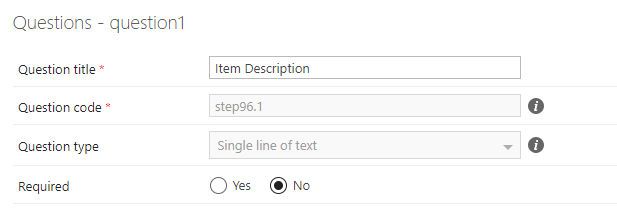
- Hover message: “Editing this field will impact associated elements. Click here for more information. Double click to proceed.”
- Tool Tip Message: “Editing this field will impact associated elements. Click here for more information. Double click to proceed.”
- Cascading look up questions
- Document templates & Email templates
- Security Wizard
- Business rules
- Conditions
- Cascading lookup questions, a lookup question will look to a previous questions value in order to find a value to filter on - if this questions code is changed, the lookups filter will not be correct and the lookup will not show any answers.
- if a business rule is using a property like “person assigned in a question” or “date defined in a question”, and these questions are changed to different question types, it will break the rule.