When you install the FlowForma app, there may be times when there are issues. These may be caused by your SharePoint configuration and not necessarily an issue with the FlowForma app itself. We will document all known issues & solutions below. However, if you do not find your answer on this page or have any issues resolving these issues please do not hesitate to contact support@flowforma.com and we’ll be happy to help you.

Custom script issue

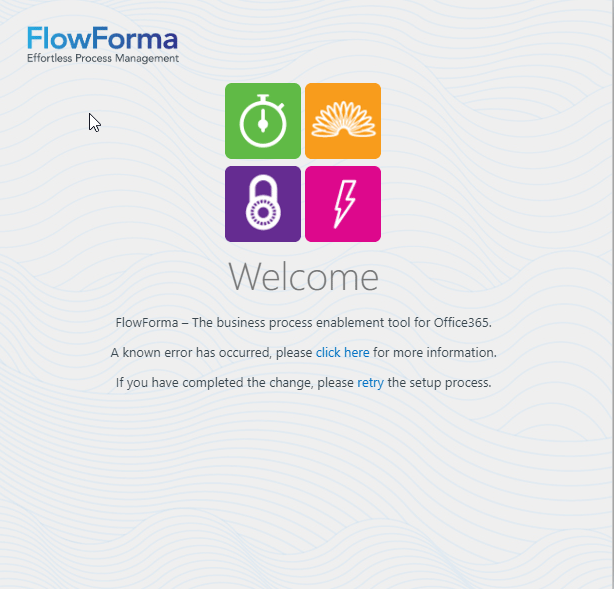
Custom script error message The issue above appears when FlowForma is installed on a site where custom scripting has not been enabled. There are two methods you can use to resolve the issue
  • Enable custom scripting on an individual site collection.
  • Enable custom scripting on your entire SharePoint Tenant.

Option 1 - Enable on a site collection

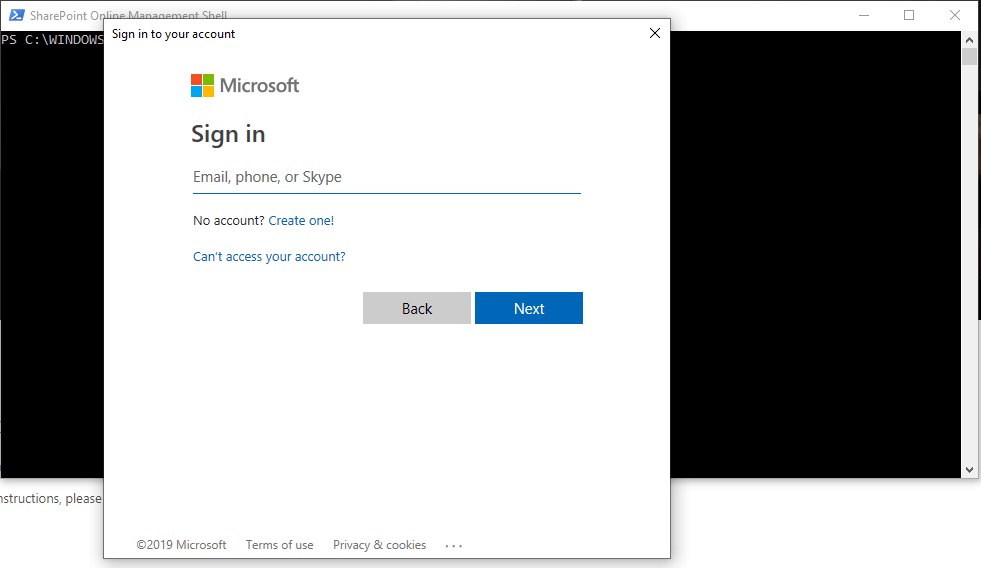
Step 1 - Install SharePoint Online Management Shell https://www.microsoft.com/en-us/download/details.aspx?id=35588 Step 2 - Run SharePoint Online Management Shell Step 3 - run Command Connect-SPOService https://yourDomain-admin.sharepoint.com Connect-SPOService command Now sign in (As a tenant administrator) SharePoint Online sign in Step 4 - run Command $site = Get-SPOSite https://yourDomain.sharepoint.com/sites/yourSiteCollection Get-SPOSite command Step 5 - Run Command $site | Set-SPOSite -DenyAddAndCustomizePages 0 Set-SPOSite command Scripting has now been enabled on your site collection



This change takes effect immediately, so you can re-deploy the app to this site collection immediately
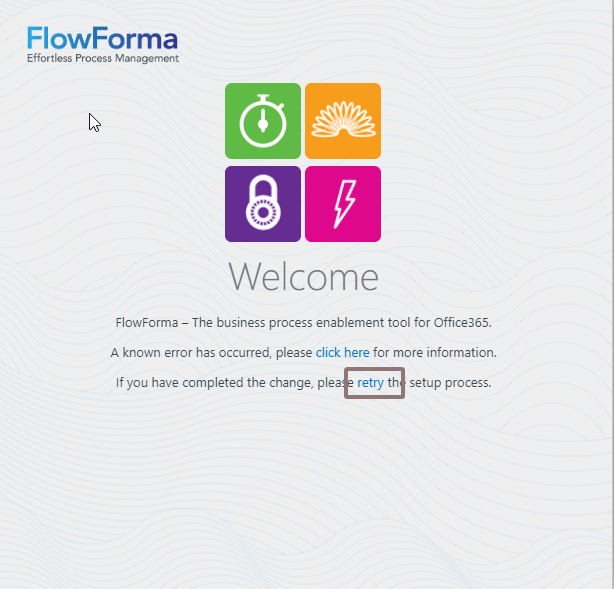
Step 5 - Return to the FlowForma site and Click the retry button FlowForma retry button Your FlowForma app will now deploy successfully.

Option 2 - Enable tenant

  • Sign in to Office 365 as a global admin or SharePoint admin.
  • Click the app launcher icon (on your left upper corner). Select Admin to open the Office 365 admin center. If you don’t see the admin tile, you don’t have Office 365 administrator permissions in your organization.
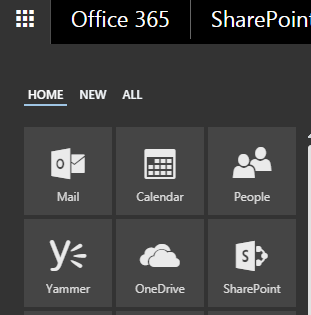
Office 365 app launcher and Admin tile
  • In the left pane, choose Admin centers then SharePoint.
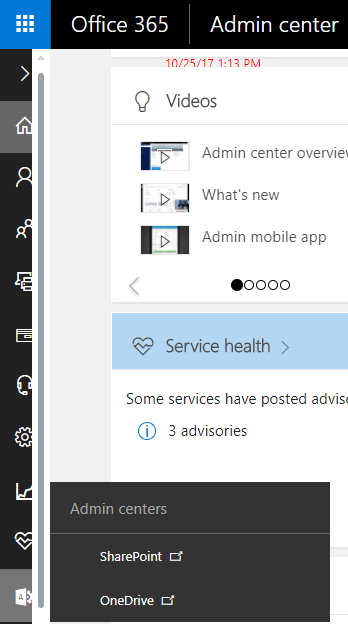
Admin centers menu
  • Select settings.
  • Under Custom Script select:
    • Allow users to run custom script on personal sites.
    • Allow users to run custom script on self-service created sites.
Please note this change may take up to 24 hours to take effect.
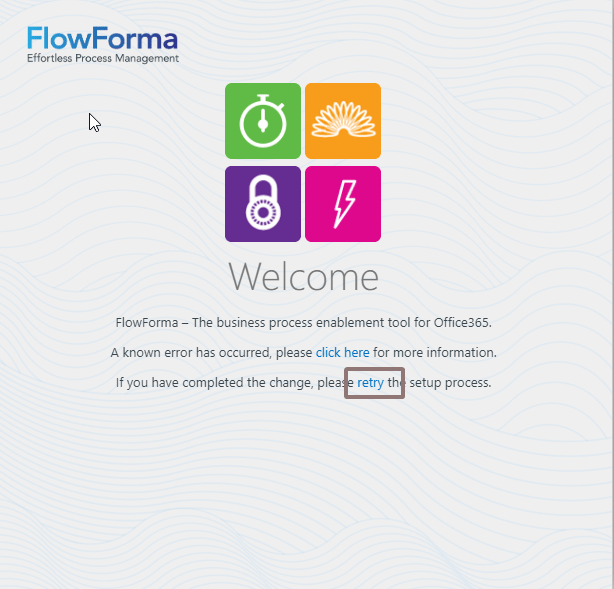
Return to you FlowForma site and Click Retry FlowForma retry button If scripting has been enabled you FlowForma app will deploy successfully. If scripting has not been enabled yet, you will be informed that scripting has not yet been enabled and you should try again. As mentioned above it can take upto 24 hours for scripting to be enabled.