Install the FlowForma Office 365 app from the SharePoint Store on a dedicated site collection, then open the app and activate your license.
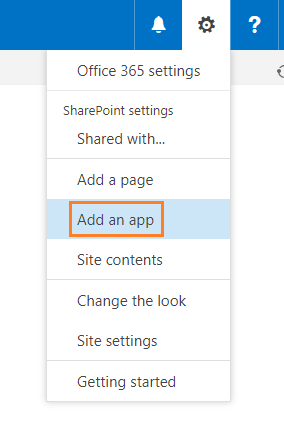
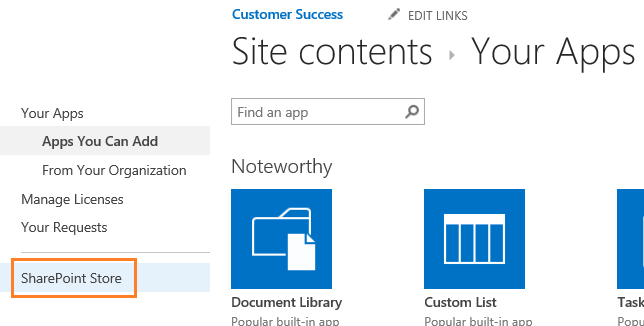
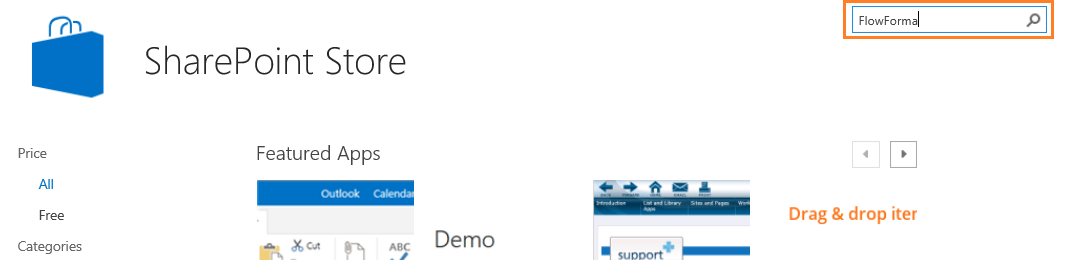
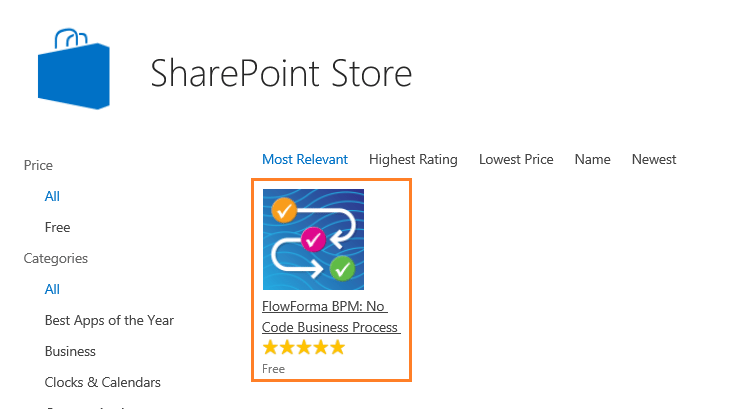
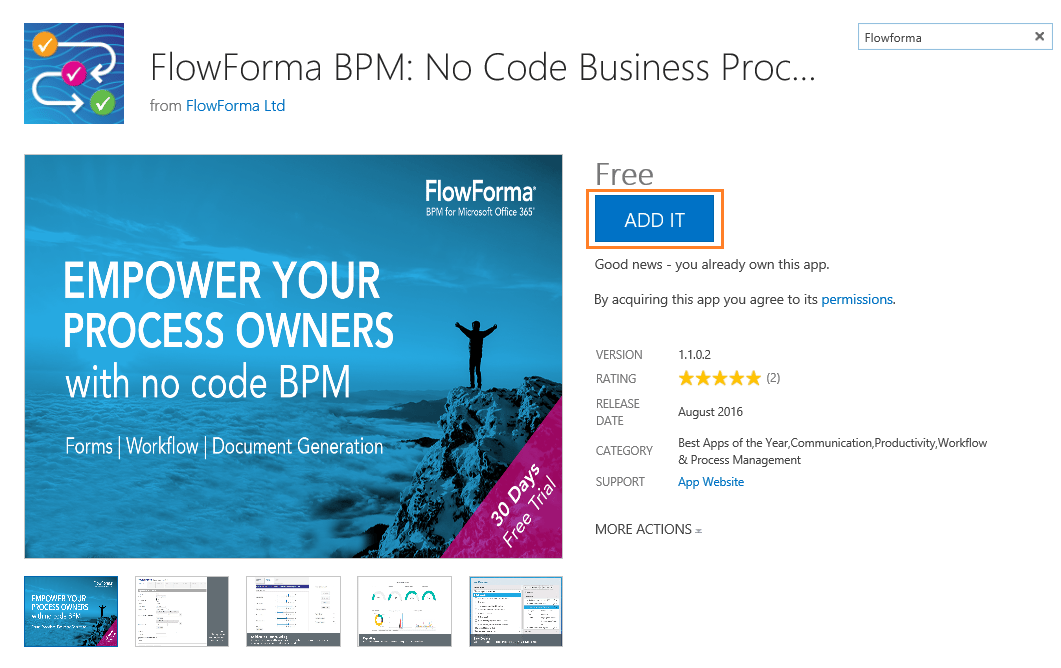
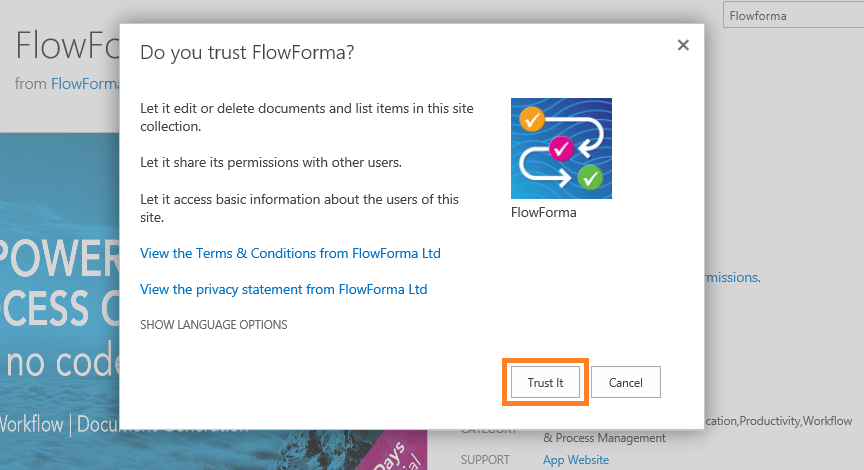
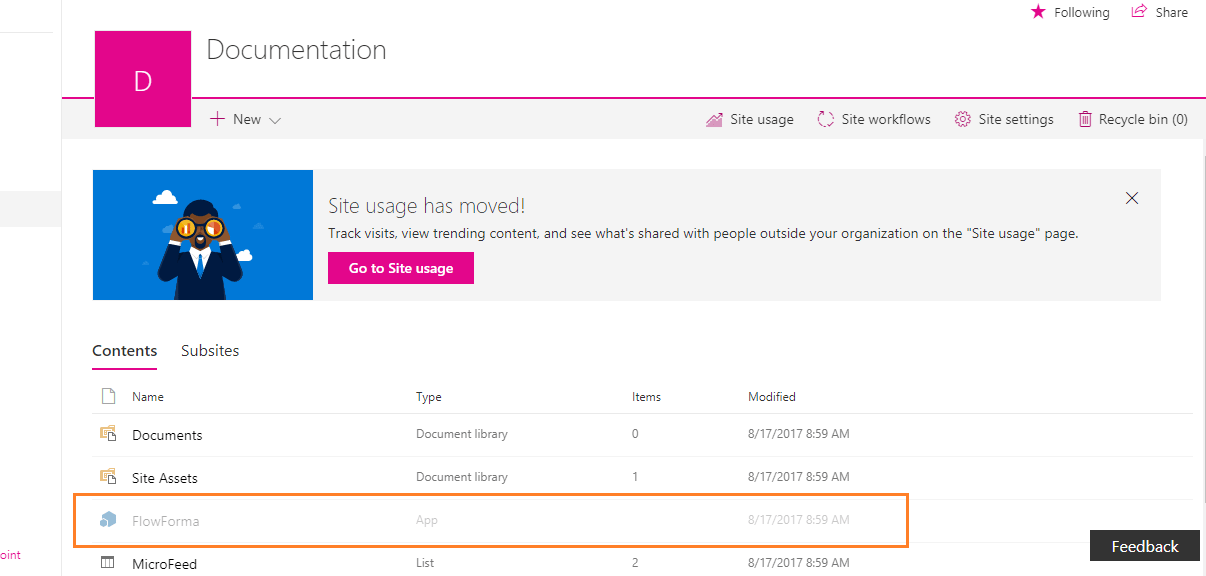
When you register with Office365, you get a default SharePoint site. The default sites settings are configured by Microsoft - and some of these settings may cause issues when trying to install FlowForma.Before you install the FlowForma Office365 App, we recommend that you create a new site collection and install the FlowForma app on this. That way you won’t have to review and possibly change any of the settings on the default site.Before starting the install, you need to ensure that you are a site collection administrator on the site collection where you want to install the app.To add the FlowForma app on your site, go to your site and on the top right corner, click on the settings cog, and choose add an app from the menu.From here, go to the SharePoint Store.Type FlowForma into the search box at the top right of the screen and click enter.Click the FlowForma icon.Then click add it.Click trust it to start the install.You will now be redirected back to the site. It can take up to 10 minutes to install the app.Once the installation is complete, you can open the FlowForma app and start the activation of your license.