> ## Documentation Index
> Fetch the complete documentation index at: https://docs.flowforma.com/llms.txt
> Use this file to discover all available pages before exploring further.
# Upgrade and Downgrading Forms
> Upgrade in-process FlowForma forms to the latest flow version to add new steps, questions, or rule fixes, or downgrade to revert to an earlier form version.
If a process's requirements change, or an issue with the configuration is raised, you can upgrade **in-process forms** to the latest version set in the Flow Designer. This means you can display newly created steps and questions in existing forms.
To do this:
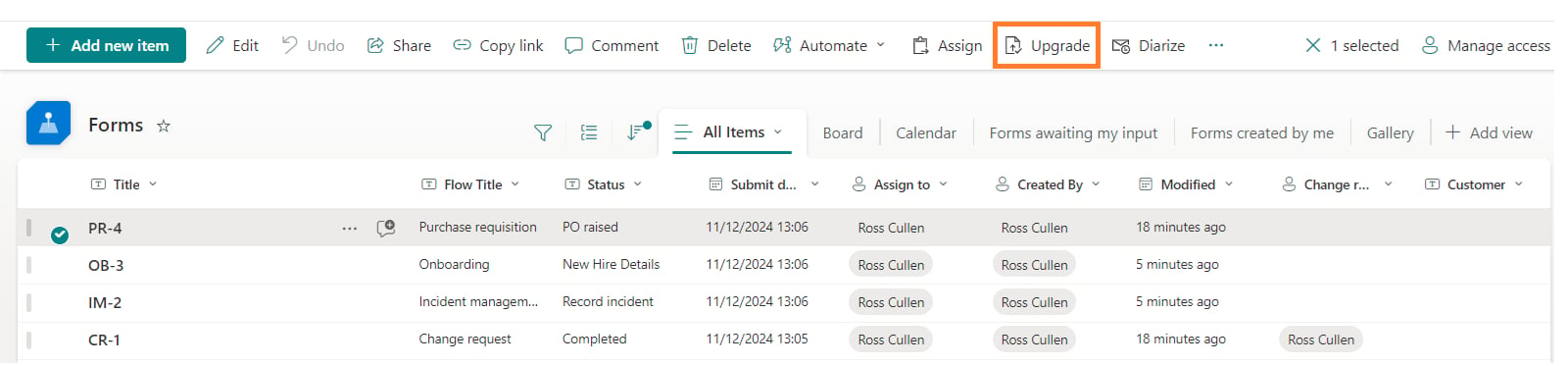
1. Select the form(s) you want to upgrade.
2. New ribbon items appear.
3. Click **Upgrade**.
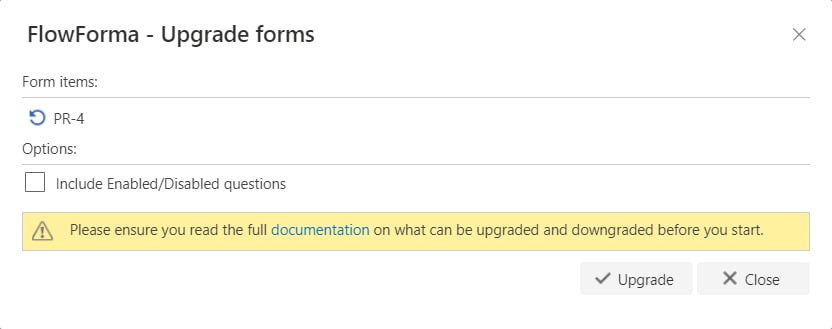
 A new dialogue box appears showing the selected item(s).
 **Options**
**Include Enabled/Disabled questions**: Decide whether to include updating the default state of questions appearing as enabled/disabled, as questions may have already been changed using rules, and upgrading the form will affect these states.
**Downgrading forms**
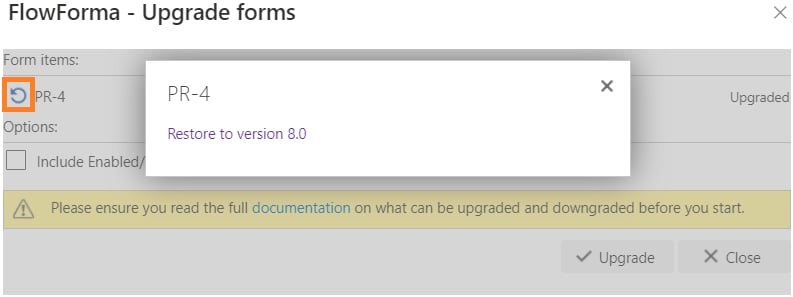
There is also an option to downgrade the form. Downgrading reverts the form to a previous version from before it was upgraded, and you can choose which version to restore if it has been upgraded multiple times.
**Options**
**Include Enabled/Disabled questions**: Decide whether to include updating the default state of questions appearing as enabled/disabled, as questions may have already been changed using rules, and upgrading the form will affect these states.
**Downgrading forms**
There is also an option to downgrade the form. Downgrading reverts the form to a previous version from before it was upgraded, and you can choose which version to restore if it has been upgraded multiple times.
 ## Uses
Upgrading forms should only be used when you want to add or update something in the form, such as:
1. Adding new questions or steps to a process
2. Updating question or step titles
3. Fixing an incorrect rule condition
4. Certain question configuration changes, such as adding a currency configuration to a number question
Upgrading should not be used to delete anything from the Flow, such as deleting questions or steps.
## Limitations
There are certain limitations to the upgrade/downgrade functionality.
1. If you are using a Send Email rule that runs on step starting and is set to cancel on step completing, upgrading the form will not cancel the email.
2. You cannot remove or reorder subquestions used in a repeating table; you can only add new subquestions to the end of a table.
## Uses
Upgrading forms should only be used when you want to add or update something in the form, such as:
1. Adding new questions or steps to a process
2. Updating question or step titles
3. Fixing an incorrect rule condition
4. Certain question configuration changes, such as adding a currency configuration to a number question
Upgrading should not be used to delete anything from the Flow, such as deleting questions or steps.
## Limitations
There are certain limitations to the upgrade/downgrade functionality.
1. If you are using a Send Email rule that runs on step starting and is set to cancel on step completing, upgrading the form will not cancel the email.
2. You cannot remove or reorder subquestions used in a repeating table; you can only add new subquestions to the end of a table.