> ## Documentation Index
> Fetch the complete documentation index at: https://docs.flowforma.com/llms.txt
> Use this file to discover all available pages before exploring further.
# Using forms
> Start a new FlowForma form from a process, navigate steps and grouped processes, answer questions, and submit steps to move a flow toward completion.
A form in FlowForma is the end user presentation of a flow.
By default, all flows are available to users to create forms for, but you can use the [Security wizard](/product/security-wizard) to manage access to flows, forms, and individual steps if needed.
1. Expand the "Forms" grouping, and click **New form** in the quick launch menu to start the process.
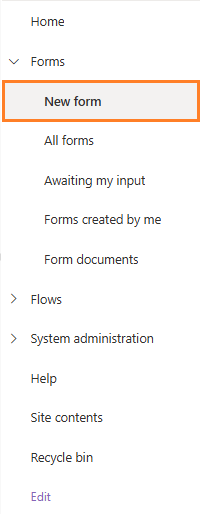 2. A listing of the processes you have access to is displayed.
If a process was given a **group label**, the group section is displayed in a collapsed state by default. Expanding the group displays the processes within it. In the example below, there are groups for **HR Processes** and **IT Processes**.
2. A listing of the processes you have access to is displayed.
If a process was given a **group label**, the group section is displayed in a collapsed state by default. Expanding the group displays the processes within it. In the example below, there are groups for **HR Processes** and **IT Processes**.
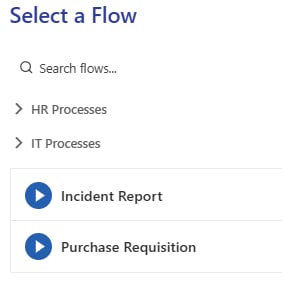
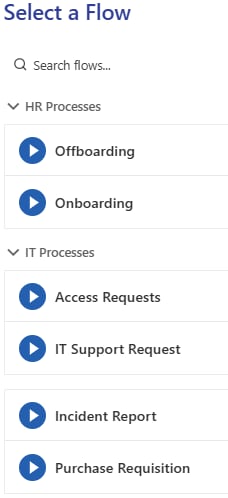 Any process without a group label is displayed as an individual process.
In the example above, "Incident Report" and "Purchase requisition" are not added to a group.
To start a new form for a process, click the process name and the form launches.
You can also search for processes by typing a search value into the search bar. Processes that match the search value are displayed.
Any process without a group label is displayed as an individual process.
In the example above, "Incident Report" and "Purchase requisition" are not added to a group.
To start a new form for a process, click the process name and the form launches.
You can also search for processes by typing a search value into the search bar. Processes that match the search value are displayed.
 3. The form opens. The top part is the form's **header** where you'll see the name of the process. Below that you'll see the **steps**. The active step is a white tile with blue text (unless customized) whereas other steps appear in blue. The form always opens on the relevant step, allowing you to complete the questions.
 4. Next, the questions added to the step on a form are shown.
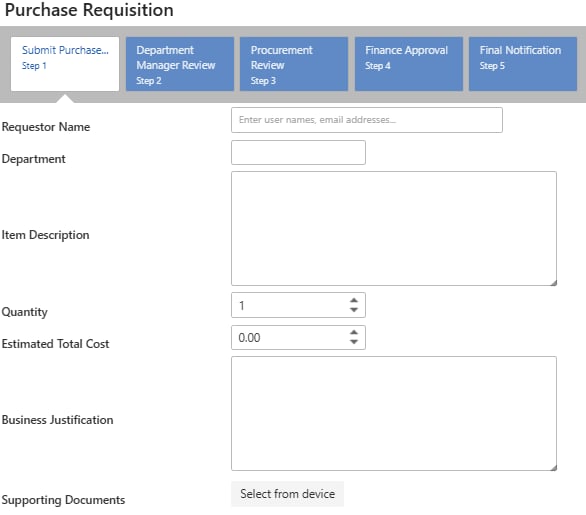 5. Questions can be configured to appear and behave differently depending on their configuration. You can read more about each question type's functionality on its own documentation page under Questions.
6. Once you've completed all required questions, you can submit the step.
If it is the last step in the flow, the form moves to a Completed state.
If it is not the last step, the form moves on to the next step in the process.
7. Submitting a step executes Step Completed business rules, as well as Form Completed business rules if it's the last step.
5. Questions can be configured to appear and behave differently depending on their configuration. You can read more about each question type's functionality on its own documentation page under Questions.
6. Once you've completed all required questions, you can submit the step.
If it is the last step in the flow, the form moves to a Completed state.
If it is not the last step, the form moves on to the next step in the process.
7. Submitting a step executes Step Completed business rules, as well as Form Completed business rules if it's the last step.