> ## Documentation Index
> Fetch the complete documentation index at: https://docs.flowforma.com/llms.txt
> Use this file to discover all available pages before exploring further.
# Import/Export
> Move a FlowForma flow between sites: export it to XML, then use advanced import to remap step and question codes, document URLs, lists, templates, and users.
Flows move between FlowForma sites as XML. You export the flow from the source site, then import that file into the target site, remapping anything that pointed at the old environment as you go.
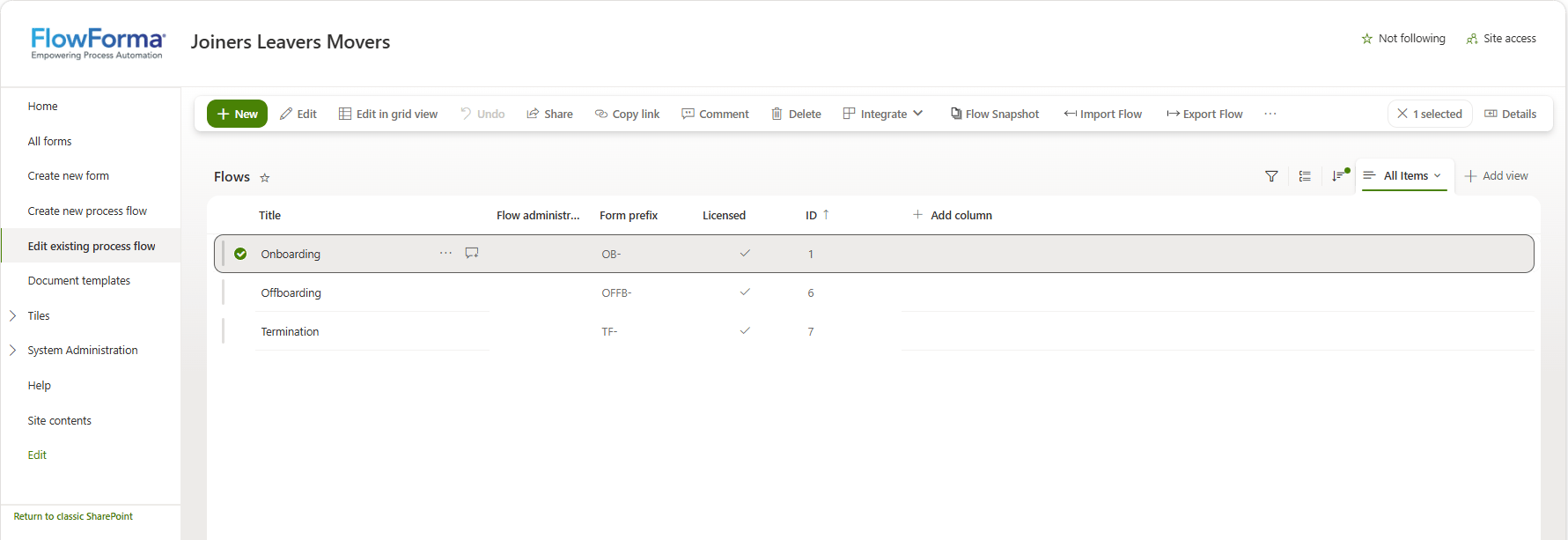
Both commands live on the ribbon of the **Flows** list. To open it, click **Edit existing process flow** in the site navigation, or expand **System Administration** and click **Flows**.
## Export a flow
Export the flow before you make significant changes to it. The XML file is the most reliable way to get a flow back to a known good state, and it is what you re-import if a change needs to be rolled back.
1. Open the **Flows** list, select the flow you want to export, then click **Export Flow** on the ribbon.
 2. The **Export flow** dialog opens with your selection already in the **Flow** list. You can change it here if you picked the wrong flow.
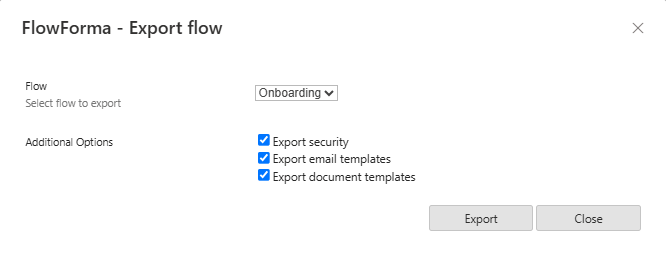 3. Review the **Additional Options**, described below. All three are selected by default, which is what you want for a normal move between sites.
4. Click **Export**. A **Right-click here and select 'Save target as...'** link appears at the bottom of the dialog.
3. Review the **Additional Options**, described below. All three are selected by default, which is what you want for a normal move between sites.
4. Click **Export**. A **Right-click here and select 'Save target as...'** link appears at the bottom of the dialog.
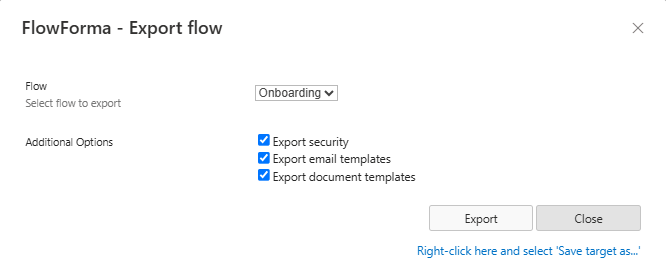 5. Right-click that link and choose **Save target as** (some browsers label this **Save link as**), then save the XML file somewhere you can reach from the site you are importing into. The file is named after the flow.
6. Click **Close** to dismiss the dialog.
### Additional options
| Option | What it includes |
| ----------------------------- | -------------------------------------------------------------------------------------------------------------------------------------------------------------------------------------------------------- |
| **Export security** | The people settings on the flow: the flow administrator, each step's **Assign to** and view permissions, and the sender on each email template. Clear it and those fall back to whoever runs the import. |
| **Export email templates** | The flow's reject, diarize, pass back, and delegate templates, plus every template used by a Send Email rule anywhere in the flow. |
| **Export document templates** | The document template files themselves, not just their names, so document generation works on the target site. |
## Import a flow
The advanced import gives you extra options when importing a flow into a site, including selecting the lists the flow needs and a person and group picker for reassigned steps. Previously you had to work through the flow manually and rewire any rule or question where a URL still pointed at the old environment. Now you only do this once, and the URL is updated everywhere it is used.
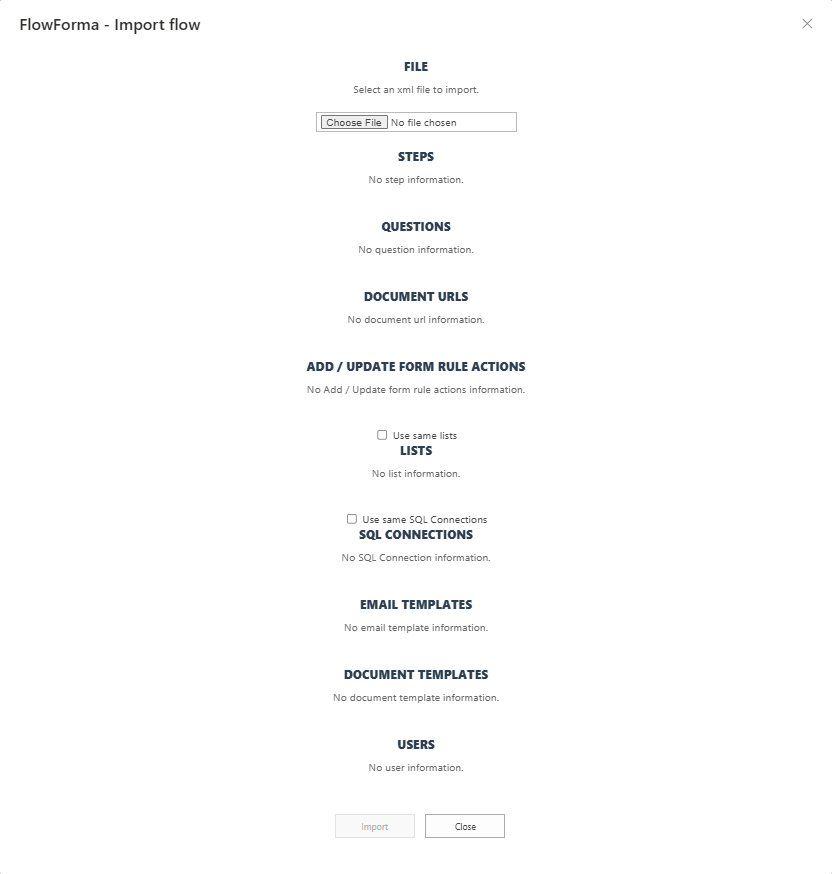
Open the **Flows** list on the target site and click **Import Flow** on the ribbon. The **Import flow** dialog opens with a section for each part of the flow that may need attention. The sections stay empty and **Import** stays unavailable until you choose a file. Not every section fills in for every flow: a flow with no SQL connections has nothing to show in that section. Work down the dialog, resolving each section in turn, then click **Import**.
5. Right-click that link and choose **Save target as** (some browsers label this **Save link as**), then save the XML file somewhere you can reach from the site you are importing into. The file is named after the flow.
6. Click **Close** to dismiss the dialog.
### Additional options
| Option | What it includes |
| ----------------------------- | -------------------------------------------------------------------------------------------------------------------------------------------------------------------------------------------------------- |
| **Export security** | The people settings on the flow: the flow administrator, each step's **Assign to** and view permissions, and the sender on each email template. Clear it and those fall back to whoever runs the import. |
| **Export email templates** | The flow's reject, diarize, pass back, and delegate templates, plus every template used by a Send Email rule anywhere in the flow. |
| **Export document templates** | The document template files themselves, not just their names, so document generation works on the target site. |
## Import a flow
The advanced import gives you extra options when importing a flow into a site, including selecting the lists the flow needs and a person and group picker for reassigned steps. Previously you had to work through the flow manually and rewire any rule or question where a URL still pointed at the old environment. Now you only do this once, and the URL is updated everywhere it is used.
Open the **Flows** list on the target site and click **Import Flow** on the ribbon. The **Import flow** dialog opens with a section for each part of the flow that may need attention. The sections stay empty and **Import** stays unavailable until you choose a file. Not every section fills in for every flow: a flow with no SQL connections has nothing to show in that section. Work down the dialog, resolving each section in turn, then click **Import**.
 ### File
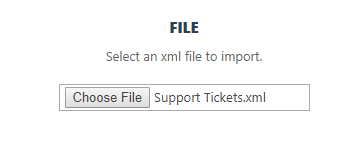
Click **Choose File**, then navigate to and select the XML file of the flow you want to import. The rest of the dialog fills in once the file is loaded.
### File
Click **Choose File**, then navigate to and select the XML file of the flow you want to import. The rest of the dialog fills in once the file is loaded.
 ### Warnings
If the flow relies on anything the target site cannot provide, a warning appears directly below the **File** section. Read these before you go any further, because some of them mean work after the import:
* **External add-ons that are not present in the system.** The flow uses a custom question or rule action, or a feature that is not part of the target site's subscription. The listed items will not work until that add-on or feature is available.
* **Missing default email templates.** Pick an existing template in the **Email templates** section below.
* **Rules to check after import.** Individual rules that reference something the import cannot resolve, listed with the step they sit on.
* **Work Items rules will not be imported.** Any [Work Items](/product/work-items/overview) rule in the flow is dropped and has to be recreated by hand after the import. The warning lists each one with its step, so capture that list before you close the dialog.
### Steps
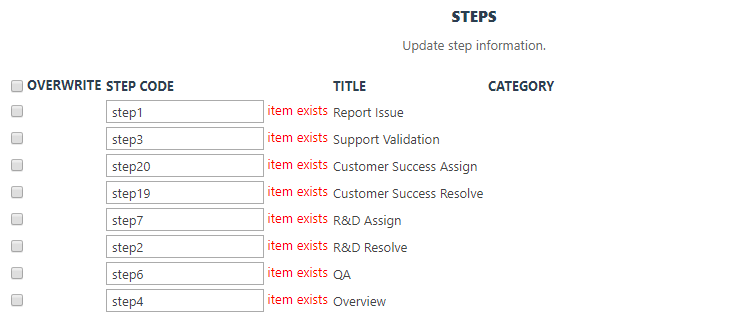
This section lists the steps in the flow and shows any conflicts with existing step codes. You can overwrite a conflicting step code or enter a new unique value. Step codes are limited to 10 characters.
### Warnings
If the flow relies on anything the target site cannot provide, a warning appears directly below the **File** section. Read these before you go any further, because some of them mean work after the import:
* **External add-ons that are not present in the system.** The flow uses a custom question or rule action, or a feature that is not part of the target site's subscription. The listed items will not work until that add-on or feature is available.
* **Missing default email templates.** Pick an existing template in the **Email templates** section below.
* **Rules to check after import.** Individual rules that reference something the import cannot resolve, listed with the step they sit on.
* **Work Items rules will not be imported.** Any [Work Items](/product/work-items/overview) rule in the flow is dropped and has to be recreated by hand after the import. The warning lists each one with its step, so capture that list before you close the dialog.
### Steps
This section lists the steps in the flow and shows any conflicts with existing step codes. You can overwrite a conflicting step code or enter a new unique value. Step codes are limited to 10 characters.
 ### Questions
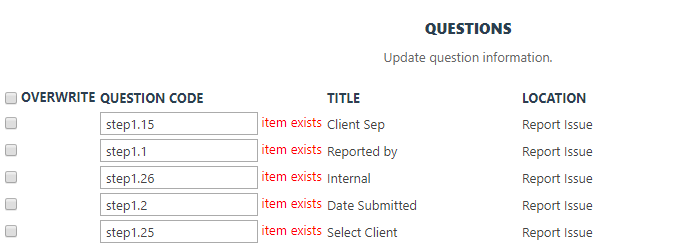
This section lists the questions in the flow, including questions inside repeating tables, and shows any conflicts with existing question codes. You can overwrite a conflicting question code or enter a new unique value.
### Questions
This section lists the questions in the flow, including questions inside repeating tables, and shows any conflicts with existing question codes. You can overwrite a conflicting question code or enter a new unique value.
 ### Document URLs
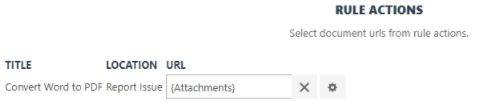
Here you repoint the document locations the flow uses, so they refer to the target site rather than the site the flow came from. The section is split into two tables:
* **Questions**: questions that hold a document URL, such as a verify digital signature question.
* **Rule Actions**: rules that need a document location. This covers [Convert Word to PDF](/product/creating-flows/business-rules/business-rule-types/communications-rules/convert-word-to-pdf), [Attach document to step](/product/creating-flows/business-rules/business-rule-types/communications-rules/attach-document-to-step), [Add/remove watermark](/product/creating-flows/business-rules/business-rule-types/communications-rules/add-remove-watermark), [Document action](/product/creating-flows/business-rules/business-rule-types/sharepoint-actions-rules/document-action-rule), [Reset document permission](/product/creating-flows/business-rules/business-rule-types/permissions-rules/reset-document-permission), the destination folder on [Generate document](/product/creating-flows/business-rules/business-rule-types/communications-rules/generate-document), and any document attached to a [Send email](/product/creating-flows/business-rules/business-rule-types/communications-rules/send-email) rule.
### Document URLs
Here you repoint the document locations the flow uses, so they refer to the target site rather than the site the flow came from. The section is split into two tables:
* **Questions**: questions that hold a document URL, such as a verify digital signature question.
* **Rule Actions**: rules that need a document location. This covers [Convert Word to PDF](/product/creating-flows/business-rules/business-rule-types/communications-rules/convert-word-to-pdf), [Attach document to step](/product/creating-flows/business-rules/business-rule-types/communications-rules/attach-document-to-step), [Add/remove watermark](/product/creating-flows/business-rules/business-rule-types/communications-rules/add-remove-watermark), [Document action](/product/creating-flows/business-rules/business-rule-types/sharepoint-actions-rules/document-action-rule), [Reset document permission](/product/creating-flows/business-rules/business-rule-types/permissions-rules/reset-document-permission), the destination folder on [Generate document](/product/creating-flows/business-rules/business-rule-types/communications-rules/generate-document), and any document attached to a [Send email](/product/creating-flows/business-rules/business-rule-types/communications-rules/send-email) rule.
 ### Add / Update form rule actions
An [Add/update form](/product/creating-flows/business-rules/business-rule-types/data-integration-rules/add-update-form) rule writes into another flow's form, so its mappings almost always need attention on a new site. This section lists each of these rules with the step it sits on. Click the edit button beside a rule to open the rule editor and rewire it without leaving the import.
### Lists
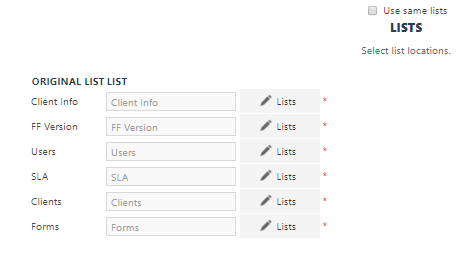
Here you can reselect the lists used within the flow. You only need to do this once: everywhere the original list is used, it is replaced with the newly selected list.
If you have already added the lists to the site, select the **Use same lists** option.
### Add / Update form rule actions
An [Add/update form](/product/creating-flows/business-rules/business-rule-types/data-integration-rules/add-update-form) rule writes into another flow's form, so its mappings almost always need attention on a new site. This section lists each of these rules with the step it sits on. Click the edit button beside a rule to open the rule editor and rewire it without leaving the import.
### Lists
Here you can reselect the lists used within the flow. You only need to do this once: everywhere the original list is used, it is replaced with the newly selected list.
If you have already added the lists to the site, select the **Use same lists** option.
 ### SQL connections
Here you map each SQL connection the flow uses to a connection defined on the target site. This covers [SQL lookup](/product/creating-flows/questions/question-types/sql-lookup-question) questions, including those inside repeating tables, and [Execute SQL stored procedure](/product/creating-flows/business-rules/business-rule-types/data-integration-rules/execute-sql-stored-procedure) rules.
If the target site already has connections with the same details, select the **Use same SQL Connections** option.
### Email templates
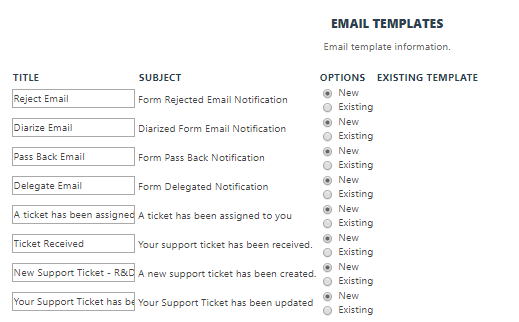
Here you can choose which email templates to import. Each template is set to **New** by default, which creates a copy on the target site. Choose **Existing** and pick a template instead for the standard reject, delegate, and pass back templates, which the site already has. You can also edit the **Title** to rename a template as it is imported.
### SQL connections
Here you map each SQL connection the flow uses to a connection defined on the target site. This covers [SQL lookup](/product/creating-flows/questions/question-types/sql-lookup-question) questions, including those inside repeating tables, and [Execute SQL stored procedure](/product/creating-flows/business-rules/business-rule-types/data-integration-rules/execute-sql-stored-procedure) rules.
If the target site already has connections with the same details, select the **Use same SQL Connections** option.
### Email templates
Here you can choose which email templates to import. Each template is set to **New** by default, which creates a copy on the target site. Choose **Existing** and pick a template instead for the standard reject, delegate, and pass back templates, which the site already has. You can also edit the **Title** to rename a template as it is imported.
 ### Document templates
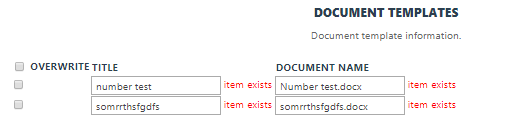
This section lists the document templates that came with the flow. Where a template of the same name already exists on the site, select **Overwrite** to replace it, otherwise the template is added alongside it.
### Document templates
This section lists the document templates that came with the flow. Where a template of the same name already exists on the site, select **Overwrite** to replace it, otherwise the template is added alongside it.
 ### Users
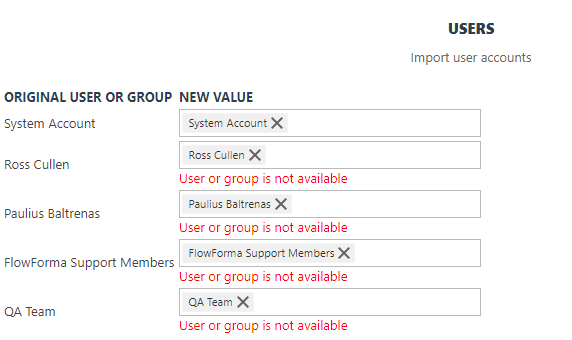
Here you can select the people and groups to assign to the steps. These users must already exist on the site you are importing the flow to.
### Users
Here you can select the people and groups to assign to the steps. These users must already exist on the site you are importing the flow to.
 ## After importing
If the site already has a flow with the same name, the imported flow is created as `Flow name (1)`, then `(2)`, and so on. Email templates are handled the same way. Rename the flow afterwards if you need to.
The export file does not carry the flow's licence, so check the **Licensed** column on the **Flows** list and license the imported flow before you use it.
If a File Upload question uploads to a document library other than the default Forms Documents library, you need to update this manually in the Flow Designer.
Security Wizard settings are not included when you export or import a flow. You need to reconfigure the [Security Wizard](/product/security-wizard) after importing a flow to a new site.
## After importing
If the site already has a flow with the same name, the imported flow is created as `Flow name (1)`, then `(2)`, and so on. Email templates are handled the same way. Rename the flow afterwards if you need to.
The export file does not carry the flow's licence, so check the **Licensed** column on the **Flows** list and license the imported flow before you use it.
If a File Upload question uploads to a document library other than the default Forms Documents library, you need to update this manually in the Flow Designer.
Security Wizard settings are not included when you export or import a flow. You need to reconfigure the [Security Wizard](/product/security-wizard) after importing a flow to a new site.