> ## Documentation Index
> Fetch the complete documentation index at: https://docs.flowforma.com/llms.txt
> Use this file to discover all available pages before exploring further.
# Mobile app
> Download the FlowForma mobile app for iOS and Android, then sign in with Office 365, Classic invite code, or external user access to complete forms on the go.
## Downloading & signing in
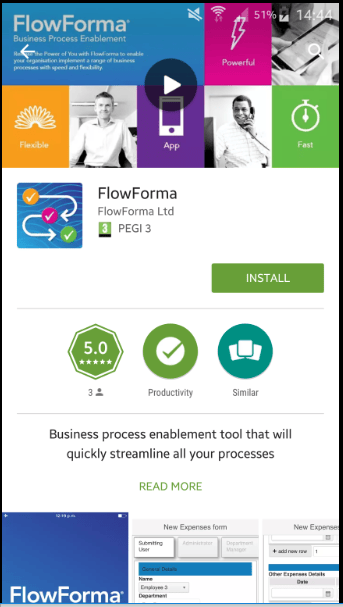
The app is available on both the Android and iOS app stores; search for "**FlowForma**" and click **install**.
 ## Signing into the app
Once the app is installed, click **open** to **sign in**.
There are three methods of signing into the **FlowForma Mobile App**.
## Option 1 – Office 365 login
Enter your **email address** (these are the same credentials you use to sign into the SharePoint site where the form(s) are located).
## Signing into the app
Once the app is installed, click **open** to **sign in**.
There are three methods of signing into the **FlowForma Mobile App**.
## Option 1 – Office 365 login
Enter your **email address** (these are the same credentials you use to sign into the SharePoint site where the form(s) are located).
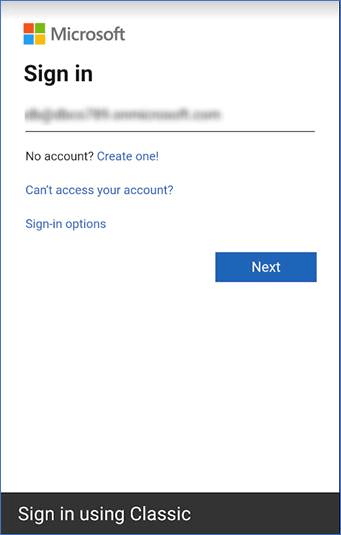 Click **Next** and the screen to enter your password is displayed.
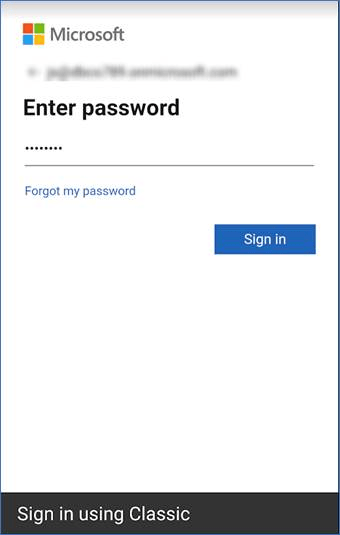 Enter your password and click **Sign In**.
If your account has Multi-Factor Authentication enabled, a further screen is displayed for you to verify your credentials.
Enter your password and click **Sign In**.
If your account has Multi-Factor Authentication enabled, a further screen is displayed for you to verify your credentials.
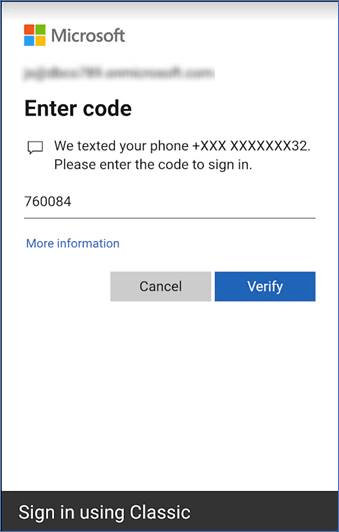 Enter your verification code and click **Verify**.
You will be logged into the Mobile App.
The first screen displayed is for you to select the **FlowForma site** you want to use.
Enter your verification code and click **Verify**.
You will be logged into the Mobile App.
The first screen displayed is for you to select the **FlowForma site** you want to use.
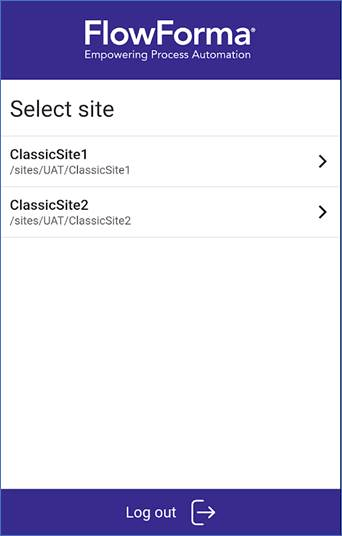 Tap the site you require and the **[Forms awaiting my input](/product/mobile-app/forms-awaiting-my-input)** screen is displayed.
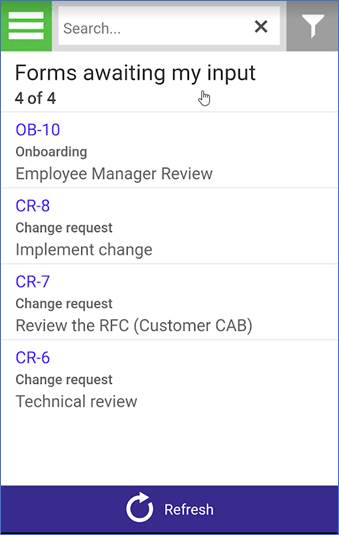 This screen displays open forms that are assigned to you and require your input.
At the top of the screen, you'll see the number of forms displayed out of the total number of forms currently awaiting your input.
When the screen opens, the newest 10 forms are displayed. Scroll down to load a further 10 forms, and repeat until all forms have been displayed.
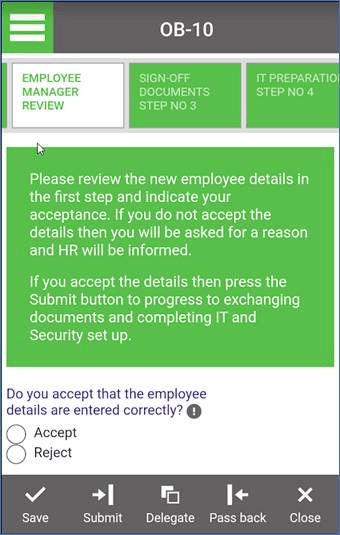
Tap the form you require, and it will be opened.
This screen displays open forms that are assigned to you and require your input.
At the top of the screen, you'll see the number of forms displayed out of the total number of forms currently awaiting your input.
When the screen opens, the newest 10 forms are displayed. Scroll down to load a further 10 forms, and repeat until all forms have been displayed.
Tap the form you require, and it will be opened.
 ## Hamburger menu
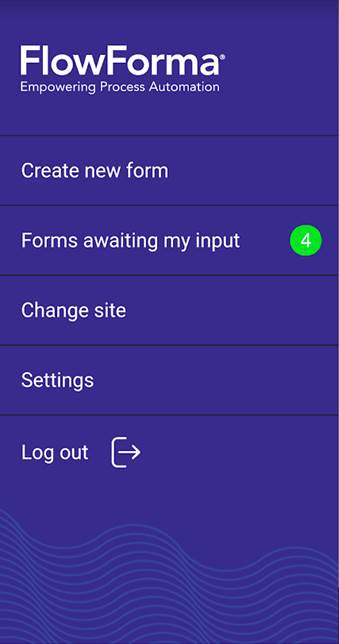
 There is a green hamburger icon in the top left of the screen. This opens a menu displaying the other options available in the Mobile App.
 ## Option 2 – Classic sign in
The second option is the **Classic** Mobile App sign in, where you enter your credentials and the **Invite code** from an individual **FlowForma site**.
When you launch the app, the O365 login screen is displayed by default.
## Option 2 – Classic sign in
The second option is the **Classic** Mobile App sign in, where you enter your credentials and the **Invite code** from an individual **FlowForma site**.
When you launch the app, the O365 login screen is displayed by default.
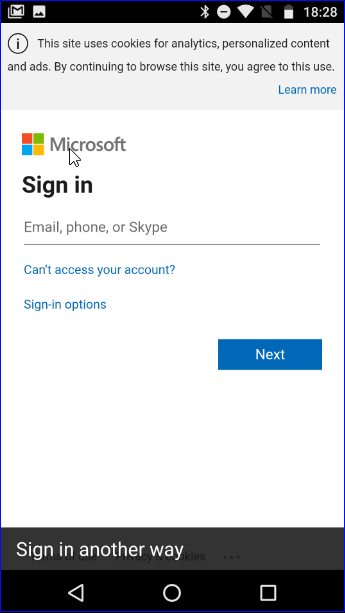 Click **Sign in another way** to display the other sign in options.
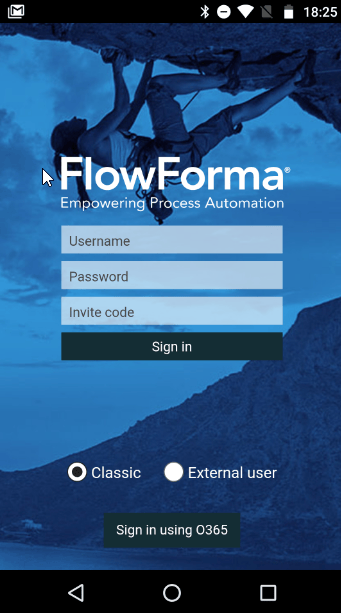 There are two options, **Classic** or **External user**, and Classic is selected by default.
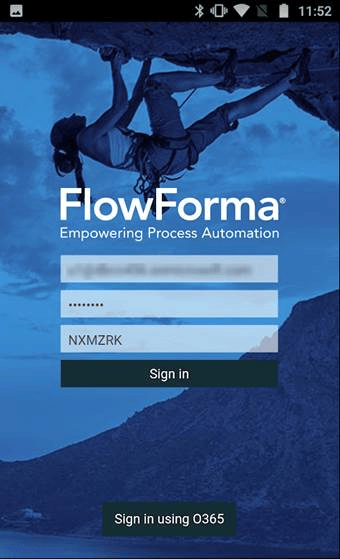 Enter your credentials and the invite code of the site you want to access.
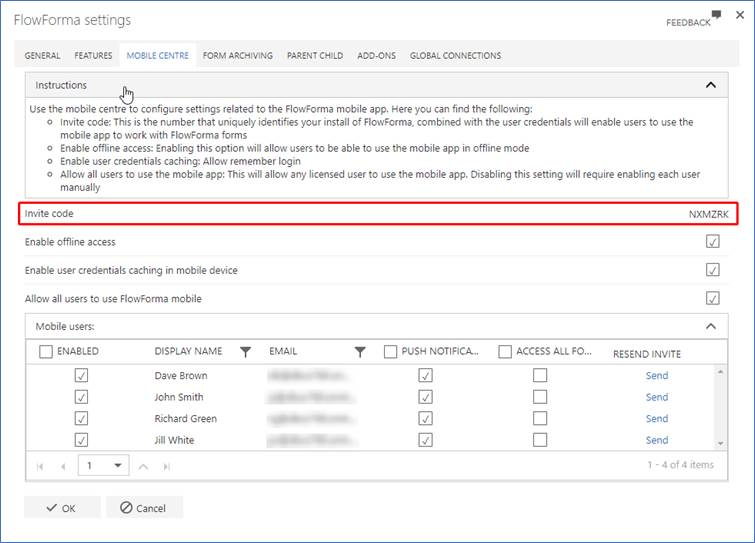
To find the **Invite code** of a **FlowForma site**:
* Go to **[FlowForma settings](/product/flowforma-settings/overview)** of the required site.
* Select the **[Mobile centre](/product/flowforma-settings/mobile-centre)** tab.
* The **Invite code** is in the middle of the window.
Enter your credentials and the invite code of the site you want to access.
To find the **Invite code** of a **FlowForma site**:
* Go to **[FlowForma settings](/product/flowforma-settings/overview)** of the required site.
* Select the **[Mobile centre](/product/flowforma-settings/mobile-centre)** tab.
* The **Invite code** is in the middle of the window.
 Click **Sign in**.
The **FlowForma app** opens on the **Forms awaiting my input** screen.
Click **Sign in**.
The **FlowForma app** opens on the **Forms awaiting my input** screen.
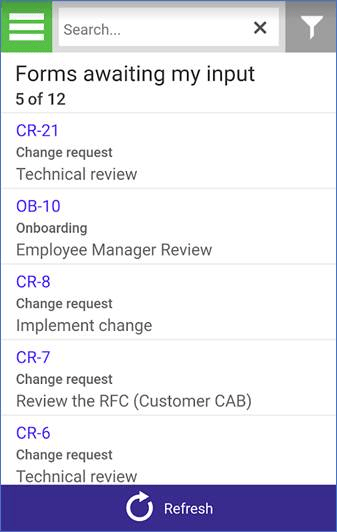 This screen displays open forms that are assigned to you and require your input.
At the top of the screen, you'll see the number of forms displayed out of the total number of forms currently awaiting your input.
When the screen opens, the newest 10 forms are displayed. Scroll down to load a further 10 forms, and repeat until all forms have been displayed.
Tap the form you require, and it will be opened.
## Hamburger menu
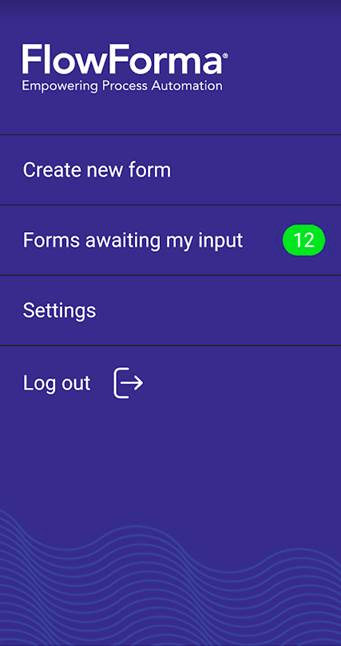
There is a green hamburger icon in the top left of the screen. This opens a menu displaying the other options available in the Mobile App.
This screen displays open forms that are assigned to you and require your input.
At the top of the screen, you'll see the number of forms displayed out of the total number of forms currently awaiting your input.
When the screen opens, the newest 10 forms are displayed. Scroll down to load a further 10 forms, and repeat until all forms have been displayed.
Tap the form you require, and it will be opened.
## Hamburger menu
There is a green hamburger icon in the top left of the screen. This opens a menu displaying the other options available in the Mobile App.
 ### Accessing multiple sites with Classic sign in
The menu displayed when you have signed in using the Classic sign in does not include a 'Change site' option.
If you need to access multiple sites using the **FlowForma app**, you will need to go to the settings page and log out, then sign in again with the invite code and credentials for that site.
## Option 3 – External user
The third option is to allow external users who have been granted access to your FlowForma site to use the mobile app.
When you launch the app, the O365 login screen is displayed by default.
Click **Sign in another way** to display the other sign in options.
There are two options, **Classic** or **External user**, and Classic is selected by default.
Select **External user** and the following screen appears.
### Accessing multiple sites with Classic sign in
The menu displayed when you have signed in using the Classic sign in does not include a 'Change site' option.
If you need to access multiple sites using the **FlowForma app**, you will need to go to the settings page and log out, then sign in again with the invite code and credentials for that site.
## Option 3 – External user
The third option is to allow external users who have been granted access to your FlowForma site to use the mobile app.
When you launch the app, the O365 login screen is displayed by default.
Click **Sign in another way** to display the other sign in options.
There are two options, **Classic** or **External user**, and Classic is selected by default.
Select **External user** and the following screen appears.
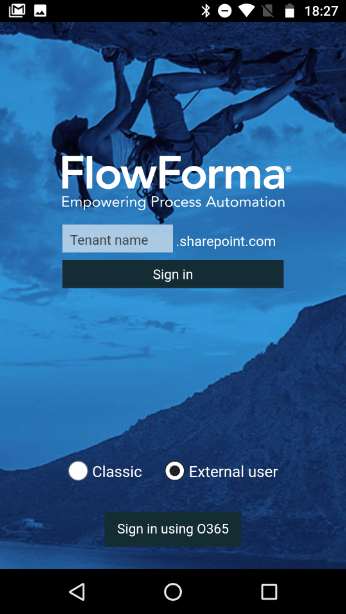 Enter your SharePoint tenant name in the **Tenant name** box and press **Sign in**. The Microsoft login screen is displayed.
Enter your email address and then your password. The following screen is displayed, showing all FlowForma sites on the SharePoint tenant that you have permission for.
Enter your SharePoint tenant name in the **Tenant name** box and press **Sign in**. The Microsoft login screen is displayed.
Enter your email address and then your password. The following screen is displayed, showing all FlowForma sites on the SharePoint tenant that you have permission for.
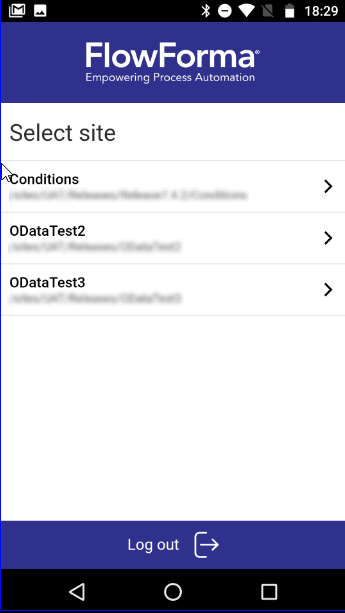 Select the site you require and it will be opened on the **Forms awaiting my input** screen.