> ## Documentation Index
> Fetch the complete documentation index at: https://docs.flowforma.com/llms.txt
> Use this file to discover all available pages before exploring further.
# Creating a new form
> Create a new form in the FlowForma mobile app by choosing a downloaded process template, then save, submit, delegate, or pass back the form.
To create a new form, select the hamburger menu at the top of the screen. The menu options are displayed.
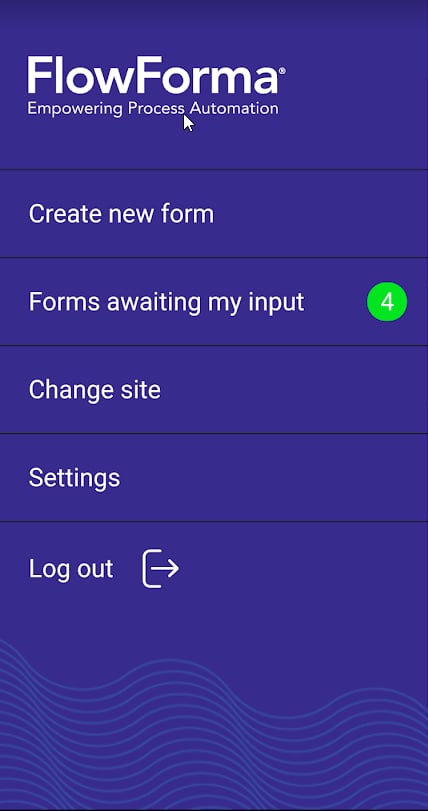 Tap **Create new**. The Process templates screen is now displayed.
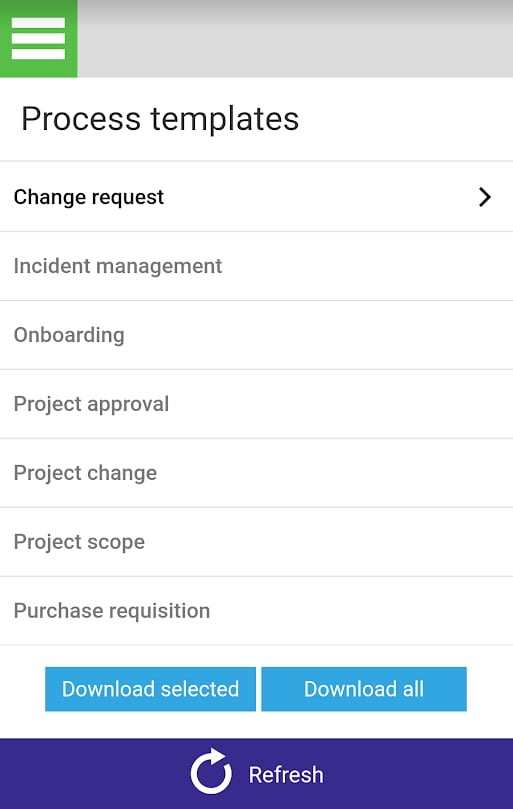 You can create a new form by selecting any of the templates that are shown in black with the > symbol next to them.
If you want to create a form using any of the other templates, you will need to download them first. See Downloading processes.
Tap the process you want to use to create a form and it will open.
You can create a new form by selecting any of the templates that are shown in black with the > symbol next to them.
If you want to create a form using any of the other templates, you will need to download them first. See Downloading processes.
Tap the process you want to use to create a form and it will open.
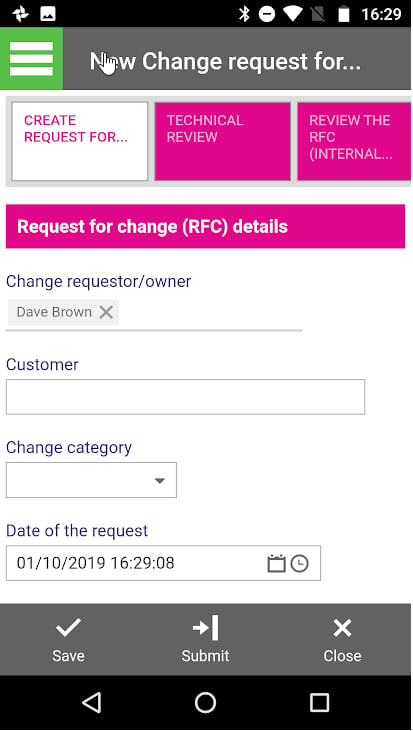 You can now enter data into the step and perform any of the standard FlowForma form actions: save, submit, delegate to another user, pass the form back to a previous step, or close the form without saving any changes.
At the bottom, you will see the following options:
**Save**: Saves any changes you have made to the form and closes the form for you to work on again later
**Submit**: Submits all the information you have entered and progresses the form to the next step
**Delegate**: Allows you to delegate the task to someone else for completion
**Pass Back**: Allows you to return the form to a previous step in the flow
**Close**: Closes the form. A warning appears confirming you want to close, as any unsaved changes will be lost
You can now enter data into the step and perform any of the standard FlowForma form actions: save, submit, delegate to another user, pass the form back to a previous step, or close the form without saving any changes.
At the bottom, you will see the following options:
**Save**: Saves any changes you have made to the form and closes the form for you to work on again later
**Submit**: Submits all the information you have entered and progresses the form to the next step
**Delegate**: Allows you to delegate the task to someone else for completion
**Pass Back**: Allows you to return the form to a previous step in the flow
**Close**: Closes the form. A warning appears confirming you want to close, as any unsaved changes will be lost