> ## Documentation Index
> Fetch the complete documentation index at: https://docs.flowforma.com/llms.txt
> Use this file to discover all available pages before exploring further.
# Global Connections
> Global Connections centralizes FlowForma links to external systems, including SQL databases, SMTP servers, access tokens, EDM, DocuSign, and Auth0.
The Global Connections section in **[FlowForma settings](/product/flowforma-settings/overview)** is a central location for managing connections to external systems, such as SQL servers, your own SMTP server, and access to systems like Logic Apps using access tokens.
The sections available depend on which features are activated on your site.
## AI Connections
The AI Connections section is only available when the **[AI Assistants](/product/creating-flows/business-rules/business-rule-types/ai-assistants/overview)** feature is enabled on your site. It lets you configure a connection to an AI provider for use with FlowForma's AI features.
Click **Add** to create a new AI connection.
**Title:** Required. Enter a title so you can identify the connection later.
**Provider:** Select the AI provider you want to use, either **Azure OpenAI** or **Gemini**.
**Model:** For Azure OpenAI this is detected automatically after you test the connection; for Gemini you select the model to use.
**Endpoint:** Enter the endpoint URL for the provider (for example, an Azure OpenAI resource endpoint).
**API Key:** Enter the API key used to authenticate with the provider.
**Deployment Name:** Enter the deployment name for the model you want to use.
Click **Test Connection** to confirm the details you entered are correct.
Click **Save** to save the connection.
## Access tokens
If your users have multi-factor authentication enabled and you want to use the Add/Update Form business rule, you would normally have to enter an O365 app password when entering credentials in the rule. An access token lets you avoid this.
* The token is created on the site where the rule is attempting to add or update a form.
Click **+ New access token** to display the screen below.
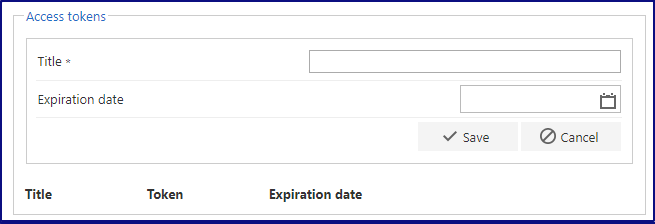 **Title:** Required. This is the title of the token, so you can remember why it was created.
**Expiration date:** Optional. If left blank, the token will not expire. If a date is entered, the Add/Update rule can add or update forms in the site until the token expires; after that point the rule will no longer be permitted to update forms.
Click **Save** to generate a token.
**Title:** Required. This is the title of the token, so you can remember why it was created.
**Expiration date:** Optional. If left blank, the token will not expire. If a date is entered, the Add/Update rule can add or update forms in the site until the token expires; after that point the rule will no longer be permitted to update forms.
Click **Save** to generate a token.
 The token value is hidden by default, but you can click the "eye" icon to toggle its visibility.
New buttons appear, allowing you to:
**Copy:** Copies the access token to the clipboard, for use with FlowForma rules such as Add/Update Form.
**Copy for integrations:** Copies a version of the access token that includes the site URL and is then encrypted, for use with external systems such as Logic Apps.
**Edit:** Rename the token's title and change its expiration.
**Remove:** Removes the token, disabling access for anything using it.
## SQL procedure connections
Setting up a SQL procedure connection lets you use the connection string in questions and rules such as the SQL [Lookup question](/product/creating-flows/questions/question-types/lookup-question) or Execute SQL Stored Procedure.
The token value is hidden by default, but you can click the "eye" icon to toggle its visibility.
New buttons appear, allowing you to:
**Copy:** Copies the access token to the clipboard, for use with FlowForma rules such as Add/Update Form.
**Copy for integrations:** Copies a version of the access token that includes the site URL and is then encrypted, for use with external systems such as Logic Apps.
**Edit:** Rename the token's title and change its expiration.
**Remove:** Removes the token, disabling access for anything using it.
## SQL procedure connections
Setting up a SQL procedure connection lets you use the connection string in questions and rules such as the SQL [Lookup question](/product/creating-flows/questions/question-types/lookup-question) or Execute SQL Stored Procedure.
 Click **+ New Connection** to create a SQL database connection.
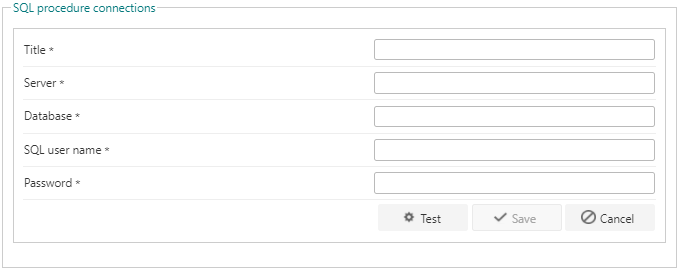 **Title:** Enter a title for the connection. This is used in questions and rules when you need to select a connection.
**Server:** The server where your database is hosted.
**Database:** The database you wish to access.
**SQL user name:** A SQL user that has permissions for the database.
**Password:** The password for the user entered above.
Click **Test** to test the connection.
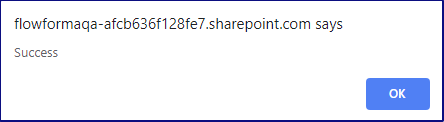
If all the details entered are correct, the following pop-up appears.
**Title:** Enter a title for the connection. This is used in questions and rules when you need to select a connection.
**Server:** The server where your database is hosted.
**Database:** The database you wish to access.
**SQL user name:** A SQL user that has permissions for the database.
**Password:** The password for the user entered above.
Click **Test** to test the connection.
If all the details entered are correct, the following pop-up appears.
 Click **Save** to save the connection.
## SMTP server
You can set up a custom SMTP server to send email instead of using FlowForma's default SMTP server.
Click **Save** to save the connection.
## SMTP server
You can set up a custom SMTP server to send email instead of using FlowForma's default SMTP server.
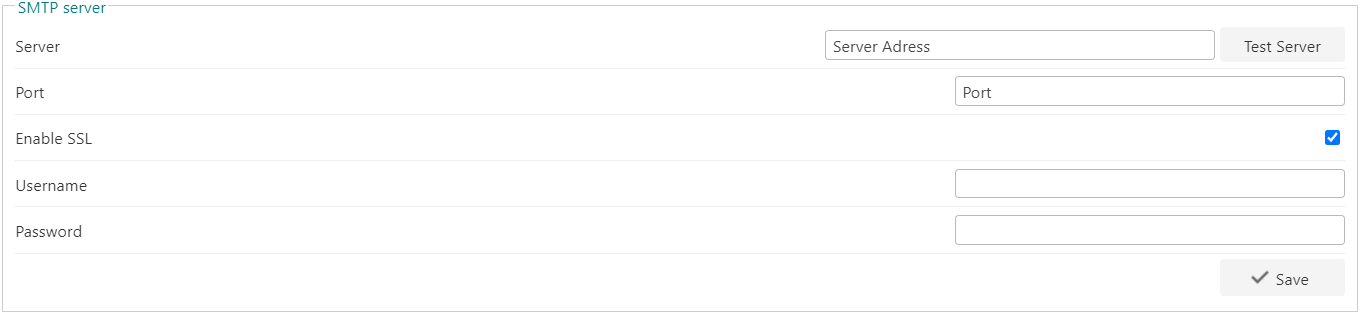 **Server:** Enter the server URL. You can use the **Test Server** button to check it can be reached.
**Port:** Enter the port you wish to use on the server.
**Enable SSL:** Check the box if you want to enable SSL.
**Username:** Enter the username of the account used in the connection.
**Password:** Enter the password of the account used in the connection.
Click **Save** to save the connection.
## EDM connections
To use the [Entity Data Management](/product/entity-data-management) feature, you need to create a database to store the entity data, then add a connection to that database here.
**Server:** Enter the server URL. You can use the **Test Server** button to check it can be reached.
**Port:** Enter the port you wish to use on the server.
**Enable SSL:** Check the box if you want to enable SSL.
**Username:** Enter the username of the account used in the connection.
**Password:** Enter the password of the account used in the connection.
Click **Save** to save the connection.
## EDM connections
To use the [Entity Data Management](/product/entity-data-management) feature, you need to create a database to store the entity data, then add a connection to that database here.
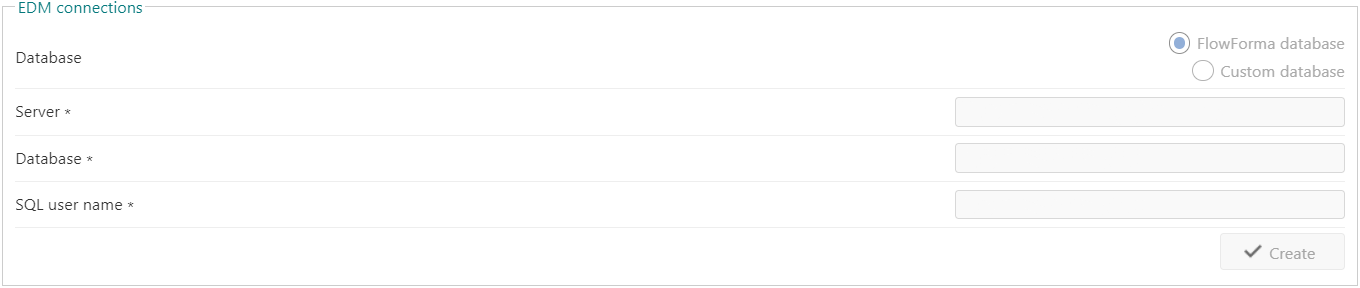 **Database:** Select whether to use a database hosted by FlowForma or a custom database (your own SQL database).
**Server:** Enter the URL for the server.
**Database:** Enter the name of the database you want to use.
**SQL user name:** Enter the SQL user name for the account you want to use.
## DocuSign connection
To use the [DocuSign](/product/docusign/overview) functionality, you need to create a connection to your DocuSign account.
**Database:** Select whether to use a database hosted by FlowForma or a custom database (your own SQL database).
**Server:** Enter the URL for the server.
**Database:** Enter the name of the database you want to use.
**SQL user name:** Enter the SQL user name for the account you want to use.
## DocuSign connection
To use the [DocuSign](/product/docusign/overview) functionality, you need to create a connection to your DocuSign account.
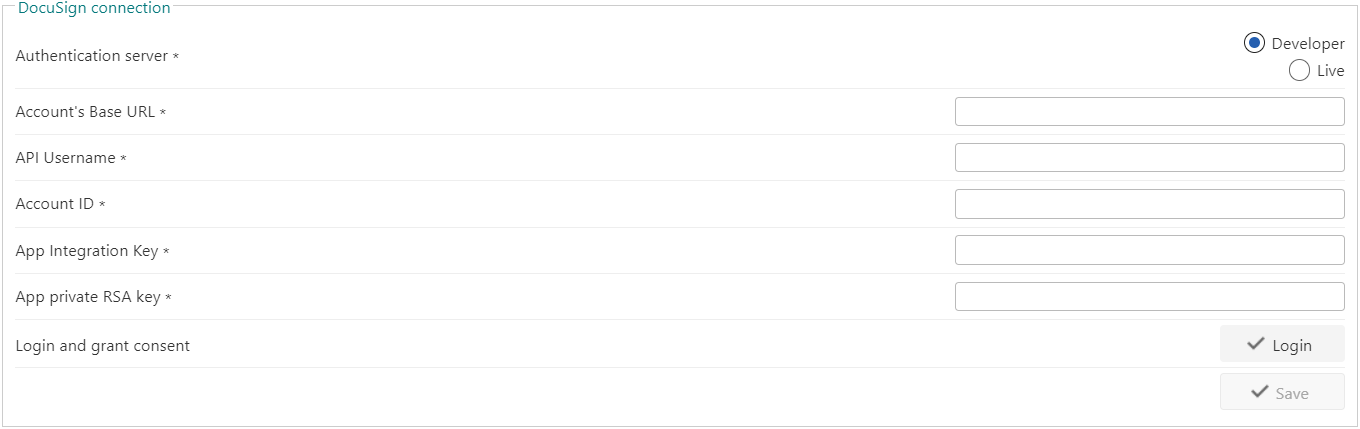 **Authentication server:** Select whether to use a developer account or a live account for the connection.
**Account's Base URL:** Enter the account's base URL.
**API Username:** Enter the API username for the account connection.
**Account ID:** Enter your account ID.
**App Integration Key:** Enter your app's integration key.
**App private RSA key:** Enter your app's private RSA key.
**Login and grant consent:** Log in using the details entered to confirm the connection and grant consent to use it.
Click **Save** to save the connection.
## Auth0
If you use Auth0 as an authentication service, you can use it to log in when using [FlowForma Engage](/product/flowforma-engage) configured for secure access.
**Authentication server:** Select whether to use a developer account or a live account for the connection.
**Account's Base URL:** Enter the account's base URL.
**API Username:** Enter the API username for the account connection.
**Account ID:** Enter your account ID.
**App Integration Key:** Enter your app's integration key.
**App private RSA key:** Enter your app's private RSA key.
**Login and grant consent:** Log in using the details entered to confirm the connection and grant consent to use it.
Click **Save** to save the connection.
## Auth0
If you use Auth0 as an authentication service, you can use it to log in when using [FlowForma Engage](/product/flowforma-engage) configured for secure access.
 **Auth0 domain:** Enter your Auth0 domain.
**Auth0 application client id:** You need to create an application in Auth0; once done, enter the client ID of the application here.
When configured, Auth0 appears as an option to authenticate with when using Securely Accessible Forms.
## 3rd party integrations
Some 3rd party integrations are available in FlowForma by request. To use one, such as Procore, you can add a 3rd party integration connection.
**Auth0 domain:** Enter your Auth0 domain.
**Auth0 application client id:** You need to create an application in Auth0; once done, enter the client ID of the application here.
When configured, Auth0 appears as an option to authenticate with when using Securely Accessible Forms.
## 3rd party integrations
Some 3rd party integrations are available in FlowForma by request. To use one, such as Procore, you can add a 3rd party integration connection.
 Click **Add** to display the following dialog.
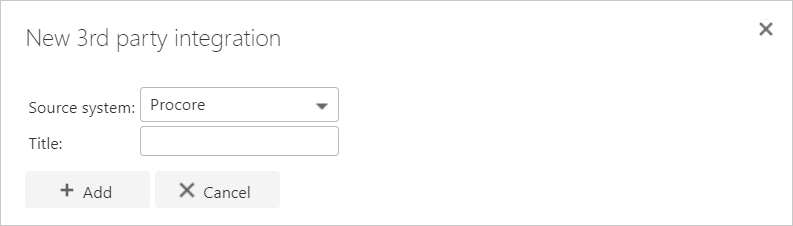 **Source system:** Select the source system from the available options in the dropdown.
**Title:** Enter a title for the connection. This is used only to distinguish between multiple connections.
**Source system:** Select the source system from the available options in the dropdown.
**Title:** Enter a title for the connection. This is used only to distinguish between multiple connections.