> ## Documentation Index
> Fetch the complete documentation index at: https://docs.flowforma.com/llms.txt
> Use this file to discover all available pages before exploring further.
# User Restrictions
> Add user restrictions in FlowForma Analytics to limit a user to specific data values on a chosen data object, applying an extra WHERE clause to charts.
Users can also have User Restrictions.
 This works like the variables tab: click the **Add** icon to create a new restriction. This time, you'll be presented with a pop-up list of the data connections the user has access to.
 Once you've selected a data connection, select the data object in it that you want to restrict on. In the following example, we're using the Job Role object from the HR Data Connection.
The next step is to add the restriction value. Click the magnifying glass at the end of the line for the restriction value to open a pop-up screen showing all values within the selected data object. You can select as many values as you want, then click **Apply** at the bottom of the screen to confirm the selection.
Once you've selected a data connection, select the data object in it that you want to restrict on. In the following example, we're using the Job Role object from the HR Data Connection.
The next step is to add the restriction value. Click the magnifying glass at the end of the line for the restriction value to open a pop-up screen showing all values within the selected data object. You can select as many values as you want, then click **Apply** at the bottom of the screen to confirm the selection.
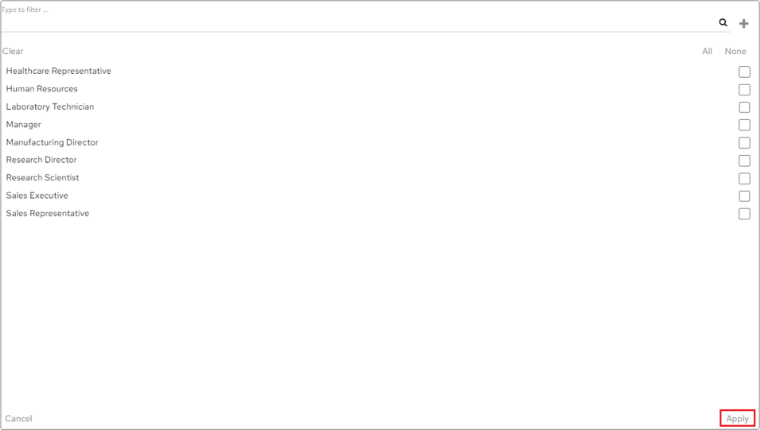 These restrictions will only apply to charts that contain the data object of HR.Job Role or any data objects that contain a WHERE clause that links to the selected object.
Effectively what this means is that for all charts in the HR Data Connection an extra line of SQL will be added if the Job Role is, in this example, Healthcare Representative.
These restrictions will only apply to charts that contain the data object of HR.Job Role or any data objects that contain a WHERE clause that links to the selected object.
Effectively what this means is that for all charts in the HR Data Connection an extra line of SQL will be added if the Job Role is, in this example, Healthcare Representative.
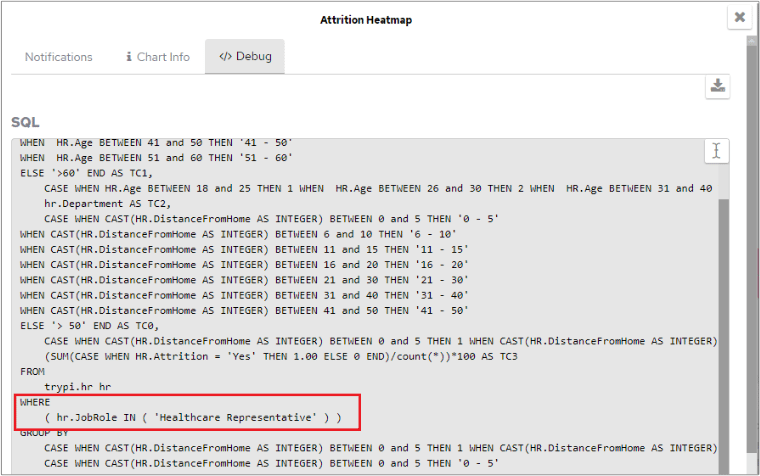 For other users, this SQL line will either be:
* Replaced with their name if they also have a User Restriction configured
* Removed completely, showing data for all Job Roles, if they don't have any User Restriction on this object
For other users, this SQL line will either be:
* Replaced with their name if they also have a User Restriction configured
* Removed completely, showing data for all Job Roles, if they don't have any User Restriction on this object